MCP server (AI agents)
Connect your own AI agent to Jutsu through the Jutsu MCP server. Claude, Claude Code, Cursor, VS Code and other agents that speak the Model Context Protocol can then read your organization's risks with their fix steps, alerts, incidents, events, assets and compliance status, and answer questions about them.
If you allow it, the agent can also act on Jutsu. It can re-check a risk after fixing it, move a risk or an alert along, and comment on an incident. That makes a loop like this possible:
- Jutsu finds that an S3 bucket is public.
- You ask your agent to fix it. It reads the risk with
get_risk, including the exactaws s3control put-public-access-block …command from the fix steps. - The agent runs the command with its own AWS access, after you confirm.
- It calls
recheck_risk. Jutsu runs the check again and closes the risk once it passes.
Jutsu never sees or stores the agent's cloud credentials. The agent signs in to Jutsu with OAuth, so there's no key to create, copy or rotate.
| Time | About 2 minutes |
|---|---|
| You need | A Jutsu organization where you're an Owner, Admin, Responder, Analyst or Viewer, and an AI agent that supports remote MCP servers |
| Plan | Every plan |
| Server URL | https://api.jutsu.ai/mcp |
Each person connects their own agent, and the agent works as that person. It sees what they see and can never do more than their role allows. Employee and auditor accounts can't connect an agent.
Step 1 - Open AI agents
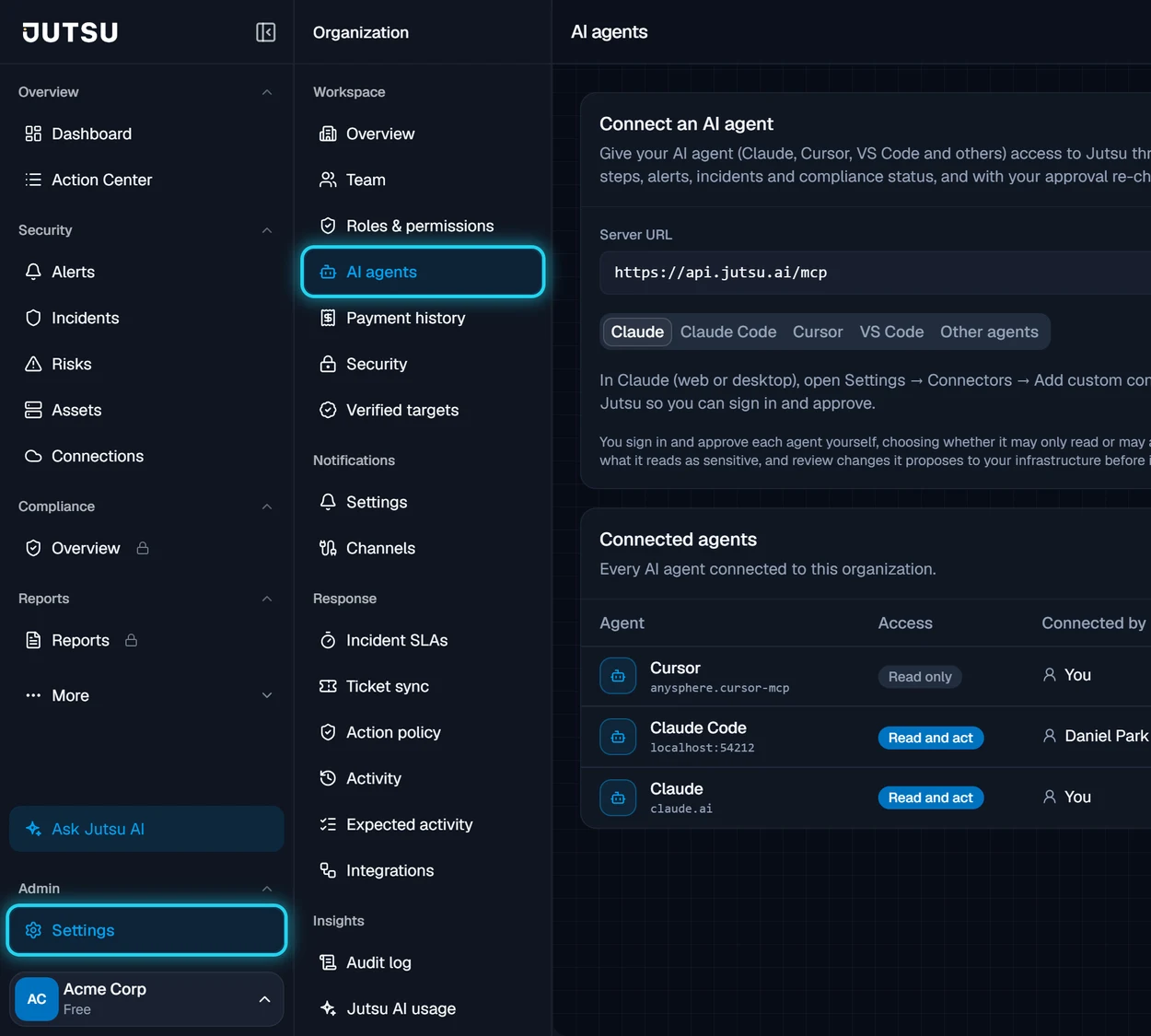
Go to app.jutsu.ai and select Settings under Admin at the bottom of the left navigation. In the Organization menu, select AI agents.
Step 2 - Copy the server URL
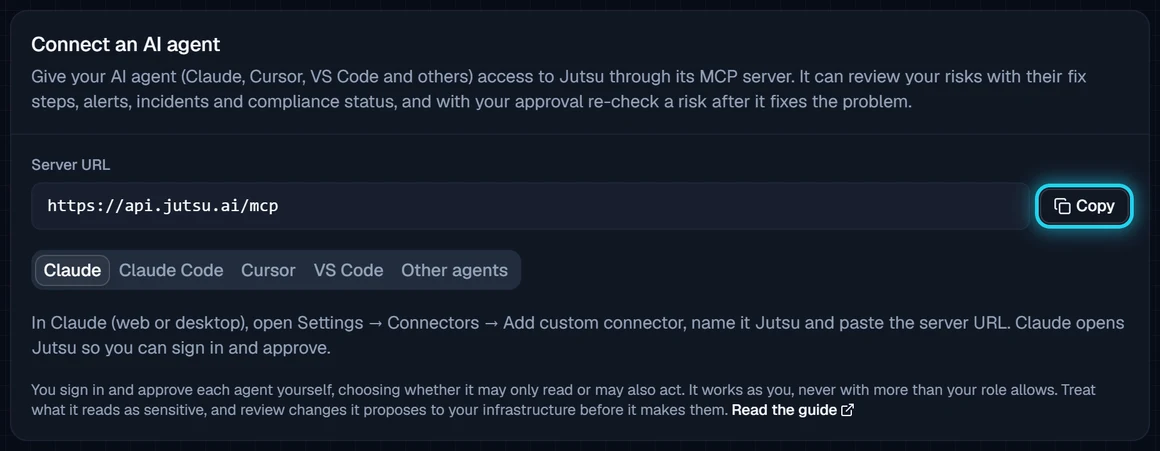
Under Connect an AI agent, select Copy next to the server URL. It's the only setting your agent needs.
Step 3 - Add Jutsu to your agent
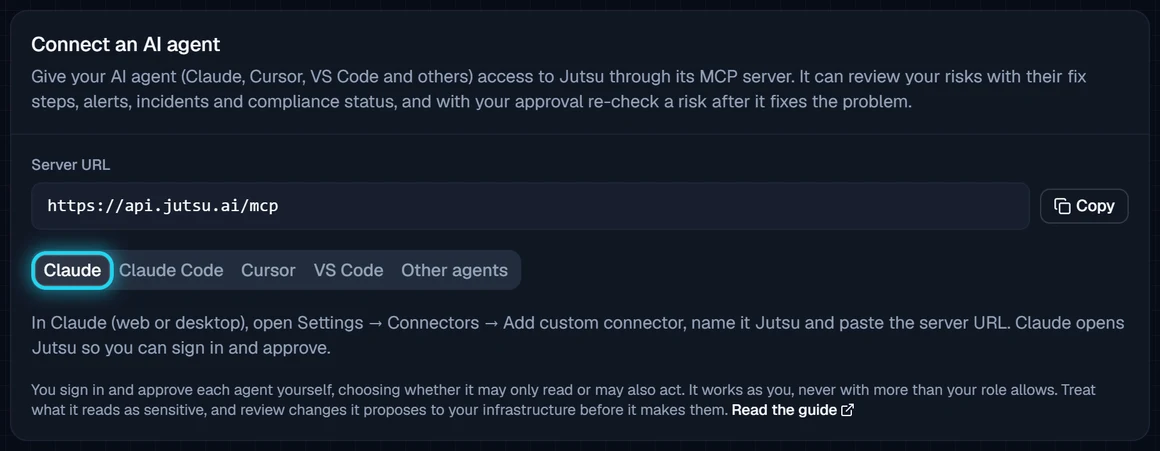
The tabs on the same card show the steps for each agent. Pick yours below.
Claude
In Claude on the web or the desktop app, open Settings, then Connectors, and select Add custom connector. Name it Jutsu, paste the server URL, and select Add. Claude then opens Jutsu in your browser so you can approve it (Step 4).
Claude Code
Run this in a terminal:
claude mcp add --transport http jutsu https://api.jutsu.ai/mcp
Then start Claude Code and type /mcp. Jutsu is listed as jutsu, with needs authentication. Choose it and select Authenticate. Claude Code opens your browser at Step 4.
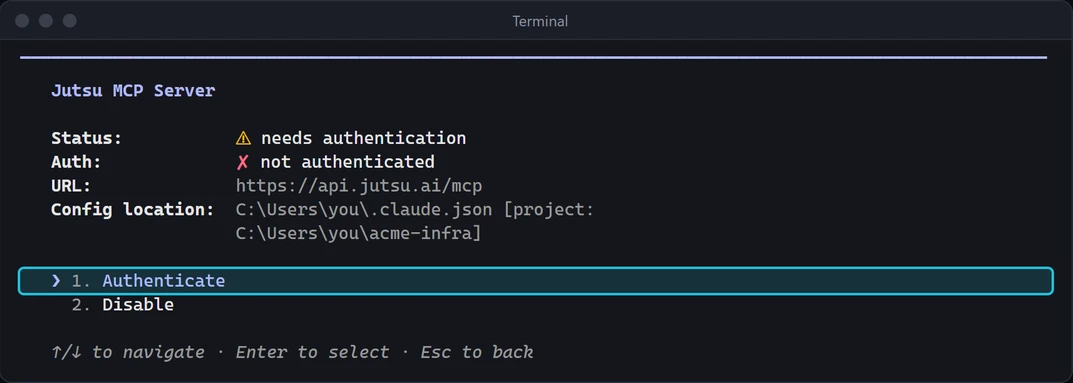
After you approve, Claude Code shows Authentication successful. Connected to jutsu. Type /mcp again to see its tools.
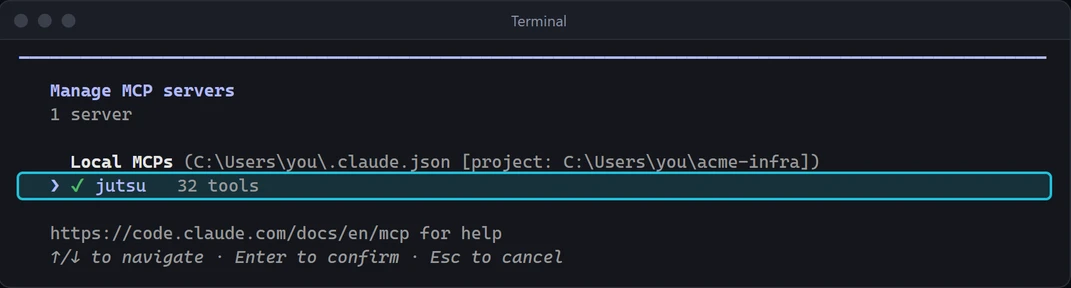
Signing in from a terminal without the Claude Code screen? claude mcp login jutsu starts the same sign-in.
Cursor
Add Jutsu to ~/.cursor/mcp.json, or to .cursor/mcp.json inside one project:
{
  "mcpServers": {
    "jutsu": {
      "url": "https://api.jutsu.ai/mcp"
    }
  }
}
In Cursor, open Customize and select MCPs, then select jutsu:
- If the switch next to its file is off, turn it on. Cursor adds a server from a project's
.cursor/mcp.jsonswitched off. - Under Environments, select Authenticate. Cursor opens your browser at Step 4.
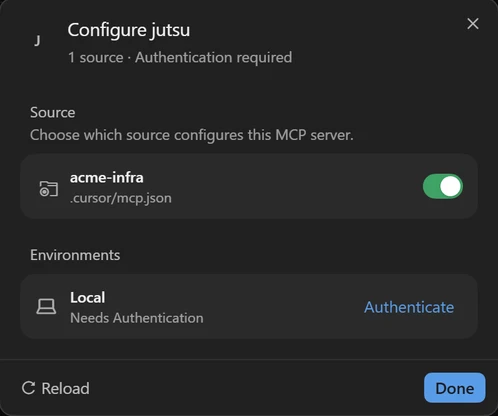
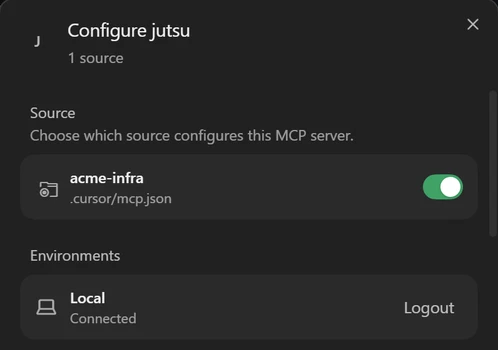
After you approve, your browser passes through cursor.com, which hands the sign-in back to Cursor. The entry then shows Connected, and the MCPs list shows Jutsu's tools as enabled.
VS Code
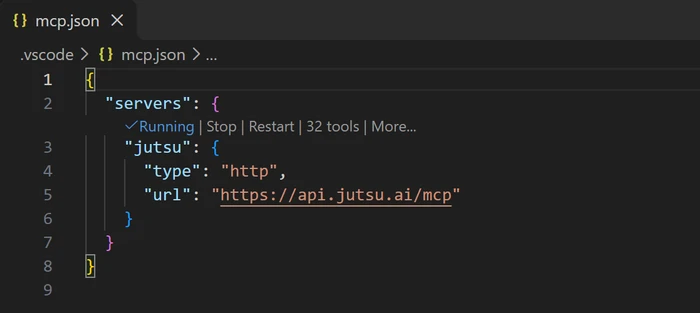
Add Jutsu to .vscode/mcp.json in your workspace:
{
  "servers": {
    "jutsu": {
      "type": "http",
      "url": "https://api.jutsu.ai/mcp"
    }
  }
}
Select Start above the entry.
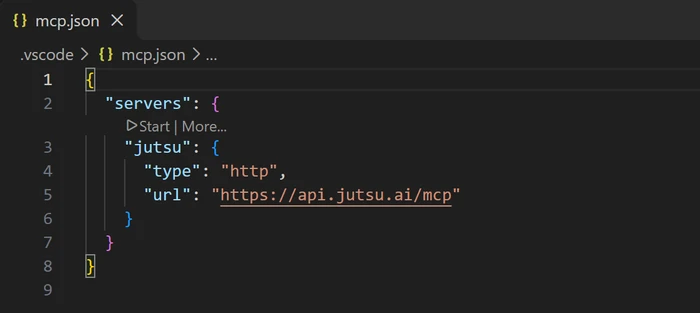
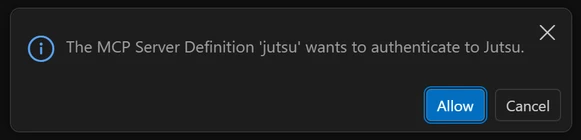
VS Code asks whether the server may sign in to Jutsu. Select Allow. It then asks whether to open the external website; select Open, and your browser opens at Step 4.
After you approve, the entry shows Running and the number of tools. Jutsu's tools are then available to Copilot in agent mode.
Other agents
Any agent that supports remote MCP servers over Streamable HTTP with OAuth works the same way. Give it the server URL. On its first request Jutsu answers that it needs a sign-in and tells the agent where to find it, and the agent takes it from there.
Asked for an API key or a token? Jutsu doesn't use them for agents. If your agent only accepts a fixed key, it can't connect to Jutsu. Organization API keys were retired; see Jutsu API.
Step 4 - Approve the agent
Your browser opens Connect an AI agent on app.jutsu.ai. If you aren't signed in, sign in first; Jutsu brings you back here afterwards.
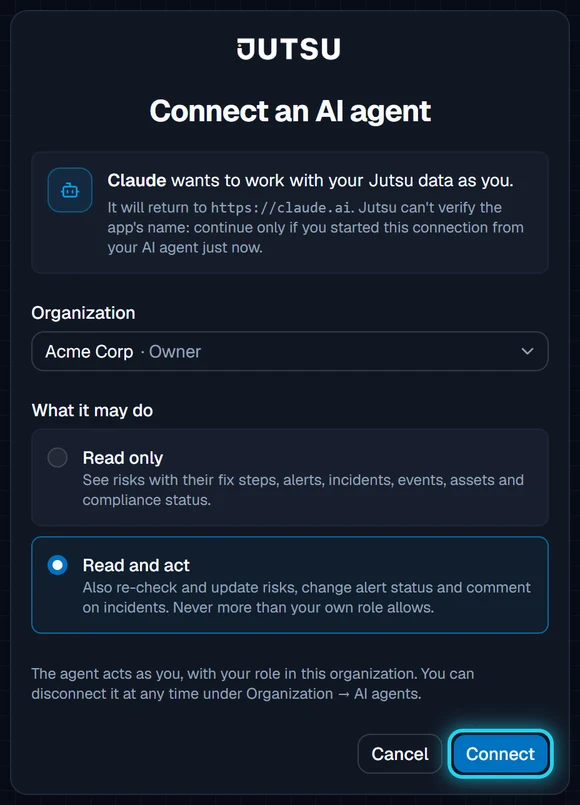
- Check the app's name and the address it returns to. Jutsu can't verify the name an app gives itself, so only continue if you started this connection from your agent just now. For example, Claude Code shows as Claude Code (jutsu) and returns to
http://localhost, VS Code shows as Visual Studio Code and returns tohttp://127.0.0.1:33418, and Cursor returns tohttps://www.cursor.com. - Under Organization, choose the organization the agent works in. One connection covers one organization; connect again to add another.
- Under What it may do, choose:
- Read only: the agent reads risks with their fix steps, alerts, incidents, events, assets and compliance status.
- Read and act: it can also re-check and update risks, change an alert's status and comment on incidents.
- Select Connect.
Start with Read only unless you want the agent to change things in Jutsu. You can connect it again later with more access.
Organization requires two-factor authentication? The agent is held to the same rule. It counts as signed in the way you were when you approved it, so approve it from a session where you used your second factor.
Step 5 - Return to your agent
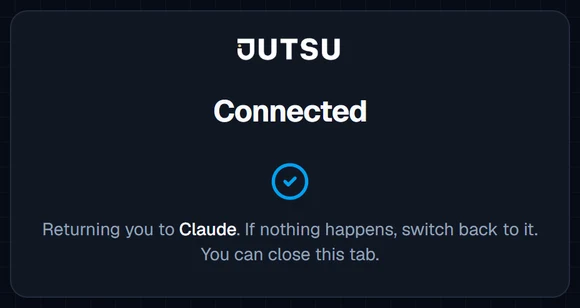
Jutsu shows Connected and sends your browser back to the agent. If the agent doesn't come to the front, switch to it yourself. You can close the tab.
Verify the connection
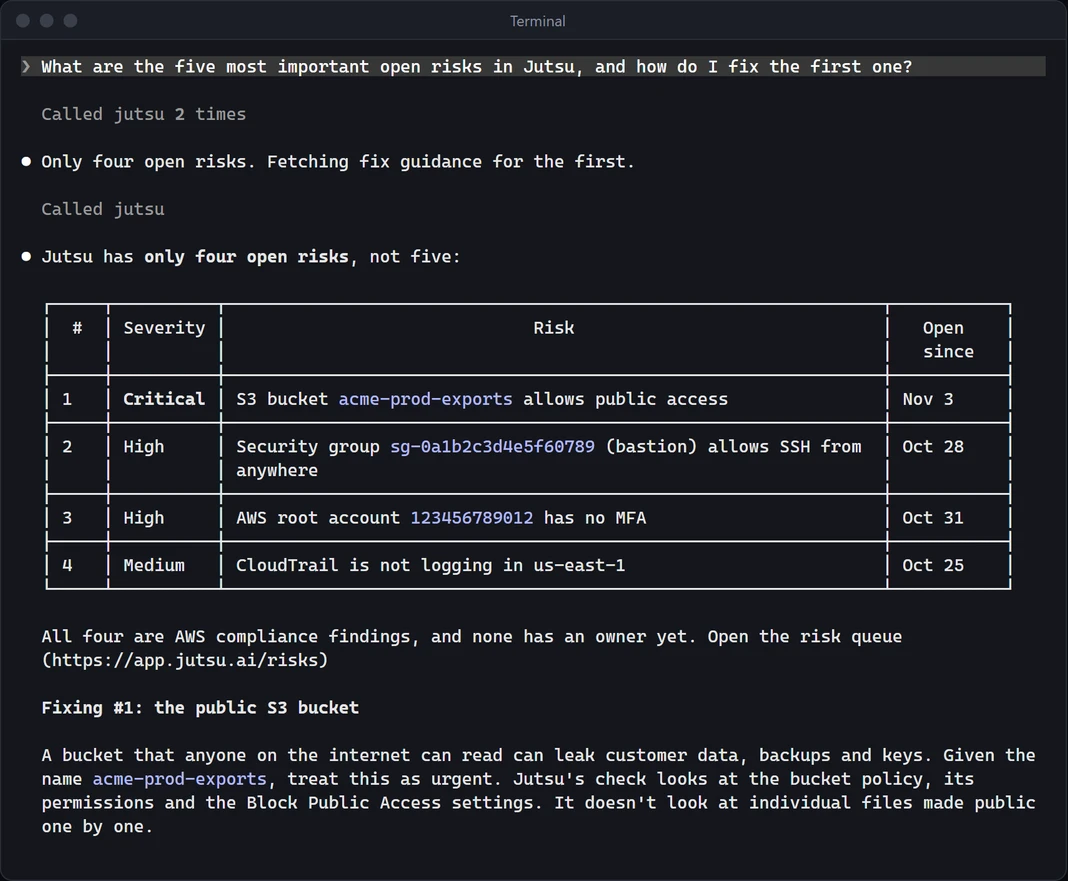
Ask your agent something only Jutsu can answer, such as:
What are the five most important open risks in Jutsu, and how do I fix the first one?
The agent should call list_risks and then get_risk. Most agents show each tool call and ask before the first one runs.
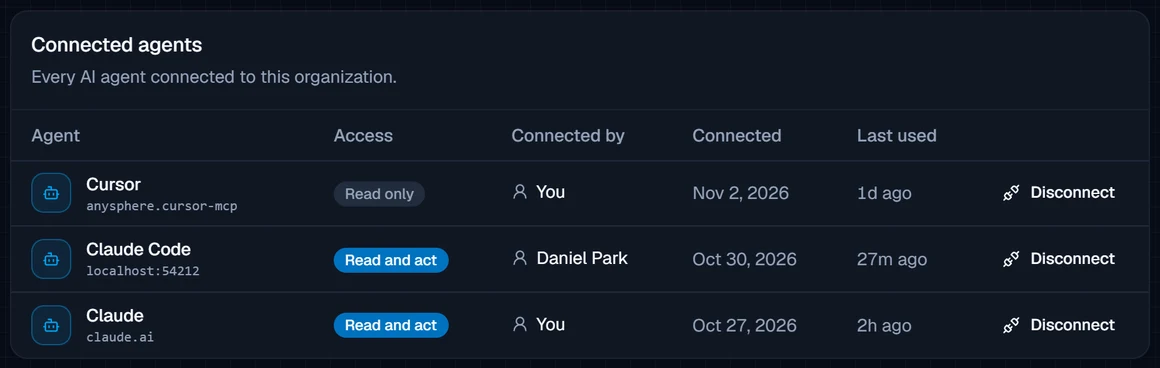
In Jutsu, the agent now appears under Connected agents on the AI agents page, with its access level and when it was last used.
What your agent can do
The agent only sees tools it can use. A Read only connection lists no tools that change anything, and a Viewer's agent gets no write tools even with Read and act, because Viewers can't make those changes themselves.
Read tools
| Tool | What it returns |
|---|---|
get_security_overview | The organization's security posture in totals |
get_security_trends | Event volume over time, and alerts and incidents by severity |
get_threat_geography | The countries, IP addresses and networks your traffic and threats come from |
get_pipeline_health | Whether logs are flowing, which sources went quiet, and delayed detections |
list_recent_changes | The newest activity in a time window |
list_risks | The risk queue, worst first, with owner, connection and counts by state and severity |
get_risk | One risk with its fix steps (often the exact command), re-check status and history |
list_alerts, summarize_alerts, get_alert | Alerts, counts by any field, and one alert with its enrichment, the affected machines and fix steps |
list_incidents, summarize_incidents, get_incident | Incidents, counts, and one incident in full |
search_events, summarize_events, get_event | Raw events, histograms and counts, and one event's original payload |
list_assets, summarize_assets, get_asset | Your inventory, and one asset with its activity and code-security findings |
list_integrations | Connected data sources and their health |
list_detection_rules, get_detection_rule | Detection rules and what each one detects |
list_response_actions | Response actions that were proposed, approved or run |
get_compliance_overview, get_compliance_framework, list_compliance_tasks, list_compliance_policies, list_compliance_risks | Compliance readiness, controls, open tasks, policy status and the risk register |
The compliance tools appear when your role can read compliance and your organization hasn't turned off AI for compliance data. The same rule decides whether compliance risks show up in list_risks and get_risk.
Action tools (Read and act)
| Tool | What it does | Your role needs |
|---|---|---|
recheck_risk | Runs the check behind a risk again, usually right after a fix. Works for compliance and cloud-configuration risks and for WebSocket findings, at most once every 10 minutes per risk. The risk resolves on its own when the check passes | Analyst or higher |
update_risk | acknowledge (someone is on it), mark_fixed (hidden for 24 hours while the next check confirms the fix; it reopens if the problem is still there), or reopen | Analyst or higher |
update_alert_status | Sets an alert to investigating, escalated, resolved or closed (a false positive). A reason is required and shows in the alert's history | Analyst or higher |
comment_on_incident | Adds a comment to an incident's timeline, or an internal note that isn't sent to a linked ticket | Analyst or higher |
What an agent can never do
Some decisions stay with people in the console, whatever the agent's access and your role. An agent can't:
- accept a risk as "not an issue",
- approve or run a response action,
- invite, remove or change members,
- change detection rules, integrations, billing or organization settings,
- read the audit log, the member directory or your account settings.
Example: fix a risk end to end
With Read and act, and an agent that also has access to your cloud (for example the AWS CLI in Claude Code), a session can look like this:
Find the highest-severity open risk in Jutsu. Show me what's wrong and the fix, and wait for my go-ahead before changing anything.
The agent calls list_risks and get_risk, explains the finding and shows the command from the fix steps. After you approve, it runs the command in your terminal. Then:
Done. Ask Jutsu to check it again.
The agent calls recheck_risk. A minute or two later, get_risk shows the risk resolved, and it leaves the queue.
A few more things to ask:
- "Summarize this week's high and critical alerts and group them by source."
- "Which connections stopped sending logs in the last day?"
- "Walk me through the latest critical incident: what happened, in order?"
- "Close the alerts for the CI runner logging in from GitHub Actions as false positives, with that as the reason."
- "What's left before we're ready for SOC 2?"
Manage connected agents
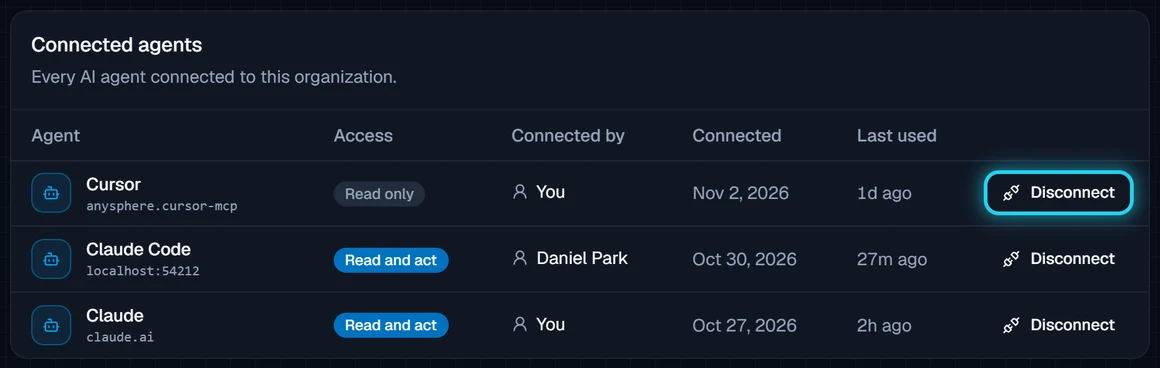
Organization → AI agents lists every agent connected to the organization. Everyone sees their own; Owners and Admins see everyone's, with who connected each one.
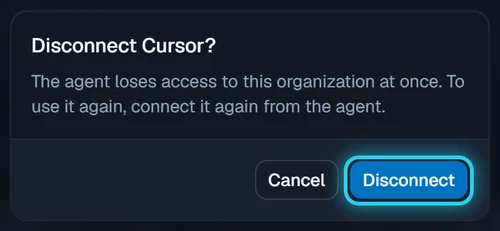
To remove one, select Disconnect on its row and confirm. The agent loses access at once, everywhere. To use it again, connect it again from the agent.
Owners and Admins can disconnect anyone's agent. Agents also stop on their own:
- When the person leaves. Removing or deactivating a member cuts off their agents within 30 seconds, and the agents disappear from the list.
- When they go unused. A connection that isn't used for 30 days expires. Connect it again to keep going.
- When their role changes. The agent always works with the person's current role, so a promotion or demotion applies to it within 30 seconds too.
Security
The agent is you. It works with your role in one organization and nothing more. A Jutsu super admin's agent gets no platform access either. The changes it makes are recorded in the Audit log under your email, with the role ai_agent: followed by the agent's name, such as ai_agent:Claude. Connecting and disconnecting are recorded as agent.connect and agent.disconnect.
Treat what it reads as untrusted. Jutsu's data comes from logs and connected systems, and an attacker can write text into a log line, a file name or an alert field. A prompt hidden there might try to talk your agent into doing something. Jutsu labels everything the agent reads as untrusted data and tells agents never to follow instructions found in it. The agent is still software you run, so:
- Prefer Read only unless the agent needs to act.
- Give the agent the narrowest cloud access the task needs, not your administrator credentials.
- Keep your agent asking before it runs commands, and read what it proposes.
Where the data goes. What your agent reads from Jutsu is sent to that agent and its AI provider, under your own agreement with them.
Sign-in. Jutsu uses OAuth 2.1 with PKCE. The agent never sees your password, and Jutsu never sees the agent's other credentials. Access tokens last an hour and the agent refreshes them on its own. Refresh tokens can be used once, so if a stolen one is replayed, Jutsu revokes the whole connection.
Troubleshooting
The agent says Jutsu needs to be reconnected or authorized. The connection was disconnected, expired after 30 days without use, or its person left the organization. Connect it again from the agent.
No organizations to choose from on the approval screen. You can only connect an agent to an organization where you're a member with a team role (Owner to Viewer). The Demo Sandbox, and employee or auditor accounts, can't connect.
A tool answers "Not allowed". Your role doesn't permit it, or the connection is Read only. For example, Viewers can't update risks. Connect again with Read and act, or ask an Admin about your role.
recheck_risk answers "Too soon". A risk can be re-checked once every 10 minutes. Wait, or use update_risk with mark_fixed and let the next scheduled check confirm it.
recheck_risk answers that the risk isn't recheckable. Only compliance and cloud-configuration risks and WebSocket findings run on demand. For other risks use mark_fixed.
The compliance tools are missing. Your role can't read compliance, or your organization has turned off AI for compliance data.
A search times out. Each request has 30 seconds. Ask for a shorter time range or fewer results.
For developers
The server follows the MCP authorization specification.
| MCP endpoint | POST https://api.jutsu.ai/mcp, Streamable HTTP, stateless. Every response is JSON; there is no SSE stream and no Mcp-Session-Id, and GET answers 405 |
| Discovery | A request without a token answers 401 with WWW-Authenticate: Bearer resource_metadata="https://api.jutsu.ai/.well-known/oauth-protected-resource/mcp". The authorization server metadata is at https://api.jutsu.ai/.well-known/oauth-authorization-server |
| Registration | Dynamic client registration (RFC 7591) at /oauth/register. Public clients with token_endpoint_auth_method: "none" are the norm; client_secret_post and client_secret_basic also work |
| Redirect URIs | https, http on localhost, 127.0.0.1 or [::1] (any port), or a private-use scheme (myapp://…) |
| Flow | Authorization code with PKCE (S256 only). /oauth/authorize sends the browser to the approval screen on app.jutsu.ai. Pass resource=https://api.jutsu.ai/mcp (RFC 8707) |
| Scopes | jutsu:read, and jutsu:act for the action tools. The person chooses on the approval screen, whatever the client asked for |
| Tokens | Access tokens (jmcp_…) last an hour. Refresh tokens (jmcr_…) last 30 days, rotate on every refresh and can be used once. Revoke with /oauth/revoke (RFC 7009) |
| Limits | 240 MCP requests per minute per connection, and 10 registrations and 60 token requests per minute per address. Over a limit is 429 with Retry-After |
To try it by hand, run the MCP Inspector, choose Streamable HTTP, enter the server URL and connect. It goes through the same sign-in and approval:
npx @modelcontextprotocol/inspector