Supabase
Connect a Supabase organization to Jutsu. Jutsu pulls the Auth log and the Postgres log of every project in the organization, plus a change feed of the organization itself: members, MFA, projects, API keys, SSL enforcement, network restrictions, and Auth settings. It detects threats in those events automatically. Nothing gets installed in your projects or databases.
| Time | About 5 minutes |
|---|---|
| You need | The Owner or Administrator role in the Supabase organization, and the Owner or Admin role in your Jutsu organization |
| Collected by default | The organization change feed (supabase.platform), the Auth log (supabase.auth), and the Postgres log (supabase.postgres). One more source can be switched on later |
Supabase connects with an access token. You create a read-only token in Supabase that covers one organization, paste it into Jutsu, and pick that organization. One connection covers every project in the organization, including projects created later.
Step 1 - Open Integrations
Go to app.jutsu.ai and select Integrations in the left navigation. It sits under More. The Data Sources tab opens by default.
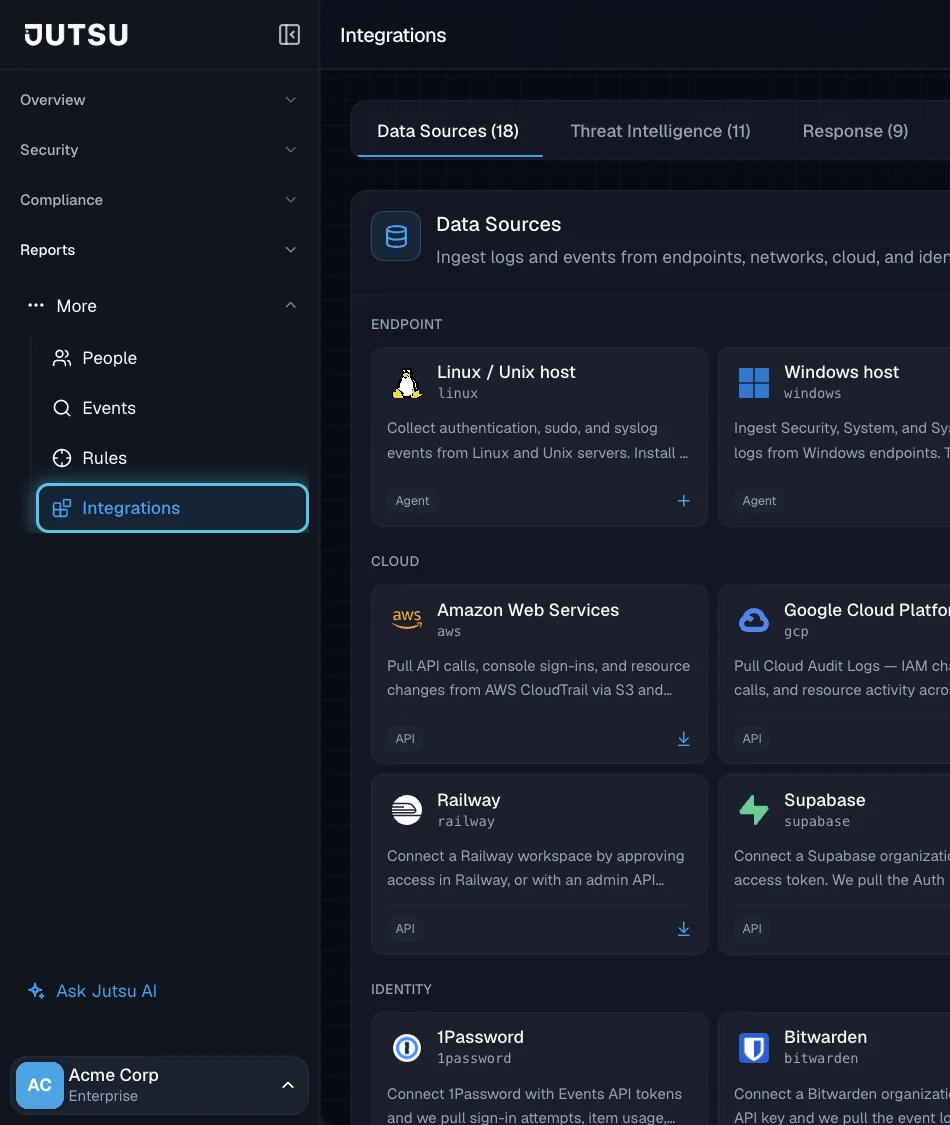
Step 2 - Select the Supabase card
Scroll to the Cloud section and select the Supabase card. The Connect Supabase dialog opens.
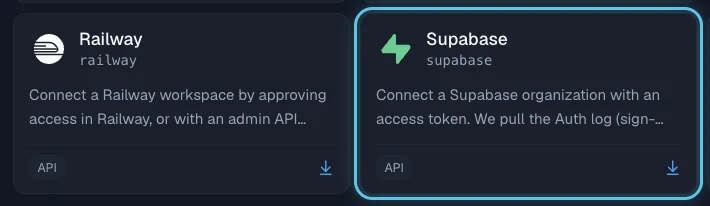
The card doesn't open? Adding integrations needs the Owner or Admin role in your Jutsu organization. For Analysts, Responders, and Viewers the catalog is read-only.
Step 3 - Review the setup steps
The first step of the dialog, Create token, lists what to do in Supabase. Keep the dialog open and open Supabase in a new tab. You'll come back and select Continue once you have the token.
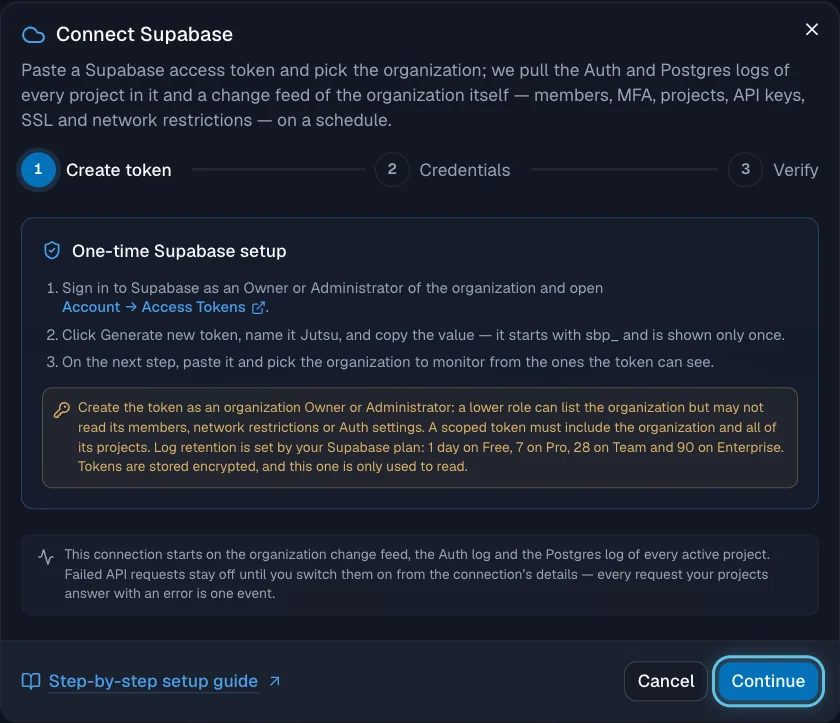
Step 4 - Open Access Tokens in Supabase
Sign in to Supabase as an Owner or Administrator of the organization you want to monitor, then open Account → Access Tokens. Select Generate new token.
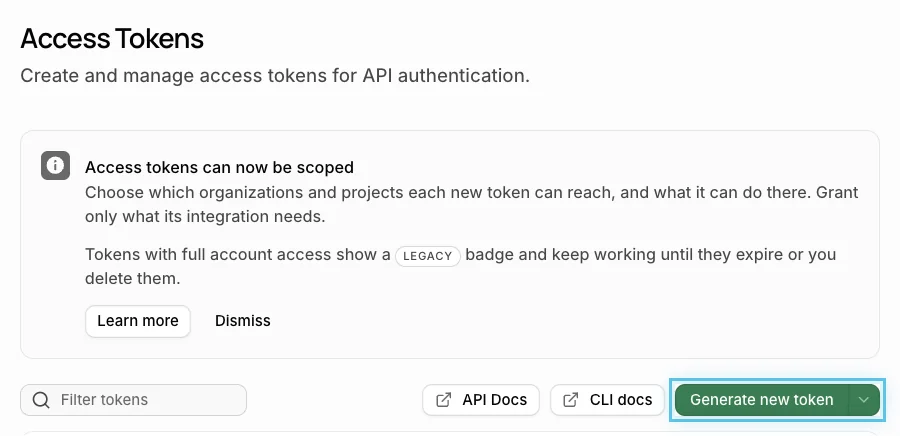
Why Owner or Administrator? A token's permissions follow your role in the organization. A lower role can list the organization but may not be able to read its members, network restrictions, or Auth settings, so parts of the change feed would come back empty.
Step 5 - Name the token and give it the organization
The Generate token panel opens. Fill in the top half:
- Name: something recognisable, such as Jutsu.
- Expires in: choose an expiry that fits your rotation policy. The figure uses 90 days.
- Resource access: choose Organization, then pick the organization to monitor from the list below it.
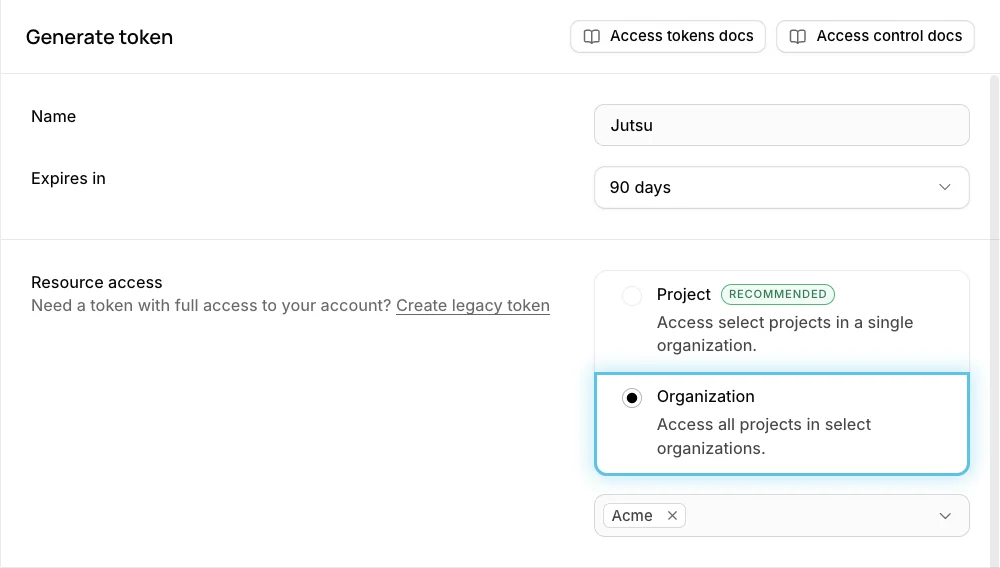
Choose Organization, not Project: Supabase recommends Project, which reaches only the projects you tick. Jutsu reads the organization itself (its members and its project list) as well as every project in it, so it needs a token with Organization access. That also covers projects created later.
Mind the expiry: Supabase suggests 7 days. When the token expires, Jutsu stops collecting and you have to connect again with a new token, so a short expiry means reconnecting every week. Set a reminder before the date you choose.
Step 6 - Set the permissions to Read-only
Scroll down to Permissions. Open the preset menu and choose Read-only. Every category switches to read access, and each one shows how many permissions it configured.
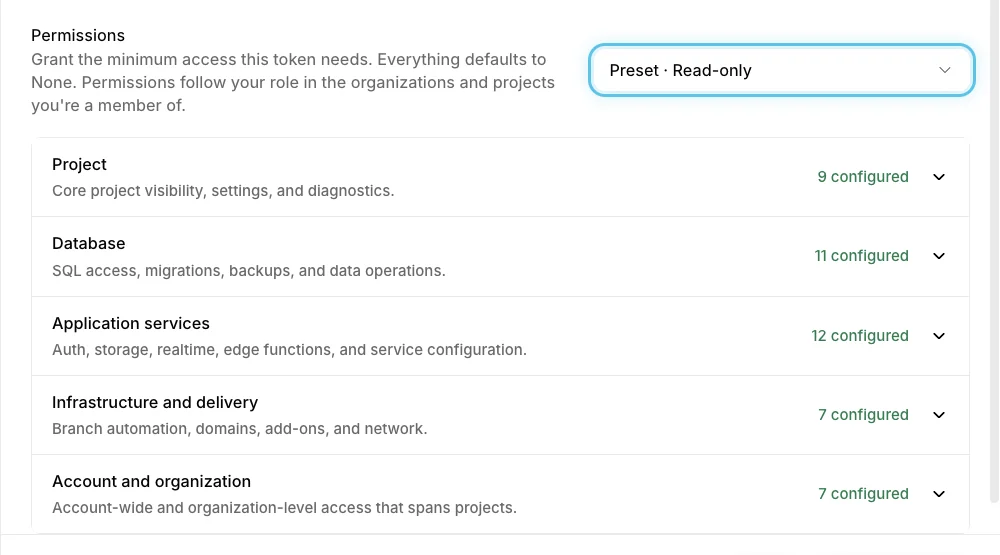
Read-only is enough for everything this connection does. Don't choose Full access: it adds write access to your databases, API keys, and organization members, which Jutsu doesn't use.
Step 7 - Review the access and create the token
Select Review access. Supabase summarises the token: its name, its expiry, the organization it reaches, and every capability it grants, each marked READ. Check that Resource access shows only your organization, then select Create token.
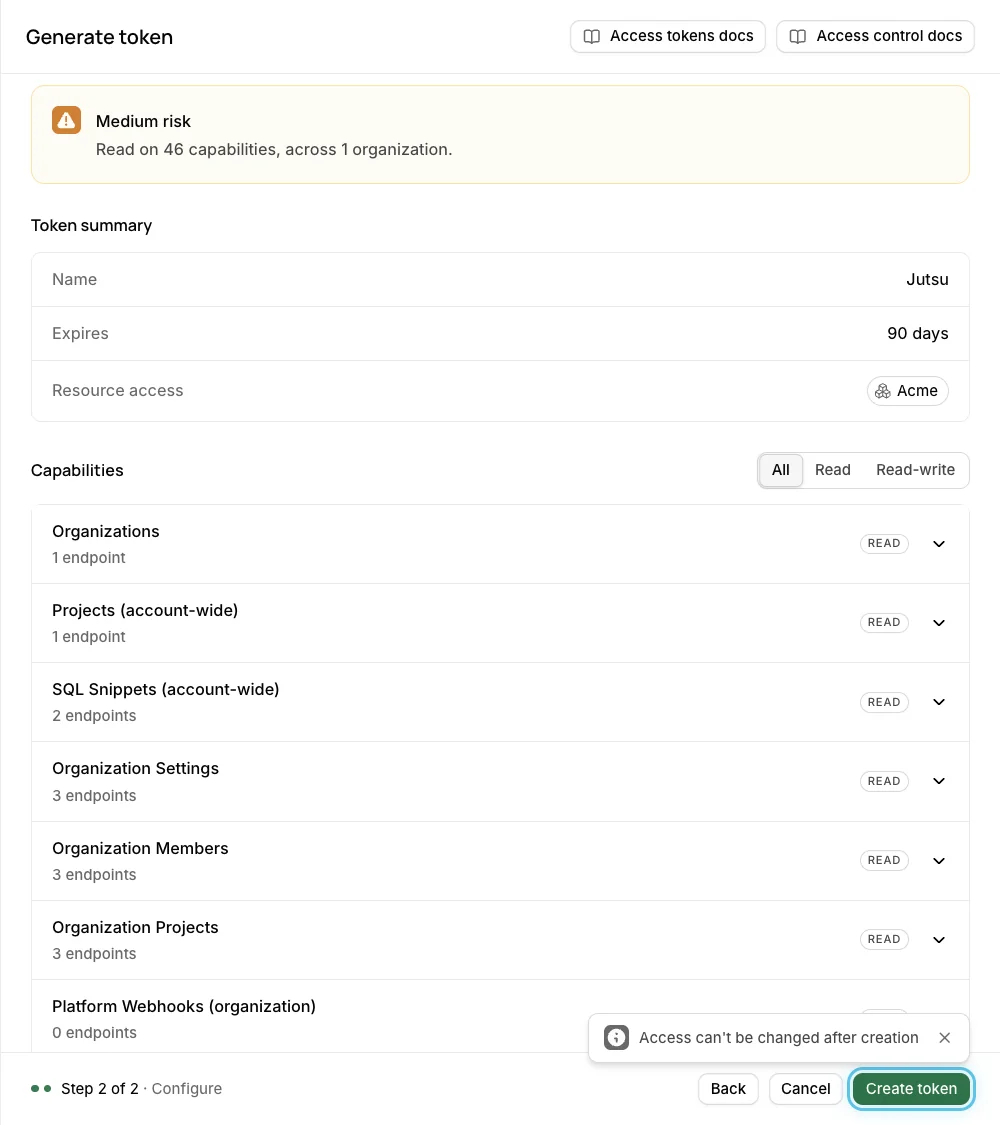
Access can't be changed later: Supabase fixes a token's access when it's created. To change the organization or the permissions afterwards, create a new token.
Step 8 - Copy the token
Supabase shows the token only once. It starts with sbp_. Select Copy, tick I have copied the key and stored it securely, and select Done.
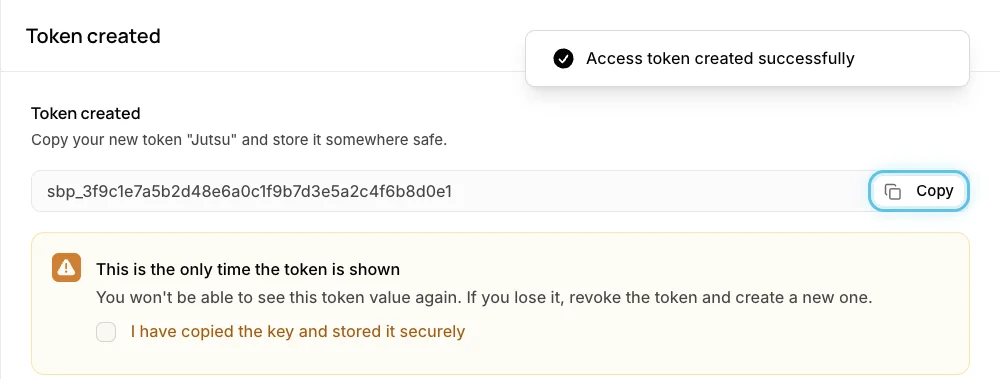
Warning: Use an account access token from this page. A project's API keys, such as anon, service_role, sb_publishable_…, or sb_secret_…, authenticate that project's own APIs, not the Supabase Management API, so Jutsu can't read anything with them. If you paste an sb_ key, Jutsu says so straight away.
Step 9 - Paste the token and connect
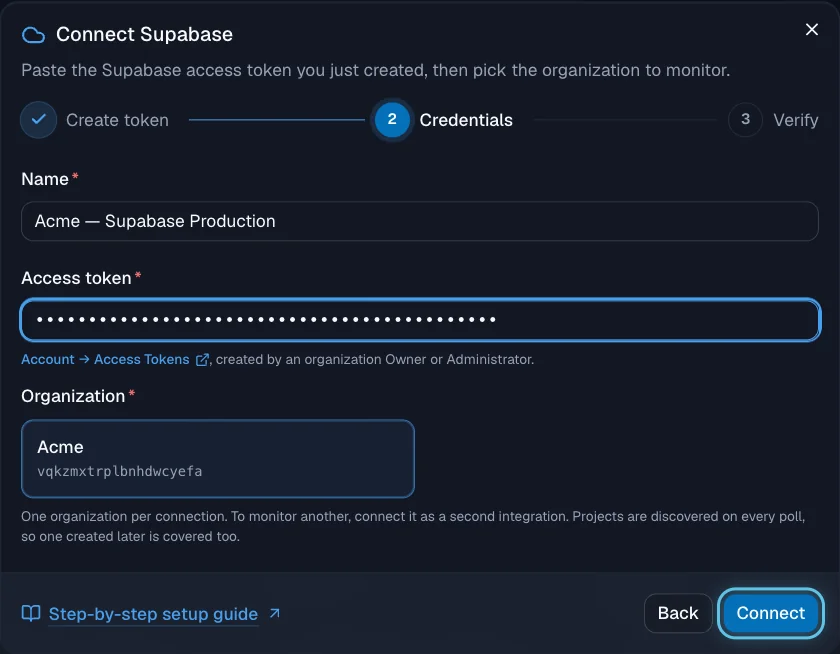
Back in Jutsu, select Continue to open the Credentials step, then fill it in:
- Name: something that identifies the organization, such as Acme — Supabase Production.
- Access token: the token from Step 8. As soon as you paste it, Jutsu lists the organizations the token can see, each with its slug.
- Organization: select the one to monitor. A token scoped to one organization lists only that one.
Select Connect.
No organizations listed? The token can see no Supabase organization. Check that it was created with Organization access to the organization you want to monitor, by a member of that organization.
What happens next: Jutsu checks the token against the organization as part of the connect. A failed check doesn't block the connection. It's created anyway and shows the error on its page, because problems like a rate limit clear on their own. If the token itself was wrong, archive the connection and connect again with the right one. The token is encrypted at rest, and only its last four characters are ever shown again.
Each connection monitors one organization. To monitor another, add it as a second connection with its own token. You can't connect the same Supabase organization twice. Jutsu points you to the existing connection instead.
Step 10 - Find it in Connections
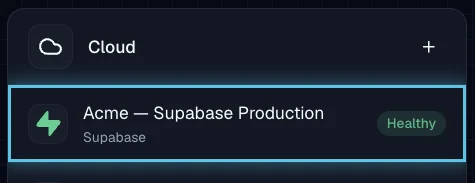
Jutsu takes you to Connections. Your organization appears under Cloud. It shows Needs setup · Warming up until the first poll finishes, then changes to Healthy.
Verify the connection
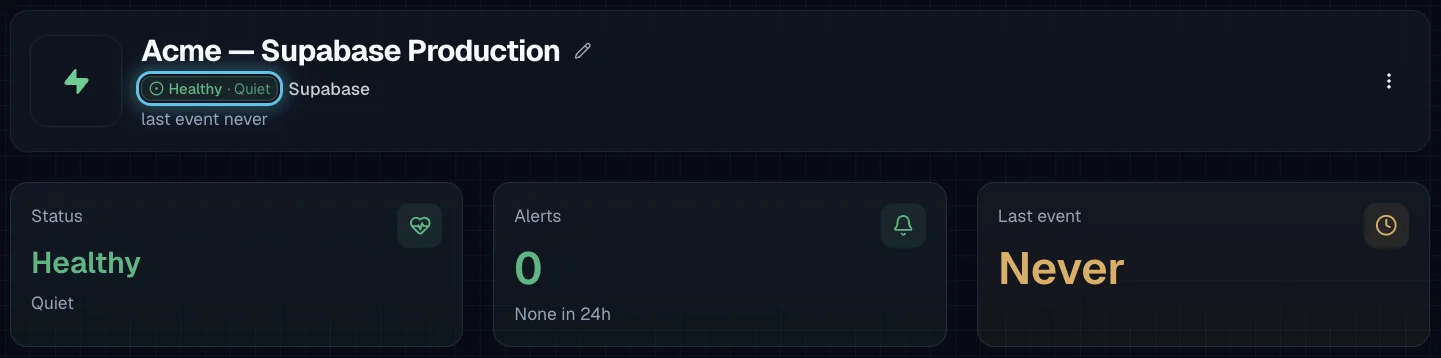
Open the connection. The top of its page shows the status, the alerts it raised in the last 24 hours, and when the last event arrived.
Then go to Configure → Settings and select Test connection. Credentials ok means Jutsu can read the organization and its members.
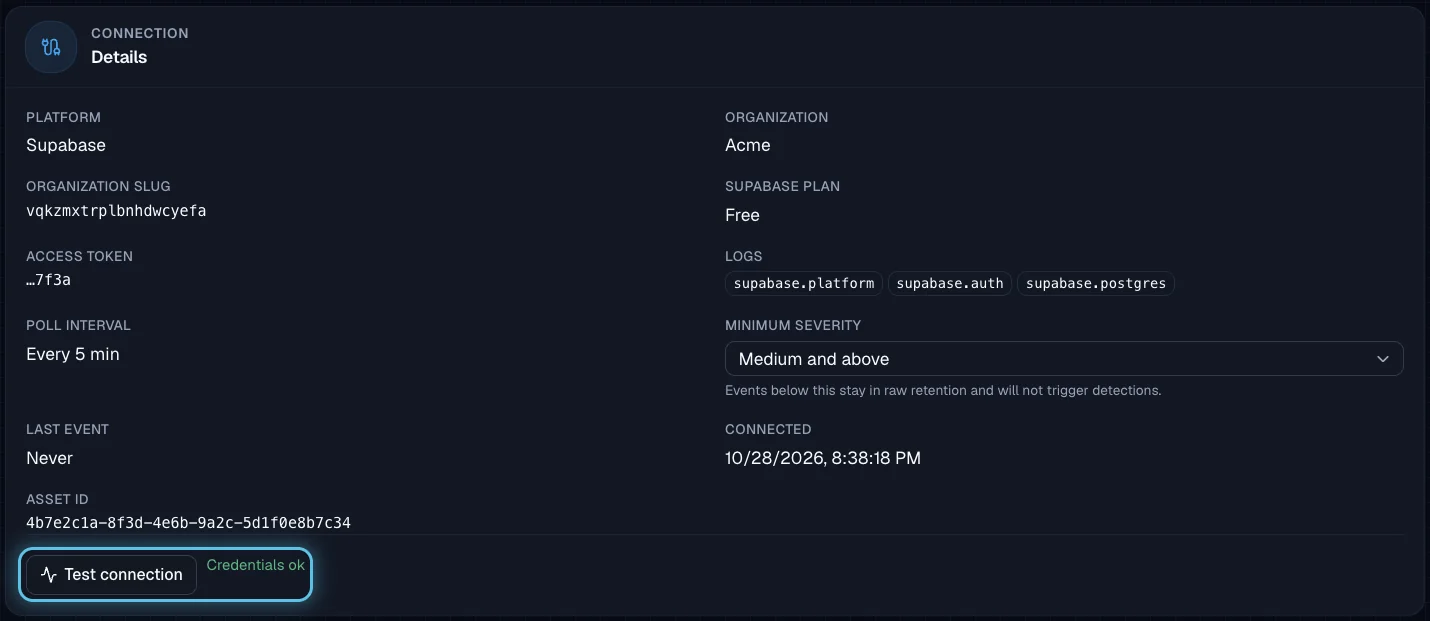
Organization and Organization slug show which organization was connected, so you can check them against the address in your Supabase dashboard (supabase.com/dashboard/org/<slug>).
Quiet is normal at first: The first poll of the organization change feed is a silent baseline. Jutsu records how the organization looks now and reports changes from then on. On its first poll Jutsu reads back the last hour of Auth and Postgres logs, not your whole history, and log events arrive a few minutes after they happen. New connections also start with a Medium and above severity floor. Routine low-severity activity, like a normal sign-in, is kept in raw retention but won't show up as alerts.
What healthy looks like
| Status | Healthy |
|---|---|
| Test connection | Credentials ok |
| Organization | Your organization's name, such as Acme |
| Organization slug | The slug from your dashboard URL, such as vqkzmxtrplbnhdwcyefa |
| Supabase plan | Your organization's plan, such as Free |
| Access token | The token's last four characters, such as …7f3a |
| Logs | supabase.platform, supabase.auth, supabase.postgres, plus supabase.edge if you switched it on |
| Poll interval | Every 5 minutes |
| Minimum severity | Medium and above |
Choose what to collect
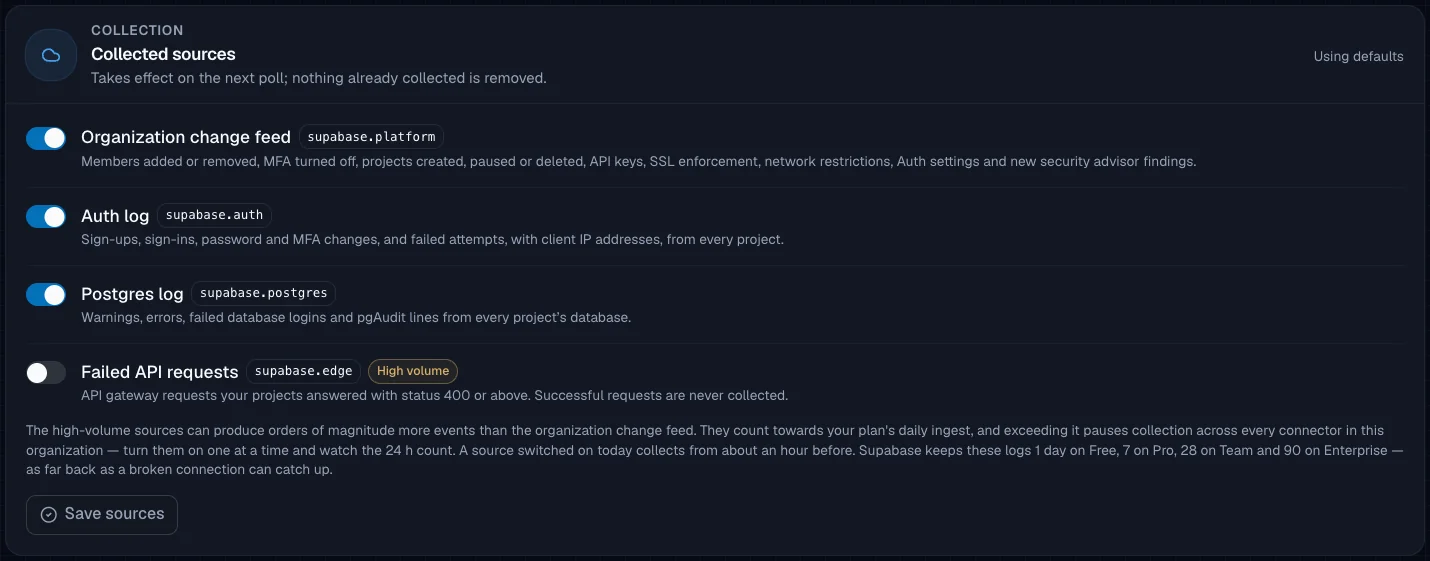
Under Configure → Settings → Collected sources you can switch Supabase sources on or off for this connection, then select Save sources. Changes take effect on the next poll, and nothing already collected is removed.
| Source | What it adds |
|---|---|
| Organization change feed | Members added or removed, role changes, MFA turned off, projects created, paused, resumed, or deleted, API keys created or deleted, legacy keys turned on or off, SSL enforcement, network restrictions, point-in-time recovery, weakened Auth settings, and new security advisor findings. On by default |
| Auth log | Sign-ups, sign-ins, password and MFA changes, user deletions, and failed attempts, with the client IP address, from every project. On by default |
| Postgres log | Warnings and errors, failed database logins, and pgAudit lines from every project's database. On by default |
| Failed API requests | API gateway requests your projects answered with status 400 or above. Successful requests are never collected. High volume |
The change feed says what changed, not who changed it: Supabase keeps its organization audit log in the dashboard only, so it can't be read through the API. Jutsu builds the change feed by comparing what it saw on the last poll with what it sees now. Membership and project changes are caught within one poll, and security settings within an hour. A change that's made and undone between two looks is invisible. To find out who made a change, check the audit log in your Supabase dashboard (Team plan and above).
Warning: Failed API requests can produce far more events than the other three sources: every request that ends in an error is one event, and a single misbehaving client can make it the largest source on the connection. It counts towards your plan's daily ingest, and going over it pauses collection for every connector in your organization. Switch it on and watch the 24-hour count.
A source you switch on today collects from about an hour before.
Compliance checks
The same connection reads each active project's settings every hour and feeds Jutsu's Supabase compliance checks: MFA for members and owners, SSL enforced, the database not open to the whole internet, point-in-time recovery, row-level security on exposed tables, leaked-password protection, and legacy API keys turned off. There's nothing extra to set up.
Troubleshooting
| Symptom | What to do |
|---|---|
| The Supabase card doesn't open | You need the Owner or Admin role in the Jutsu organization. |
| That is a project API key, not an account access token | You pasted an sb_publishable_… or sb_secret_… key. Create an access token under Account → Access Tokens instead. It starts with sbp_. |
| That does not look like a Supabase access token | The value isn't a token: a URL, an email address, or a partial copy. Copy the token again. If it's lost, generate a new one. |
| This token can see no Supabase organization | The token doesn't reach the organization you want to monitor, for example because it was given access to a different one. Create a new token with Organization access to the right organization. |
| Supabase token rejected … invalid, expired, or was revoked | Supabase no longer accepts the token. It expired, it was deleted, or you pasted a legacy anon or service_role key. Create a new access token and connect again. |
| Supabase denied access to organization … (403) | The token is valid but can't read the organization, for example because its permissions were left at No access, or its creator's role is too low. Create a new token as an Owner or Administrator with the Read-only preset. |
| Supabase denied access to project … | One project is outside the token's reach. The other projects keep collecting. Use a token with Organization access, which covers every project. |
| Supabase organization … not found (404) | The token's creator is no longer a member of the organization. Create a new token as a current member and connect again. |
| This Supabase organization is already connected | Each organization can only be connected once. Open the existing connection, or archive it before connecting again. |
| Supabase log query failed | Supabase's log backend couldn't run the query. It's not a credential problem. Jutsu retries on the next poll. |
| Supabase rate limited … (429) | Supabase is throttling requests. Nothing needs changing. Polling resumes after Supabase's reset time. Supabase shares one rate limit across every token the same user holds, so a busy script using another of their tokens can slow Jutsu down. |
| Collection stopped after a week | The token used Supabase's suggested 7-day expiry. Create a new token with a longer expiry and connect again. |
| No events from one project | Jutsu collects from active projects. A paused project is picked up again on the first poll after you restore it. |
| Connected, but no alerts | Check the Minimum severity floor before you assume the organization was quiet. At the default of Medium, routine sign-ins won't appear as alerts. |
| Ingest stopped across every connector | The org hit its daily ingest limit after Failed API requests was switched on. Switch it off, then check the 24-hour count. |
Retention is short: Supabase keeps logs for 1 day on Free, 7 days on Pro, 28 days on Team, and 90 days on Enterprise. If a connection stays broken for longer than your plan keeps logs, the logs from that gap can't be recovered. Fix errors promptly.
Security and access
- Scope the collection token to the one organization you're connecting and use the Read-only preset, as in Steps 5 and 6. Supabase's review step lists every capability the token gets, so you can check that none of them is write access.
- A legacy token (Create legacy token in the Generate token panel) has full access to every organization its creator belongs to. It works, but it can do far more than Jutsu needs, so prefer a scoped token.
- Jutsu only reads from Supabase with this connection. It never changes your projects, databases, or organization. The token is encrypted at rest, and only its last four characters are shown in the UI.
- Response actions, such as banning a project's Auth user, revoking an API key, turning off a project's legacy
anonandservice_rolekeys, or enforcing SSL on a database, use a separate access token that you add under Configure → Settings → Response credential. Jutsu won't accept the collection token there, so revoking one never affects the other.
Pause or disconnect
You'll find these under Configure → Danger zone on the connection.
| Action | What it does |
|---|---|
| Disable ingestion | Stops polling without deleting the connection's configuration. Enable it again at any time. Remember the retention window. A pause longer than your Supabase plan keeps logs loses those logs. |
| Archive | Stops ingestion and frees the plan slot. Events and alerts already collected stay available and searchable. You can unarchive it later. |
| Delete this asset | Permanently removes the connection and the events, alerts, and incidents it produced. Ingest stops first, and deletion begins after a short safety window during which you can still cancel it. This can't be undone. |
| Revoke access in Supabase | Archiving doesn't touch your Supabase account. Open Account → Access Tokens, open the token's More options menu, and select Delete token. |