GitHub
Connect a GitHub organization to Jutsu. You install the Jutsu App from GitHub, and GitHub then sends security and activity events to Jutsu as they happen. Those include secret scanning, code scanning, and Dependabot alerts, pushes, branch protection and repository changes, and member and team changes. Jutsu detects threats in them automatically.
The App only has read access, and there's nothing to create, copy, or rotate. You choose which repositories Jutsu monitors.
| Time | About 5 minutes |
|---|---|
| You need | An owner of the GitHub organization, and the Owner or Admin role in your Jutsu organization |
| Plan | The GitHub organization uses one connected-asset slot, and each monitored repository uses one more |
| Collected | GitHub webhook events (github.webhook) from the repositories you monitor, plus organization events |
Jutsu supports organizations and personal accounts on github.com. GitHub Enterprise Server isn't supported.
Step 1 - Open Integrations
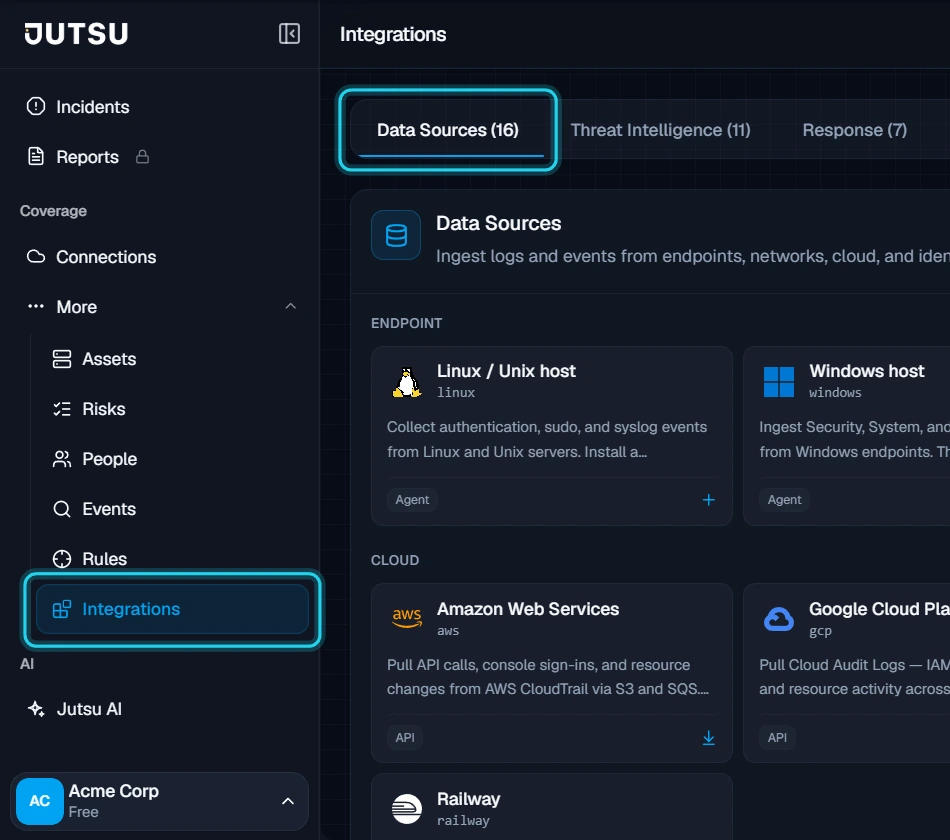
Go to app.jutsu.ai and select Integrations in the left navigation. It sits under More. The Data Sources tab opens by default.
Step 2 - Select the GitHub card
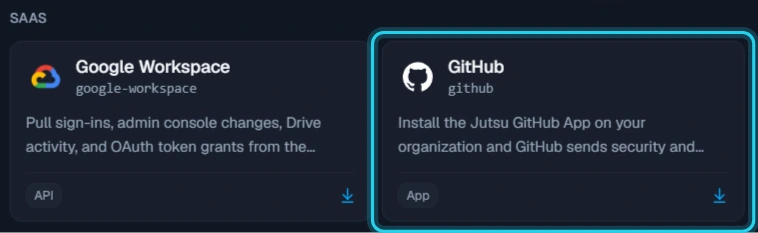
In the SaaS section, select the GitHub card. The Connect GitHub dialog opens.
The card doesn't open? Adding integrations needs the Owner or Admin role in your Jutsu organization. For Analysts, Responders, and Viewers the catalog is read-only.
Step 3 - Start the setup
Keep Install the App selected and select Start setup.
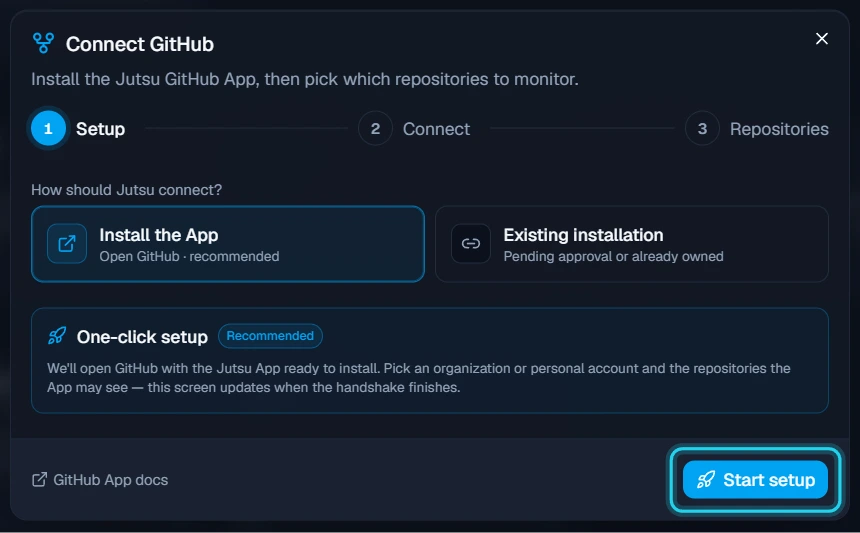
GitHub opens in a new tab, and the dialog shows Waiting for GitHub…. Keep the Jutsu tab open. If you aren't signed in to GitHub, sign in first.
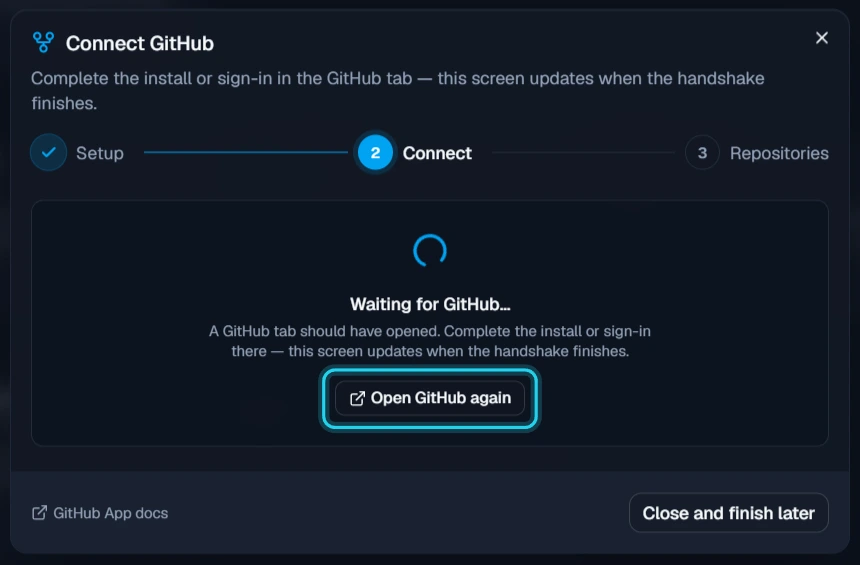
Finish within 15 minutes: The setup link is valid for 15 minutes. If it runs out, the dialog says the session timed out. If you already installed the App by then, connect it with Existing installation (see Connect an existing installation).
Step 4 - Choose where to install the App
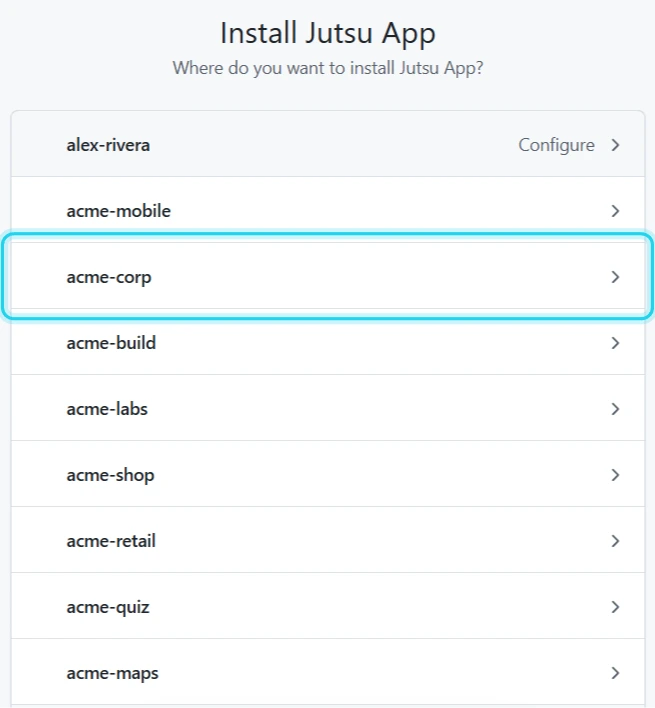
GitHub asks Where do you want to install Jutsu App? Select your organization. Accounts that already have the App show Configure instead.
Step 5 - Choose the repositories and install
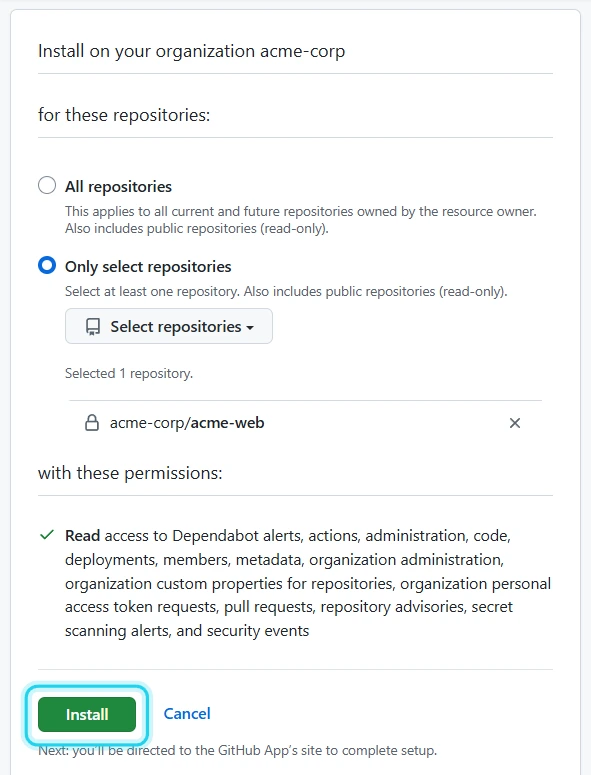
Choose which repositories the App can see:
- All repositories includes every current and future repository in the organization.
- Only select repositories lets you pick them from Select repositories.
Either way, Jutsu only monitors the repositories you choose in Step 7.
The App asks for Read access only. That covers Dependabot alerts, actions, administration, code, deployments, members, metadata, organization administration, organization custom properties, organization personal access token requests, pull requests, repository advisories, secret scanning alerts, and security events.
Select Install.
Not an organization owner? GitHub shows Request instead of Install and sends the request to your organization's owners. After an owner approves it, finish the connection with Existing installation (see Connect an existing installation).
Step 6 - Return to Jutsu
The first time, GitHub asks you to Authorize Jutsu App. That sign-in lets Jutsu confirm that you own the installation. Select Authorize. GitHub then sends you back to Jutsu, and the dialog moves to Repositories.
Step 7 - Choose the repositories to monitor
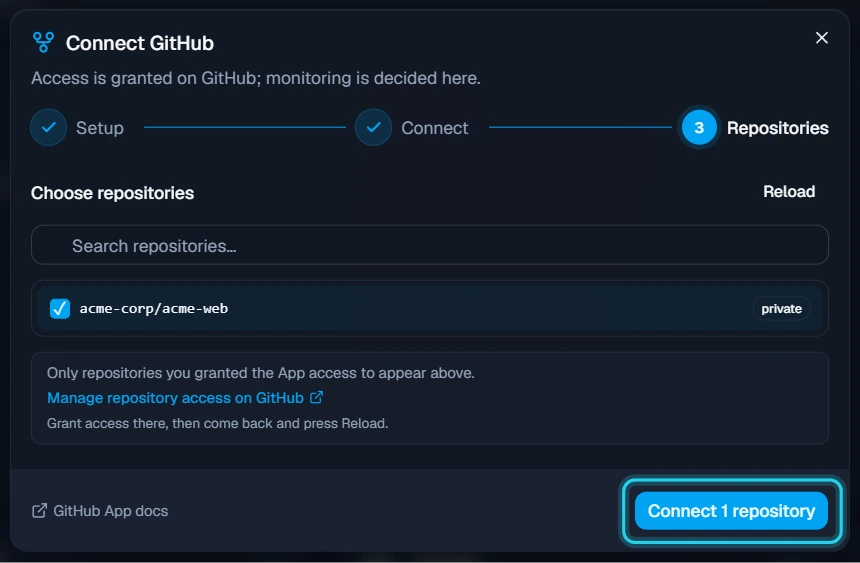
Select the repositories Jutsu should monitor, then select Connect 1 repository (the count follows your selection). Only repositories the App can see are listed. If one is missing, select Reload.
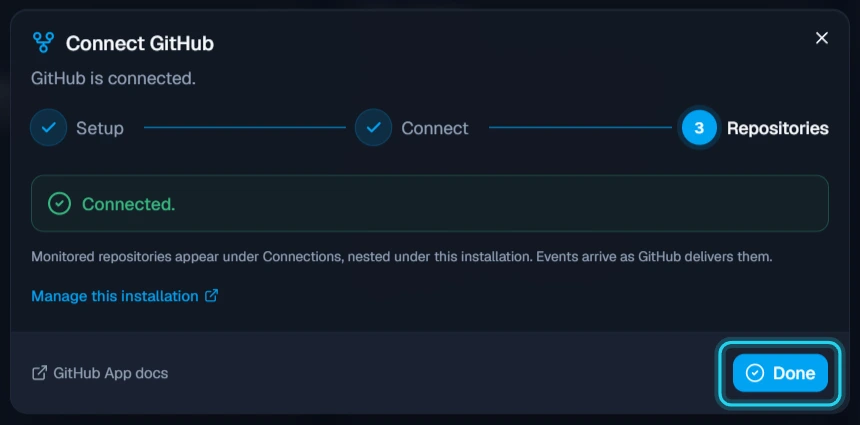
When the dialog shows Connected., select Done.
Verify the connection
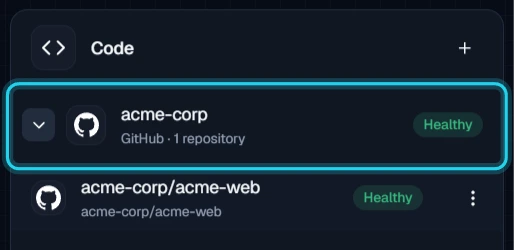
In Jutsu, open Connections. The GitHub organization is under Code, and its monitored repositories are nested under it. Both show Healthy.
Open the organization. The header shows Healthy · Checks up to date, and Manage on GitHub opens the App's settings for your organization.
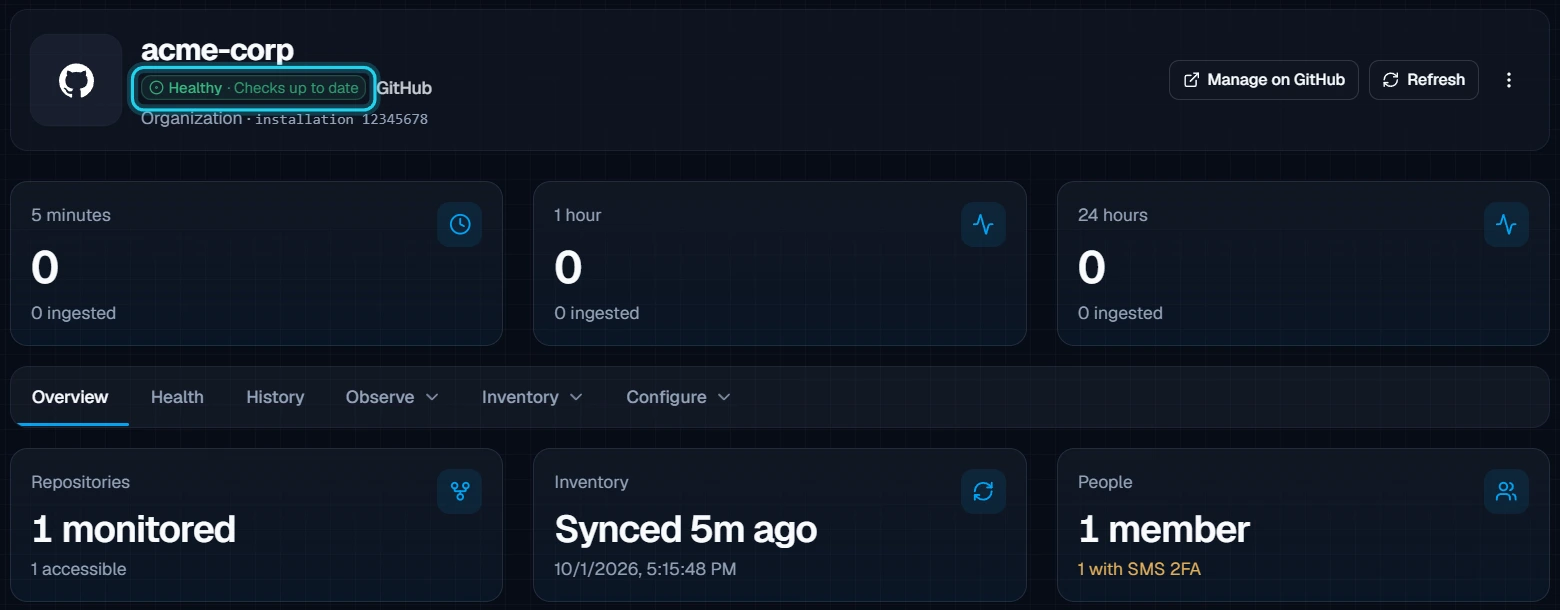
GitHub health doesn't depend on how many events arrive. Jutsu checks the installation every hour and the repository list every six hours. Just after you connect, the header may show Waiting for the first check.
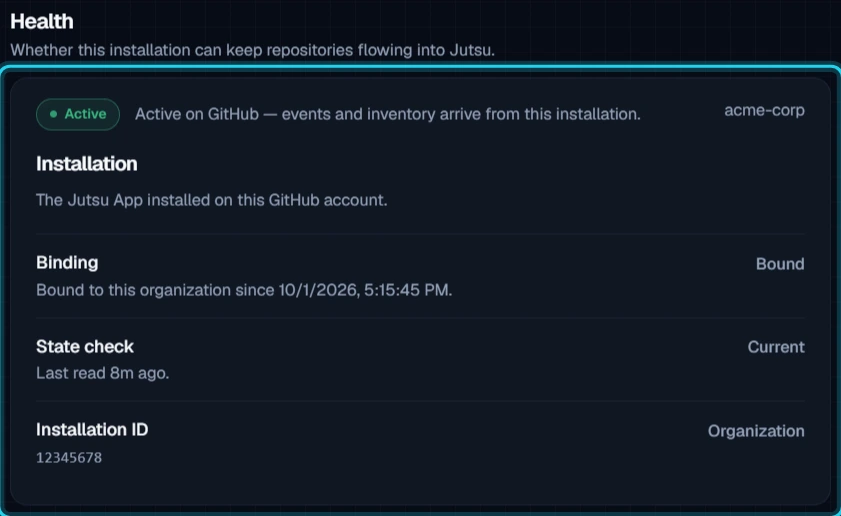
The Health tab shows whether the installation is Active on GitHub.
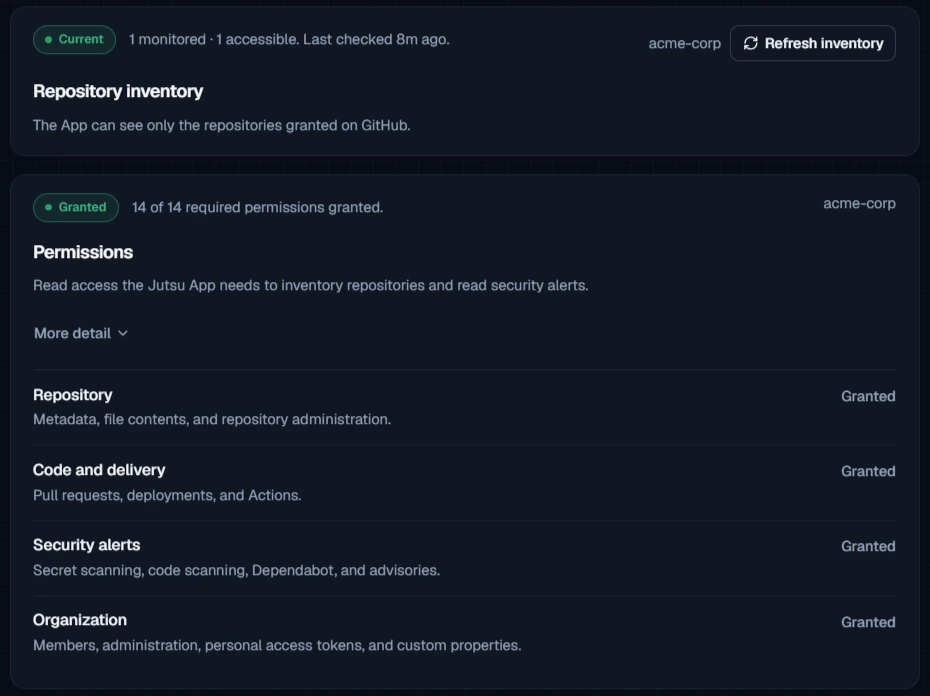
It also shows the repository inventory and whether the App has every permission Jutsu needs.
Quiet is normal: GitHub only sends events when something happens. A quiet organization can go a day without events and still be Healthy. The high-signal ones become alerts, such as:
- a live credential found by secret scanning
- a private repository made public
- an organization owner role granted
- branch protection or a ruleset deleted
- security scanning turned off
- the organization no longer requiring 2FA
- a force push to the default branch
Monitor more repositories
Go to Inventory → Repositories and turn on Monitored in Jutsu for a repository. Each monitored repository uses a connected-asset slot.
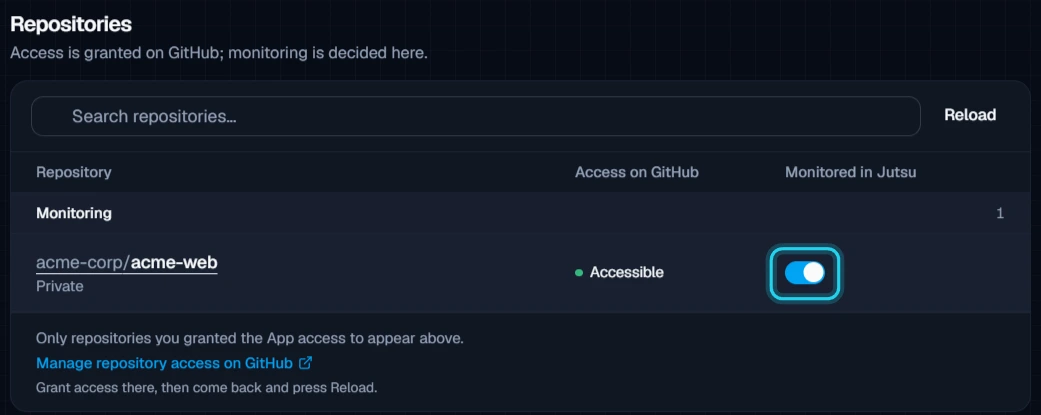
The list only shows repositories the App can see. To add one, select Manage repository access on GitHub, add the repository, and select Save. Then come back and select Reload. Jutsu never starts monitoring a new repository on its own, even with All repositories.
"This link has expired" after saving on GitHub? GitHub sends you to a Jutsu page after you change the App's repository access. If no setup is in progress, that page says the link has expired. Your change was still saved, so return to Jutsu and select Reload.
Connect an existing installation
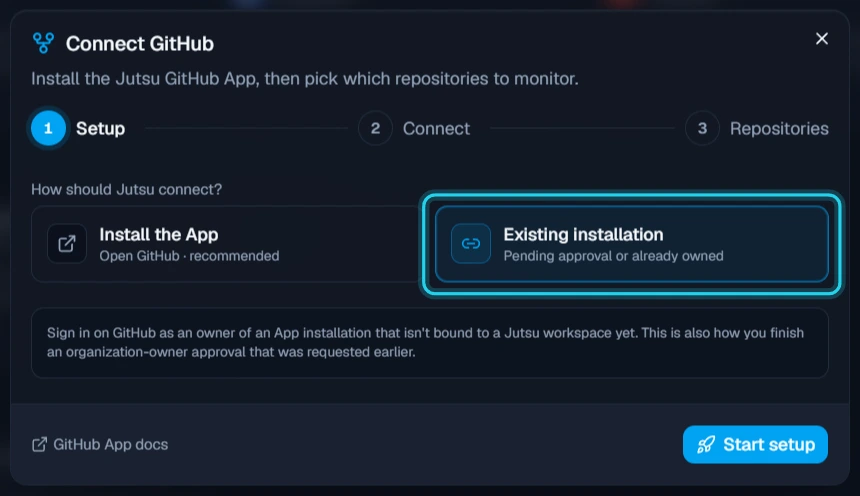
Use Existing installation when the Jutsu App is already installed on your GitHub organization but isn't connected to Jutsu. That happens after an owner approves a request, or if the setup timed out after you selected Install.
Open the GitHub card, select Existing installation, and select Start setup. Sign in to GitHub as an organization owner. The dialog then moves straight to Repositories. If more than one installation is available, Jutsu asks which GitHub account to connect.
Troubleshooting
| Message or symptom | What to do |
|---|---|
| This connect session timed out. Nothing was bound — close and start again. | The setup link lasts 15 minutes. If you already installed the App on GitHub, use Existing installation. Otherwise start again from Step 3. |
| A Jutsu page says This link has expired after you install | The setup timed out before GitHub came back. In Jutsu, use Existing installation. |
| No GitHub App installations were found for the account you signed in as. | Install the App first (Steps 3 to 5), or sign in as an owner of the organization that has it. |
| That GitHub installation is not accessible with the account you signed in as. | Only an organization owner can connect an installation. Sign in to GitHub as an owner. |
| That GitHub installation is already connected to another Jutsu workspace. | An installation can only belong to one Jutsu organization. Disconnect it there first. |
| Authorization was cancelled on GitHub. Nothing was connected. | Start the setup again and select Authorize on GitHub. |
| A repository is missing from the list | Select Reload. If it's still missing, give the App access to it on GitHub (see Monitor more repositories). |
| Your plan's asset limit is reached. | Each monitored repository uses a slot. Monitor fewer repositories, archive another connection, or upgrade your plan. |
| Needs attention · App uninstalled on GitHub | Someone removed the App on GitHub. Connect the organization again from Step 1, or archive the connection. |
Security and access
- Read-only. Every permission the App requests is read access. Jutsu can't change your code, settings, or members. The one change it can make is uninstalling its own App, when you disconnect.
- You choose what's monitored. Events from repositories you don't monitor are dropped. The App can only see the repositories you granted it on GitHub.
- Owners only. Only an owner of the GitHub organization can connect it to Jutsu, and an installation can belong to only one Jutsu organization.
- Nothing to rotate. No tokens or keys are created. You can revoke access at any time by uninstalling the App on GitHub.
Remove the connection
Disconnecting in Jutsu stops monitoring and, by default, uninstalls the App from GitHub too.
Step 1 - Disconnect the installation
Open the GitHub organization, go to Configure → Danger zone, and select Disconnect….
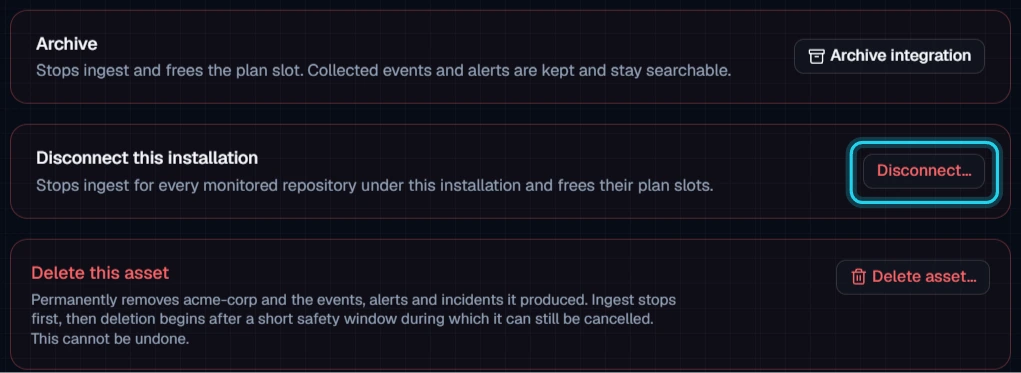
Leave Keep the GitHub App installed unchecked so Jutsu also uninstalls the App on GitHub. Select Disconnect.
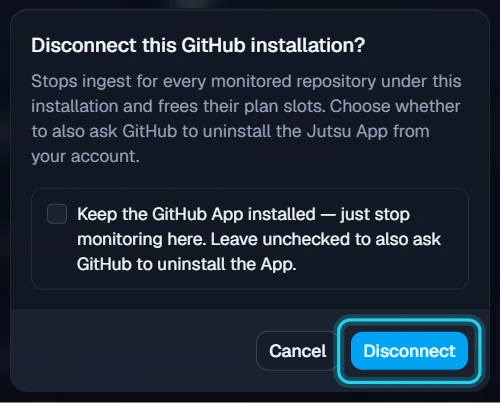
Jutsu stops ingest for every monitored repository, frees their plan slots, and archives the connection. Events and alerts already collected stay searchable.
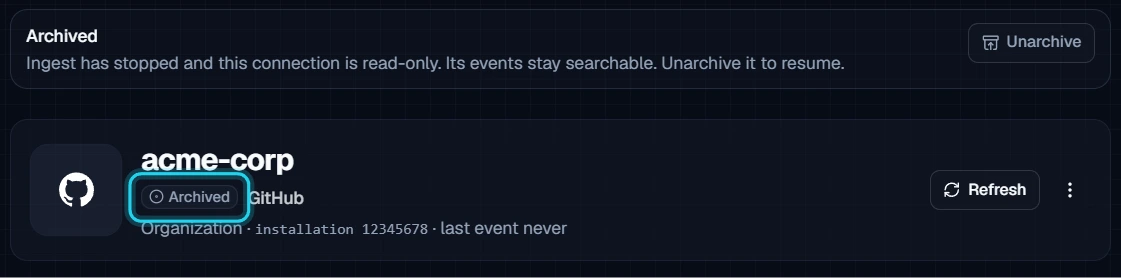
Archive vs. Disconnect: Archive integration also stops ingest, but it leaves the App installed and the installation linked. Use Disconnect… to remove it completely.
Step 2 - Check GitHub
Jutsu uninstalls the App within a few minutes. To check, open your organization's Settings → GitHub Apps on GitHub. The Jutsu App should no longer be listed.
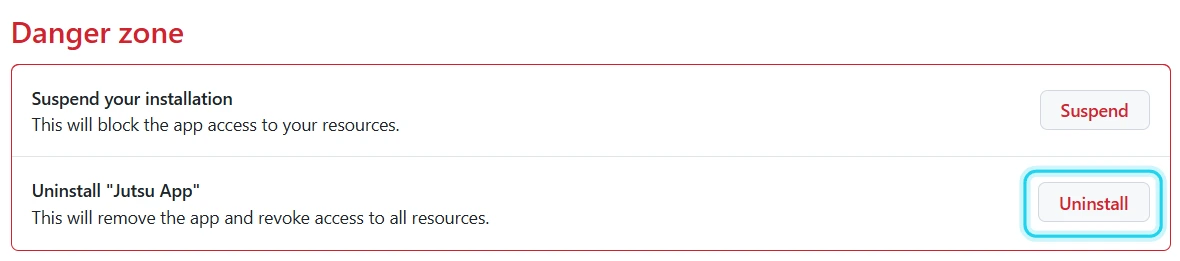
If you kept the App installed, or you'd rather remove it yourself, select Configure next to Jutsu App there. Then select Uninstall in its Danger zone.
To connect the organization again later, start from Step 1.