Cloudflare
Connect a Cloudflare account to Jutsu. Jutsu pulls the account audit log, the firewall events for your zones, and Zero Trust Access logins, and detects threats in them automatically. Nothing gets installed and no Logpush job is needed. The connection uses a read-only API token, and Jutsu never writes to Cloudflare with it.
| Time | About 10 minutes |
|---|---|
| You need | A Cloudflare user who can create API tokens for the account, and the Owner or Admin role in your Jutsu organization |
| Collected | The account audit log (cloudflare.audit), firewall events (cloudflare.firewall), and Zero Trust logins (cloudflare.access). You choose which when you connect |
You create the API token in Cloudflare, then paste it into Jutsu with your Account ID.
Step 1 - Open Integrations
Go to app.jutsu.ai and select Integrations in the left navigation. It sits under More. The Data Sources tab opens by default.
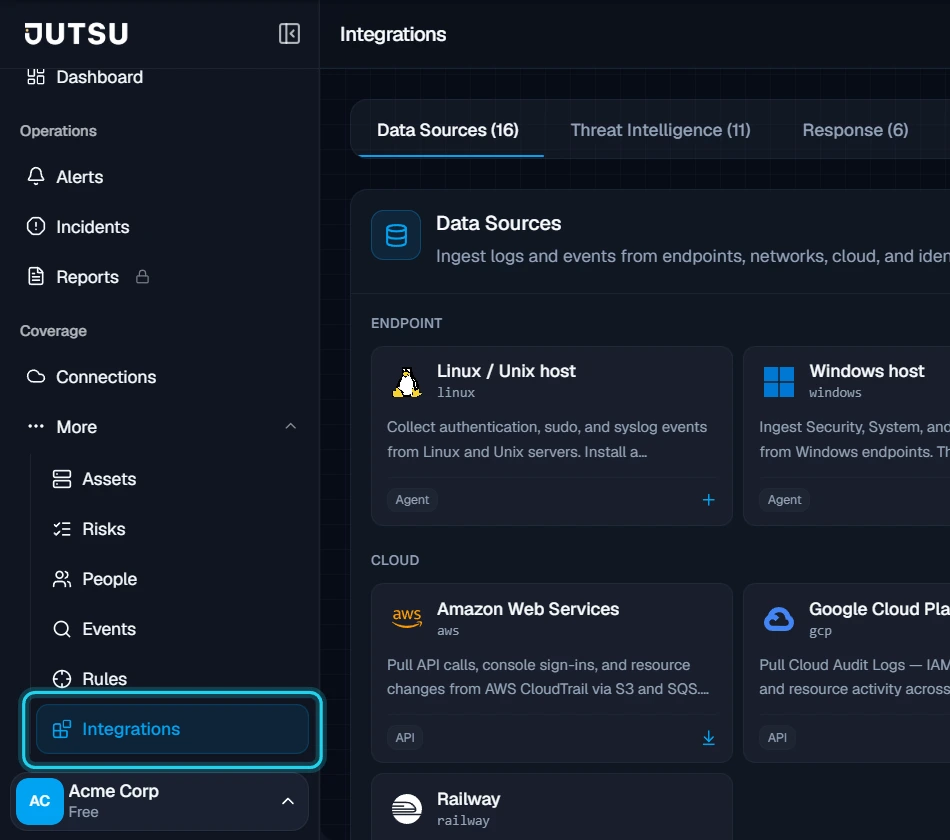
Step 2 - Select the Cloudflare card
Scroll to the Cloud section and select the Cloudflare card. The Connect Cloudflare dialog opens.
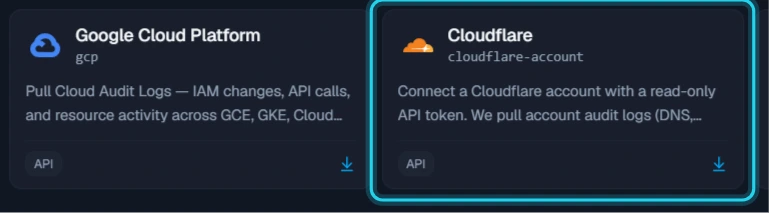
The card doesn't open? Adding integrations needs the Owner or Admin role in your Jutsu organization. For Analysts, Responders, and Viewers the catalog is read-only.
Step 3 - Open the pre-filled token form
The first step of the dialog, Create token, lists the permissions the token needs. Select the Create Token form link. Cloudflare's Create Token form opens in a new tab, named Jutsu SIEM, with three of the permissions already filled in.
Keep the Jutsu dialog open. You'll come back and select Continue once you have the token.
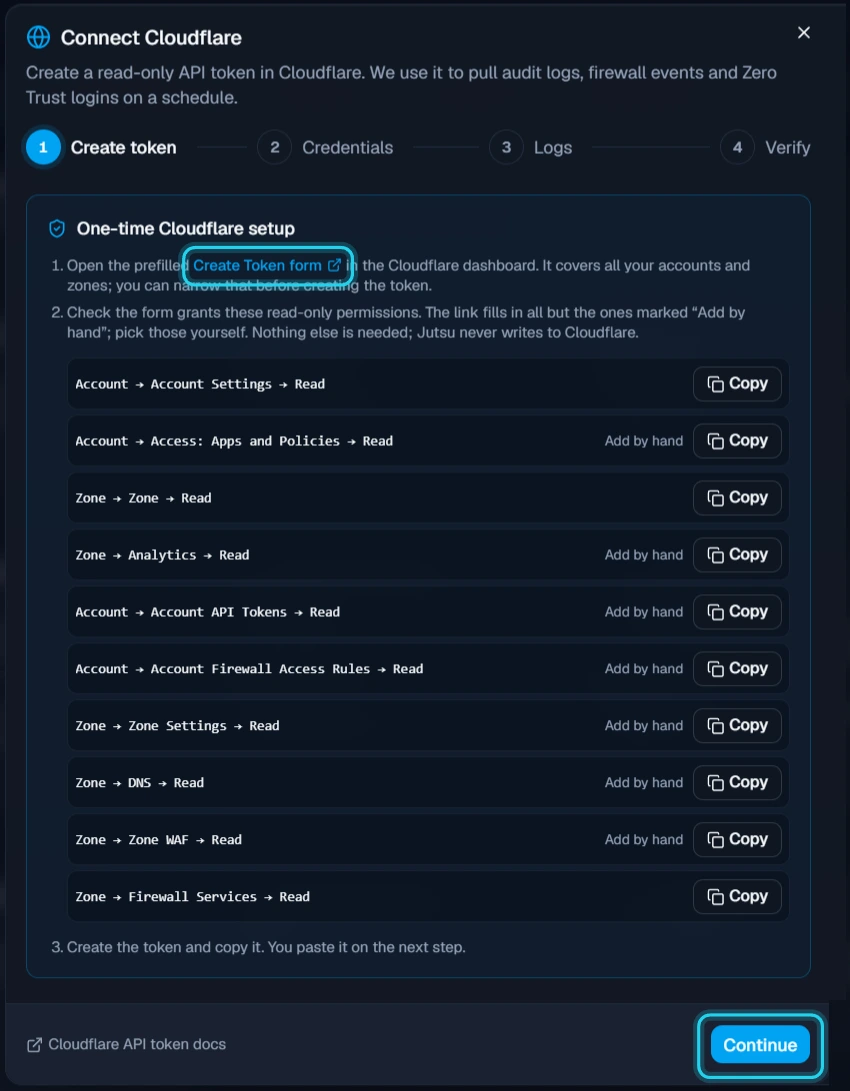
The dialog lists ten permissions, but you need eleven: Also add Account → Account Analytics → Read. Without it, Zero Trust logins fail with not authorized for that account. Step 4 lists all eleven.
Step 4 - Add the remaining permissions
Under Permissions, select + Add more for each permission that isn't there yet, and set each one to Read. When you're done, the token has these eleven:
| Permission | Used for |
|---|---|
| Account → Account Settings | The account audit log. Pre-filled |
| Zone → Zone | Finding your zones. Pre-filled |
| Zone → Analytics | Firewall events |
| Account → Access: Apps and Policies | Zero Trust logins |
| Account → Account Analytics | Zero Trust logins |
| Zone → Firewall Services | Compliance checks. Pre-filled |
| Account → API Tokens | Compliance checks |
| Account → Account Firewall Access Rules | Compliance checks |
| Zone → Zone Settings | Compliance checks |
| Zone → DNS | Compliance checks |
| Zone → Zone WAF | Compliance checks |
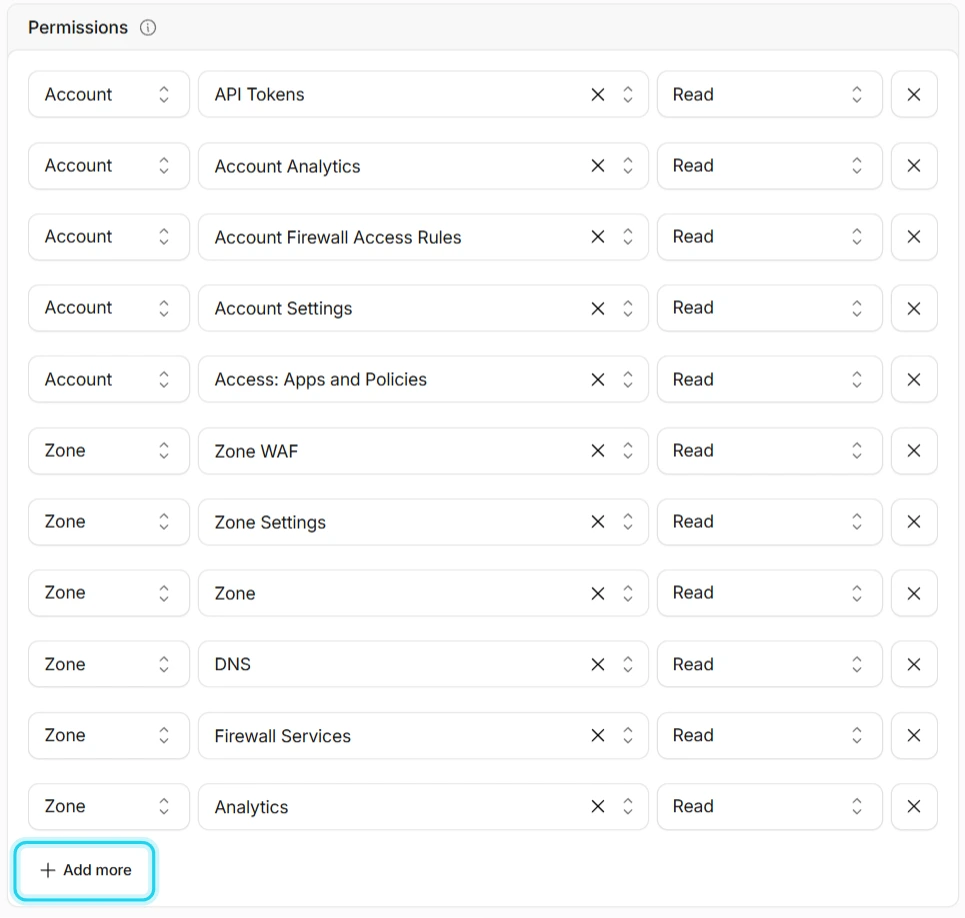
The six compliance permissions are optional. Without them the logs still flow, and Jutsu skips the checks it can't read. Cloudflare lists API Tokens under Account. The Jutsu dialog calls it Account API Tokens.
Warning: Don't use Audit Logs → Read in place of Account Settings → Read. Cloudflare checks Account Settings for the audit log, and a token with only Audit Logs fails with an Authentication error.
Step 5 - Limit the token to your account
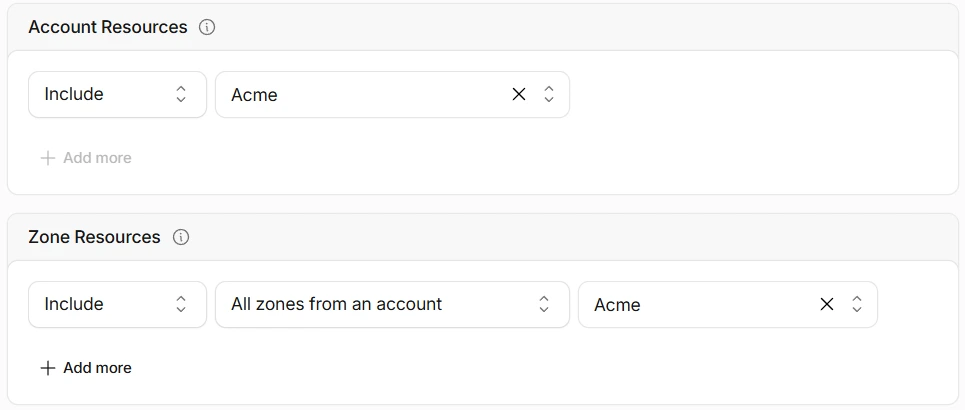
The form starts with All accounts and All zones. Narrow it to the account you're connecting:
- Account Resources: Include, then your account.
- Zone Resources: Include, then All zones from an account, then your account.
Leave Client IP Address Filtering empty, because Jutsu calls Cloudflare from its own addresses. TTL is optional. If you set an end date, collection stops when it passes, so set a reminder. You can extend it later by editing the token.
Step 6 - Create the token and copy it
Select Continue to summary and check the list. Your account should show the five account permissions, and All zones the six zone permissions.
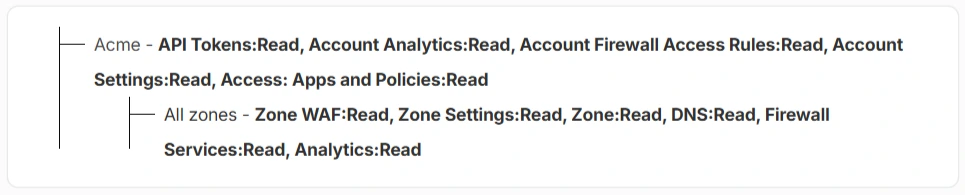
Select Create Token. Cloudflare shows the token only once. Select the copy button next to it.

Step 7 - Copy your Account ID
In the Cloudflare dashboard, open any of your domains. On its Overview page, scroll to the API box and copy the Account ID, not the Zone ID above it.
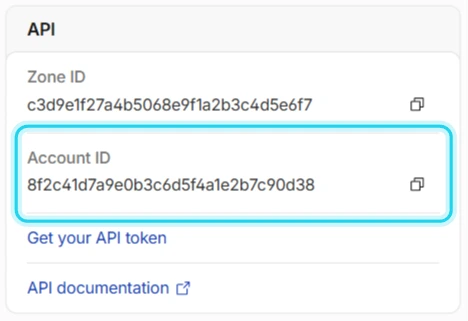
The Account ID is 32 hexadecimal characters. It's also the first part of any dashboard address: dash.cloudflare.com/<account-id>/….
Step 8 - Paste the credentials
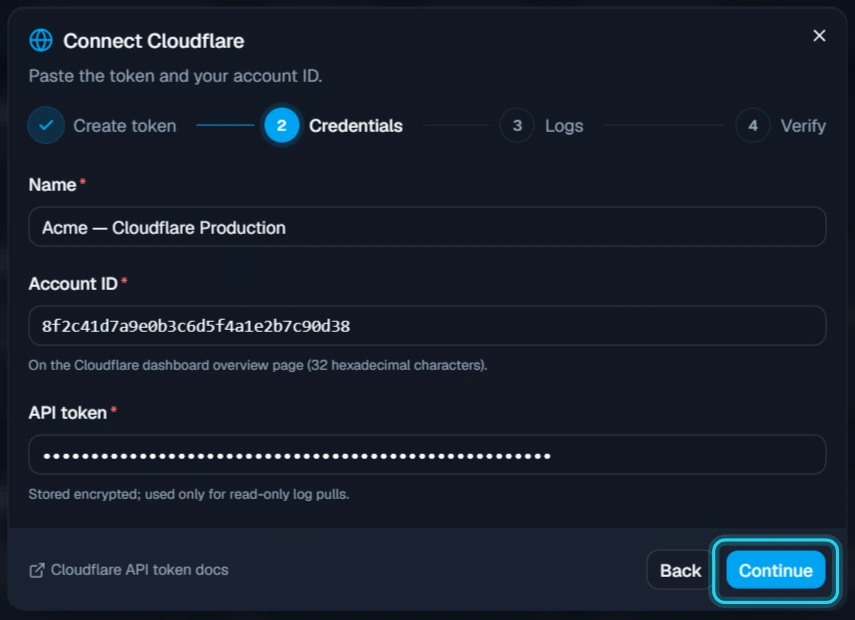
Back in Jutsu, select Continue to open the Credentials step, then fill it in:
- Name: something that identifies the account, such as Acme — Cloudflare Production.
- Account ID: the value from Step 7.
- API token: the token from Step 6.
Select Continue.
Your browser offers to save a password? Decline it. The browser mistakes the Account ID and token for a login.
Step 9 - Choose the logs and zones
The Logs step has all three logs selected:
- Account audit log: DNS, WAF, API token, and membership changes.
- Firewall events: WAF blocks, challenges, and rule matches, per zone.
- Zero Trust logins: Access SSO logins, allowed and denied.
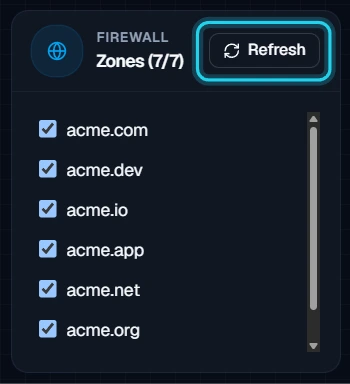
Firewall events are collected per zone, and Jutsu lists your zones under Zones for firewall events, all selected. Clear any you don't want, then select Connect.
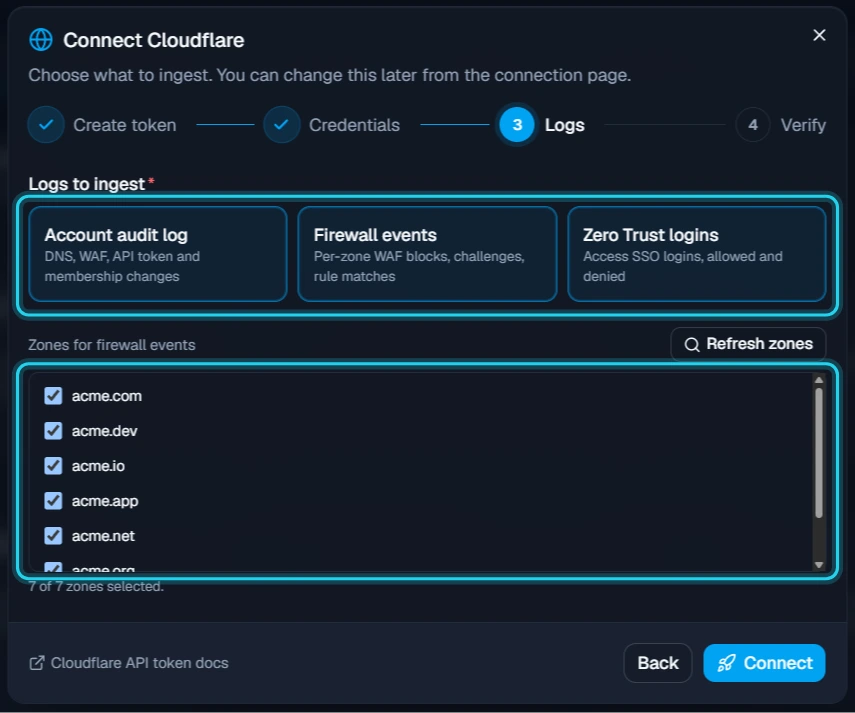
Choose the logs now: The dialog says you can change them later, but the connection page currently only lets you change zones. To change the logs, connect again. Keep all three unless you have a reason not to. Zero Trust logins are simply quiet on an account that doesn't use Cloudflare Access.
Step 10 - Find it in Connections
Jutsu takes you to Connections. Your account appears under Cloud. It shows Needs setup until the first poll, about a minute, then changes to Healthy.
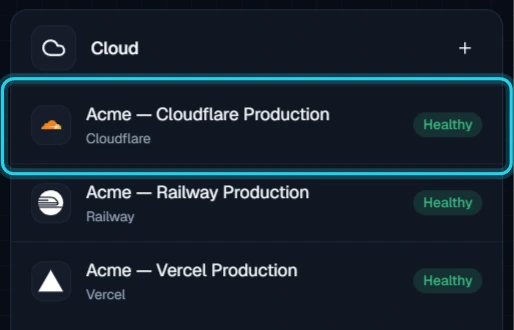
If it shows Needs attention · Last poll failed instead, a permission is missing. Open the connection, read the error, and see Troubleshooting.
Verify the connection
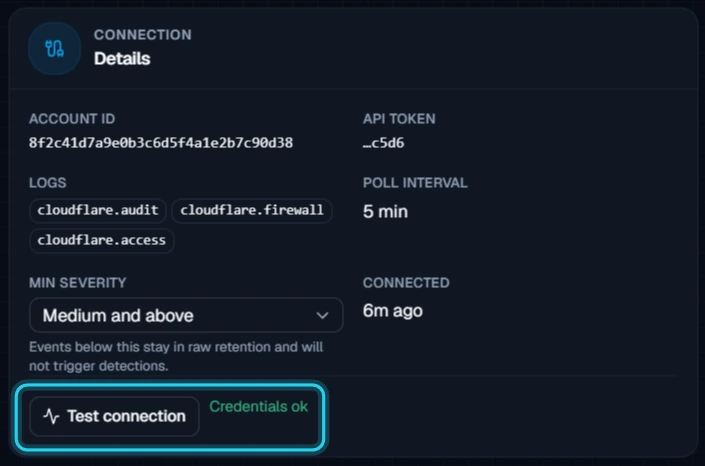
Open the connection, go to Configure → Settings, and select Test connection. Jutsu tries every log you chose. Credentials ok means the token can read all of them.
The ingest counters at the top of the connection page show how many events arrived in the last 5 minutes, hour, and 24 hours.
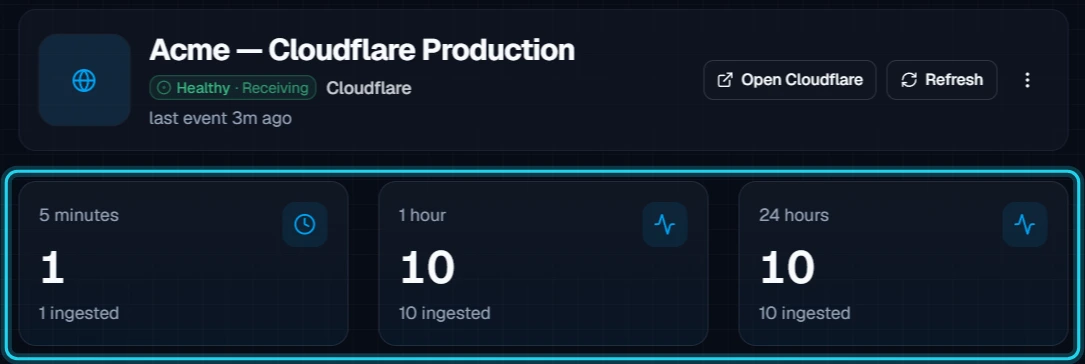
On its first poll Jutsu reads back the last hour, not your whole history, so anything changed in the account during that hour arrives within minutes. New connections start with a Medium and above severity floor. Routine low-severity activity is kept in raw retention but won't show up as alerts.
What healthy looks like
| Status | Healthy |
|---|---|
| Test connection | Credentials ok |
| API token | The last four characters of your token |
| Logs | The logs you chose: cloudflare.audit, cloudflare.firewall, cloudflare.access |
| Poll interval | 5 minutes |
Manage zones
Under Configure → Settings → Zones you can clear a zone to stop collecting its firewall events, or select it again. Select Refresh after you add a domain in Cloudflare, so Jutsu picks it up. Refreshed zones start selected.
Troubleshooting
| Symptom | What to do |
|---|---|
| The Cloudflare card doesn't open | You need the Owner or Admin role in the Jutsu organization. |
| Account ID must be 32 hexadecimal characters | You pasted something else, such as the Zone ID or a dashboard URL. Copy the Account ID from the API box on a domain's Overview page. |
| That looks like a Global API Key | Jutsu refuses the Global API Key, because it grants full access to the account. Create a scoped API token as in Step 3. |
| API token contains unexpected characters | Paste only the token, without Bearer or the curl command from Cloudflare's success page. |
| access: cloudflare graphql: not authorized for that account | The token can't read Zero Trust logins. Add Account Analytics → Read and Access: Apps and Policies → Read to it. |
| Authentication error on the audit log | The token is missing Account Settings → Read. Audit Logs → Read isn't enough. |
| Zones could not be listed, or No zones on record | The token is missing Zone → Zone → Read. Add it, then select Refresh on the Zones card. |
| No zones found under this account | The token's Zone Resources don't cover this account. Edit the token so it includes all zones from the account. |
| No firewall events for a new domain | Select Refresh on the Zones card, and make sure the domain is selected. |
| The token was deleted or rolled | A connection's token can't be replaced. Archive the connection and connect again with a new token. |
| Connected, but no events | Check the Minimum severity floor before you assume the account was quiet. At the default of Medium, routine activity won't appear as alerts. |
| Ingest stopped across every connector | The org hit its daily ingest limit. Check which connection's 24-hour count jumped, and narrow it. |
Fix permissions in place: You can edit a Cloudflare token's permissions without changing its value, so a missing permission doesn't mean reconnecting. In Cloudflare, open My Profile → API Tokens, choose Edit on the token, add the permission, and select Update token. Then select Test connection in Jutsu.
Security and access
- The token is read-only, and Jutsu never writes to Cloudflare with it. It's encrypted at rest, and only its last four characters are shown in the UI.
- Limit the token to the one account you're connecting (Step 5). Jutsu refuses the Global API Key.
- Response actions, such as blocking an IP or turning on I'm Under Attack mode, use a separate API token with Edit permissions that you add under Configure → Settings → Response credential. Revoking the collection token never affects response, and revoking the response token never stops collection.
Pause or disconnect
You'll find these under Configure → Danger zone on the connection.
| Action | What it does |
|---|---|
| Disable ingestion | Stops polling without deleting the connection's configuration. Enable it again at any time. |
| Archive | Stops ingestion and frees the plan slot. Events and alerts already collected stay available. Archiving doesn't touch your Cloudflare account. |
| Revoke access in Cloudflare | Delete the token under My Profile → API Tokens. |