Wazuh
Connect a Wazuh deployment to Jutsu. Jutsu reads Wazuh's alerts from the indexer every minute and checks them with its own detection rules. It also lists your agents as machines, with their local accounts, vulnerabilities, and failed configuration checks, and runs compliance checks on them. Jutsu reads with two read-only users you create in Wazuh. Nothing gets installed on your manager or your agents.
| Time | About 15 minutes |
|---|---|
| You need in Jutsu | The Owner or Admin role in your Jutsu organization |
| You need in Wazuh | Wazuh 4.8 to 4.14, or 5.0. A Wazuh API admin login (such as wazuh-wui on 4.x or wazuh on 5.0), the indexer admin login, and a shell with curl and python3 that can reach both |
| Network | The manager API (port 55000) and the indexer (port 9200) reachable from the internet over HTTPS |
| Collected by default | Alerts, every minute. Agents, local accounts, vulnerabilities, and configuration checks, every 6 hours. Archives (4.x) or All events (5.0) can be switched on |
Wazuh connects with two users and two addresses. Jutsu signs in to the manager API to read your agents and their inventory, and to the indexer to read alerts, events, and the state Wazuh keeps for each agent. You create both users with a few commands, give Jutsu the addresses, and confirm each certificate. Jutsu pulls from Wazuh; there is no forwarder to run and no integration block to add to Wazuh. One connection covers one Wazuh deployment and every agent that reports to it.
Before you start
Make Wazuh reachable from the internet
Jutsu reads Wazuh from the cloud, so both addresses have to answer on the internet over HTTPS.
- Manager API: port
55000by default, such ashttps://wazuh.example.com:55000. - Indexer: port
9200by default, such ashttps://wazuh.example.com:9200.
Jutsu has no fixed address yet, so a firewall rule that only lets known addresses in can't name Jutsu. Expose the two ports with the read-only users below, or use Wazuh Cloud. Jutsu refuses private and reserved addresses, such as 10.x, 192.168.x, or 127.0.0.1, even when they would work from inside your network.
Is the indexer listening only on localhost? The all-in-one installer sets the indexer to 127.0.0.1, so the manager and the dashboard can reach it but nothing outside can. On the indexer, run ss -tlnp | grep 9200. If it shows 127.0.0.1:9200 (or [::ffff:127.0.0.1]:9200), change network.host in /etc/wazuh-indexer/opensearch.yml to an address the internet can reach, then restart the indexer with systemctl restart wazuh-indexer. Check that the dashboard and Filebeat still connect afterwards.

Keep the admin passwords strong: Exposing the ports exposes the sign-in pages too. Jutsu only ever uses the read-only users you create below, but anyone can try a password on these ports. Change Wazuh's default passwords if you haven't, and keep the admin logins out of shared places.
Turn on what you want Jutsu to see
These are optional. Jutsu connects without them and tells you on the connection page which ones are off.
| Wazuh feature | What Jutsu does with it | How to turn it on |
|---|---|---|
| Vulnerability detection | Lists each host's open vulnerabilities and runs the vulnerability compliance checks | On by default since Wazuh 4.8. If it's off, set <enabled>yes</enabled> in the <vulnerability-detection> block of /var/ossec/etc/ossec.conf on the manager, then restart the manager |
| Archives (4.x) | Collects every event Wazuh sees, not only the ones its rules matched | On the manager, set <logall_json>yes</logall_json> in the <global> block of ossec.conf and restart the manager. Then set archives: enabled: true in /etc/filebeat/filebeat.yml and restart Filebeat |
| Local accounts | Lists each agent's local accounts under People | Needs Wazuh 4.14 or 5.0. Older 4.x versions don't report them |
Set up Wazuh
Create two users in Wazuh that can read and nothing else. Run the commands below in a shell that can reach your manager and indexer, as someone who administers them. The Jutsu dialog shows the same commands with your addresses already filled in, on its Users step. You can start the dialog first (Connect it in Jutsu below) and copy them from there.
Each user needs a password of 12 to 64 characters, with upper- and lower-case letters, a number, and a symbol. Use one of . * + ? or - for the symbol. Other symbols can break the quoting in the commands. Don't build it from the user name: the indexer refuses a password that's similar to its user, such as one containing jutsu-reader.
Step 1 - Create the manager API read user
This creates jutsu-read and gives it Wazuh's built-in readonly role. It reads agents, their inventory, and the manager's information.
Replace each <…> first: your manager's address on the first line, an API admin and its password on the second, and the new user's password on the fourth.
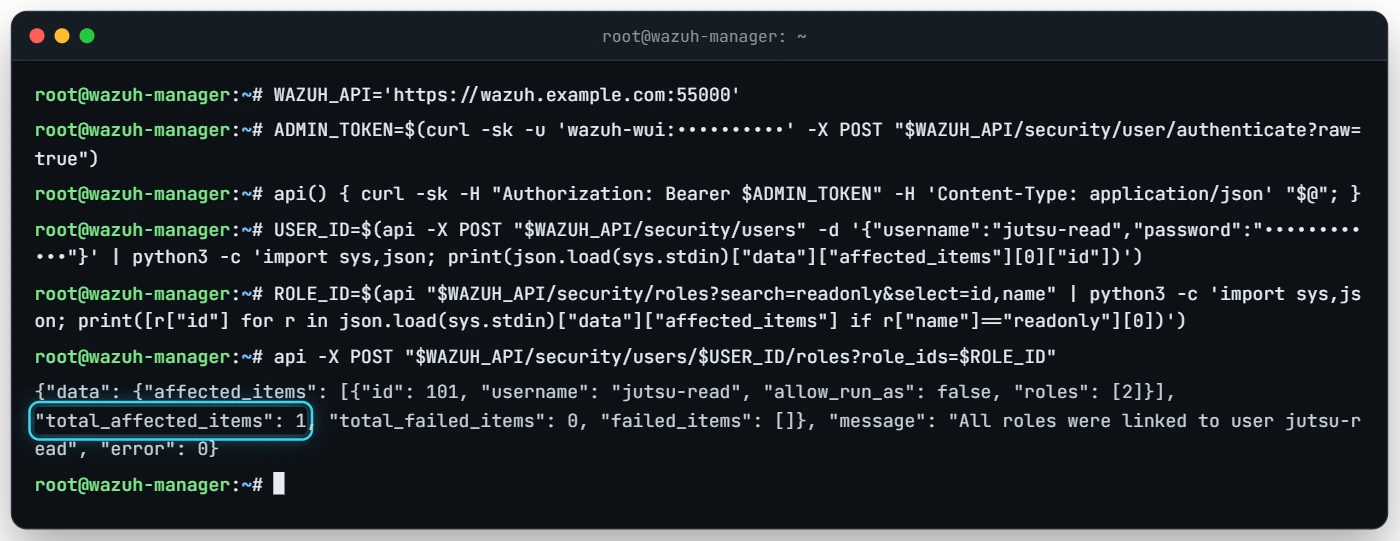
WAZUH_API='https://wazuh.example.com:55000'
ADMIN_TOKEN=$(curl -sk -u '<an API admin, such as wazuh-wui on 4.x or wazuh on 5.0>:<its password>' -X POST "$WAZUH_API/security/user/authenticate?raw=true")
api() { curl -sk -H "Authorization: Bearer $ADMIN_TOKEN" -H 'Content-Type: application/json' "$@"; }
USER_ID=$(api -X POST "$WAZUH_API/security/users" -d '{"username":"jutsu-read","password":"<password for jutsu-read>"}' | python3 -c 'import sys,json; print(json.load(sys.stdin)["data"]["affected_items"][0]["id"])')
ROLE_ID=$(api "$WAZUH_API/security/roles?search=readonly&select=id,name" | python3 -c 'import sys,json; print([r["id"] for r in json.load(sys.stdin)["data"]["affected_items"] if r["name"]=="readonly"][0])')
api -X POST "$WAZUH_API/security/users/$USER_ID/roles?role_ids=$ROLE_ID"
The last command prints Wazuh's answer. "total_affected_items": 1 means the role was given.
Step 2 - Create the indexer read user
This creates the jutsu_read role, the jutsu-reader user, and the mapping between them. The role reads Wazuh's own alert, event, and state indices and nothing else. It names the index patterns of both Wazuh 4.x and 5.0, so it keeps working after an upgrade.
Replace each <…> first: your indexer's address, the indexer admin and its password, and the new user's password.
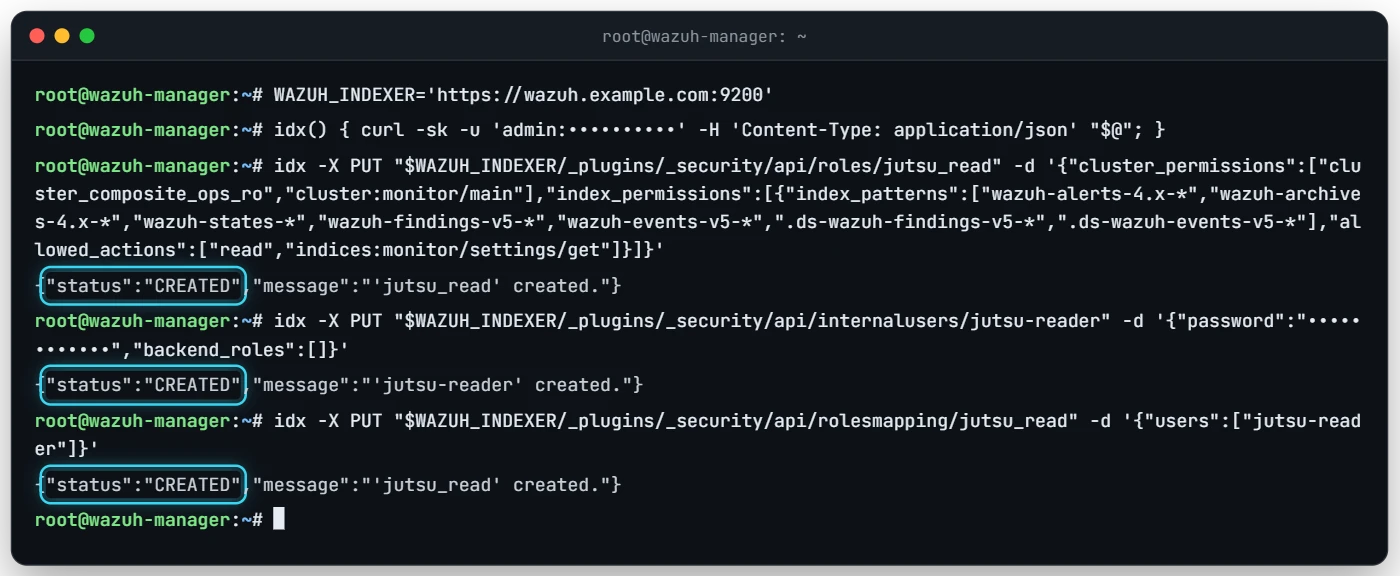
WAZUH_INDEXER='https://wazuh.example.com:9200'
idx() { curl -sk -u '<indexer admin user>:<its password>' -H 'Content-Type: application/json' "$@"; }
idx -X PUT "$WAZUH_INDEXER/_plugins/_security/api/roles/jutsu_read" -d '{"cluster_permissions":["cluster_composite_ops_ro","cluster:monitor/main"],"index_permissions":[{"index_patterns":["wazuh-alerts-4.x-*","wazuh-archives-4.x-*","wazuh-states-*","wazuh-findings-v5-*","wazuh-events-v5-*",".ds-wazuh-findings-v5-*",".ds-wazuh-events-v5-*"],"allowed_actions":["read","indices:monitor/settings/get"]}]}'
idx -X PUT "$WAZUH_INDEXER/_plugins/_security/api/internalusers/jutsu-reader" -d '{"password":"<password for jutsu-reader>","backend_roles":[]}'
idx -X PUT "$WAZUH_INDEXER/_plugins/_security/api/rolesmapping/jutsu_read" -d '{"users":["jutsu-reader"]}'
Each command answers with "status":"CREATED" (or "OK" if you run it again). If the second one answers Password is similar to user name, choose a password that doesn't contain the user name and run that command again.
Why curl -k? Wazuh signs its own certificates, so curl can't check them without -k. That only applies to these commands, which run against your own Wazuh. Jutsu itself never skips the certificate check. You confirm each certificate in the dialog.
Don't use an admin user instead: Jutsu refuses a manager API user that can manage Wazuh users, and an indexer user that holds an admin role, can write, or can read indices other than Wazuh's. A broader login stored in Jutsu would be a bigger risk than the connection needs.
Can't run the indexer commands? The indexer admin is usually admin. Its password is in wazuh-passwords.txt, inside the wazuh-install-files.tar the installer left on the server, unless someone changed it since. Run the commands on the indexer itself and use https://127.0.0.1:9200 as the address if port 9200 isn't reachable from your shell yet.
Check the users (optional)
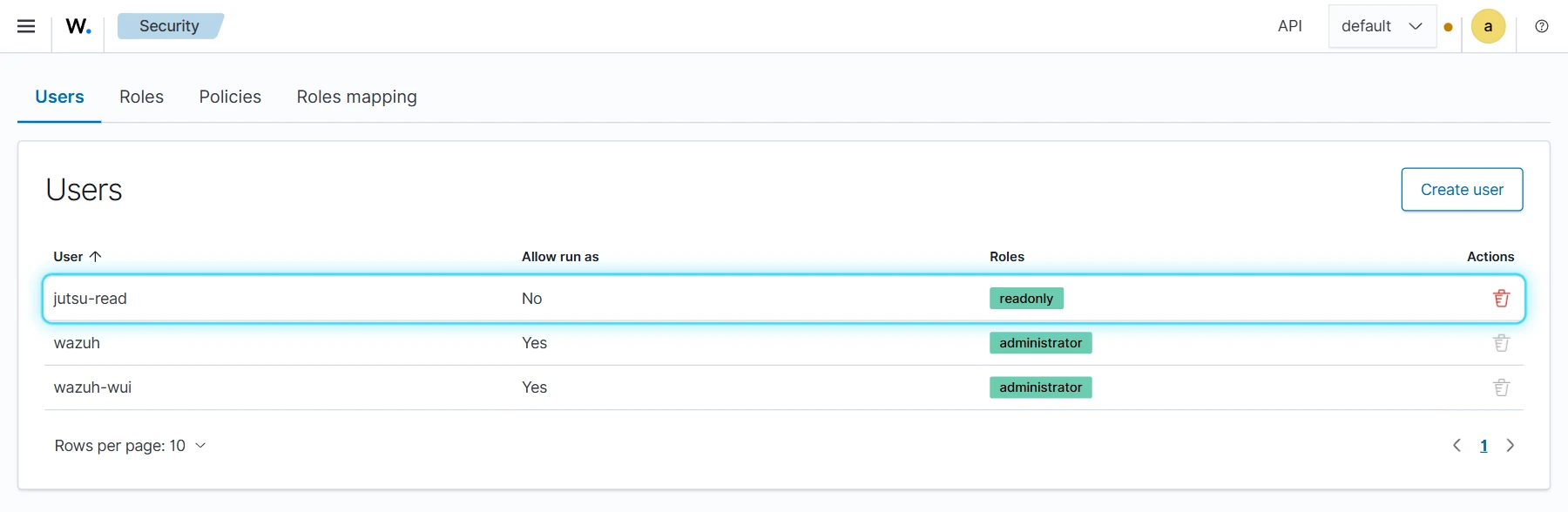
You can see both users in the Wazuh dashboard. Under Server management → Security → Users, jutsu-read has the readonly role and can't run as another user.
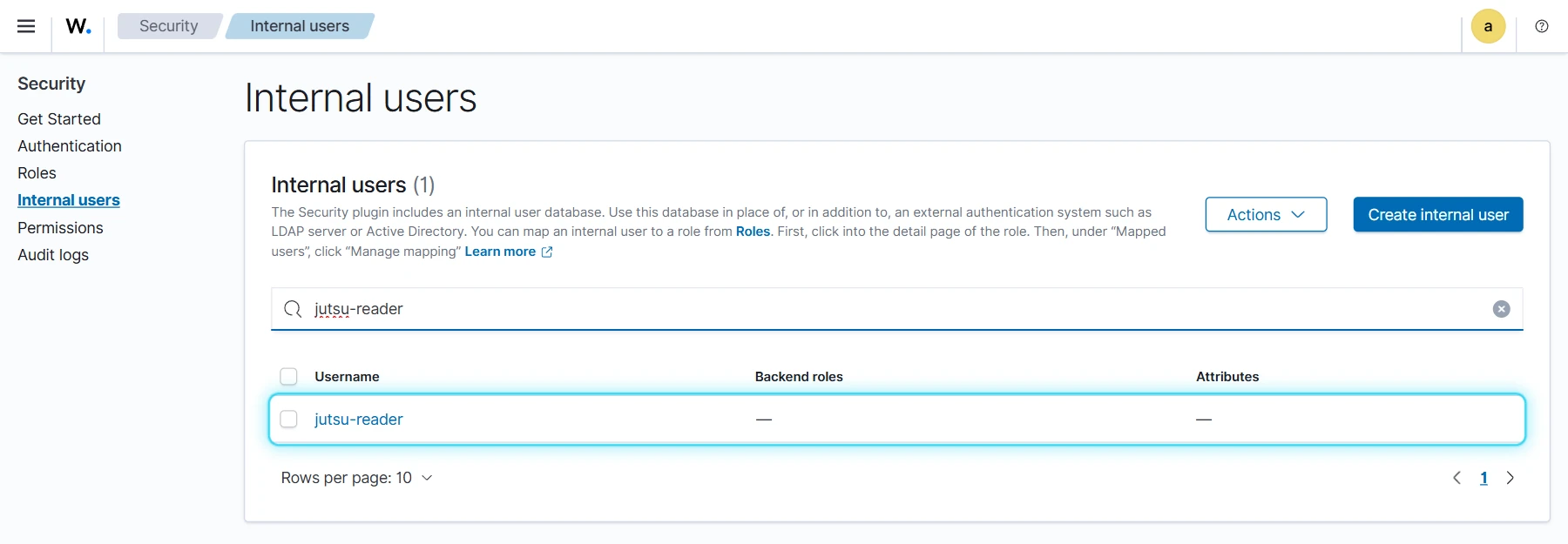
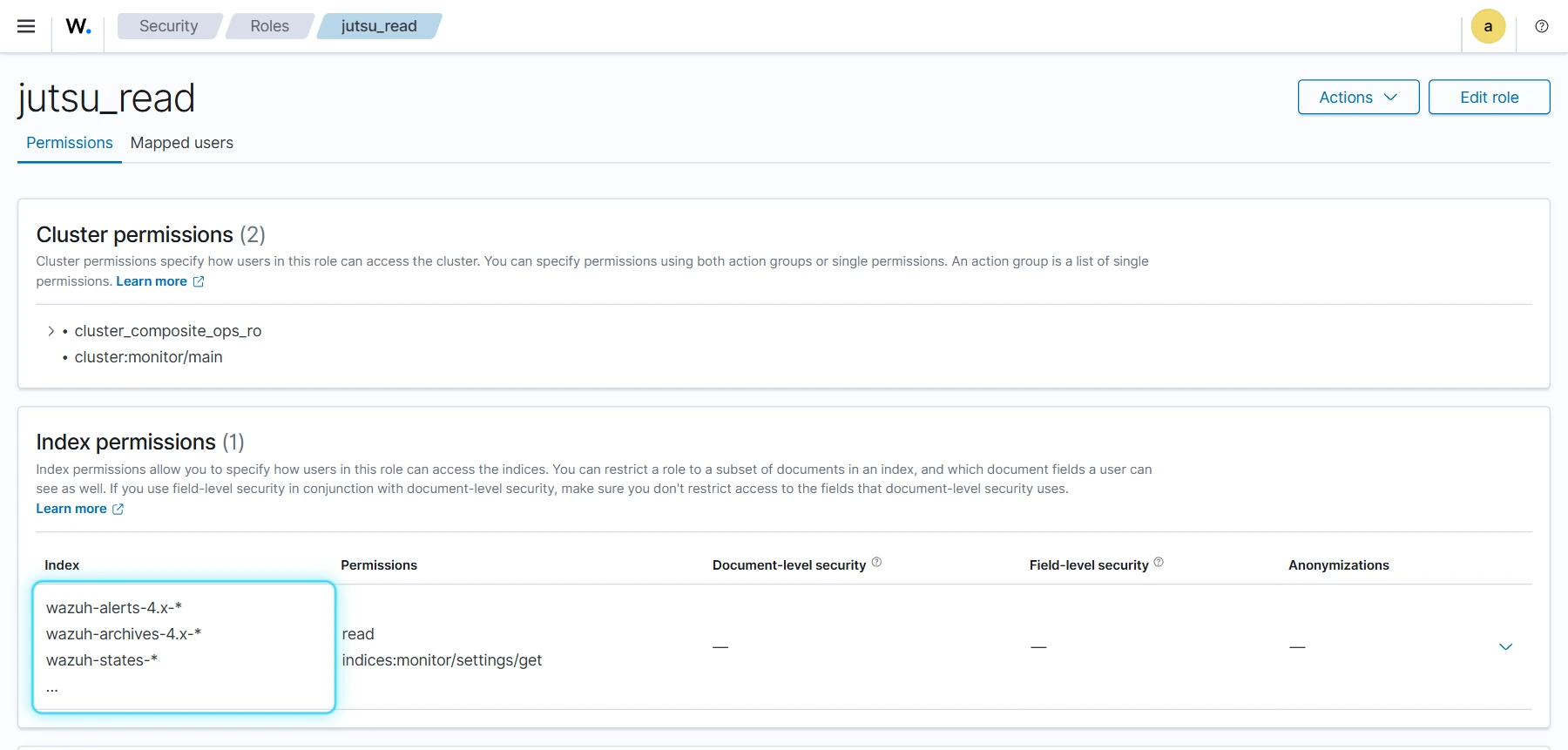
Under Indexer management → Security → Internal users, search for jutsu-reader. Under Roles, open jutsu_read: its index permissions are read on Wazuh's own indices and nothing else.
Connect it in Jutsu
Step 1 - Open Integrations
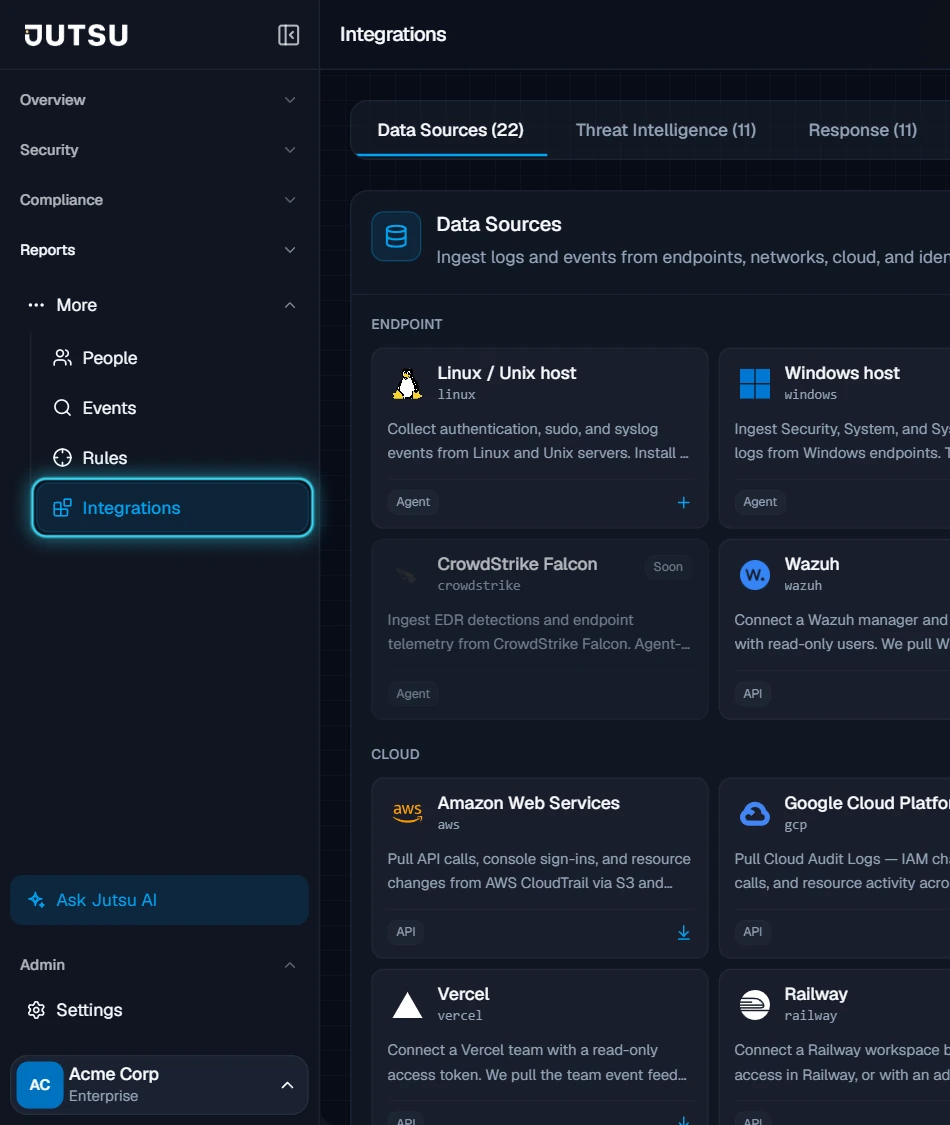
Go to app.jutsu.ai and select Integrations in the left navigation. It sits under More. The Data Sources tab opens by default.
Step 2 - Select the Wazuh card
In the Endpoint section, select the Wazuh card. The Connect Wazuh dialog opens, with seven numbered steps across the top: Addresses, Users, Logins, Certificates, Test, Collect, Done. The name of the step you're on shows beside its number. Nothing is stored until the last step.
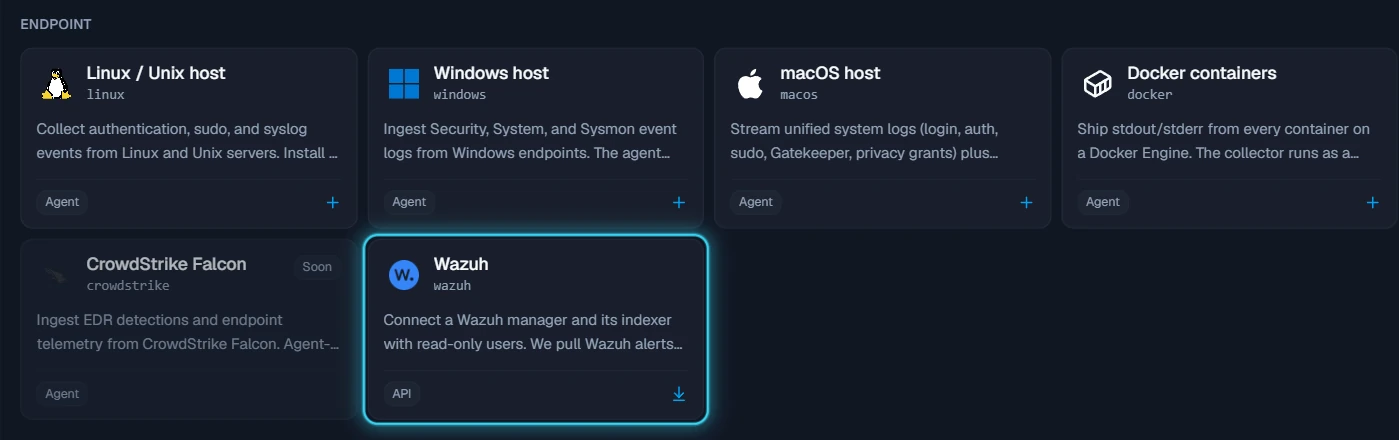
The card doesn't open? Adding integrations needs the Owner or Admin role in your Jutsu organization. For Analysts, Responders, and Viewers the catalog is read-only.
Step 3 - Addresses
Fill in the two addresses:
- Manager API address: such as
https://wazuh.example.com:55000. - Indexer address: such as
https://wazuh.example.com:9200.
Each one is an https address with no path. Any port works. Select Continue.
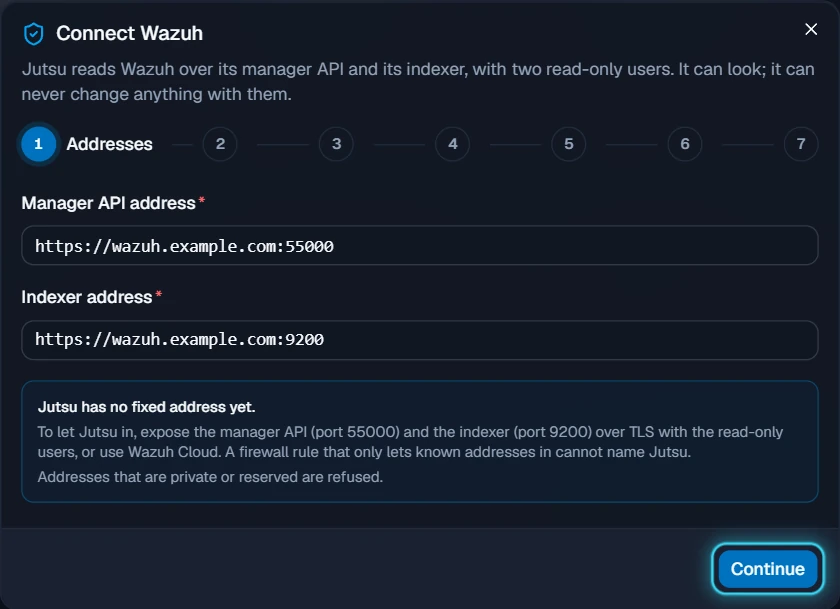
Step 4 - Users
The dialog shows the commands from Set up Wazuh above, with your two addresses filled in. If you haven't created the users yet, copy the commands from here and run them. Then select Continue.
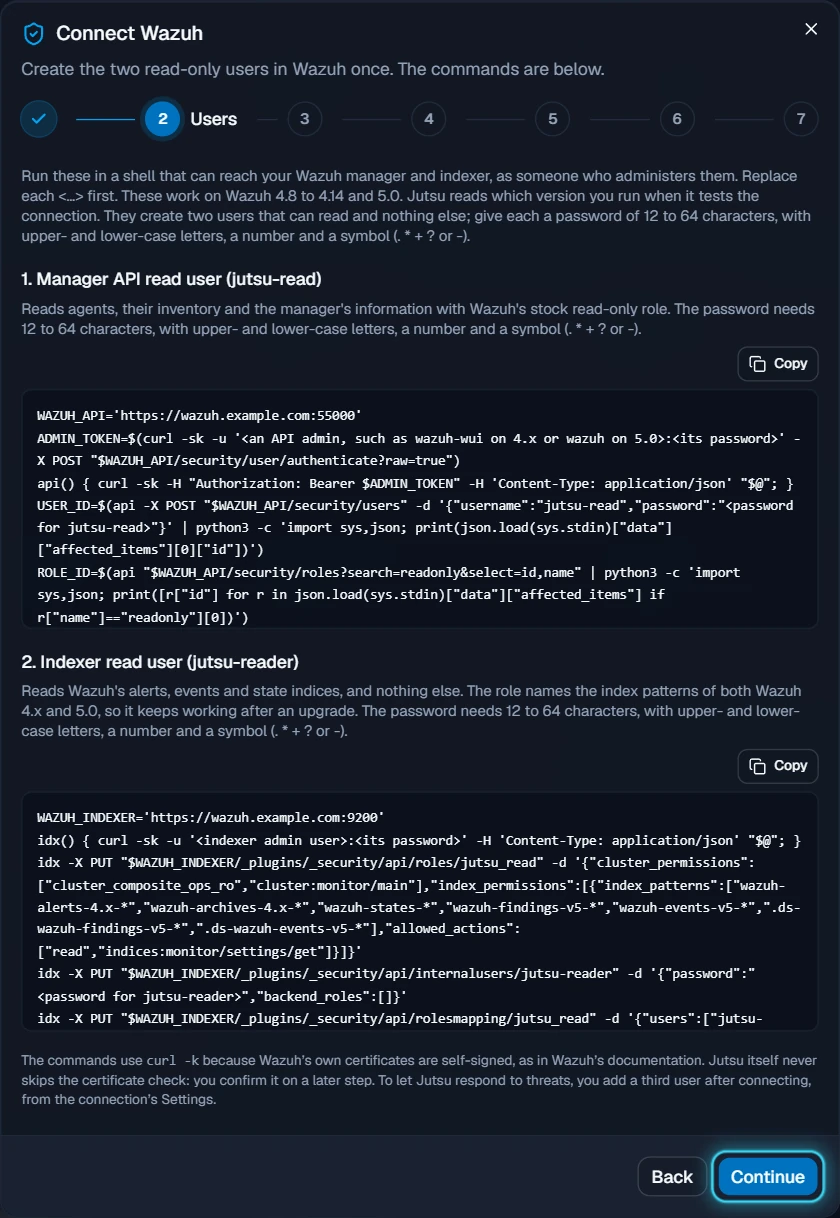
Step 5 - Logins
Fill in the form:
- Connection name: something that identifies the deployment, such as Acme — Wazuh.
- Manager API user:
jutsu-read, already filled in. - Manager API password: the password you gave
jutsu-read. - Indexer user:
jutsu-reader, already filled in. - Indexer password: the password you gave
jutsu-reader.
Jutsu stores the passwords encrypted and uses them only to read. Select Continue. Jutsu asks your Wazuh for its certificates.
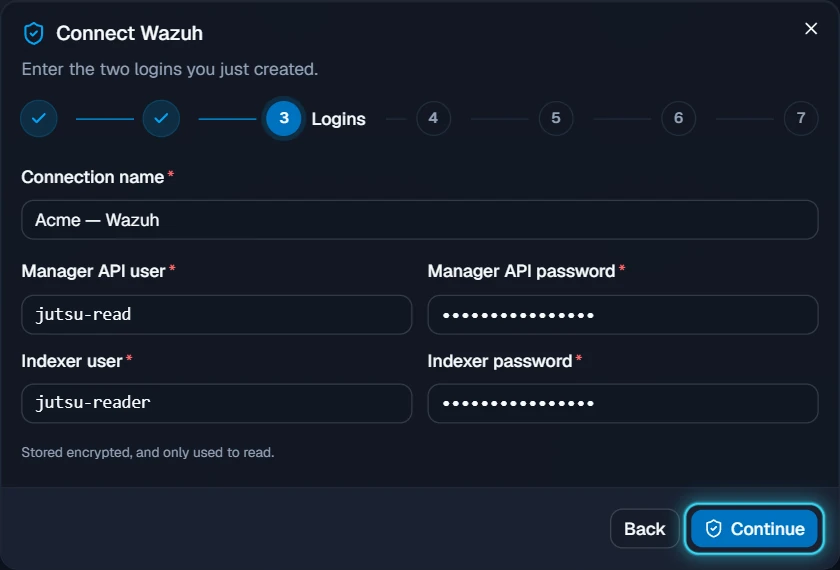
Step 6 - Certificates
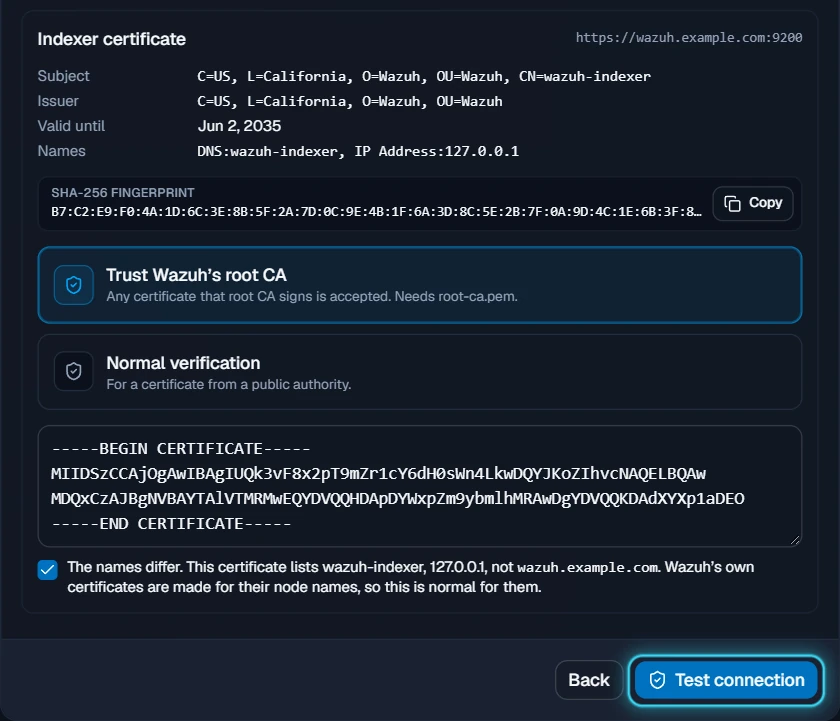
Wazuh signs its own certificates, so Jutsu shows you each one and asks how to trust it. There is a panel for the Manager API certificate and one for the Indexer certificate. Each lists the certificate's Subject, Issuer, Valid until, Names, and SHA-256 fingerprint, and offers up to three choices:
| Choice | When to use it |
|---|---|
| Pin this certificate | Wazuh's own certificate, when the server sends a certificate that signs itself. Recommended. Jutsu trusts exactly this certificate and stops if it ever changes. Offered only when the certificate can be pinned, and then chosen by default |
| Trust Wazuh's root CA | Wazuh's own certificate, when the server sends it without the certificate that signed it. Jutsu accepts any certificate your root CA signs. You paste root-ca.pem |
| Normal verification | A certificate from a public authority, such as Let's Encrypt |
On a default install the two panels usually differ:
- Manager API: Wazuh's API certificate signs itself, so Pin this certificate is offered and chosen.
- Indexer: the indexer sends its certificate without the root CA, so it can't be pinned. Pin this certificate isn't offered, and Trust Wazuh's root CA is chosen for you.
To pin a certificate, run the command the panel shows on a machine that reaches Wazuh the same way Jutsu does. It looks like this:
openssl s_client -connect wazuh.example.com:55000 -servername wazuh.example.com </dev/null 2>/dev/null | openssl x509 -noout -fingerprint -sha256
It must print the same fingerprint as the panel. You can paste what it printed into the box under the command, and Jutsu compares the two for you. Then tick The fingerprint is the one my command printed. Pin this certificate.
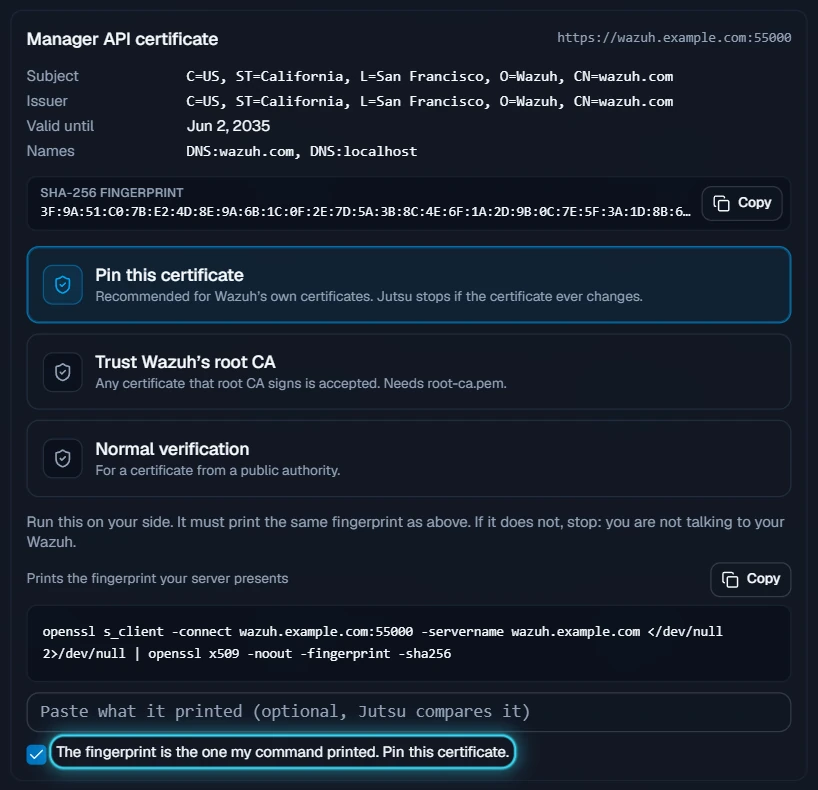
Danger: If the fingerprints don't match, stop. Something may sit between Jutsu and your Wazuh, or the address isn't yours. Jutsu says so too, and won't continue with that fingerprint.
To trust the root CA, paste the contents of Wazuh's root-ca.pem into the box, including the -----BEGIN CERTIFICATE----- and -----END CERTIFICATE----- lines. On the indexer it is at /etc/wazuh-indexer/certs/root-ca.pem:
sudo cat /etc/wazuh-indexer/certs/root-ca.pem
If the certificate was made for a different name than the address you typed, a box appears: The names differ. This certificate lists …, not …. Wazuh makes its certificates for its node names, such as wazuh-indexer or 127.0.0.1, so this is normal for them. Tick it.
Select Test connection. Jutsu signs in to the manager API and the indexer. Nothing is stored yet.
Step 7 - Test
Jutsu shows the version it found, such as Signed in to Wazuh 4.14.5., and one row for each thing it can read:
| Row | What a good result says |
|---|---|
| Alerts | The alerts index is readable. (on 5.0, Findings and events are readable.) |
| All events | Readable. If it says Wazuh is not writing them, archives are off. That's fine unless you want them |
| Vulnerabilities | Per-host vulnerabilities are readable. |
| People | Local accounts on each agent are readable. On 4.8 to 4.13 it says Local accounts need Wazuh 4.14. |
| Configuration checks | Read through the manager API. (on 5.0, CIS benchmark results are readable.) |
| Read-only | Neither user can change anything in Wazuh. |
A row marked for attention says what to fix. A row that's off means Wazuh doesn't have that feature turned on. See Turn on what you want Jutsu to see above. Select Continue.
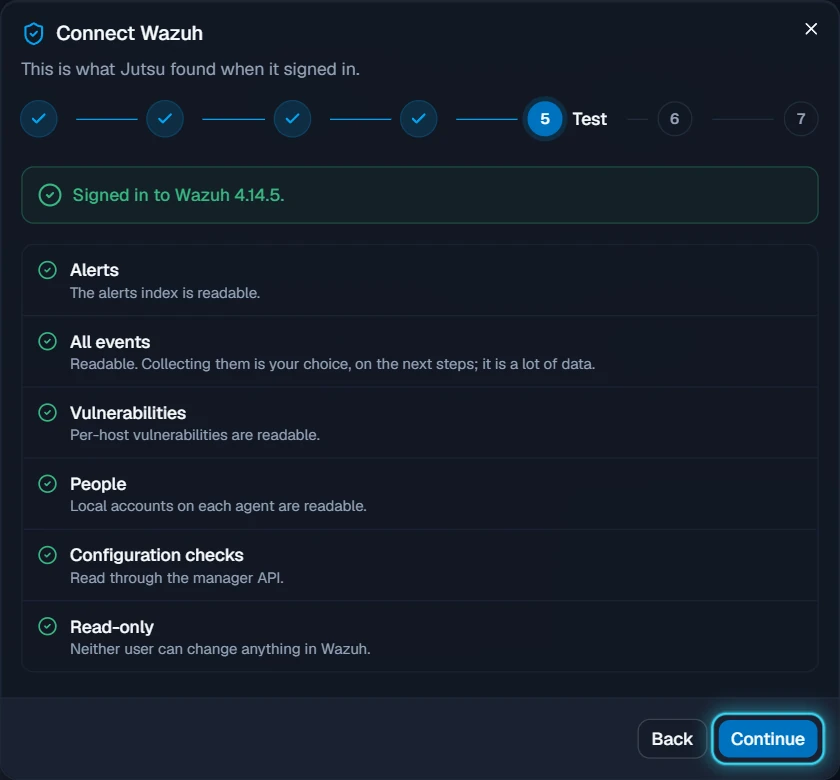
Wazuh 5.0: Jutsu supports 5.0 as a release candidate and says so on this step. What it reads from 5.0 is checked again against Wazuh's final release.
Step 8 - Collect
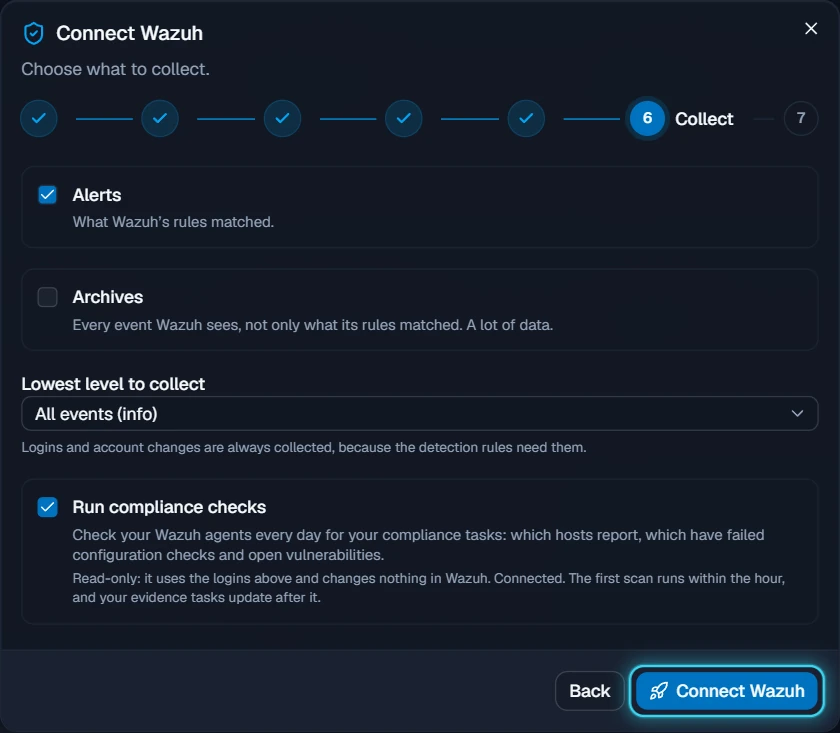
Choose what to collect:
- Alerts: always on. On 4.x, what Wazuh's rules matched. On 5.0, Wazuh's findings, and the logins and account changes it records as events.
- Archives (4.x) or All events (5.0): every event Wazuh sees, not only what its rules matched. Off by default. You can only tick it if Wazuh writes them.
- Lowest level to collect: keep All events (info), the default, so Jutsu sees everything Wazuh alerts on. You can choose Low and above, Medium and above, High and above, or Critical only instead. Logins and account changes are always collected, whatever you choose, because the detection rules need them.
- Run compliance checks: keep it ticked. Jutsu checks your Wazuh agents every day for your compliance tasks, using the same read-only logins. It's offered on plans that include compliance.
Warning: Archives and All events can be many times the size of your alerts: every log line each agent sends is one event. They count towards your plan's daily ingest. Switch them on only if you need every event in Jutsu, and watch the 24-hour count afterwards.
Select Connect Wazuh. Jutsu runs the whole test again before it saves anything.
Step 9 - Done
Jutsu saves the connection and takes you to Connections. It reads alerts every minute, and lists your agents, their local accounts, and their vulnerabilities after the first scan.
If you started from the Connect button on the Connections page instead, the dialog stays open on Done, says Connected., and offers Open connection.
Find the connection
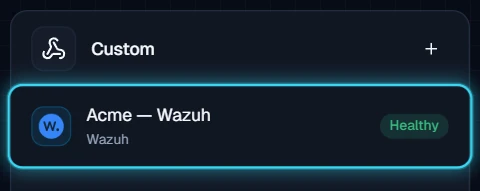
Jutsu adds the connection to Connections, under Custom.
Verify the connection
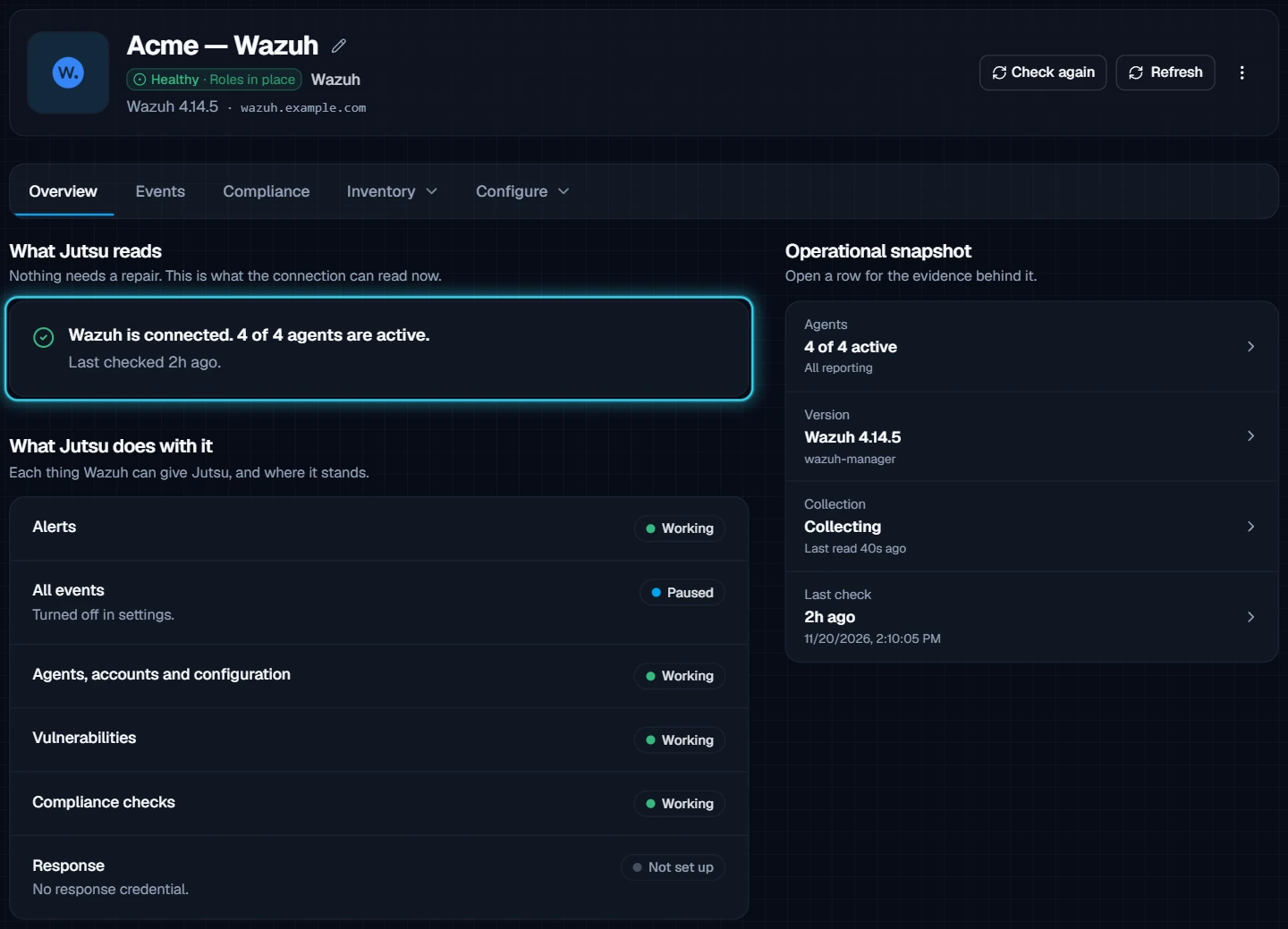
Open the connection. The badge beside its name shows its health, such as Healthy · Roles in place after a check that passed. Its Overview tab has three parts:
- What Jutsu reads: one sentence, such as Wazuh is connected. 4 of 4 agents are active., and the time of the last check.
- What Jutsu does with it: each part of the connection with its own status: Alerts, All events, Agents, accounts and configuration, Vulnerabilities, Compliance checks, and Response. Each one is Working, Needs attention, Not turned on in Wazuh, Paused, or Not set up. Not turned on in Wazuh is not an error. It means that Wazuh feature is off.
- Operational snapshot: the Agents and how many report, the Version, how Collection is going, and the Last check.
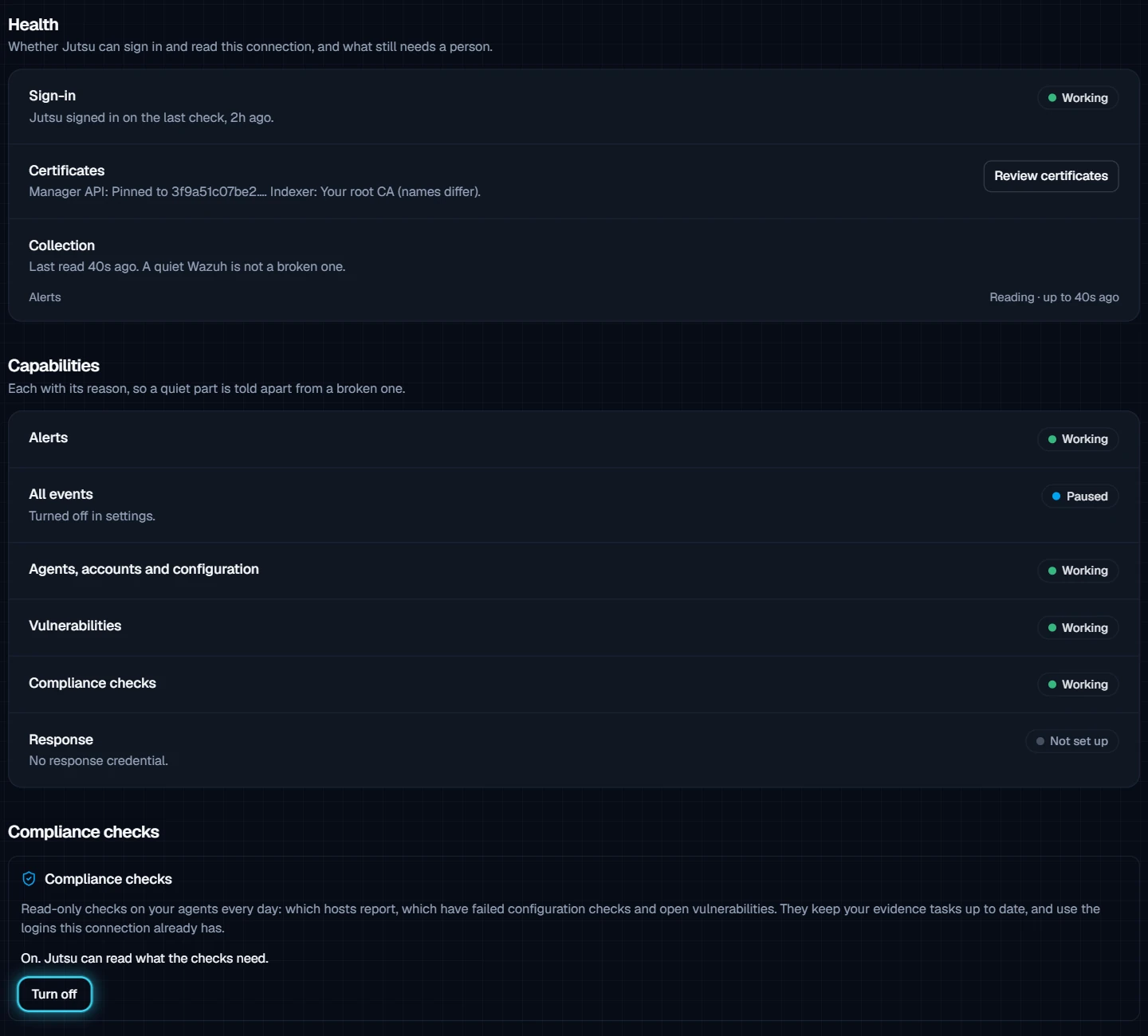
Open Configure → Health for the details. Sign-in says whether Jutsu could sign in on the last check:
| Sign-in | Meaning |
|---|---|
| Working | Jutsu can sign in and read everything you chose |
| Needs attention | Jutsu is connected, and something needs a look. The page says what |
| Cannot sign in | Jutsu couldn't sign in on the last check |
| Checking | The first check is running |
| Not checked yet | The first check hasn't run. Select Check again to start it |
The same tab shows how each Certificate is trusted, with Review certificates, how Collection is going, the reason for each Capability, and the Compliance checks switch.
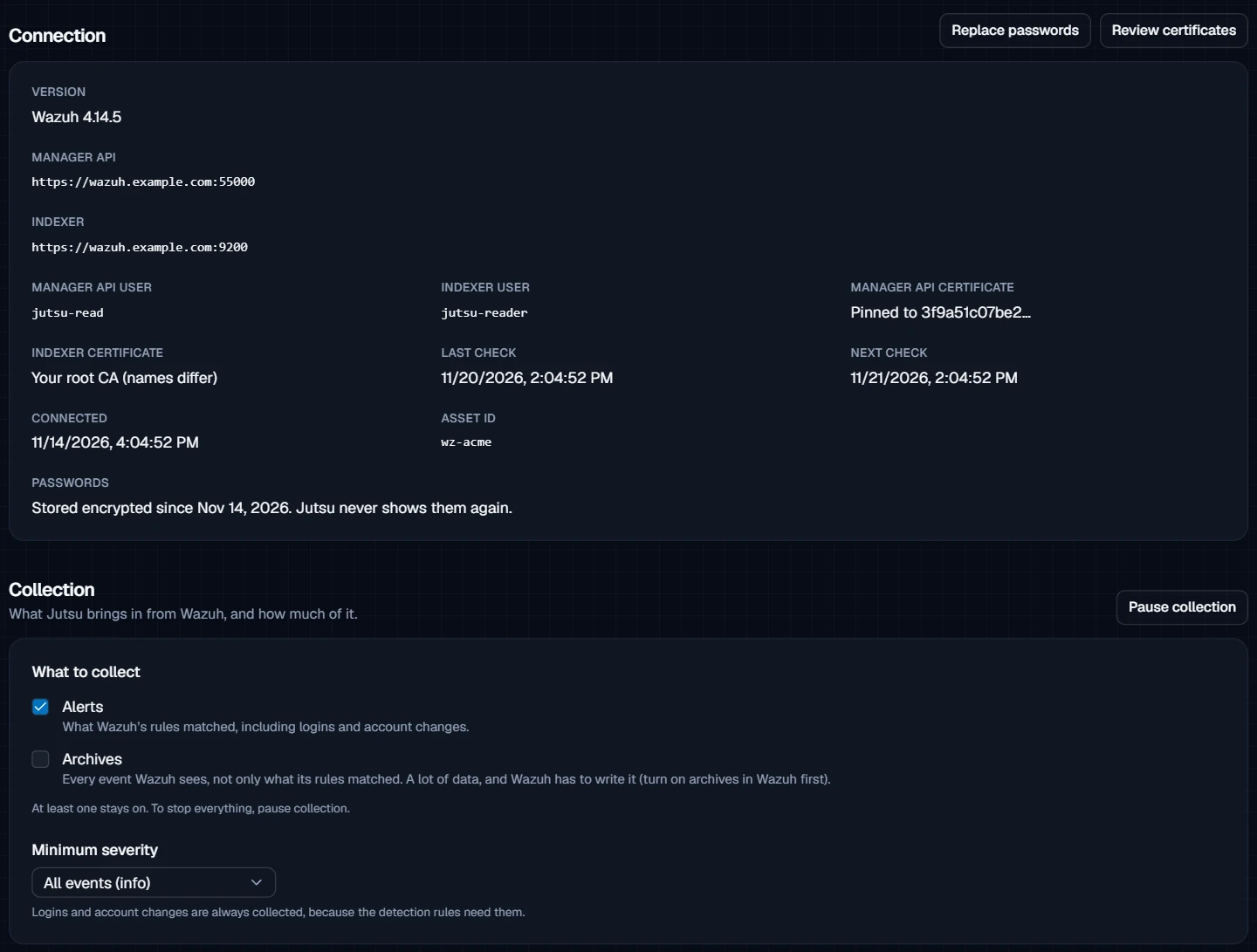
Open Configure → Settings for the technical facts: Version, the Manager API and Indexer addresses, the two users, how each certificate is trusted (such as Pinned to 3f9a51c07be2… or Your root CA (names differ)), the last and next check, and when you connected. Replace passwords and Review certificates are at the top.
Quiet is normal at first: On its first read Jutsu collects the last 24 hours of alerts, not your whole history. Agents, accounts, vulnerabilities, and configuration checks appear after the first scan, which starts when you connect and then runs every 6 hours. Jutsu checks the connection's health within about 10 minutes, then once a day. Select Check again to check it straight away after any change in Wazuh.
What healthy looks like
| Badge | Healthy · Roles in place |
|---|---|
| Sentence | Wazuh is connected. N of N agents are active. |
| Collection | Collecting, last read a minute or so ago |
| Agents | N of N active, All reporting |
| Alerts | Working |
| Agents, accounts and configuration | Working |
| Vulnerabilities | Working, or Not turned on in Wazuh if vulnerability detection is off |
| Version | The version you run, such as Wazuh 4.14.5 |
What Jutsu does with your Wazuh data
Alerts and detections
Jutsu reads Wazuh's alerts every minute. Each Wazuh rule level becomes a Jutsu severity:
| Wazuh rule level | Jutsu severity |
|---|---|
| 0 to 3 | Info |
| 4 to 6 | Low |
| 7 to 11 | Medium |
| 12 to 14 | High |
| 15 and 16 | Critical |
Jutsu then checks the alerts with 16 Wazuh rules of its own. Wazuh alert (critical) and Wazuh alert (high) raise a Jutsu alert for each critical and high Wazuh alert. Wazuh alert (medium) is off by default. The rest look across your agents for patterns that one Wazuh alert doesn't show:
- Failed logins, then a login from the same source.
- A password spray from one source.
- One source attacking many hosts.
- A local account created, or an account added to an admin group.
- A critical file changed.
- A rootkit or trojan signal, or malware found.
- Security logging stopped or cleared.
- An agent that went silent.
- An attack followed by an account change.
- A critical vulnerability detected.
- A web attack that succeeded.
The connection's Events tab shows what Jutsu collected.
Inventory
The connection's Inventory menu has four lists:
- Agents: each Wazuh agent as a machine, with its status, system, CIS score and open vulnerabilities. Open one for its packages, ports, and processes, read live from Wazuh.
- People: the local accounts on each agent (Wazuh 4.14 and 5.0).
- Vulnerabilities: each host's open vulnerabilities.
- Configuration checks: the CIS benchmark checks each host failed.
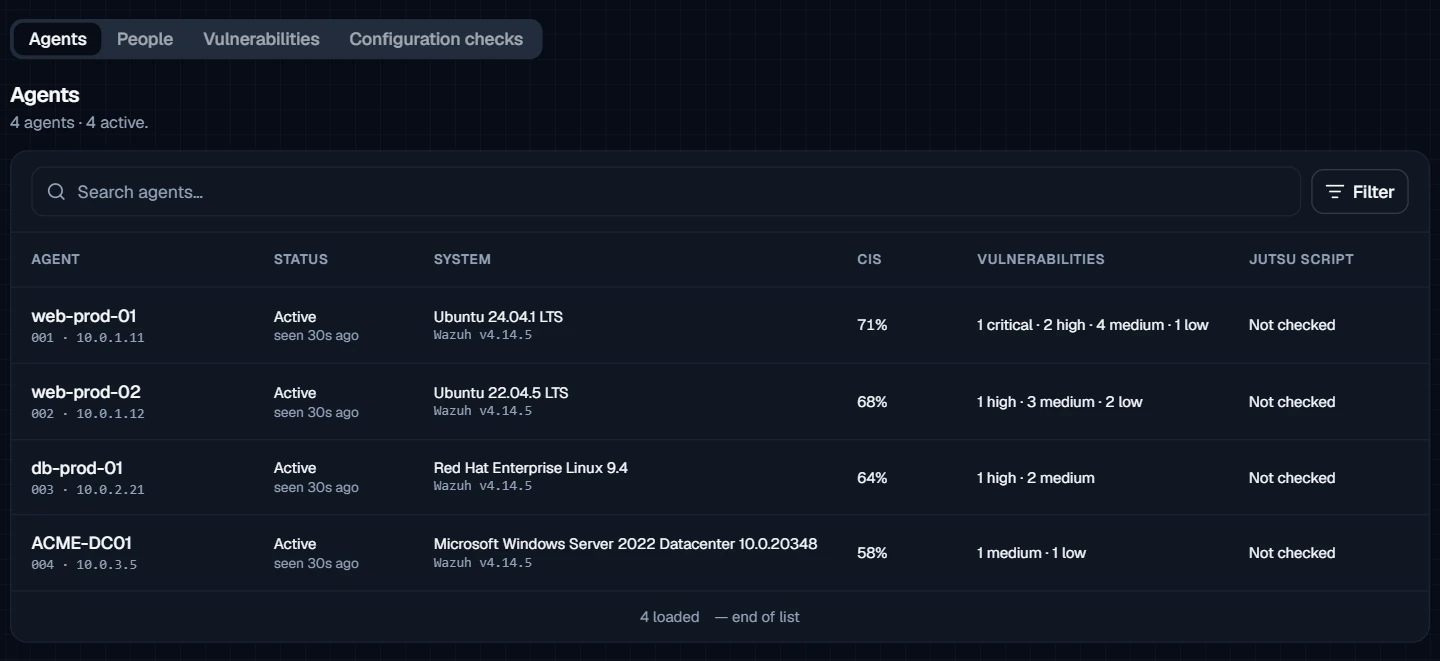
An empty list is not proof that the hosts are clean: It can also mean Wazuh hasn't scanned them yet, or the feature is off in Wazuh. The connection's capability rows say which.
Compliance checks
With Run compliance checks on, Jutsu checks your agents every day for your compliance tasks:
- Every Wazuh agent is reporting.
- No Wazuh agent has stayed never connected for 7 days.
- Every Wazuh agent runs the manager's version.
- Vulnerability detection is on in the Wazuh manager.
- No critical vulnerability stays open on a host for more than 30 days.
- No high vulnerability stays open on a host for more than 90 days.
- Every host meets the configuration baseline score.
- File integrity monitoring has scanned every host in the last 48 hours.
- Every host is protected by an active agent that scans for rootkits.
There's nothing extra to set up. To turn the checks on or off later, use Compliance checks under the connection's Configure → Health.
Choose what to collect
Under Configure → Settings → Collection you can change what Jutsu collects. Changes apply from the next read, and nothing already collected is removed.
- Pause collection stops reading Wazuh until you select Resume collection. What is already in Jutsu stays.
- What to collect switches Archives (4.x) or All events (5.0) on or off. At least one stays on. To stop everything, pause collection.
- Minimum severity sets the lowest severity Jutsu collects. Logins and account changes are always collected.
Response actions
Jutsu can act on a compromised host or account through Wazuh. Response uses a separate Wazuh API user, never the read-only one, so removing it never stops collection.
| Action | Wazuh 4.x | Wazuh 5.0 |
|---|---|---|
| Block IP on the host | Yes | Not yet |
| Lock a local account (Linux) | Yes | Not yet |
| Isolate the host | Yes, with the jutsu-respond script | Not yet |
| Restart the Wazuh agent | Yes | Yes |
| Rescan the host | Yes | Yes |
Step 1 - Create the response user
Open the connection, go to Configure → Settings → Response actions, and select Arm responses with a response user. The form lists the rights the user needs and prints the commands for the Wazuh version you run. On 4.x they look like this:
WAZUH_API='https://wazuh.example.com:55000'
ADMIN_TOKEN=$(curl -sk -u '<wazuh-wui or another API admin>:<its password>' -X POST "$WAZUH_API/security/user/authenticate?raw=true")
api() { curl -sk -H "Authorization: Bearer $ADMIN_TOKEN" -H 'Content-Type: application/json' "$@"; }
POLICY_ID=$(api -X POST "$WAZUH_API/security/policies" -d '{"name":"jutsu_respond","policy":{"actions":["active-response:command","agent:restart","syscheck:run","rootcheck:run","agent:read"],"resources":["agent:id:*"],"effect":"allow"}}' | python3 -c 'import sys,json; print(json.load(sys.stdin)["data"]["affected_items"][0]["id"])')
ROLE_ID=$(api -X POST "$WAZUH_API/security/roles" -d '{"name":"jutsu_respond"}' | python3 -c 'import sys,json; print(json.load(sys.stdin)["data"]["affected_items"][0]["id"])')
api -X POST "$WAZUH_API/security/roles/$ROLE_ID/policies?policy_ids=$POLICY_ID"
USER_ID=$(api -X POST "$WAZUH_API/security/users" -d '{"username":"jutsu-respond","password":"<password for jutsu-respond>"}' | python3 -c 'import sys,json; print(json.load(sys.stdin)["data"]["affected_items"][0]["id"])')
api -X POST "$WAZUH_API/security/users/$USER_ID/roles?role_ids=$ROLE_ID"
On 5.0 the policy's actions are agent:restart, agent:scan_vulnerability, and agent:read. Copy the 5.0 commands from the connection page and don't change them: Wazuh 5.0 accepts a policy that names an action it doesn't know, then ignores the whole policy.
Limit it to some agents: The policy covers every agent (agent:id:*). To let Jutsu act only on one group, replace agent:id:* with agent:group:<group> before you run the commands.
Step 2 - Add it to the connection
Under the commands in the same form, fill in Response API user (jutsu-respond) and Response API password, then select Verify & save. Jutsu signs in as the user and reads its policies before it stores the password. It refuses a user with no rights.
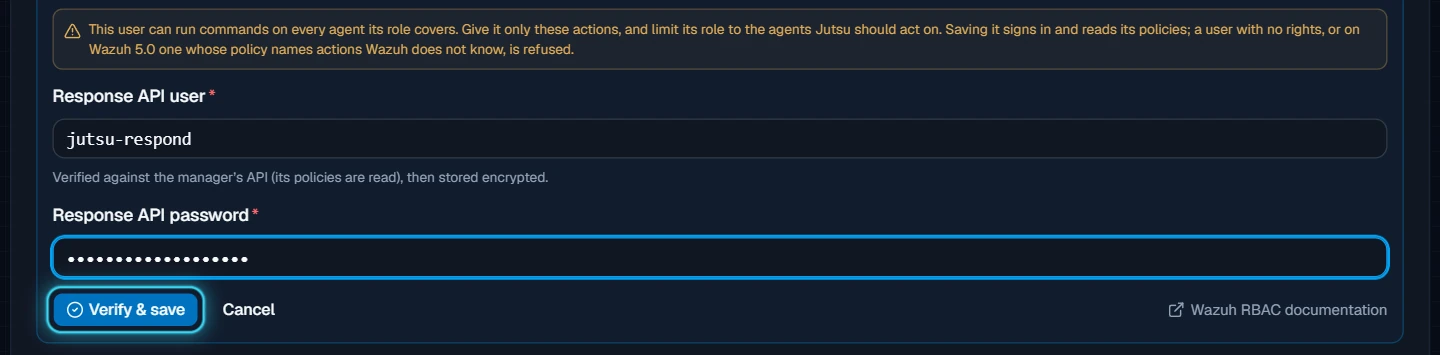
On 5.0 the form also has Indexer writer user (optional) and Indexer writer password (optional). Leave them empty. They're only needed when block, disable, and isolate arrive on 5.0.
Step 3 - Add the timed responses to the manager (4.x)
Block IP and Lock a local account use Wazuh's own active responses, which Wazuh ends after 24 hours. Open Timed responses on the manager in the same block. It shows these lines. Add them to /var/ossec/etc/ossec.conf on the manager, then restart the manager:
<ossec_config>
  <!-- Jutsu response: callable from the API only. Level 16 is never reached by stock rules. -->
  <active-response><command>firewall-drop</command><location>local</location><level>16</level><timeout>86400</timeout></active-response>
  <active-response><command>netsh</command><location>local</location><level>16</level><timeout>86400</timeout></active-response>
  <active-response><command>disable-account</command><location>local</location><level>16</level><timeout>86400</timeout></active-response>
</ossec_config>
They run only when Jutsu calls them. Level 16 is never reached by Wazuh's own rules.
To isolate a host, or to lift a block or a lock before the 24 hours are up, install The Jutsu response script (optional) on each agent where Jutsu should do that. Download it from the same block: jutsu-respond for Linux, and jutsu-respond.cmd with jutsu-respond.ps1 for Windows. On a Linux agent, install it as root:
install -o root -g wazuh -m 750 jutsu-respond /var/ossec/active-response/bin/jutsu-respond
On a Windows agent, copy both files from a Command Prompt run as administrator:
copy jutsu-respond.cmd jutsu-respond.ps1 "C:\Program Files (x86)\ossec-agent\active-response\bin\"
Without the script, Jutsu doesn't offer isolation, and a block or a lock lasts until Wazuh's timer ends it. The script never touches the host's other firewall rules.
Emergency release: If an isolated host can't be reached from Jutsu, run /var/ossec/active-response/bin/jutsu-respond release-all at the host's console (on Windows, jutsu-respond.cmd release-all in the same folder). It removes every rule Jutsu added, and on Linux unlocks every account Jutsu locked.
Step 4 - Allow the actions
Each action has to be turned on for your organization before anyone can use it. Go to Organization → Action policy and turn on the Wazuh actions you want. An Analyst proposes an action from an alert. A Responder or above approves it, and by default the approver can't be the person who proposed it.
Built-in safeguards: Jutsu never acts on the Wazuh manager itself. Block IP refuses private addresses, the manager's address, the agent's own address, and Jutsu's addresses. Lock a local account refuses root, wazuh, ossec, and any account with uid 0.
Troubleshooting
| Message or symptom | What to do |
|---|---|
| The Wazuh card doesn't open | You need the Owner or Admin role in the Jutsu organization. |
| An https address with no path, for example https://wazuh.example.com:55000. | Type the address as https://, the host, and the port, with nothing after it. |
Password is similar to user name (from the indexer, while you create jutsu-reader) | The indexer refuses a password that resembles the user name. Choose one without the user name in it and run the internalusers command again. |
| Jutsu does not connect to that address | The address is private, reserved, or not on the internet. Expose the manager API and the indexer on a public address, or use Wazuh Cloud. |
| Wazuh did not answer | The manager or the indexer is down, or a firewall is in the way. Check both addresses, and that ports 55000 and 9200 (or yours) are open to the internet. On an all-in-one install, check that the indexer doesn't listen on 127.0.0.1 only. |
| This certificate chain cannot be pinned. Give Wazuh's root-ca.pem instead. | The server sends its certificate without the one that signed it. Choose Trust Wazuh's root CA and paste root-ca.pem. |
| The certificate is not for this address. | Tick The names differ. Wazuh's certificates are made for node names. |
| The fingerprint you pasted is not the one Jutsu saw. | Stop. Check the address, and run the command from a machine that reaches Wazuh the way Jutsu does. If they still differ, something is between Jutsu and Wazuh. |
| The manager API no longer accepts Jutsu's user or The indexer no longer accepts Jutsu's user | The password was changed or the user was removed. Use Replace passwords under Configure → Settings. Jutsu tries the new password before it saves it. |
| The manager API user can manage Wazuh users or The indexer user holds an administrator role | You connected with an admin. Create the read-only users with the commands above and use Replace passwords. |
| The indexer user can write or The indexer user can read more than Wazuh's own data | The indexer user's role is broader than jutsu_read. Map the user to jutsu_read only. |
| The manager API user is missing a right Jutsu needs or The manager API user has no rights | Give the user Wazuh's readonly role, or create it again with the commands above without changing them. |
| The indexer user cannot read Wazuh's alerts | The role doesn't cover the alert or event indices. Run the jutsu_read role command from Step 2 again. |
| The manager writes no archives. | You ticked Archives, but Wazuh doesn't write them. Turn on logall_json and the archives index in Wazuh (see Turn on what you want Jutsu to see), or connect without archives. |
| Wazuh presents a different certificate than the one you confirmed | The certificate was renewed or replaced, and Jutsu stopped reading until you look at it. Select Review new certificate, check the fingerprint, and confirm it if it's yours. |
| This Wazuh is older than Jutsu supports | Jutsu reads Wazuh 4.8 and newer. Upgrade Wazuh. |
| Wazuh is limiting how often Jutsu can read | Wazuh's API allows 300 requests a minute by default, shared with your own dashboard. Nothing needs changing. Jutsu reads again shortly. |
| This workspace has reached its plan's limit on connections. | Archive a connection you no longer use, or upgrade the plan. |
| People is empty on Wazuh 4.8 to 4.13 | Wazuh reports local accounts from 4.14. Upgrade Wazuh to see them. |
| Connected, but no alerts | Check Minimum severity before you assume Wazuh was quiet, and that your agents report. The Agents count on the Overview shows how many are disconnected. |
Security and access
- Jutsu only reads with the two users you created. The manager API user has Wazuh's readonly role. The indexer user reads Wazuh's own indices and nothing else. Jutsu checks both on every test, and refuses a user that can do more.
- The passwords are encrypted at rest and never shown again.
- Jutsu never turns certificate checks off. A pinned certificate that changes stops collection until you confirm the new one.
- Response actions use a separate user, limited to the actions above and, if you choose, to one agent group. Revoking it never affects collection.
- Exposing the manager API and the indexer to the internet exposes their sign-in pages too. Keep Wazuh's admin passwords strong.
Remove the connection
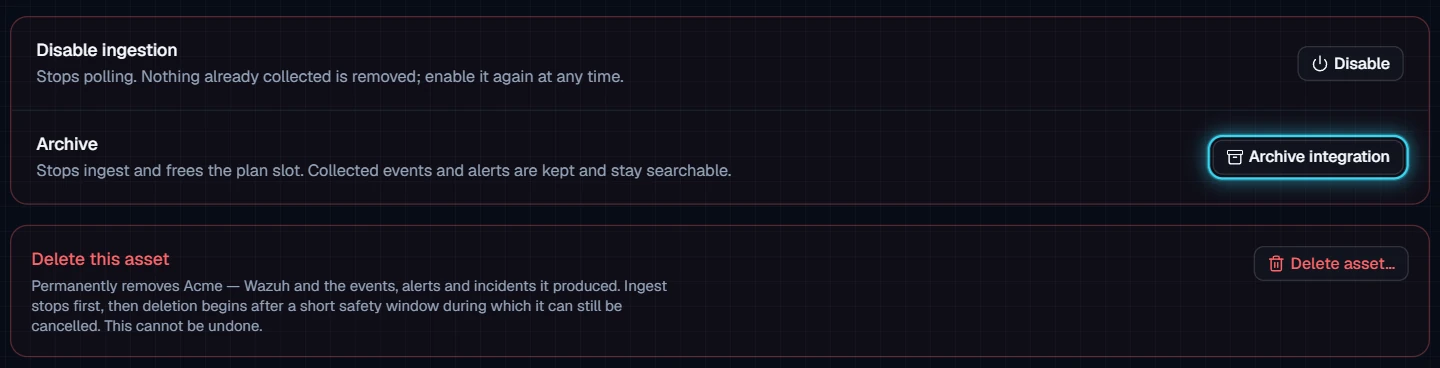
Removing it takes two parts: archive the connection in Jutsu, then delete Jutsu's users in Wazuh. Archiving doesn't touch your Wazuh.
- In Jutsu, open the connection and go to Configure → Danger zone. Disable stops reading Wazuh until you enable it again. Archive integration stops Jutsu reading Wazuh and frees the plan slot. Events and alerts already collected stay. Delete asset removes the connection and what it collected, for good.
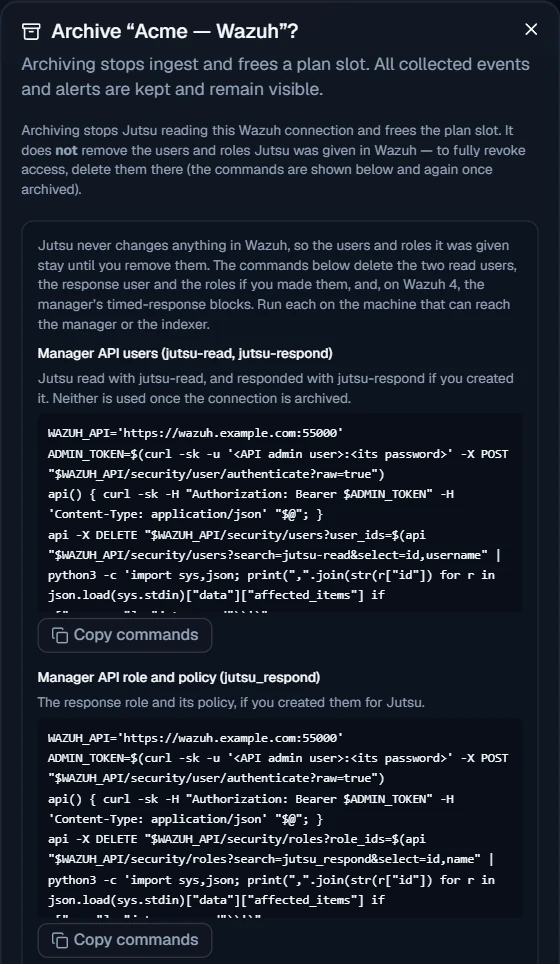
- In Wazuh, delete the users and roles Jutsu was given. When you select Archive integration, the confirmation shows the exact commands, and the connection shows them again once it's archived: the
jutsu-readandjutsu-respondAPI users, thejutsu_respondrole and policy, thejutsu-readerindexer user, and thejutsu_readrole and its mapping. If you added the timed responses, remove those three<active-response>blocks fromossec.confand restart the manager.