Railway
Connect a Railway workspace to Jutsu. Jutsu pulls the workspace audit log, which covers shell, exec, file and tunnel access into running containers, variable and secret changes, deployments, and membership changes. It detects threats in those events automatically. Nothing gets installed inside your containers.
| Time | About 2 minutes with Connect with Railway, or 5 with an API token |
|---|---|
| You need | Workspace admin access in Railway, and the Owner or Admin role in your Jutsu organization |
| Collected by default | The workspace audit log (railway.audit). Nine more sources can be switched on later |
Choose how to connect
| Option A: Connect with Railway | Option B: API token | |
|---|---|---|
| How it works | You approve Jutsu on Railway's consent screen | You create a token in Railway and paste it into Jutsu |
| Nothing to copy | Yes | No. You copy a token and a Workspace ID |
| Tied to a person | Yes, the Railway user who approved it | No, if you create a workspace token |
| If it stops working | Jutsu notifies owners and admins, and offers Reconnect | The error shows on the connection page |
Choose Option A for the quickest setup. Choose Option B if the connection has to keep running through staff changes without anyone re-approving it.
Both options start the same way.
Step 1 - Open Integrations
Go to app.jutsu.ai and select Integrations in the left navigation. The Data Sources tab opens by default.
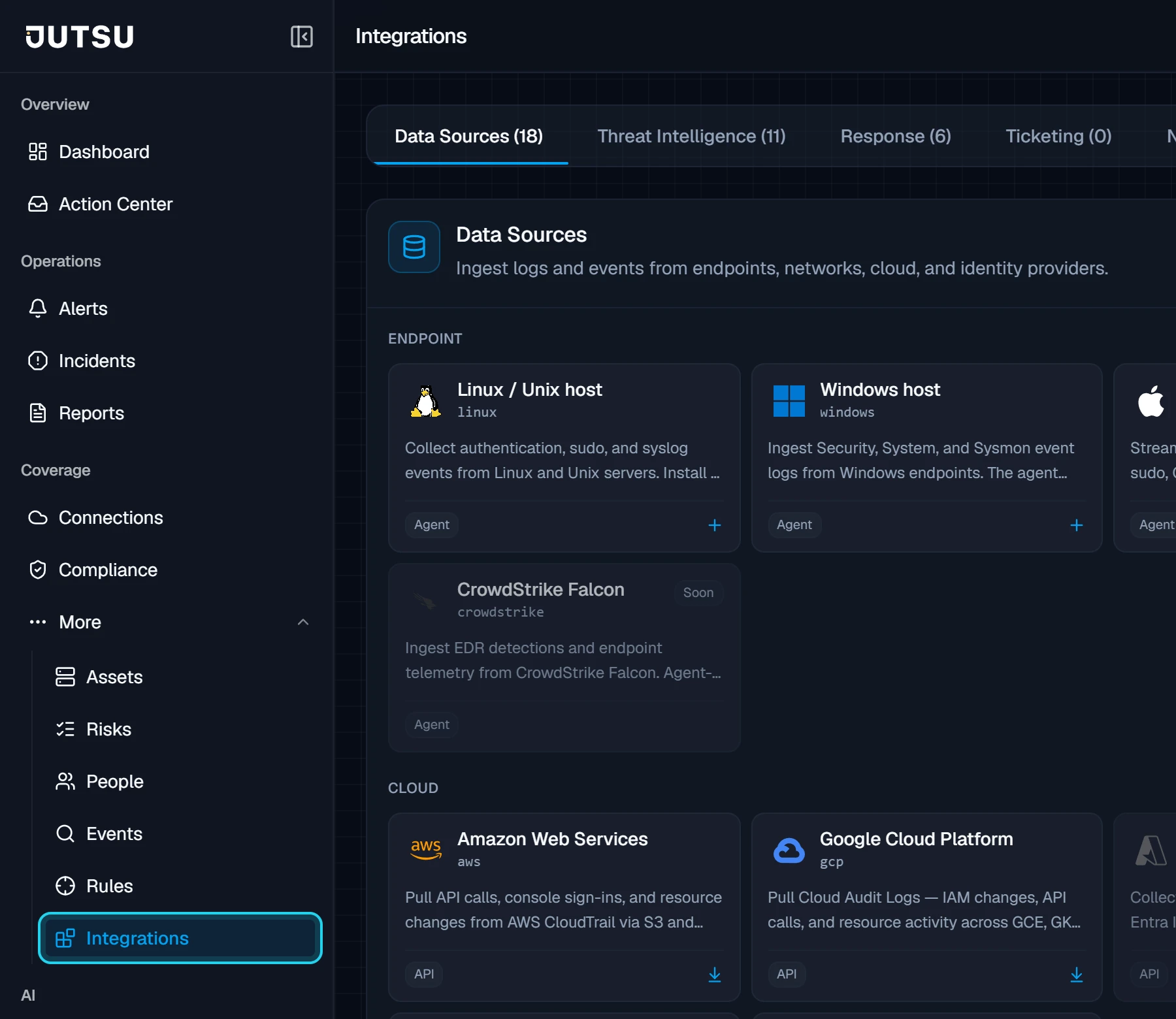
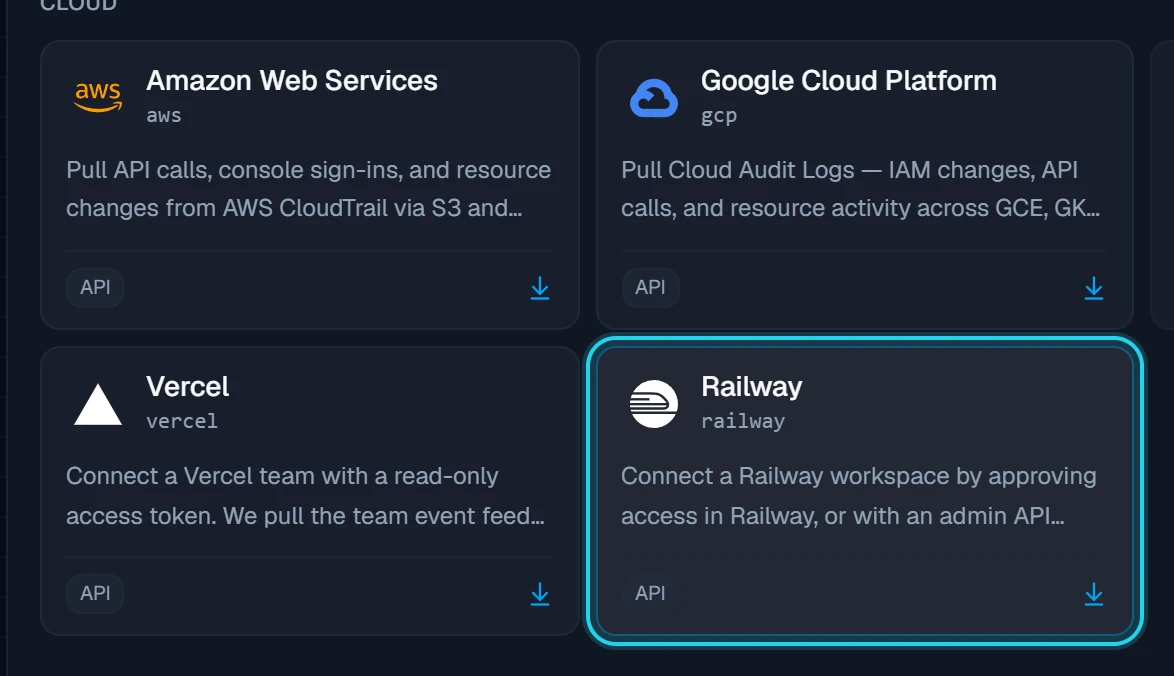
Step 2 - Select the Railway card
Scroll to the Cloud section and select the Railway card. The Connect Railway dialog opens.
The card doesn't open? Adding integrations needs the Owner or Admin role in your Jutsu organization. For Analysts, Responders, and Viewers the catalog is read-only.
Option A: Connect with Railway
Step A1 - Choose Connect with Railway
Keep Connect with Railway selected and select Continue.
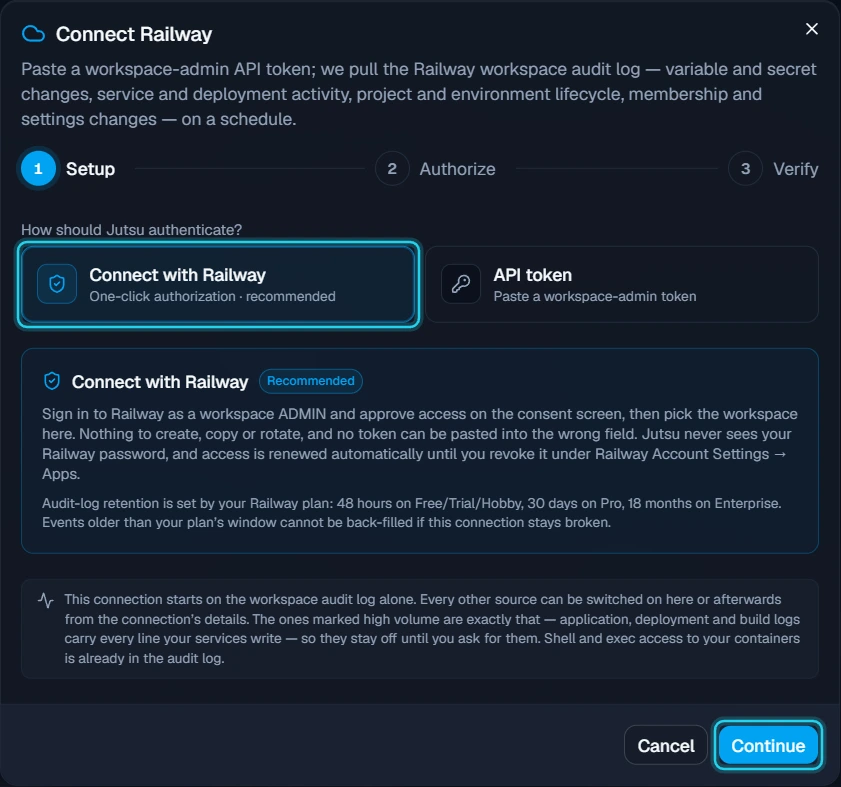
Step A2 - Name the connection
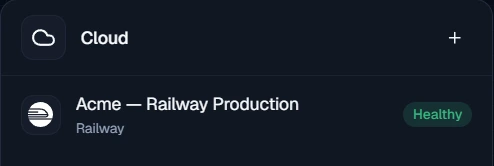
Enter a name that identifies the workspace, such as Acme — Railway Production, then select Continue to Railway. Railway opens in a new tab.
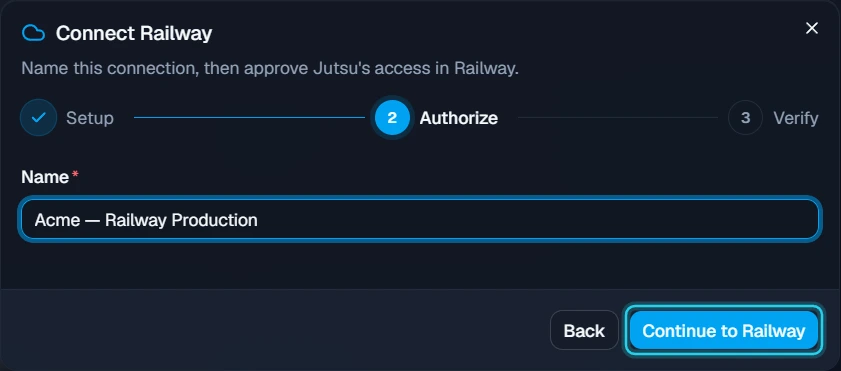
Keep the Jutsu tab open. It waits for you to approve access, and closing it abandons the setup.
Step A3 - Review what Jutsu is asking for
Sign in to Railway as a workspace admin if you aren't already. The consent screen shows Jutsu AI asking for:
- View your identity (
openid email profile): shows which Railway account approved the connection. - Full control of your workspaces (
workspace:admin): Railway only exposes the audit log at this scope. Jutsu uses it to read activity and never changes your workspace. - Stay signed in (
offline_access): lets Jutsu keep collecting without asking you to sign in again.
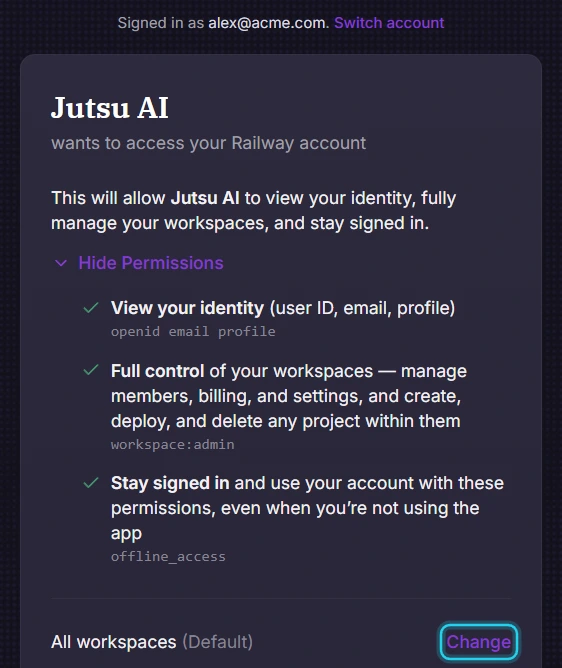
Step A4 - Limit access to one workspace and authorize
By default the approval covers All workspaces. Select Change, choose Selected workspaces, and tick only the workspace you want Jutsu to monitor. Then select Authorize.
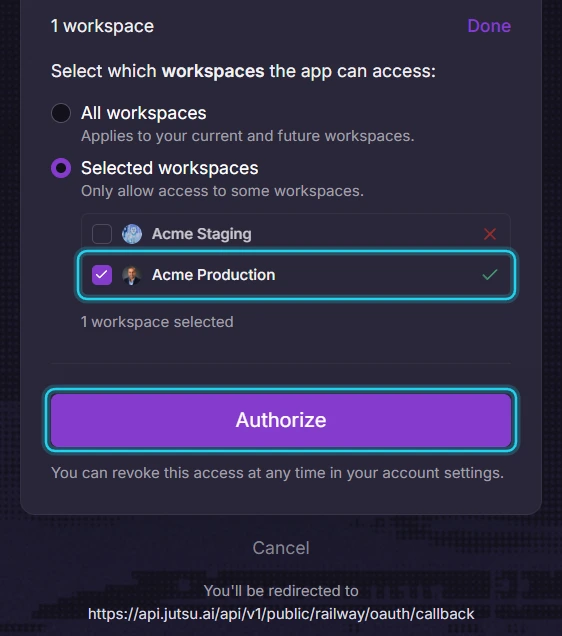
Warning: You must be a workspace admin. Railway lets anyone approve, but for non-admins it silently narrows the access, and the connection then can't read the audit log. Jutsu checks the audit log before creating the connection, so this shows up as an error rather than a connection that collects nothing.
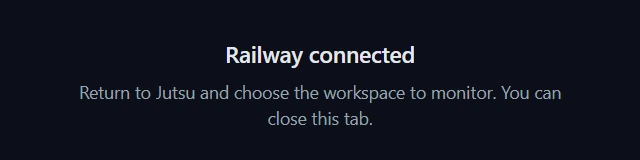
Railway sends you back to Jutsu, and the Railway tab shows Railway connected. You can close that tab.
Step A5 - Choose the workspace and connect
Back in the Jutsu tab, the dialog shows which Railway account approved access and lists the workspaces the approval covers. Select your workspace, then select Connect workspace.
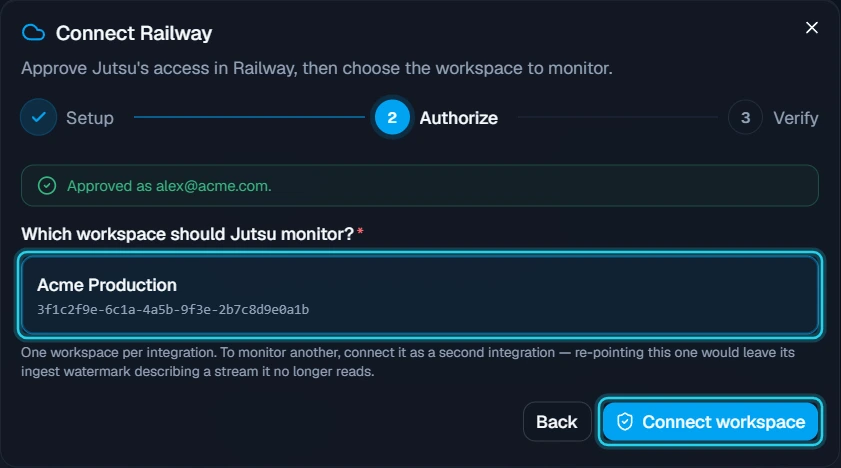
Each connection monitors one workspace. To monitor another workspace, add it as a second connection.
Step A6 - Find it in Connections
Jutsu takes you to Connections. Your workspace appears under Cloud. It shows Warming up for a few seconds, then changes to Healthy.
That's it. Skip ahead to Verify the connection.
Note who approved it: The connection belongs to the Railway user who approved it. Their email appears as Railway account under Configure → Settings. If they leave, or remove Jutsu under Railway Account Settings → Apps, collection stops and Jutsu notifies your organization's owners and admins so someone can select Reconnect.
Option B: API token
Step B1 - Choose API token
In the Connect Railway dialog, select API token, then select Continue.
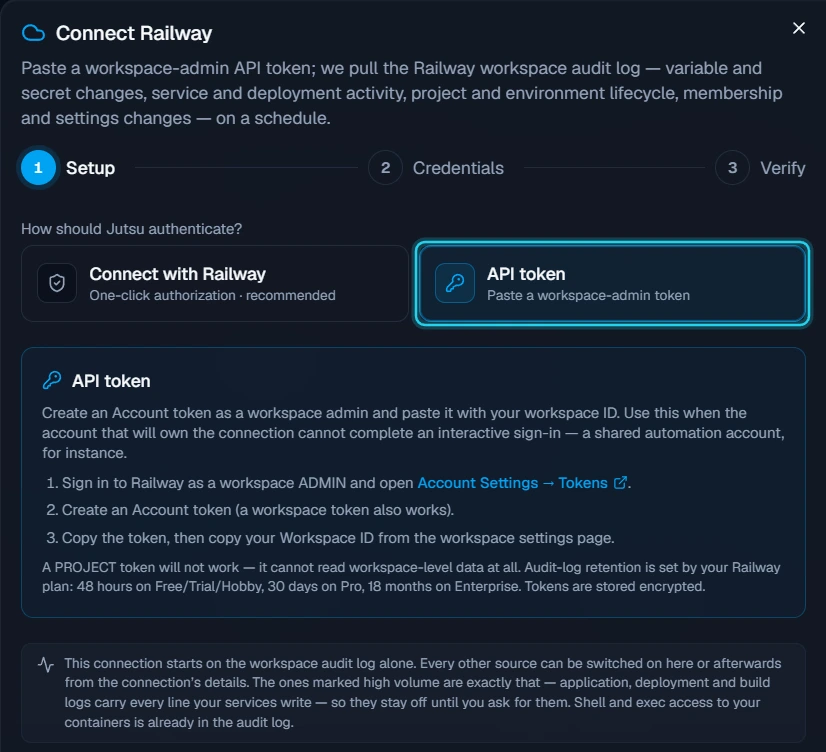
Step B2 - Create a token in Railway
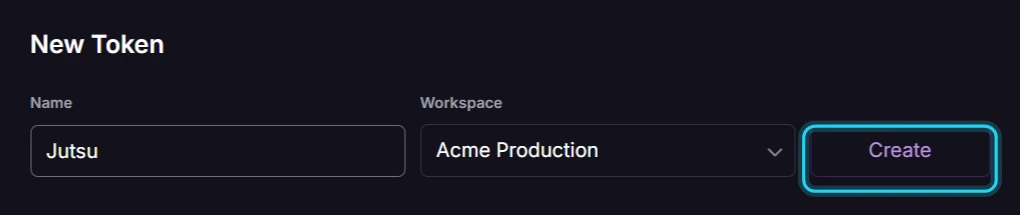
In a new tab, sign in to Railway as a workspace admin and open Account Settings → Tokens. Under New Token:
- Name: something recognisable, such as Jutsu.
- Workspace: choose your workspace to create a workspace token. It isn't tied to any person, so it keeps working through staff changes. Choosing No workspace creates an Account token instead, which also works if you're an admin.
Select Create.
Warning: A project token will not work. It authenticates fine but can't read anything at workspace level, so the connection would look broken.
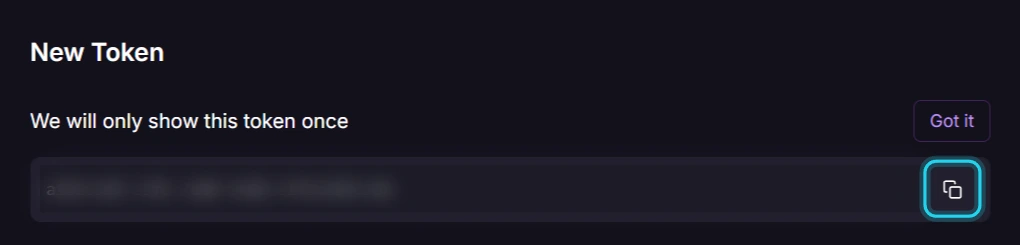
Step B3 - Copy the token
Railway shows the token only once. Select the copy button next to it.
Step B4 - Copy your Workspace ID
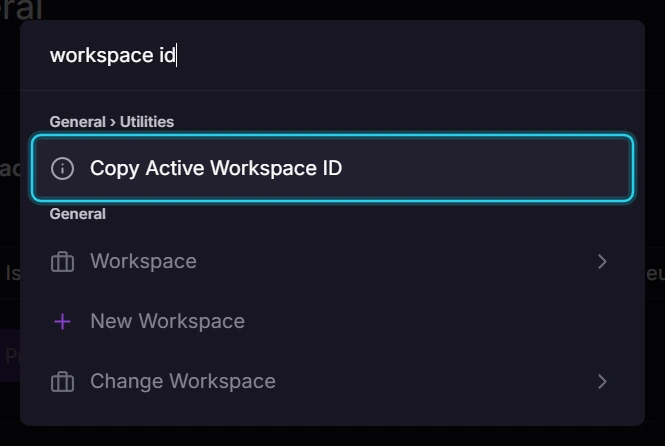
Railway doesn't show the Workspace ID on any settings page, even though the Jutsu dialog mentions one. Instead, with your workspace selected, press Ctrl+K (or ⌘K on a Mac), type workspace id, and choose Copy Active Workspace ID.
Step B5 - Paste the credentials and connect
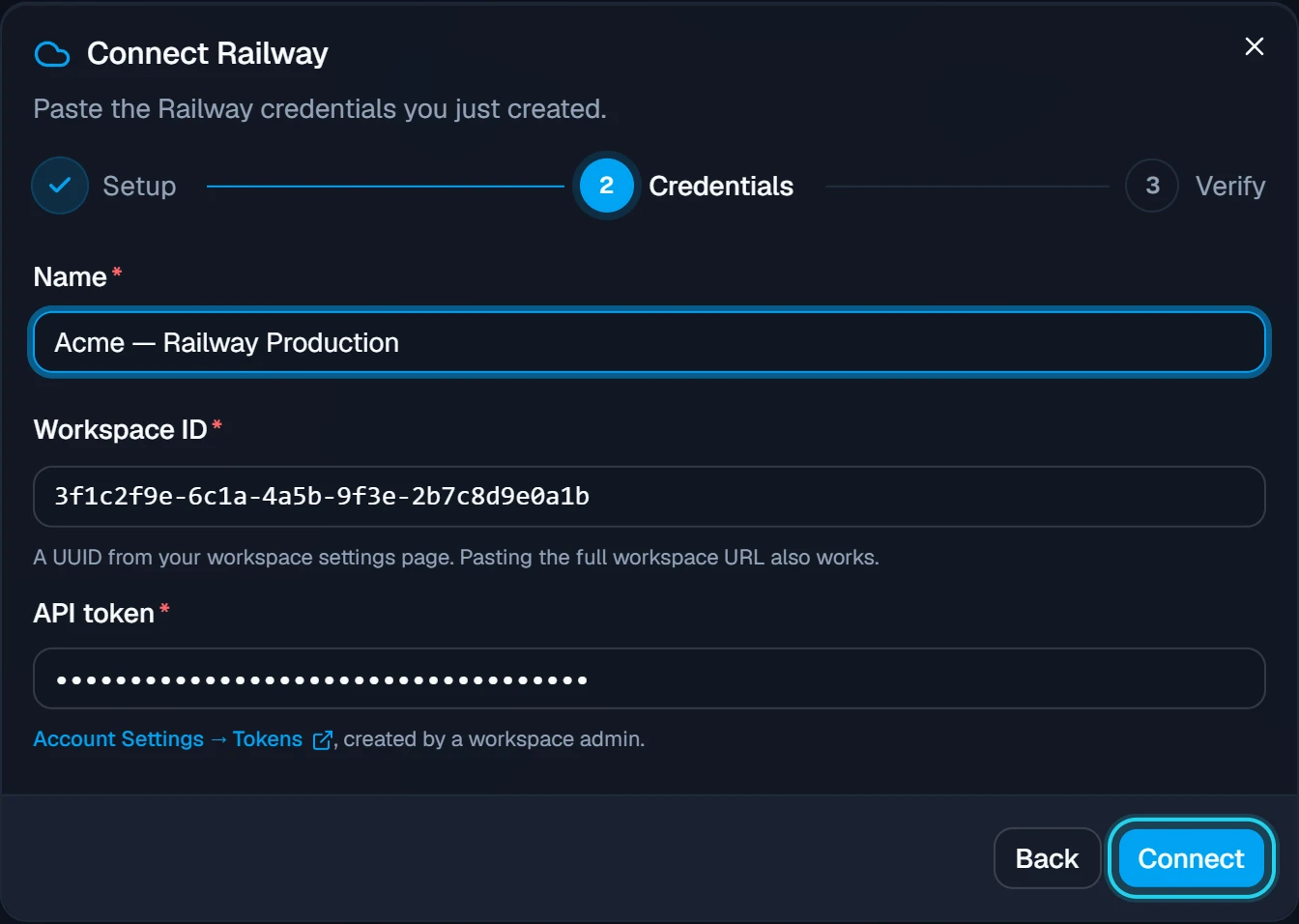
Back in Jutsu, fill in the Credentials step:
- Name: something that identifies the workspace, such as Acme — Railway Production.
- Workspace ID: the value from Step B4.
- API token: the token from Step B3.
Select Connect.
What happens next: Jutsu tests the token against your workspace's audit log before it creates anything. If the token can't read the workspace, you'll see why straight away. The token is encrypted at rest, and only its last four characters are ever shown again.
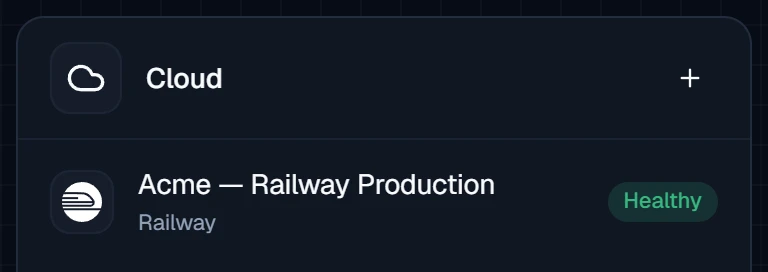
Jutsu takes you to Connections, where the workspace appears under Cloud as Healthy.
Verify the connection
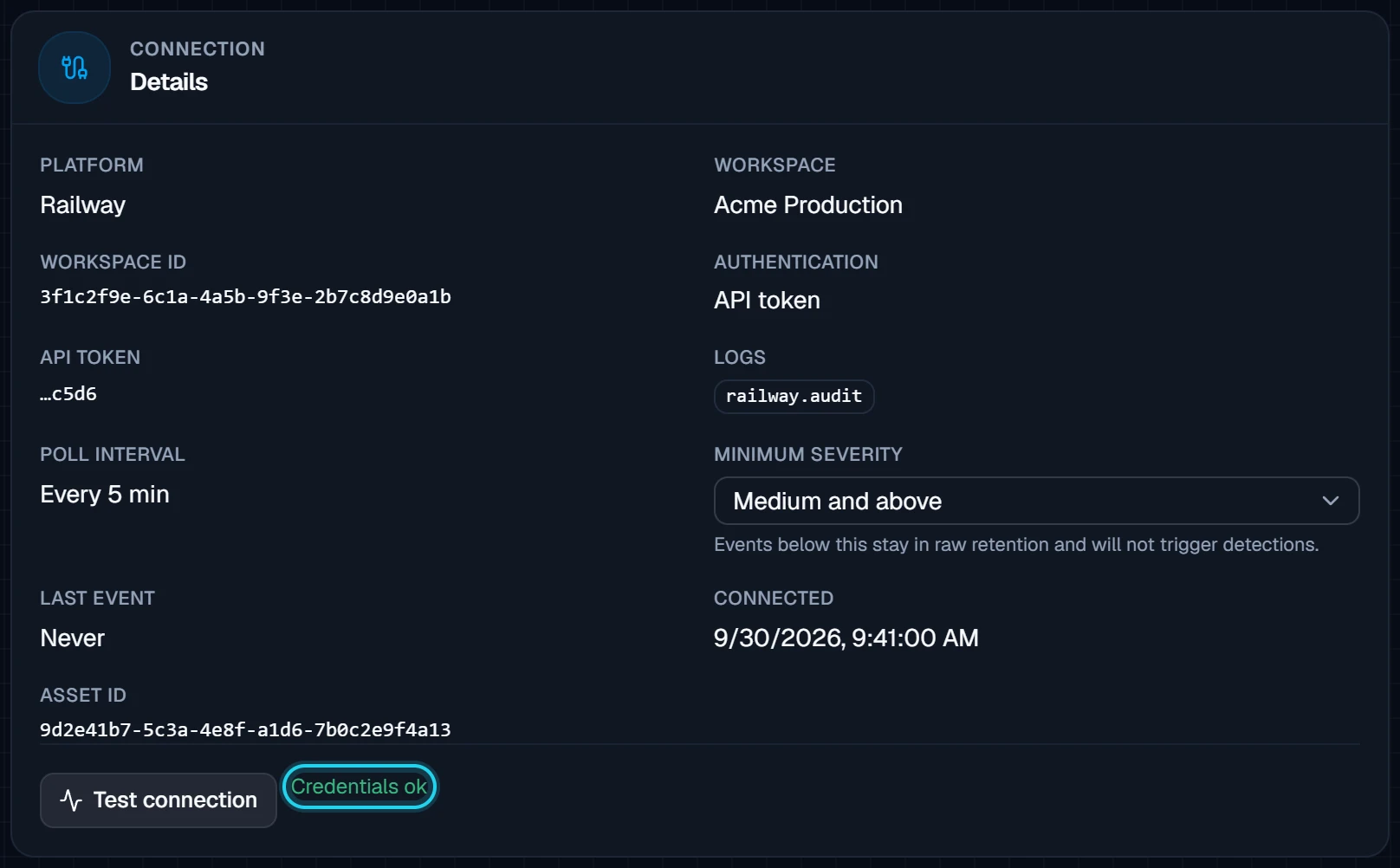
Open the connection, go to Configure → Settings, and select Test connection. Credentials ok means Jutsu can read the workspace.
The ingest counters at the top of the connection page show how many events arrived in the last 5 minutes, hour, and 24 hours.
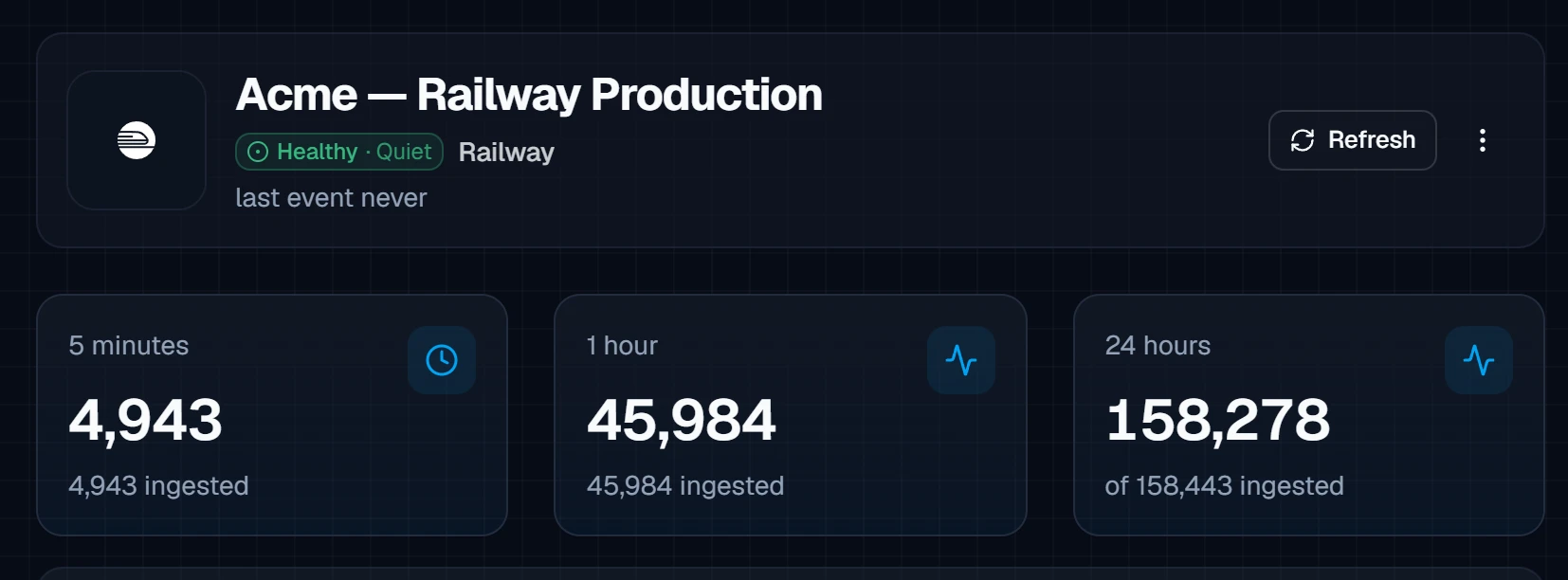
Quiet is normal at first: The audit log only records changes to your workspace, so a new connection can show Healthy · Quiet and last event never until someone deploys, changes a variable, or opens a shell. New connections also start with a Medium and above severity floor. Routine low-severity activity, like redeploys, is kept in raw retention but won't show up as alerts.
What healthy looks like
| Status | Healthy |
|---|---|
| Test connection | Credentials ok |
| Authentication | Railway authorization (Option A) or API token (Option B) |
| Logs | railway.audit, plus any sources you switched on |
| Poll interval | Every 5 minutes |
Choose what to collect
Under Configure → Settings → Collected sources you can switch on more Railway telemetry for this connection. Changes take effect on the next poll, and nothing already collected is removed.
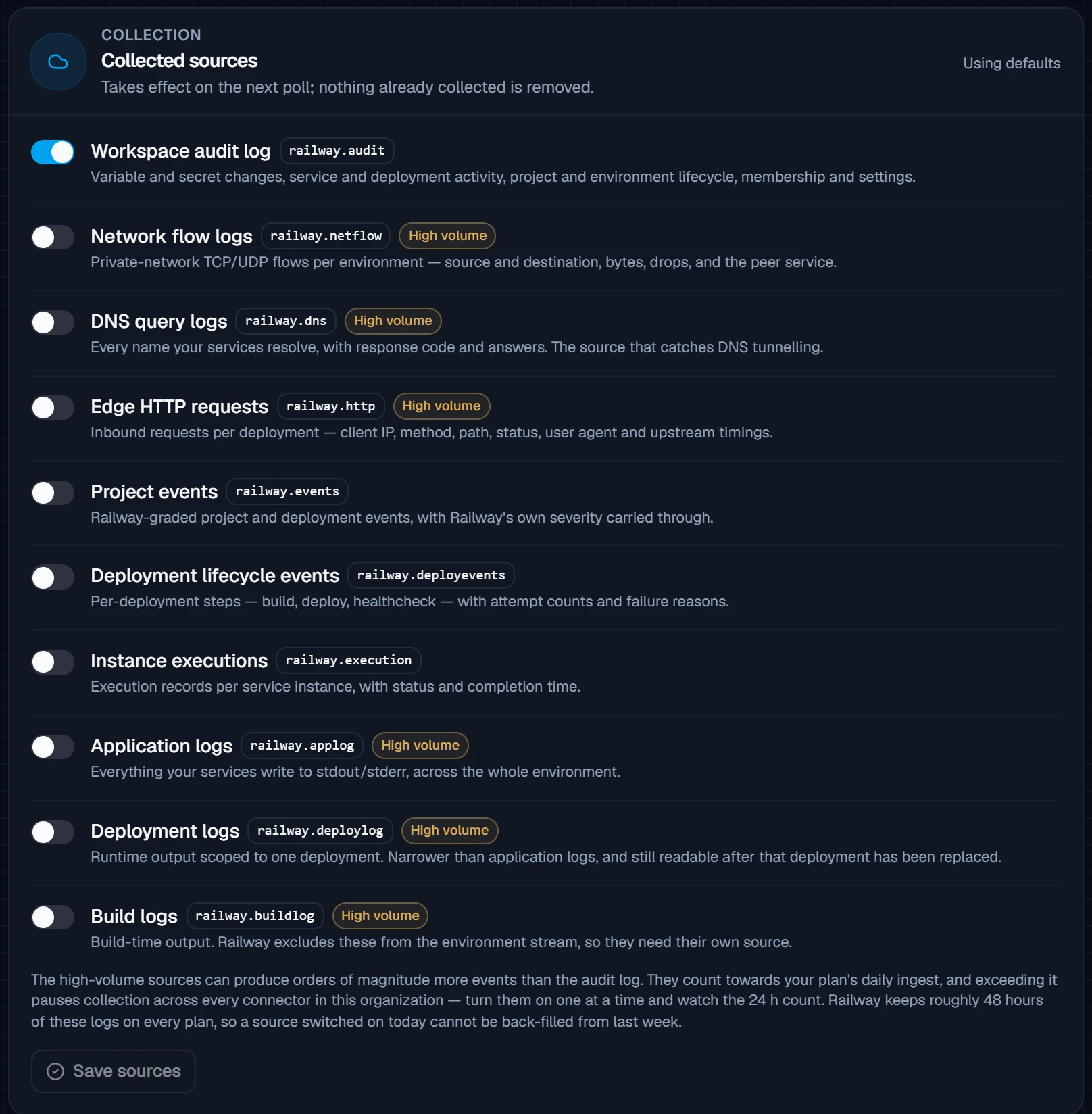
| Source | What it adds |
|---|---|
| Workspace audit log | Governance trail: who changed variables, deployments, members, and settings. On by default |
| Network flow logs | Private-network TCP/UDP flows in and out of your containers. High volume |
| DNS query logs | Every name your services resolve. This source catches DNS tunnelling. High volume |
| Edge HTTP requests | Inbound requests at Railway's edge: client IP, path, status. High volume |
| Project and deployment events | Railway's own graded activity stream and per-deployment lifecycle |
| Application, deployment, and build logs | Everything your services write to stdout/stderr. High volume |
Warning: High-volume sources can produce orders of magnitude more events than the audit log. They count towards your plan's daily ingest, and going over it pauses collection for every connector in your organization. Turn them on one at a time and watch the 24-hour count.
Troubleshooting
| Symptom | What to do |
|---|---|
| The Railway card doesn't open | You need the Owner or Admin role in the Jutsu organization. |
| After approving, no workspaces are listed | The approving account isn't an admin of any workspace it approved. Sign in to Railway as a workspace admin and run Connect with Railway again. |
| That workspace is not covered by this Railway authorization | The workspace wasn't ticked on the consent screen. Run Connect with Railway again and tick it. |
| Railway tab says This link is no longer valid | The 15-minute approval window closed, or that link was already used. Start again from Jutsu. |
| Connection says Re-authorization required | The approval was revoked or expired. Select Reconnect on the connection and approve again. |
| Token is invalid, expired, or was revoked | Railway rejected the token. Create a new one and reconnect. |
| Not entitled to workspace-level data | This is almost always a project token, or an Account token whose owner isn't a workspace admin. Use a workspace token instead. |
| Workspace not found | The Workspace ID is wrong. Copy it again with Ctrl+K → Copy Active Workspace ID. |
| Connected, but no events | Check the Minimum severity floor before you assume the workspace was quiet. At the default of Medium, redeploys and environment changes won't appear. |
| Ingest stopped across every connector | The org hit its daily ingest limit after a source was switched on. Switch that source off, then re-enable sources one at a time. |
Retention is short: Railway keeps audit logs for 48 hours on Free, Trial, and Hobby plans, 30 days on Pro, and 18 months on Enterprise. Network, DNS, and HTTP logs last about 48 hours on every plan. Railway has no replay, so events that age out while a connection is broken can't be recovered. Fix errors promptly.
Security and access
- Jutsu only reads from Railway with this connection. It never deploys, edits, or deletes anything.
- With Connect with Railway, Jutsu never sees your Railway password, and the credential renews itself automatically. With an API token, the token is encrypted at rest and only its last four characters are shown in the UI.
- Containment actions, such as removing a public TCP proxy or revoking a project token, use a separate response credential that you add on purpose. Revoking the collection credential never affects response, and revoking the response credential never stops collection.
Pause or disconnect
| Action | What it does |
|---|---|
| Pause | Disable the connection to stop polling without deleting its configuration. Remember the retention window. A long pause on a Hobby plan loses events. |
| Archive | Stops ingestion and frees the plan slot. Events and alerts already collected stay available. |
| Revoke access in Railway | Archiving doesn't touch Railway. For Option A, remove Jutsu AI under Railway Account Settings → Apps. For Option B, delete the token in Account Settings → Tokens. |