Google Workspace
Connect a Google Workspace domain to Jutsu. Jutsu polls the domain's audit logs (sign-ins, Admin console changes, Drive activity, and third-party app grants) from Google's Admin SDK and detects threats in them automatically. The same connection can also let analysts contain a compromised account and, on plans with compliance, check the domain's compliance posture.
The recommended setup is One-click: a super administrator authorizes Jutsu's own service account in the Google Admin console, and no service-account keys are created or exchanged.
| Time | About 10 minutes |
|---|---|
| You need | A Google Workspace super administrator account, and the Owner or Admin role in your Jutsu organization |
| Collected | Sign-ins (gws.login) and Admin console changes (gws.admin) by default, plus Drive (gws.drive) and OAuth tokens (gws.token) if you turn them on |
You authorize Jutsu twice, and both need the super administrator. First you grant Jutsu read-only access in the Admin console. Then you sign in with Google to prove your organization controls the domain.
Step 1 - Open Integrations
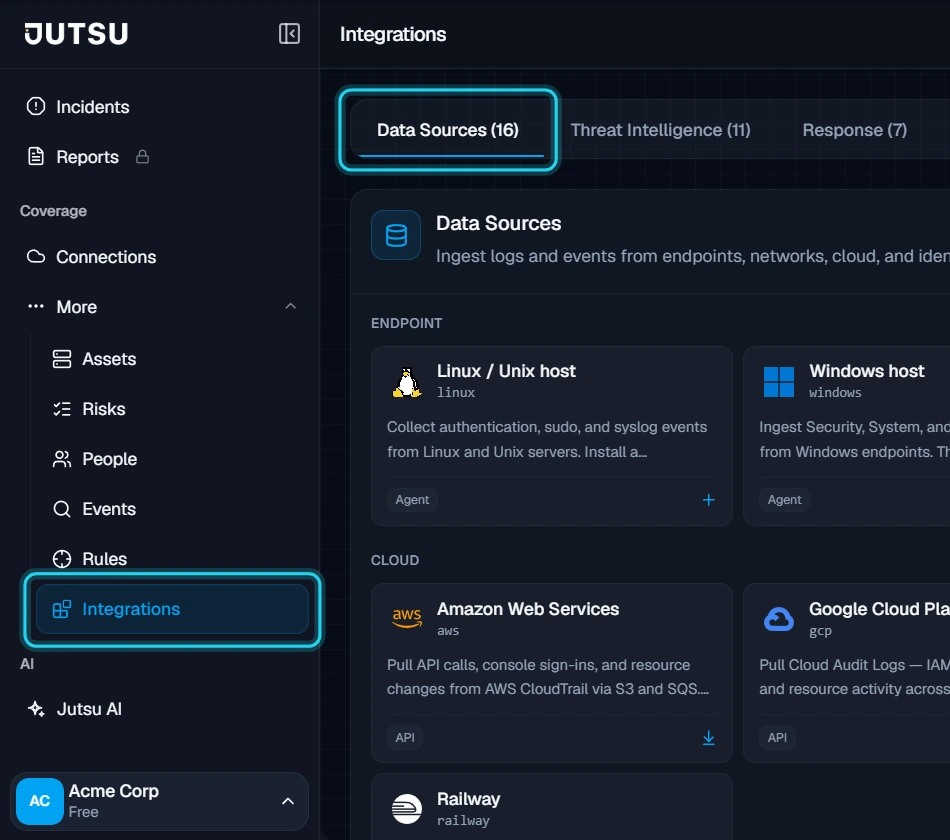
Go to app.jutsu.ai and select Integrations in the left navigation. It sits under More. The Data Sources tab opens by default.
Step 2 - Select the Google Workspace card
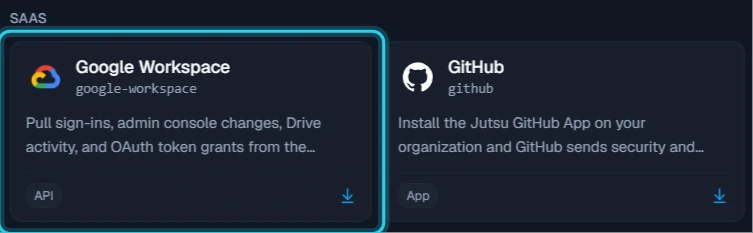
In the SaaS section, select the Google Workspace card. The Connect Google Workspace dialog opens.
The card doesn't open? Adding integrations needs the Owner or Admin role in your Jutsu organization. For Analysts, Responders, and Viewers the catalog is read-only.
Step 3 - Choose the capabilities
Pick what this domain is connected for. Each card has a Permissions section that lists exactly what it grants. This guide connects Audit logs only. Select Continue.
- Audit logs: streams Workspace audit activity into Jutsu from the Admin SDK Reports API.
- Compliance posture: read-only checks of the domain's configuration. This card only appears if your plan includes compliance.
- Response actions: lets an analyst contain an account from an incident by suspending the user, signing them out of every session, or revoking a third-party app's tokens. It runs under your organization's response policy, so it needs approval unless you turn on automation.
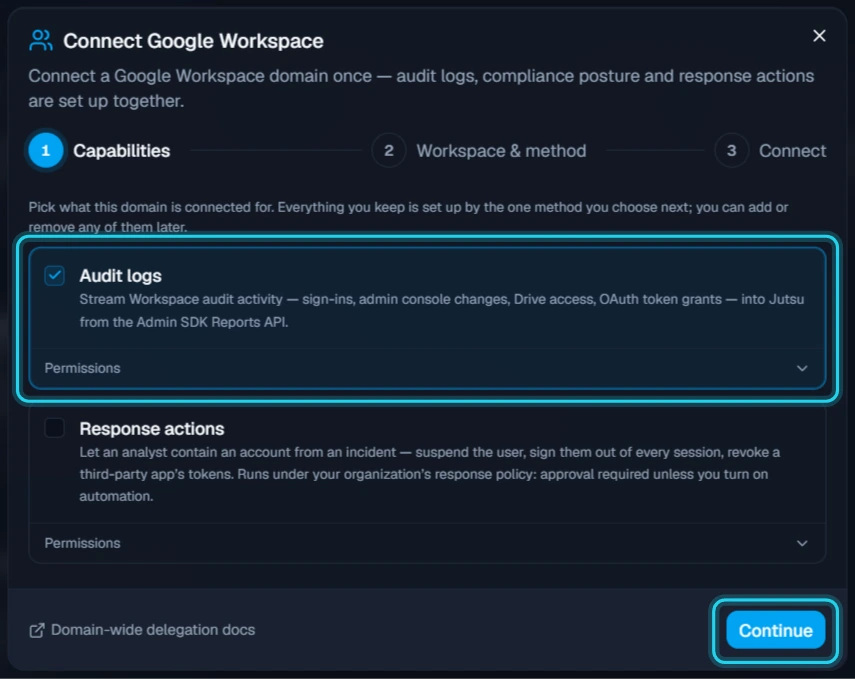
Response actions need a second install: Containment needs read-write access to your users (admin.directory.user and admin.directory.user.security). Jutsu therefore asks for it in a separate install, Jutsu SIEM Response, with its own Authorize the Response install button. You can remove it on its own later without stopping log collection.
You can add or remove capabilities later from the connection page.
Step 4 - Name the connection and choose One-click
Fill in the Workspace & method step:
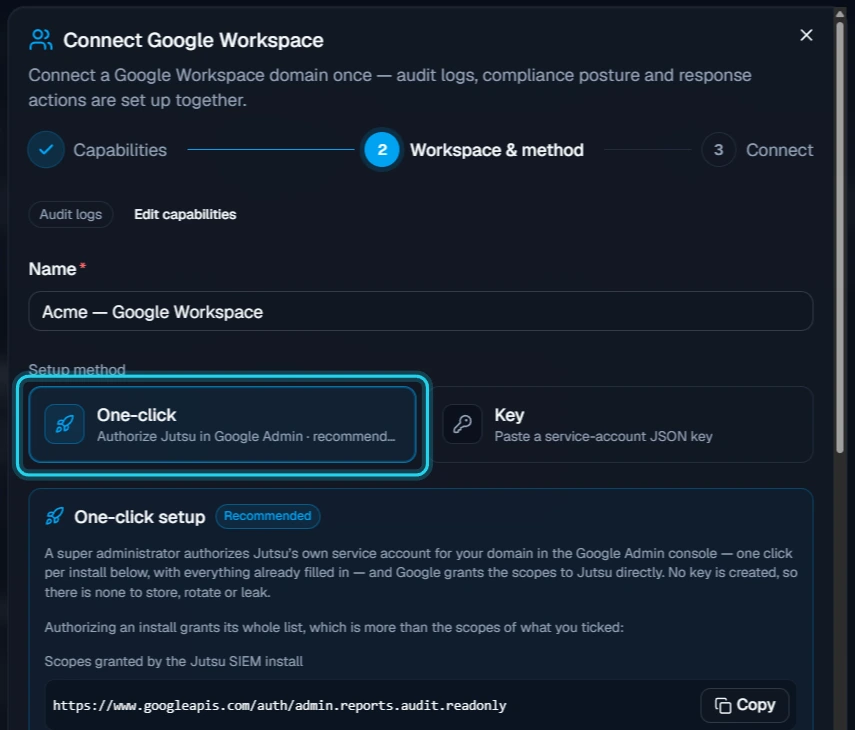
- Name: something that identifies the domain, such as Acme — Google Workspace.
- Setup method: keep One-click, the recommended method.
There's no domain or admin email to type. Jutsu reads both from the super administrator's Google sign-in in Step 8.
The Key method: Key takes a JSON key for a service account in your own Google Cloud project. You set up its domain-wide delegation yourself, enable the Admin SDK API, and enter the Workspace admin it acts as. One-click needs none of that and creates no key.
Step 5 - Review the scopes
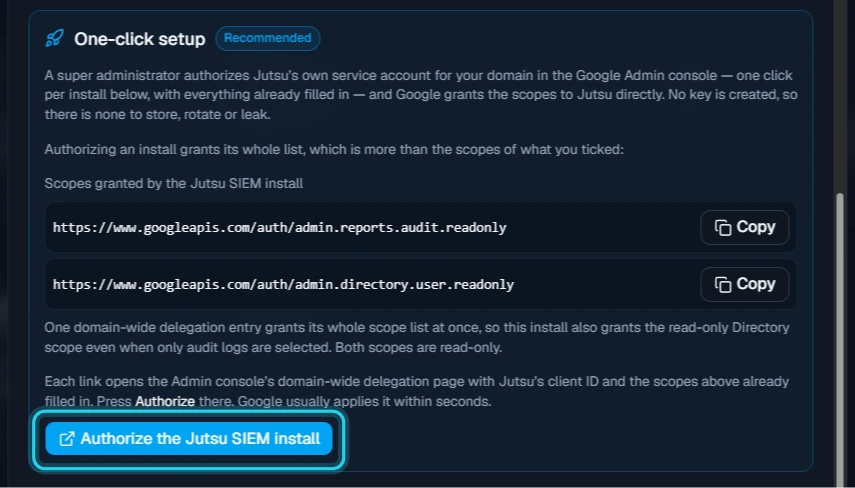
The One-click setup panel lists the Scopes granted by the Jutsu SIEM install. Both are read-only:
https://www.googleapis.com/auth/admin.reports.audit.readonlyreads the audit logs.https://www.googleapis.com/auth/admin.directory.user.readonlyreads the user directory.
One domain-wide delegation entry grants its whole scope list at once, so you grant the read-only Directory scope even when you only selected Audit logs. The Authorize the Jutsu SIEM install button appears here and again on the next step. You can press it on either.
Step 6 - Choose the audit logs and connect
Under Audit logs to ingest, choose which Workspace audit logs Jutsu polls. Sign-ins and Admin console are on by default. Turn on Drive for file access, sharing, and downloads, and OAuth tokens for third-party app grants and revocations. Select Connect.
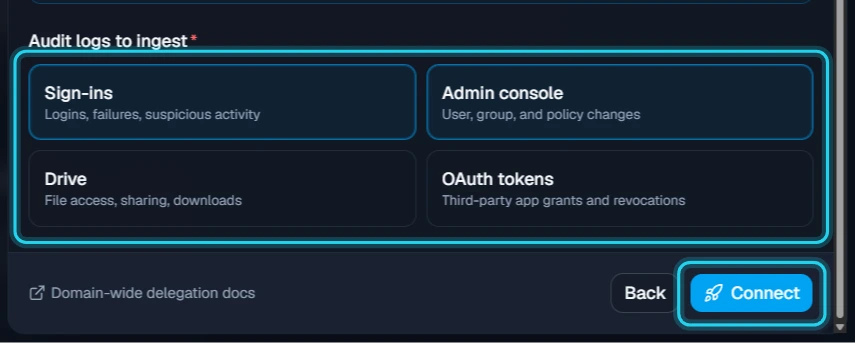
Jutsu creates the connection as pending, and the dialog moves to the Connect step. A pending connection doesn't use a plan slot yet.
Step 7 - Authorize Jutsu in the Admin console
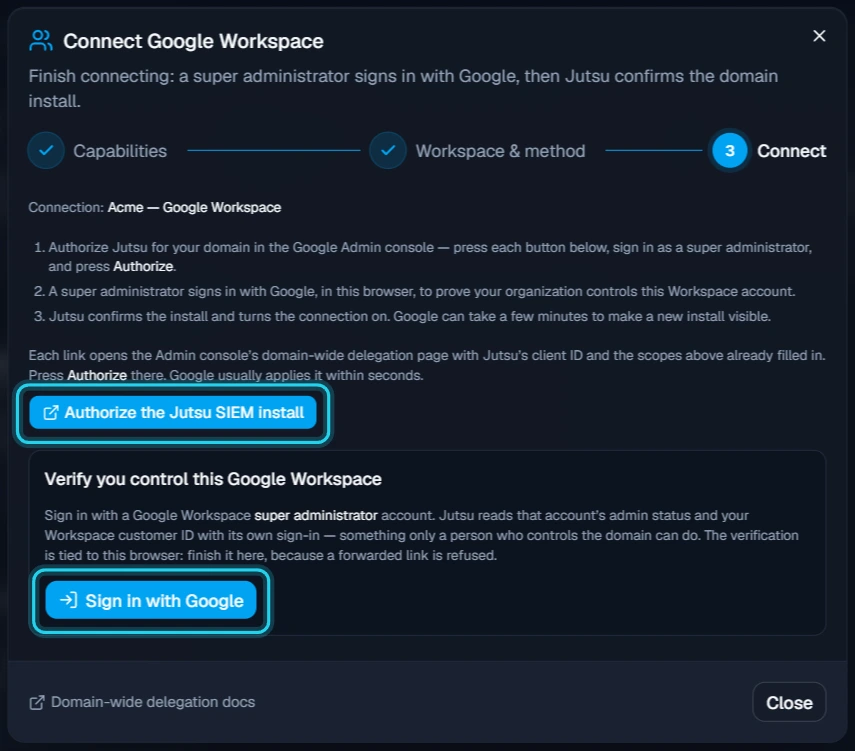
Select Authorize the Jutsu SIEM install. The Google Admin console opens in a new tab on Security → API Controls → Domain-wide Delegation. An Add a new client ID dialog is already filled in with Jutsu's client ID and the two scopes. Select Authorize.
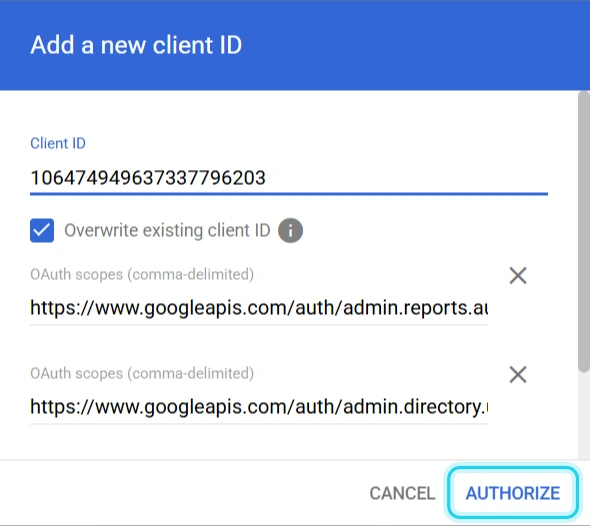
Google usually applies it within seconds. The new entry appears in the API clients list as Jutsu Inc.
Signed in to more than one Google account? The Authorize link opens the Admin console as your browser's default Google account. If that isn't your super administrator, Google asks you to sign in or verify that account instead. Use the account menu on that page to switch to your super administrator. The dialog stays filled in after you switch. You can also open the link in a browser window where only the super administrator is signed in.
Step 8 - Sign in with Google
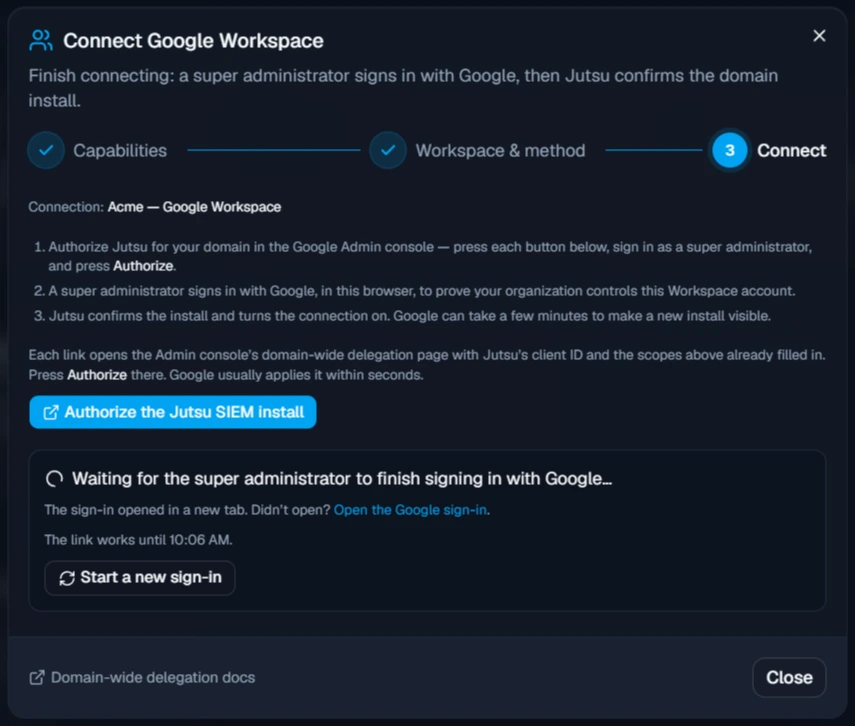
Back in the Jutsu dialog, select Sign in with Google under Verify you control this Google Workspace. Google sign-in opens in a new tab, and the dialog waits for you. The sign-in link works for 15 minutes.
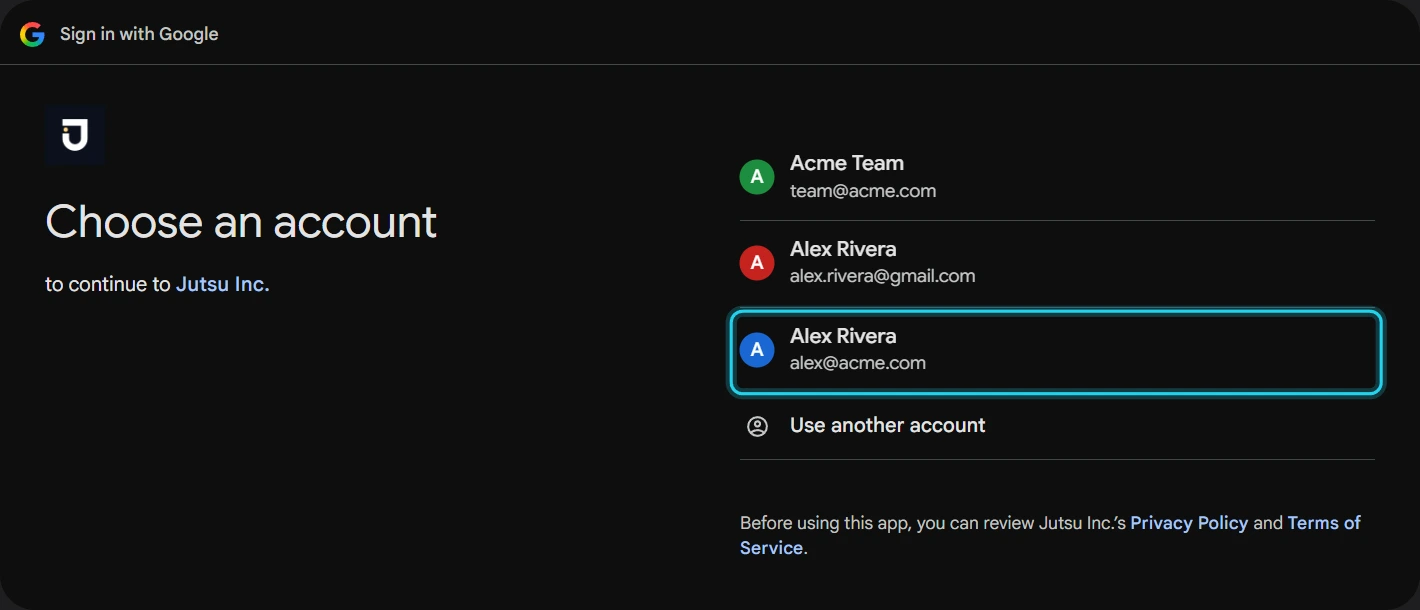
Choose your super administrator account. Finish the sign-in in the same browser that started it, because Jutsu refuses a sign-in that was forwarded to another browser.
The first time, Google asks you to let Jutsu Inc. see your email address and read the users in your domain. Jutsu uses that sign-in to check that the account is a super administrator and to read your Workspace customer ID. Select Continue.
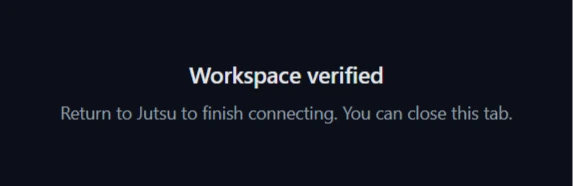
The tab then shows Workspace verified. Close it and return to Jutsu.
Step 9 - Let Jutsu confirm the install
The dialog now shows Checking that Google has applied Jutsu's domain-wide delegation for your domain… and the verified super administrator. Jutsu retries for about three minutes while Google applies the authorization. When it shows Connected., select Done.
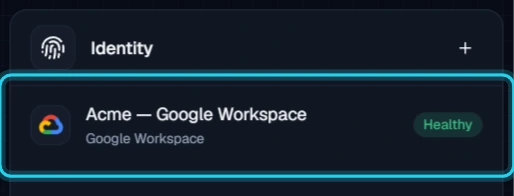
The connection appears under Identity on Connections.
Google has not confirmed the install yet? Google can take a few minutes to apply a new delegation. Check that the Jutsu Inc. entry with both scopes is in the Admin console's Domain-wide Delegation list, then select Check again. The connection stays pending if you close the dialog. Continue it later from the Google Workspace card or from the connection page's Continue setup.
Verify the connection
Open the connection. The header shows Healthy · Receiving once the first poll succeeds, and the Capabilities block shows Logs as Healthy. Jutsu polls every 5 minutes.
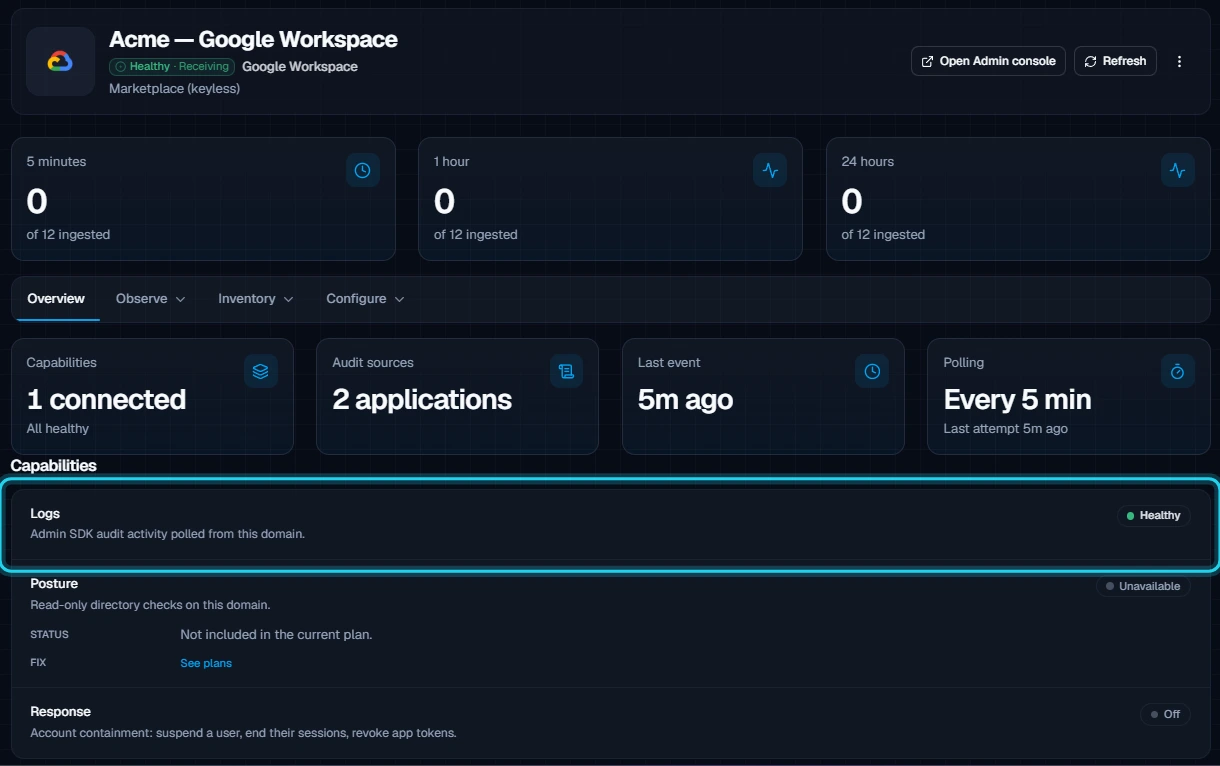
Capabilities your plan doesn't include show Unavailable with See plans. Response actions shows Off until you add its install.
The first poll looks back one hour. Jutsu doesn't import older history when you connect. A brand-new connection may show Warming up until that first poll finishes.
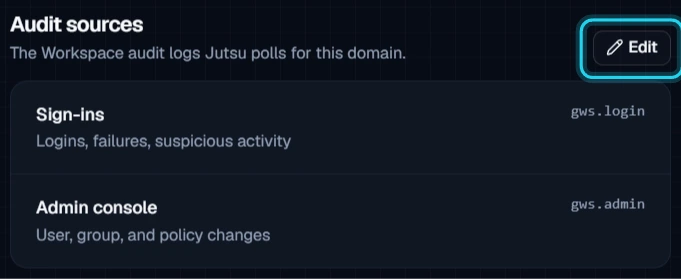
Under Observe → Audit sources, select Edit to change which audit logs Jutsu polls.
Under Configure → Settings, the Connection card shows the authentication (Marketplace (keyless) for One-click), the delegated admin, the poll interval, and the minimum severity. The delegated admin is the super administrator who signed in. Select Test connection to re-check it.
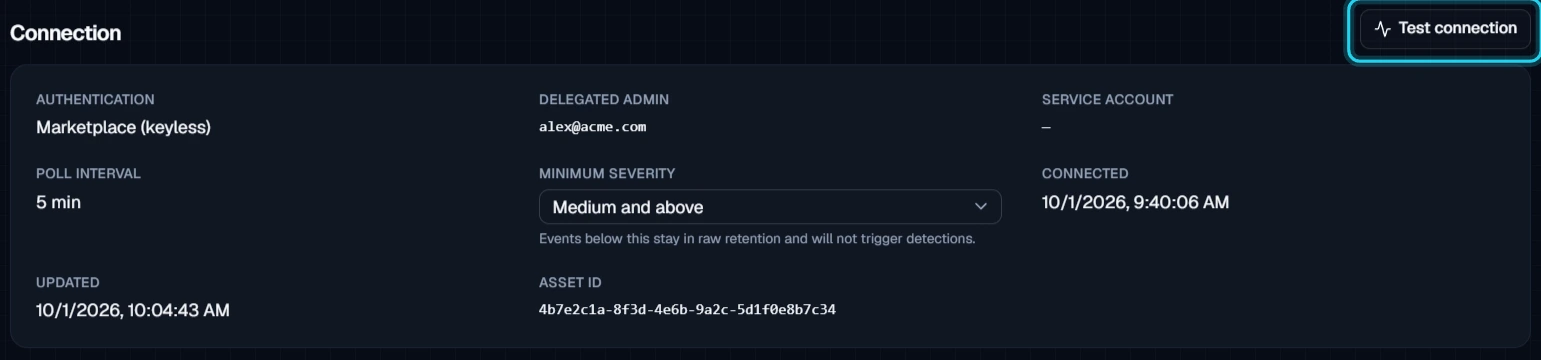
Quiet is normal at first: New connections start with a Medium and above severity floor. Routine Workspace events are kept in raw retention but don't show up as alerts. The high-signal ones do, such as suspicious sign-ins, leaked-password account suspensions, admin privilege grants, and 2-Step Verification being turned off. Google can deliver Drive events several hours late.
Troubleshooting
| Message or symptom | What to do |
|---|---|
| The Admin console opens as the wrong Google account, or asks for another account's password | Switch to your super administrator with the account menu on that page, or open the Authorize link in a window where only that account is signed in. See the tip in Step 7. |
| Google has not confirmed the install yet. | Make sure you selected Authorize in the Admin console, in the Workspace you're connecting, and that the Jutsu Inc. entry lists both scopes. Wait a few minutes, then select Check again. |
| … is not a super administrator of this Google Workspace account | Sign in with a super administrator account. Admin roles in the Admin console shows who holds the role. |
| … is not a Google Workspace account (no hd claim) | You signed in with a personal Google account. Use your Workspace super administrator account. |
| … completed in a different browser session than the one that started it | Select Start a new sign-in and finish it in the browser where the Jutsu dialog is open. |
| The Google sign-in link expired before it was used. | Sign-in links last 15 minutes. Select Start a new sign-in. |
| One-click setup can't be used for this connection | Select Use a key instead and connect with the Key method. |
| Plan asset limit reached | Archive another connection, or upgrade your plan. |
| Connected, but no alerts | Check the Minimum severity floor before you assume nothing arrived. At the default of Medium, routine sign-ins and Drive activity don't appear as alerts. |
Security and access
- One-click is keyless. Jutsu's own Google service account is authorized for your domain, and you can revoke that from your Admin console at any time.
- Audit logs use
admin.reports.audit.readonly. The same install also grantsadmin.directory.user.readonly. Both are read-only. - Response actions use a separate install, Jutsu SIEM Response, with
admin.directory.userandadmin.directory.user.security. Removing it stops containment and leaves log collection running. - The Sign in with Google step proves that a super administrator of the domain set up the connection. Jutsu acts as that administrator when it reads your audit logs.
Remove the connection
Removing it takes two parts: archive the connection in Jutsu, then delete Jutsu's domain-wide delegation entry in the Admin console. Archiving alone doesn't touch your Google Workspace.
To delete the connection and the data Jutsu collected through it, rather than archive it, see Google Workspace: manage and delete your data.
Step 1 - Archive the connection
Open the connection, go to Configure → Danger zone, and select Archive integration. Disable ingestion pauses polling instead and keeps everything in place.

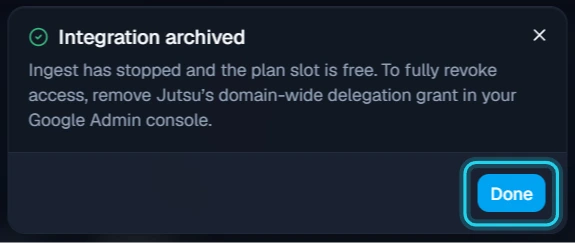
Select Archive integration to confirm. Ingest stops, and the plan slot is freed. Events and alerts already collected stay searchable.
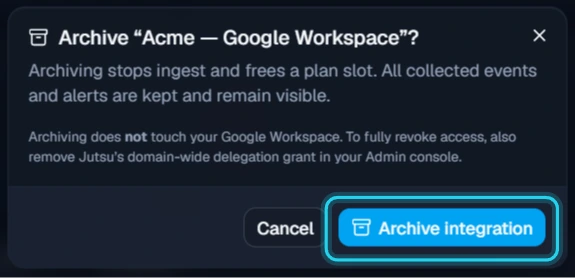
The Integration archived dialog reminds you to remove the delegation. Select Done.
Step 2 - Delete the delegation in the Admin console
In the Google Admin console, go to Security → Access and data control → API controls, and select Manage Domain Wide Delegation. Find the Jutsu Inc. entry whose scopes are admin.reports.audit.readonly and admin.directory.user.readonly. Hover over it, select Delete, and confirm.

If you also authorized the Response install, delete its Jutsu Inc. entry too. That's the one with admin.directory.user and admin.directory.user.security.
Connected to more than one Jutsu organization? Every Jutsu organization connected to your Workspace with One-click uses the same delegation entry. Delete it only when none of them still needs it.
Changed your mind? Select Unarchive on the connection's page. If you already deleted the delegation, connect the domain again from Step 1.