Windows host
Connect a Windows computer or server to Jutsu. You install a small agent on the host. It ships the Windows Security and System event logs to Jutsu, adds Sysmon events when Sysmon is installed, and runs osquery for compliance posture. Jutsu detects threats in those events automatically.
| Time | About 10 minutes per host |
|---|---|
| You need | Administrator rights on the Windows host, Windows PowerShell 5.1 or newer, and the Owner or Admin role in your Jutsu organization |
| Network | Outbound HTTPS (port 443) to api.jutsu.ai. The installer also downloads Vector from github.com and osquery from pkg.osquery.io if they aren't already installed |
| Collected | windows.security, windows.system, and windows.sysmon (when Sysmon is installed) |
You register a collector in Jutsu, which gives you an install command with a one-time token. Then you run that command in an elevated PowerShell on the host.
Step 1 - Open Integrations
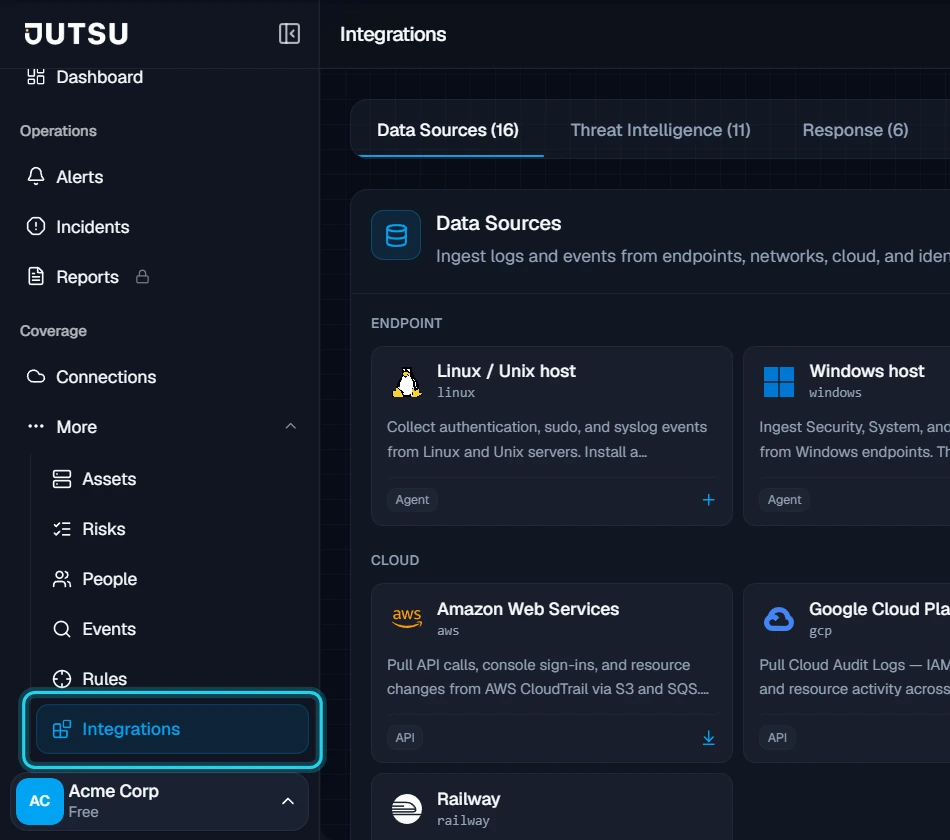
Go to app.jutsu.ai and select Integrations in the left navigation. It sits under More. The Data Sources tab opens by default.
Step 2 - Select the Windows host card
In the Endpoint section, select the Windows host card. The Register collector dialog opens.
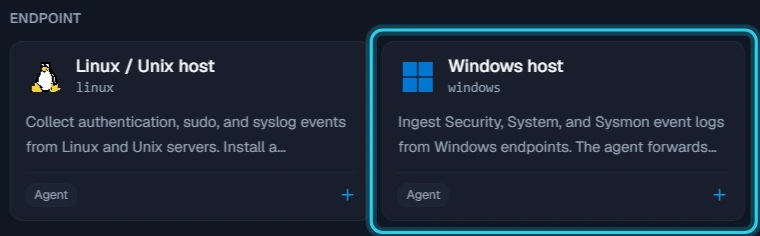
The card doesn't open? Adding integrations needs the Owner or Admin role in your Jutsu organization. For Analysts, Responders, and Viewers the catalog is read-only.
Step 3 - Register the collector
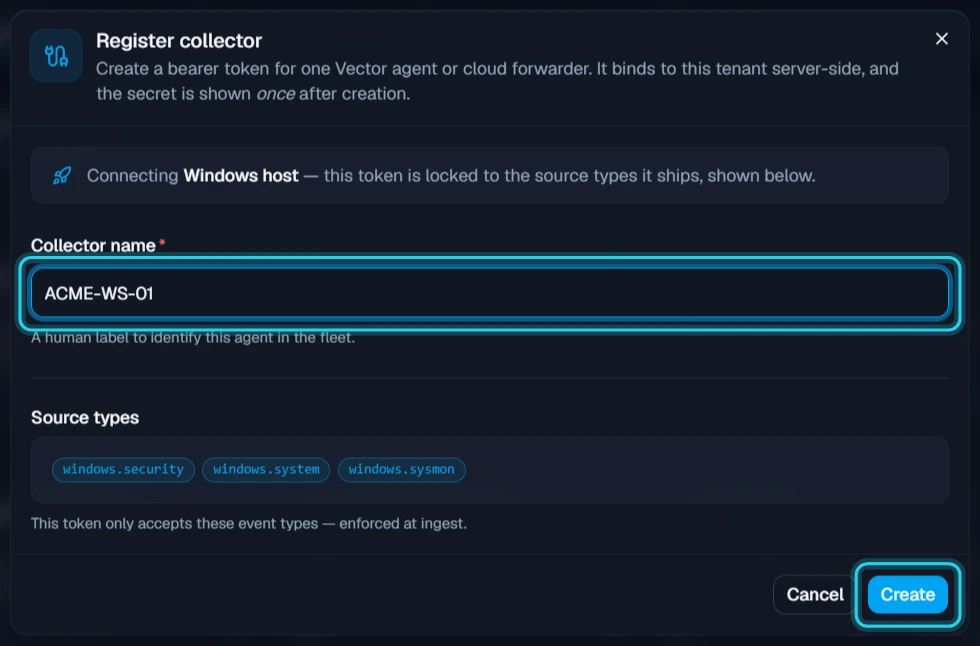
Under Collector name, enter a name that identifies the host, such as its hostname or role, for example ACME-WS-01. The source types are fixed by the Windows host card: windows.security, windows.system, and windows.sysmon. The token only accepts those.
Select Create.
Register one collector for each host. Creating it uses one connected-asset slot on your plan.
Step 4 - Copy the install command
The Collector registered dialog shows the install commands. They contain the collector's token, which Jutsu shows only once, so copy the command before you select Close.
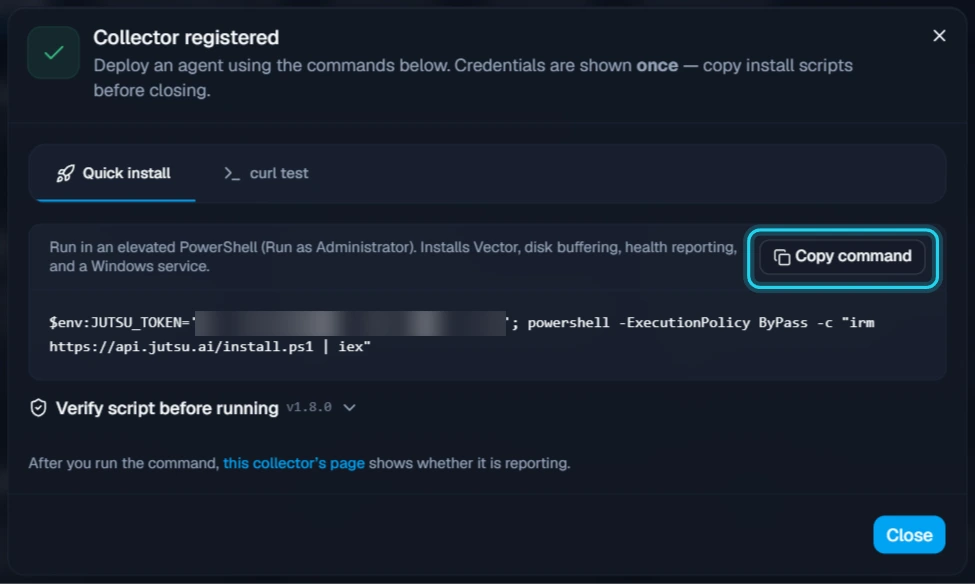
Expand Verify script before running and copy the command in that box. Select all of its text, then press Ctrl+C. This version downloads the installer to a file, checks it against the SHA256 hash Jutsu shows, and only runs it if the hash matches.
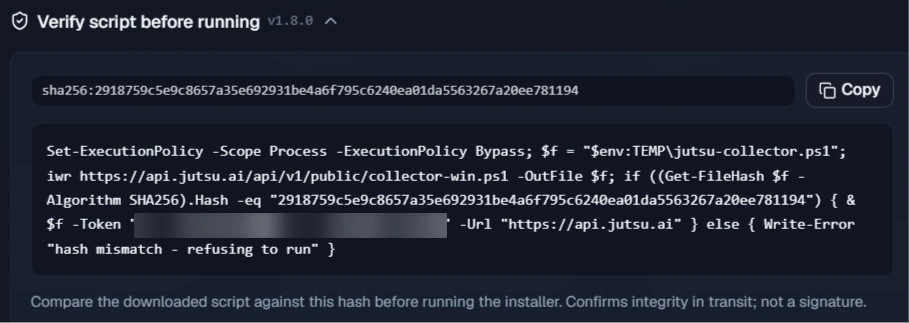
Warning: Microsoft Defender can block the shorter Quick install command (the one behind Copy command). In our testing it flagged that command as Trojan:Win32/Commando.A!ml, because it runs the downloaded script straight from memory. Use the Verify script command instead. Don't turn off Defender or add an exclusion.
Step 5 - Open PowerShell as Administrator
On the Windows host, open Start, search for Windows PowerShell, and select Run as administrator. Approve the User Account Control prompt.
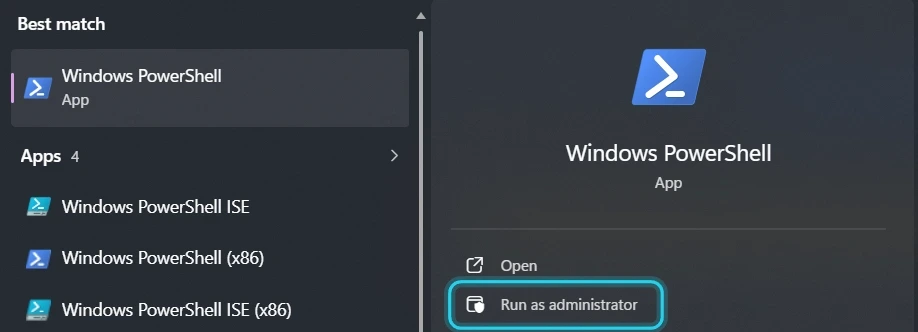
Use the 64-bit PowerShell on a 64-bit host, not Windows PowerShell (x86). The installer refuses to run in the 32-bit console.
Step 6 - Paste the command and run it
Paste the command into the elevated window and press Enter.
PowerShell first asks "Do you want to change the execution policy?". Type Y and press Enter. The change only applies to this PowerShell window, and it lets the downloaded installer run.
Step 7 - Let the installer run
The installer prints each step as it goes. On a typical host it takes a minute or two, longer if it has to download Vector and osquery. It:
- Checks the token with Jutsu (token accepted).
- Installs or reuses the pinned version of Vector, the log shipper, and writes
C:\ProgramData\Jutsu\vector.yaml. - Validates the configuration, then registers and starts the JutsuVector service.
- Checks that Jutsu's API and data endpoints are reachable, and reports the host's identity.
- Waits up to 60 seconds for the first event to reach Jutsu.
- Installs or reuses osquery and enrolls it for compliance posture.
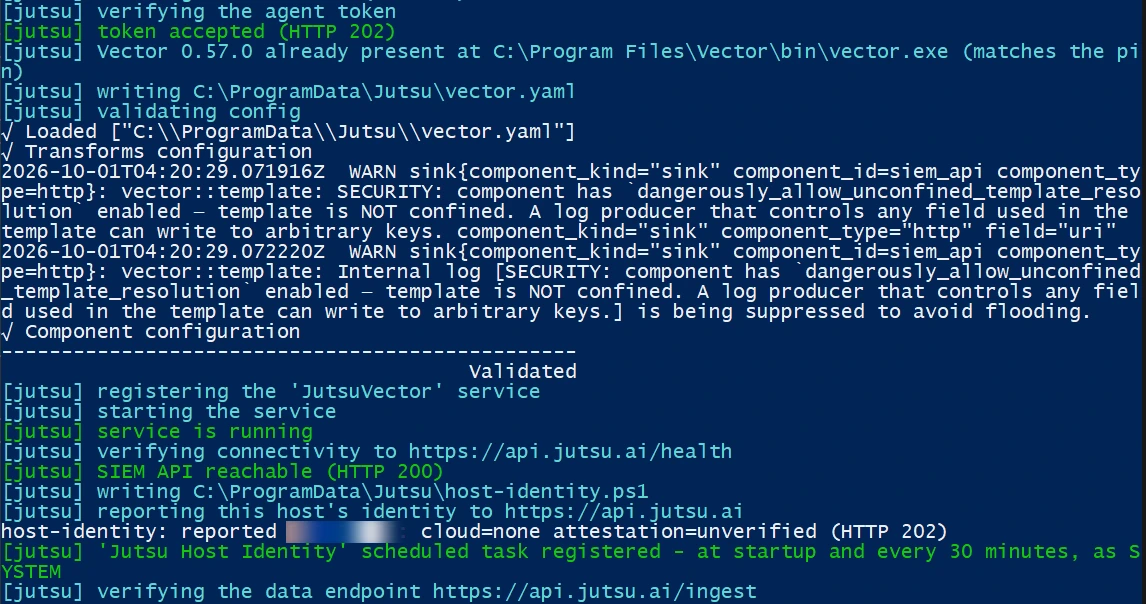
Vector's warning is expected: During validating config, Vector prints a WARN about dangerously_allow_unconfined_template_resolution. It's harmless, and the installer carries on to Validated.
Step 8 - Confirm the installer finished
Wait for Jutsu Agent installed (Windows). and the PowerShell prompt to return. The summary lists the service, the config file, the health reporting interval, the host identity task, and osquery.
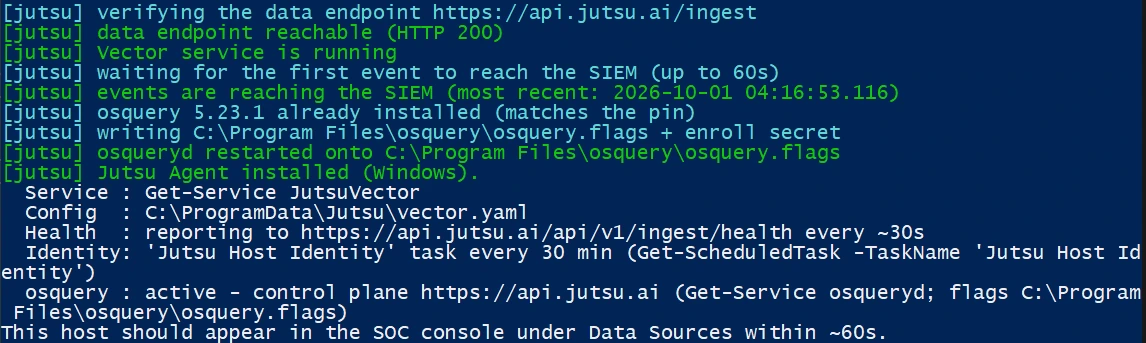
events are reaching the SIEM means the first event already landed. On a quiet host the installer may instead say that no event has arrived yet. That's fine: check Jutsu after a few minutes.
Verify the connection
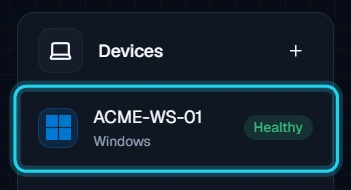
In Jutsu, open Connections. The collector appears under Devices as Healthy.
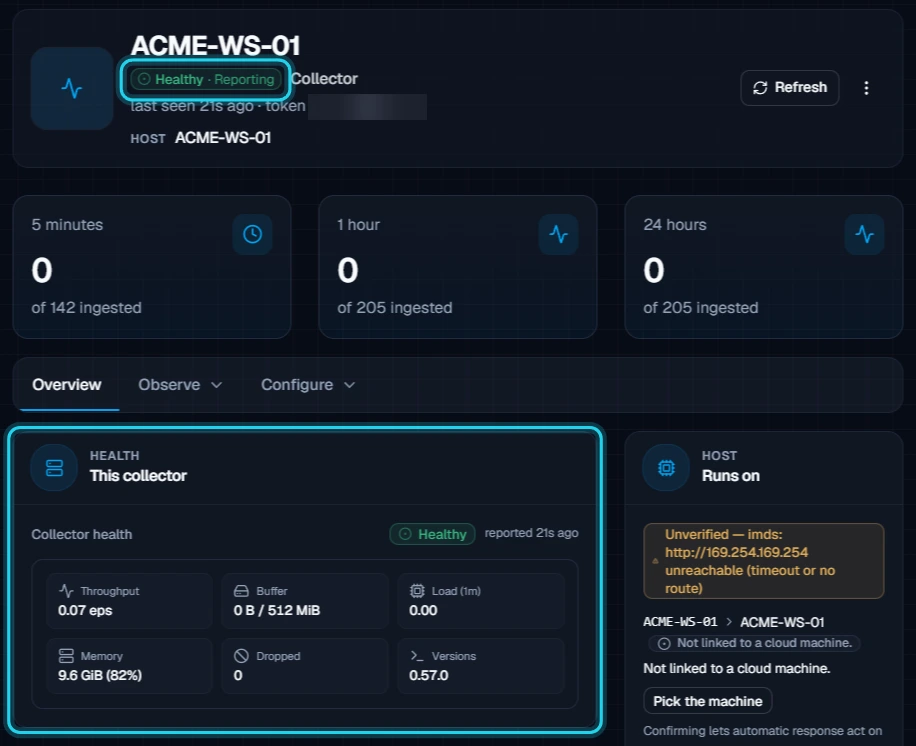
Open the collector. Its header shows Healthy · Reporting and when it was last seen. The Health card shows the latest heartbeat, with throughput, disk buffer use, load, memory, dropped events, and the Vector version. The agent reports its health about every 30 seconds.
Under Configure → Settings, the Details card lists the allowed source types, the minimum severity, the EPS limit, and when the collector was connected and last seen.
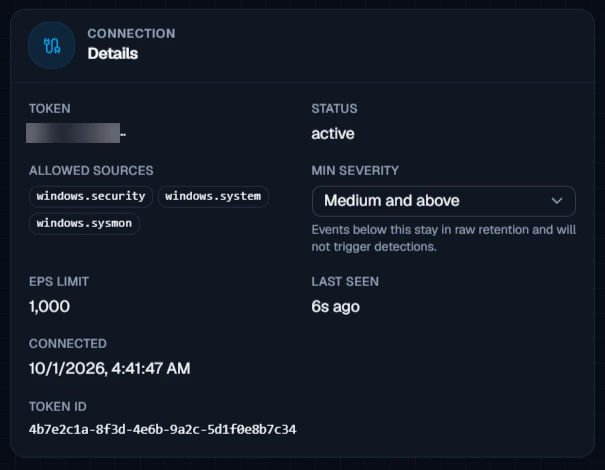
Quiet hosts: New collectors start with a Medium and above severity floor. Routine low-severity Windows events are kept in raw retention but won't show up as alerts, so the alert count can stay at zero on a healthy host.
Check on the host
You can also check the agent from an elevated PowerShell on the host:
Get-Service JutsuVector, osqueryd
Test-NetConnection api.jutsu.ai -Port 443
Both services should be Running, and the connection test should succeed.
What healthy looks like
| Connections | Healthy, under Devices |
|---|---|
| Collector page | Healthy · Reporting, last seen within the last minute |
| JutsuVector service | Running, starts automatically |
| osqueryd service | Running, when posture collection is installed |
| Allowed sources | windows.security, windows.system, windows.sysmon |
Troubleshooting
Start with the exact message the installer printed in PowerShell.
| Message or symptom | What to do |
|---|---|
| must run in an elevated PowerShell (Run as Administrator) | Close PowerShell, open it with Run as administrator, and run the command again. |
| this is the 32-bit PowerShell on 64-bit Windows | Open the 64-bit Windows PowerShell, not the (x86) one, and run the command again. |
| PowerShell 5.1 or newer is required | Update Windows PowerShell, then run the command again. |
| The terminator '#>' is missing from the multiline comment, or a Defender alert | Microsoft Defender blocked the Quick install command. Use the Verify script command from Step 4. |
| the SIEM rejected this token | The token was rotated, revoked, or copied incompletely. Rotate the collector's token in Jutsu and use the new command. Nothing was installed. |
| checksum mismatch | The download was corrupted or altered on the way. Run the command again. If it keeps failing, check for a proxy that rewrites downloads. |
| could not download osquery | The host can't reach pkg.osquery.io. Allow it through your proxy or firewall and run the command again. |
| Vector could not start | The installer prints Vector's own error and saves it to C:\ProgramData\Jutsu\startup-stderr.log. Fix what it names, then run the command again. |
| Installed, but the collector isn't Healthy | Run Get-Service JutsuVector on the host, and check outbound HTTPS to api.jutsu.ai. The agent buffers events on disk (up to 512 MiB) and sends them once it can connect. |
| No Sysmon events | Sysmon isn't installed on the host. Install and configure Sysmon, then run the install command again. |
Running the command again is safe: The installer replaces the existing JutsuVector service and configuration on a host that already has the agent. Use the same command to repair an install or to apply a rotated token.
Security and access
- The token only accepts the three Windows source types, and Jutsu enforces that at ingest.
- The installer stores the token in the JutsuVector service's own environment in the registry, not in
vector.yaml. Only the service's process can see it. - Jutsu shows the token once, in the Collector registered dialog. Copy the command straight into PowerShell and don't save it anywhere else.
Rotate the token
On the collector's page, rotate its token. Choose a Grace window in minutes, from 0 to 1440 (the default is 60). The old token keeps working until the window ends, and 0 stops it immediately. A Token rotated dialog shows new install commands. Run the new command on the host as in Steps 4 to 8. The installer replaces the existing setup in place.
Remove the agent
Removing a Windows host takes two parts: archive the collector in Jutsu, then run the uninstaller on the host. Archiving alone doesn't touch the host.
Step 1 - Archive the collector
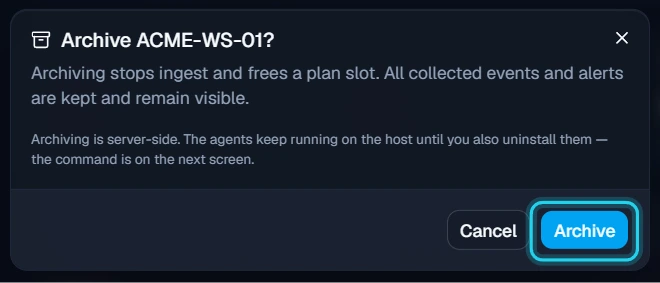
Open the collector, go to Configure → Danger zone, and select Archive collector.
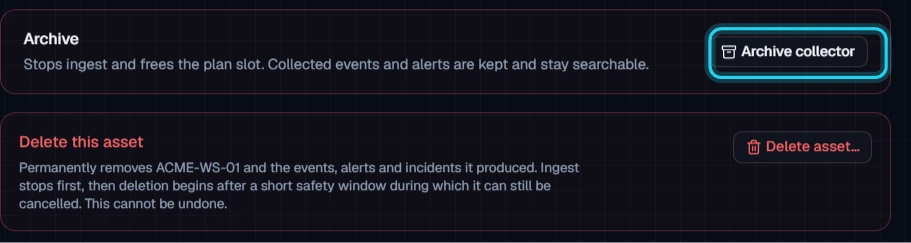
Select Archive to confirm. Archiving stops ingest and frees the plan slot, and the token stops being accepted. Events and alerts already collected stay searchable.
Step 2 - Copy the uninstall command
The Collector archived dialog shows the command that removes the agent from the host. Select the Windows tab, then select Copy.
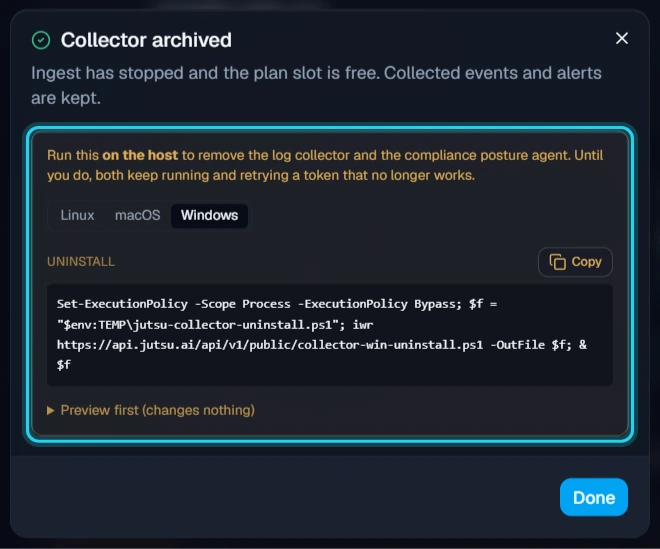
To check what it would remove first, expand Preview first (changes nothing) and run that version instead. It lists every item and changes nothing.
Step 3 - Run it on the host
Open an elevated PowerShell as in Step 5, paste the command, and press Enter. When PowerShell asks "Do you want to change the execution policy?", type Y and press Enter.
The uninstaller stops and deletes the JutsuVector service and removes Vector. It unregisters the Jutsu Host Identity task and deletes C:\ProgramData\Jutsu (the config, disk buffer, and identity script). Then it removes osquery.
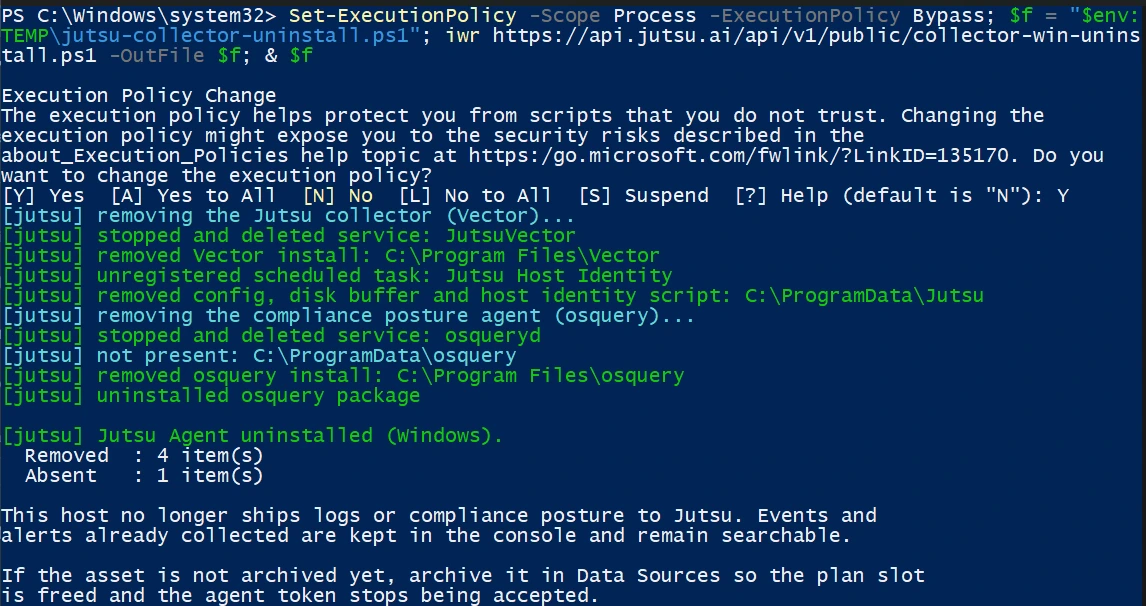
To check, run Get-Service JutsuVector. PowerShell should report that it can't find the service.
Keep osquery? If osquery was on the host before Jutsu, or another tool uses it, run the downloaded uninstaller with -KeepOsquery, for example & $f -KeepOsquery at the end of the command. It un-enrolls osquery from Jutsu but leaves it installed.
Changed your mind? Archived collectors are listed under Connections → Archived connections, where you can Restore one. You can also select Unarchive on its page. If you already removed the agent, run the install command again.