Docker containers
Connect a Docker Engine host to Jutsu. You start a small collector container on the host. It ships the stdout and stderr of every other container on that engine to Jutsu, buffers them on disk if the connection drops, and reports its own health. It needs only Docker: no packages, no sudo, and no systemd.
| Time | About 5 minutes per Docker host |
|---|---|
| You need | A Linux host running Docker Engine (amd64 or arm64); a shell on that host that can use Docker (root, sudo, or membership in the docker group); and the Owner or Admin role in your Jutsu organization |
| Network | Outbound HTTPS (port 443) to api.jutsu.ai, and access to Docker Hub to pull the timberio/vector image |
| Collected | docker.logs |
The collector reads container output only. To also collect the host's own sign-in and sudo events, install the Linux / Unix host agent on the same machine.
Step 1 - Open Integrations
Go to app.jutsu.ai and select Integrations in the left navigation. It sits under More. The Data Sources tab opens by default.
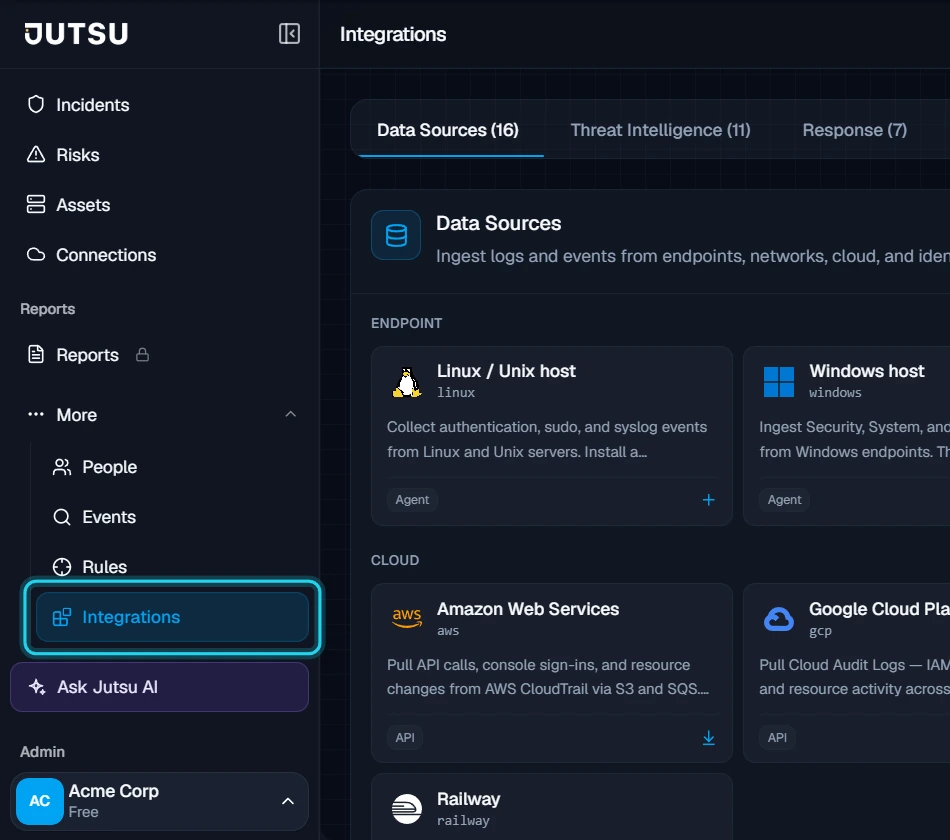
Step 2 - Select the Docker containers card
In the Endpoint section, select the Docker containers card. The Register collector dialog opens.

The card doesn't open? Adding integrations needs the Owner or Admin role in your Jutsu organization. For Analysts, Responders, and Viewers the catalog is read-only.
Step 3 - Register the collector
Under Collector name, replace the suggested docker-01 with a name that identifies the Docker host, for example acme-web-01-docker. The source type is fixed by the Docker containers card: docker.logs. The token only accepts that.
Select Create.
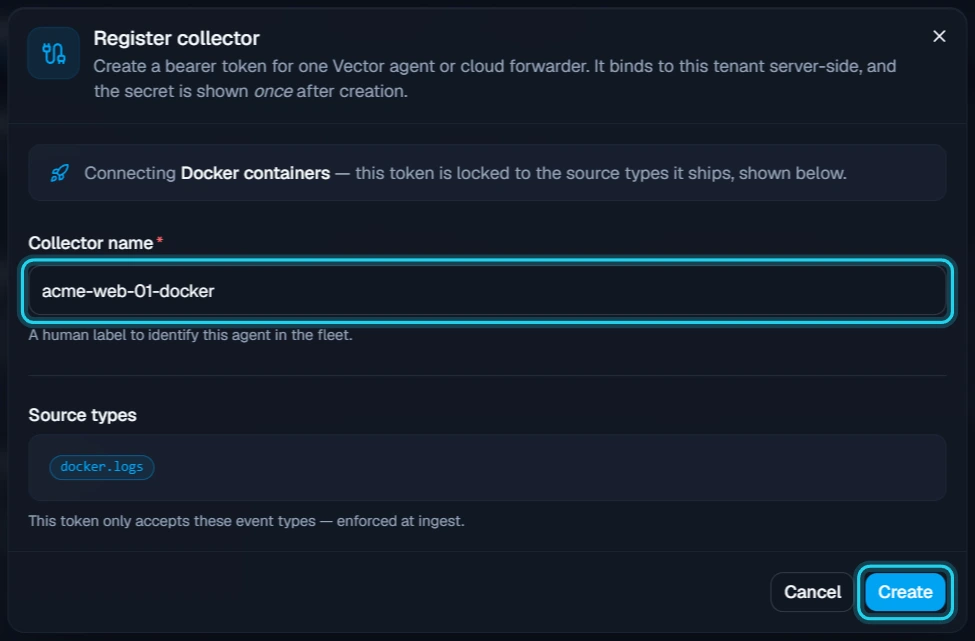
Register one collector for each Docker host. Creating it uses one connected-asset slot on your plan.
Step 4 - Copy the install command
The Collector registered dialog shows the install command. It contains the collector's token, which Jutsu shows only once, so copy the command before you select Close. Select Copy command.
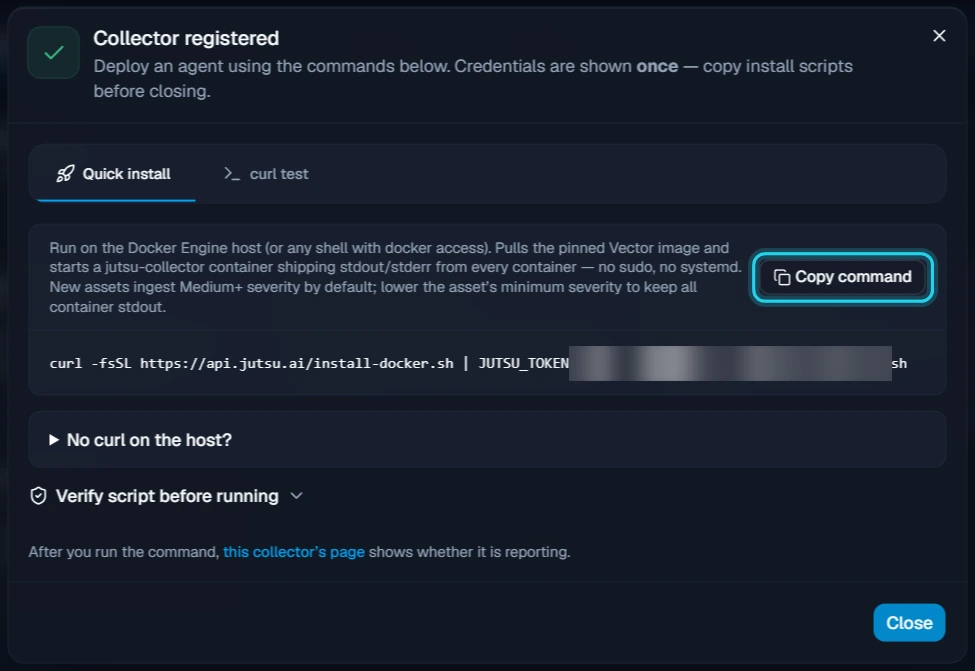
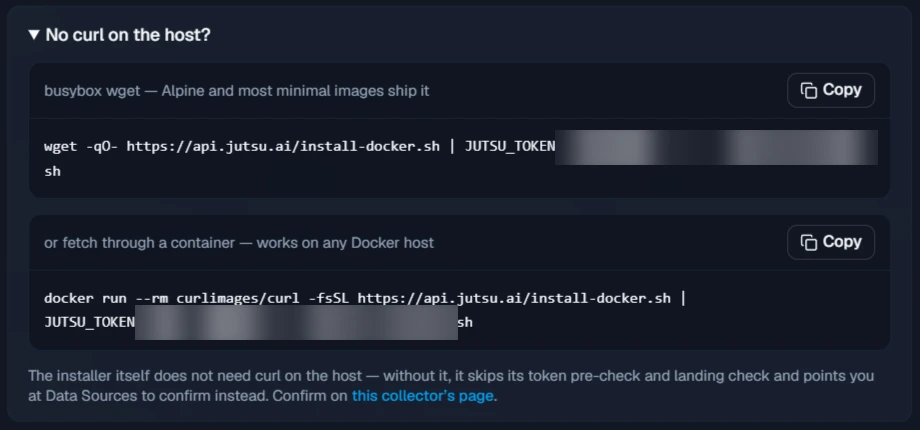
If the host has no curl, expand No curl on the host? and copy one of the alternatives instead. One uses wget, which Alpine and most minimal images include. The other fetches the installer through a throwaway curlimages/curl container, which works on any Docker host. Without curl the installer skips its token check and its check that events arrived, so confirm the collector in Jutsu afterwards.
If you'd rather check the installer before it runs, expand Verify script before running and copy that command. It downloads install-docker.sh, checks it against the checksum Jutsu publishes next to it, and only runs it if they match.
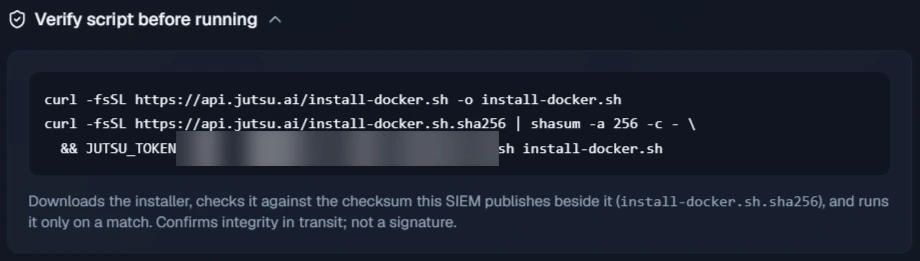
Step 5 - Run the command on the Docker host
Open a shell on the machine that runs Docker Engine, for example over SSH. Use an account that can run docker commands. Paste the command and press Enter.
Run it on the engine host itself, not from a laptop with a remote Docker context. The collector reads the engine's own Docker socket, so the installer refuses a context that points anywhere else.
Step 6 - Let the installer run
The installer prints each step as it goes. It usually finishes in under a minute, most of it spent pulling the image. It:
- Checks that Docker is reachable and that the token is valid (token accepted). If Jutsu rejects the token, it stops before changing anything.
- Reports the host's identity to Jutsu once.
- Pulls the Vector image,
timberio/vector:0.57.0-debian, pinned by digest. - Validates the collector's configuration in a throwaway container, then writes it into the
jutsu-collector-configvolume. - Starts the jutsu-collector container. It restarts automatically unless you stop it, reads container output through the engine's Docker socket, and buffers up to 512 MiB in the
jutsu-collector-datavolume. - Waits up to 60 seconds for a new event to reach Jutsu.
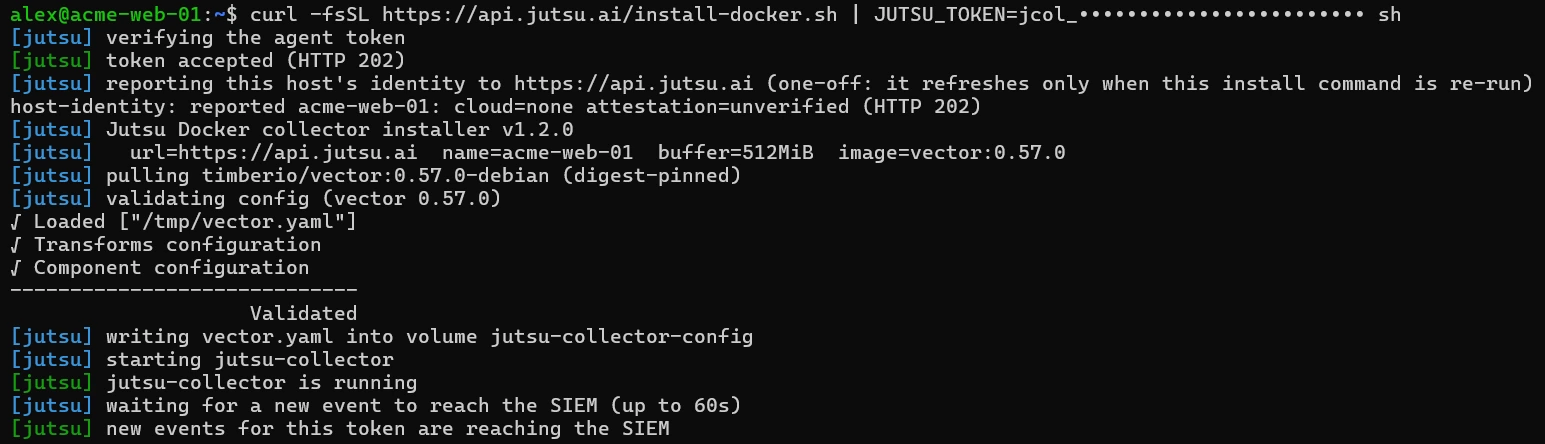
The installer names the collector after the Docker engine, which is usually the hostname (name=acme-web-01). To use another name, end the command with sh -s -- --name <name> instead of sh.
Step 7 - Confirm the installer finished
Wait for Jutsu Docker collector installed. and your shell prompt to return. The summary lists the container, its logs, the config and buffer volumes, where data and health reports go, and the uninstall command.
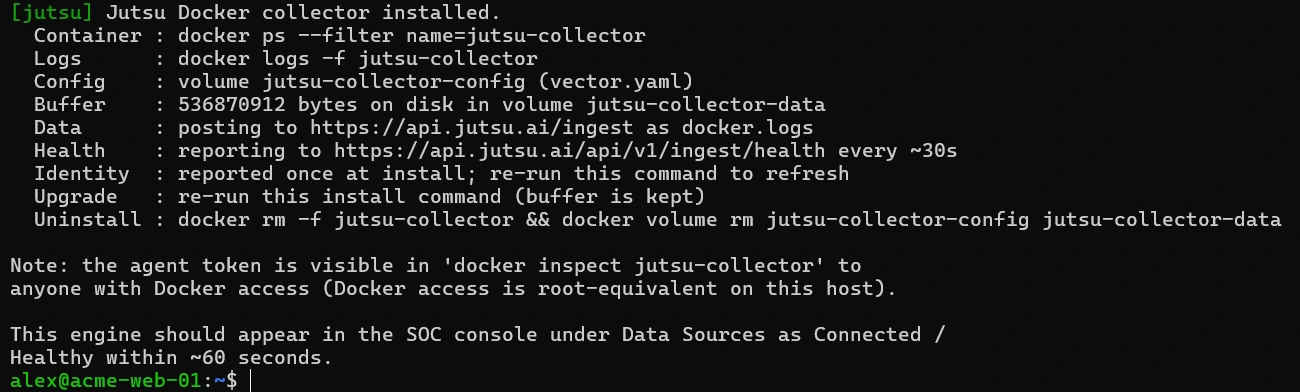
new events for this token are reaching the SIEM means the collector's first event already landed. That event is a start-up line the collector sends itself. It doesn't replay container output from before it started.
Verify the connection
In Jutsu, open Connections. The collector appears under Devices as Healthy, with Docker under its name.
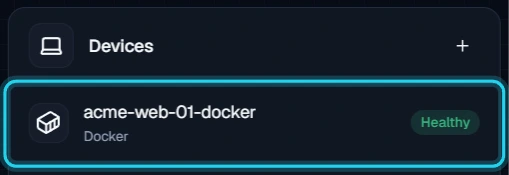
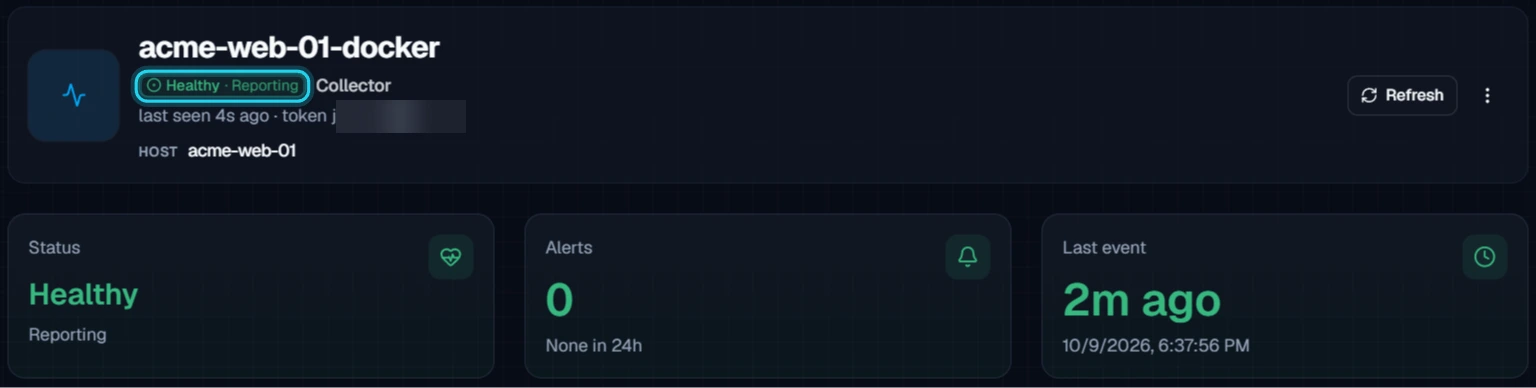
Open the collector. Its header shows Healthy · Reporting, when it was last seen, and the host it runs on.
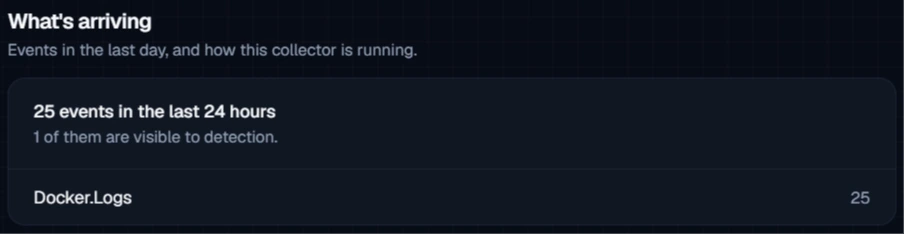
On the Overview, What's arriving counts the events of the last 24 hours and how many of them are visible to detection.
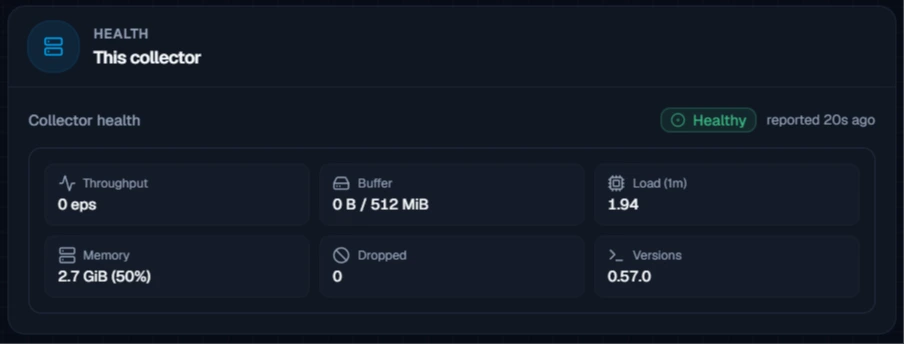
The Health card shows the latest heartbeat, with throughput, disk buffer use, load, memory, dropped events, and the Vector version. The collector reports its health about every 30 seconds.
Keep every container line (optional)
New collectors only pass Medium and above events to detection. Most container output is ordinary log lines at the info level, so it is kept in raw retention but stays out of detection. In Figure 11, only 1 of 25 events was visible. If you want detections to see all container output, lower the floor.
Open Configure → Settings. The Details card lists the allowed source type, the minimum severity, the EPS limit, and when the collector was connected and last seen.
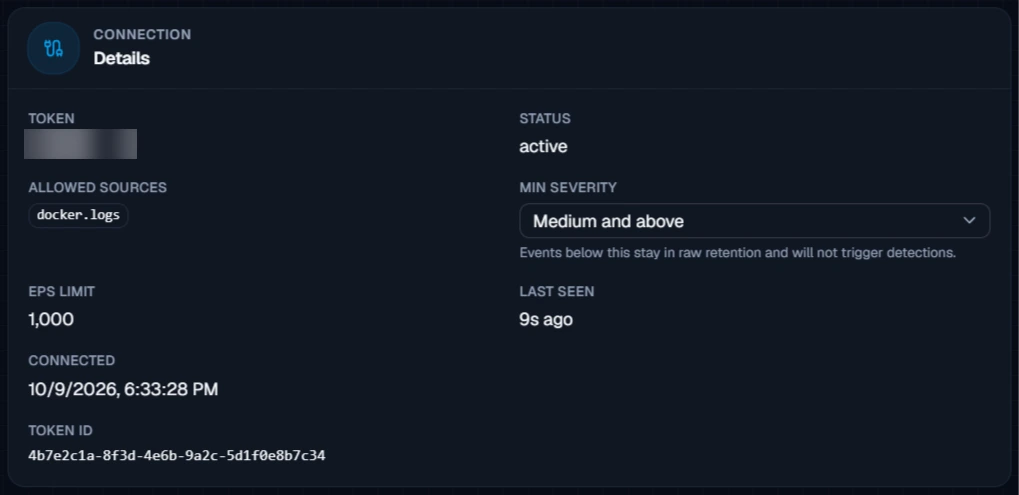
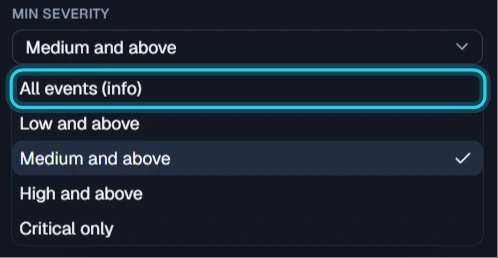
Open Min severity and select All events (info). The change saves straight away and applies to events that arrive from then on.
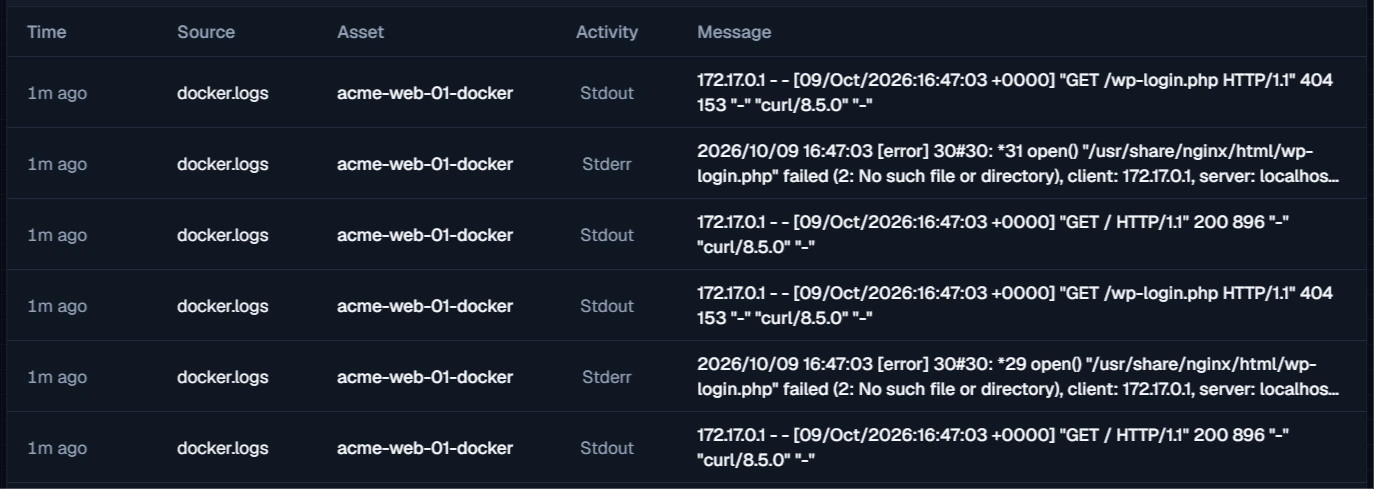
The collector's Events tab now lists container output as it arrives. Activity shows whether a line came from Stdout or Stderr. Open an event to see which container wrote it: its name is in the process_name field.
Check on the host
You can also check the collector from a shell on the Docker host:
docker ps --filter name=jutsu-collector
docker logs --tail 50 jutsu-collector
The container should be Up, and its logs shouldn't show repeated errors.
What healthy looks like
| Connections | Healthy, under Devices |
|---|---|
| Collector page | Healthy · Reporting, last seen within the last minute |
| jutsu-collector container | Up, restart policy unless-stopped |
| Allowed sources | docker.logs |
Troubleshooting
Start with the exact message the installer printed.
| Message or symptom | What to do |
|---|---|
| docker was not found on PATH | Run the command on the Docker Engine host. On a plain Linux server without Docker, use the Linux / Unix host agent instead. |
| the Docker daemon is not reachable (docker info failed) | Start Docker, then run the command again with sudo or as a member of the docker group. |
| the active Docker context points at '…', not a local unix socket | You're using a remote Docker context. Run the command on the engine host itself, or switch back with docker context use default. |
| the SIEM rejected this token | The token was rotated, revoked, or copied incompletely. Rotate the collector's token in Jutsu and use the new command. Nothing was changed. |
| could not pull timberio/vector… | The host can't reach Docker Hub. Allow it, or load the image onto the host another way, then run the command again. |
| jutsu-collector is not running | Run docker logs jutsu-collector and fix what it reports, then run the command again. |
| curl not found — skipping token pre-verification | Expected when you use the wget or container command. Check that the collector turns Healthy in Jutsu. |
| Healthy, but container output doesn't show up in detection | New collectors only pass Medium and above to detection. Lower Min severity as in Keep every container line. Output written before the collector started isn't sent. |
Running the command again is safe: The installer replaces the existing jutsu-collector container and keeps the buffer volume, so nothing that's waiting to be sent is lost. Use it to repair or upgrade the collector, or to apply a rotated token.
Security and access
- The token only accepts
docker.logs, and Jutsu enforces that at ingest. - The collector uses the Docker socket only to read container output. Like any container with the socket mounted, though, it runs with Docker access, so treat it as privileged.
- The token is stored in the container's environment, so anyone who can run
docker inspect jutsu-collectorcan read it. Docker access is root-equivalent on a host, so limit who has it. - Jutsu shows the token once, in the Collector registered dialog. Copy the command straight into your shell and don't save it anywhere else.
Rotate the token
On the collector's page, open Configure → Settings and select Rotate token on the Credential card. Choose a Grace window in minutes, from 0 to 1440 (the default is 60). The old token keeps working until the window ends, and 0 stops it immediately. A Token rotated dialog shows a new install command. Run it on the Docker host as in Steps 4 to 7. The installer replaces the collector container in place.
Remove the collector
Removing a Docker collector takes two parts: archive the collector in Jutsu, then remove its container and volumes on the host. Archiving alone doesn't touch the host.
Step 1 - Archive the collector
Open the collector, go to Configure → Danger zone, and select Archive collector.
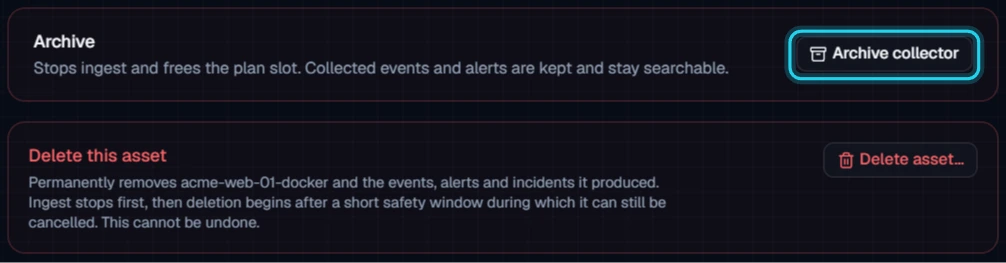
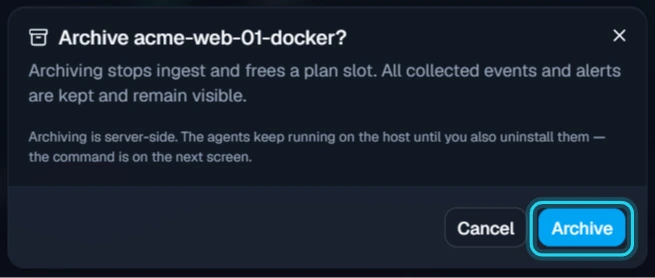
Select Archive to confirm. Archiving stops ingest and frees the plan slot, and the token stops being accepted. Events and alerts already collected stay searchable.
Step 2 - Copy the uninstall command
The Collector archived dialog shows the command that removes the collector from the Docker host. Select Copy.
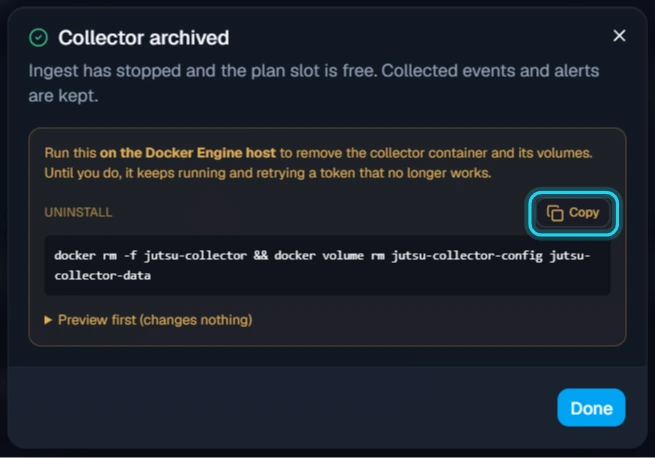
To see what's there first, expand Preview first (changes nothing). Its command lists the collector container and its volumes.
Step 3 - Run it on the Docker host
Paste the command into a shell on the Docker host and press Enter. It removes the jutsu-collector container and its two volumes, jutsu-collector-config and jutsu-collector-data.
To check, run the preview command again. Both lists should be empty.

The Vector image stays in the engine's image cache, at about 350 MB. If nothing else on the host uses Vector, remove it too:
docker image rm $(docker images -q timberio/vector)
Changed your mind? Archived collectors are listed under Connections → Archived connections, where you can Restore one. You can also select Unarchive on its page. If you already removed the container, run the install command again.