Vercel
Connect a Vercel team to Jutsu. Jutsu pulls the team's activity feed, which covers environment variable reads and writes, deployments, member and role changes, token creation, and firewall and SAML changes. It detects threats in those events automatically. Nothing gets installed in your projects or deployments.
| Time | About 5 minutes |
|---|---|
| You need | A Vercel team you're a member of, and the Owner or Admin role in your Jutsu organization |
| Collected by default | The team event feed (vercel.events). Nine more sources can be switched on later |
Vercel connects with an access token and a Team ID. You create the token in Vercel and paste both into Jutsu.
Step 1 - Open Integrations
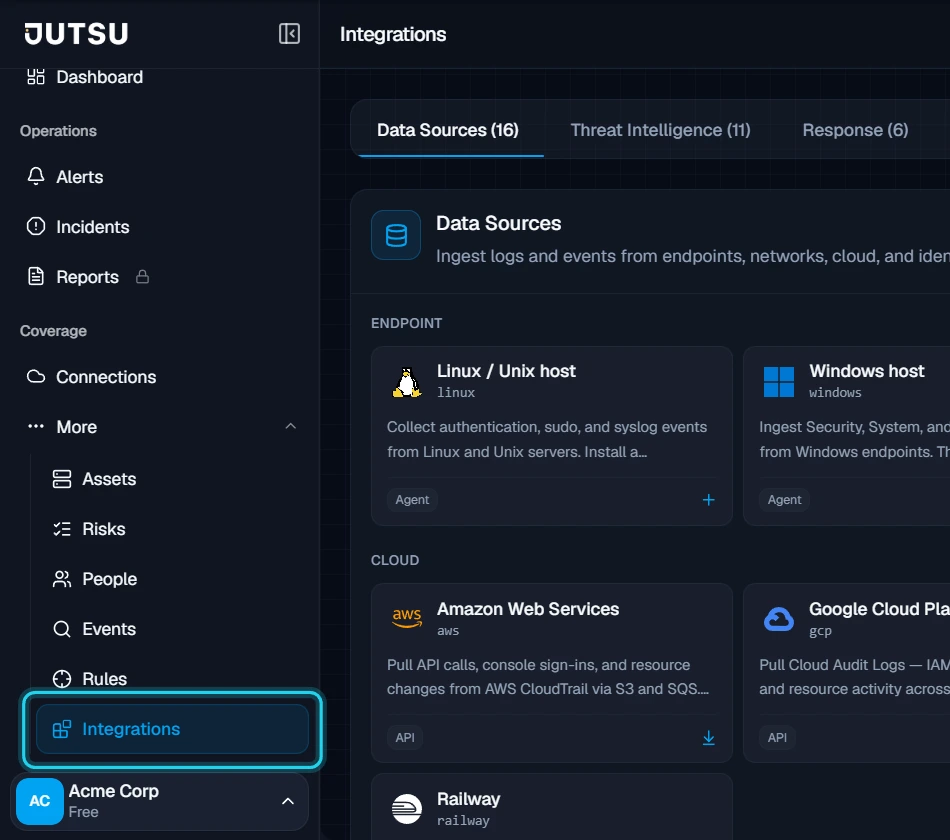
Go to app.jutsu.ai and select Integrations in the left navigation. It sits under More. The Data Sources tab opens by default.
Step 2 - Select the Vercel card
Scroll to the Cloud section and select the Vercel card. The Connect Vercel dialog opens.
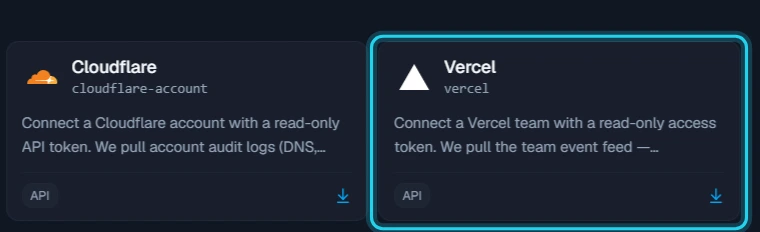
The card doesn't open? Adding integrations needs the Owner or Admin role in your Jutsu organization. For Analysts, Responders, and Viewers the catalog is read-only.
Step 3 - Review the setup steps
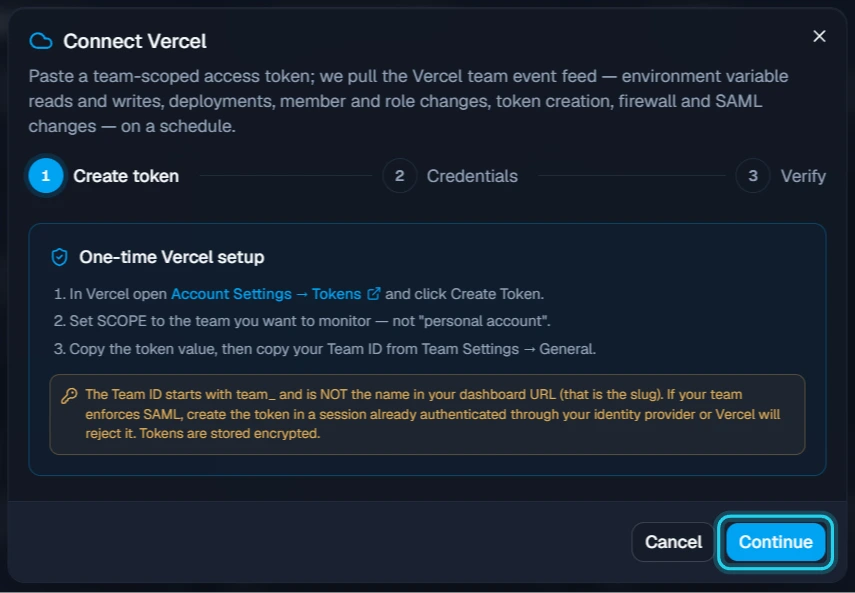
The first step of the dialog, Create token, lists what to do in Vercel. Keep the dialog open and open Vercel in a new tab. You'll come back and select Continue once you have the token and Team ID.
Step 4 - Create a token in Vercel
Sign in to Vercel and open Account Settings → Tokens. Under Create Token:
- Token name: something recognisable, such as Jutsu.
- Scope: choose your team, then All Projects, so the token covers the whole team.
- Expiration: choose an expiry that fits your rotation policy. The figure uses 1 Year.
Select Create.
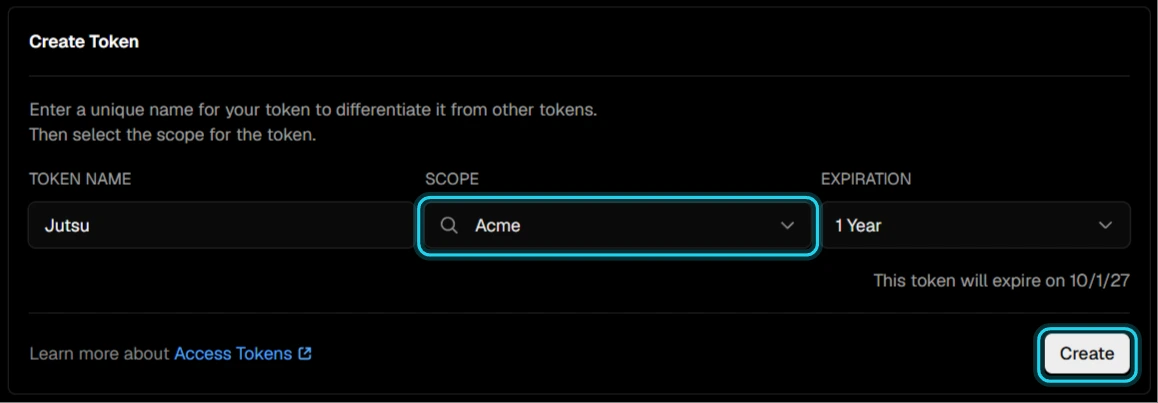
Warning: Don't choose Full Account. It gives Jutsu access to every team your account belongs to, and Vercel doesn't accept it for teams that enforce SAML. Set the scope to the one team you want to monitor.
Your team enforces SAML? Sign in to Vercel through your identity provider before you create the token. A token created in a session that didn't go through SSO is refused with a 403.
The token has the same access as the person who creates it. When it expires, or its creator leaves the team, Jutsu stops collecting. A connection's token can't be swapped for a new one, so you'll need to connect again with a fresh token. Set a reminder before the expiry date.
Step 5 - Copy the token
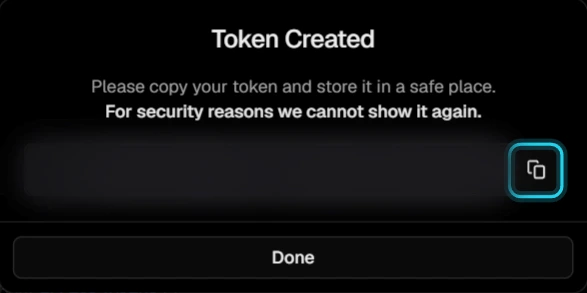
Vercel shows the token only once. Select the copy button next to it, then select Done.
Step 6 - Copy your Team ID
Open your team's Settings → General page (vercel.com/<your-team>/~/settings) and scroll down to the Team ID card. Select the copy button next to the ID.
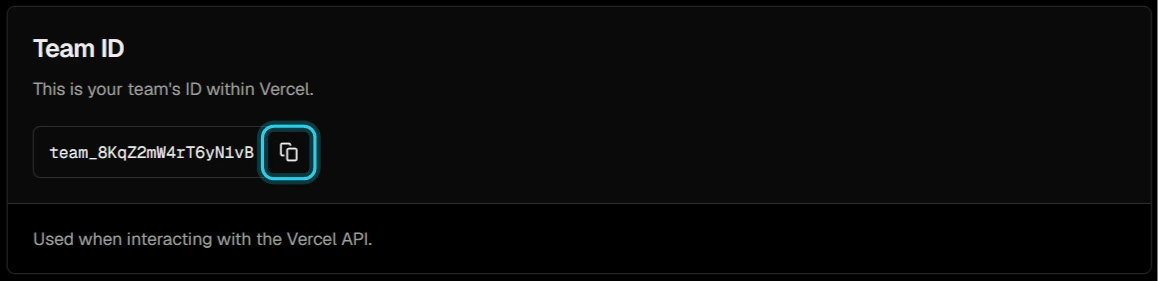
The Team ID is not the name in your URL: The Team ID starts with team_. The name in your dashboard address, such as vercel.com/acme, is the team's slug, and Jutsu can't connect with it. If you paste a dashboard URL, Jutsu says so and asks for the Team ID instead.
Step 7 - Paste the credentials and connect
Back in Jutsu, select Continue to open the Credentials step, then fill it in:
- Name: something that identifies the team, such as Acme — Vercel Production.
- Team ID: the value from Step 6.
- Access token: the token from Step 5.
Select Connect.
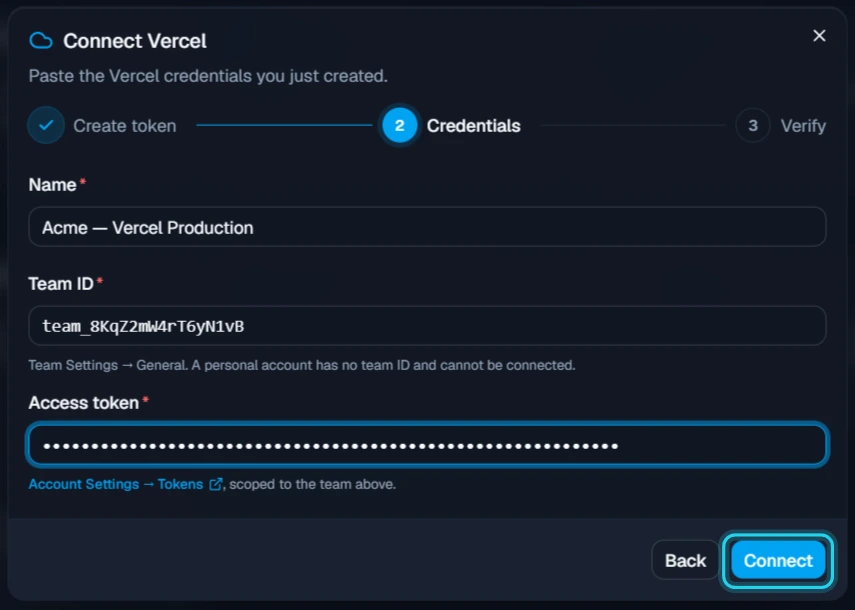
What happens next: Jutsu checks the token against your team as part of the connect. A failed check doesn't block the connection. It's created anyway and shows the error on its page, because problems like a rate limit clear on their own. If the token itself was wrong, archive the connection and connect again with the right one. The token is encrypted at rest, and only its last four characters are ever shown again.
Step 8 - Find it in Connections
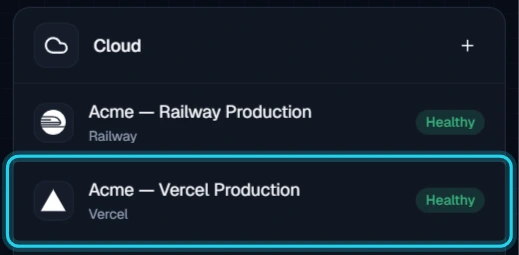
Jutsu takes you to Connections. Your team appears under Cloud as Healthy.
Verify the connection
Open the connection, go to Configure → Settings, and select Test connection. Credentials ok means Jutsu can read the team.
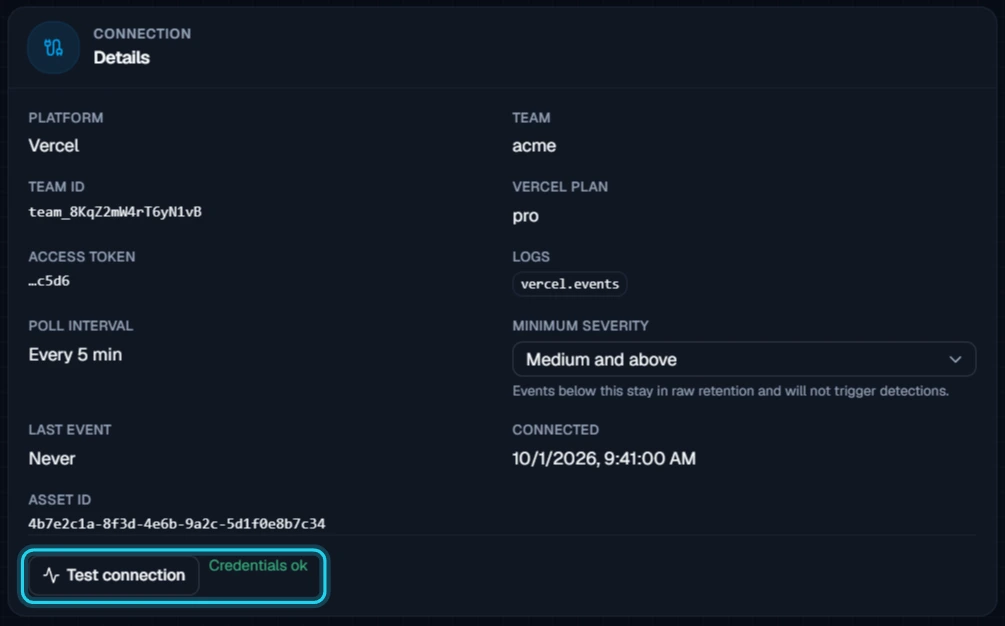
Team shows the slug Vercel reported for the token, so you can check it against your dashboard URL.
The ingest counters at the top of the connection page show how many events arrived in the last 5 minutes, hour, and 24 hours.
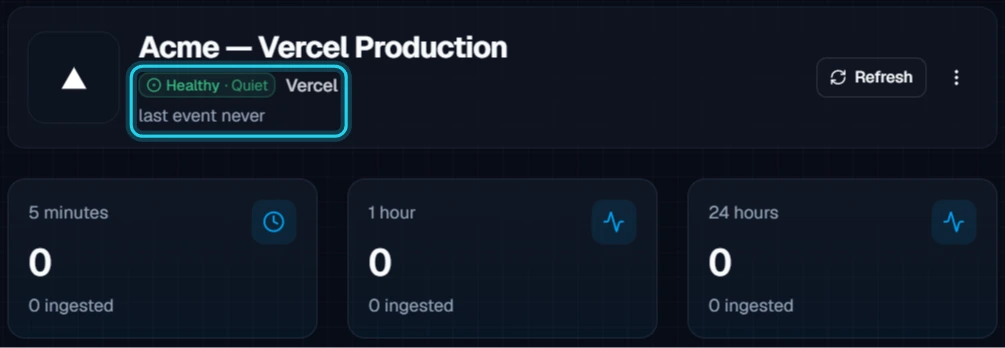
Quiet is normal at first: The event feed only records changes to your team, so a new connection can show Healthy · Quiet and last event never until someone deploys, changes an environment variable, or edits members. On its first poll Jutsu reads back the last hour, not your whole history. New connections also start with a Medium and above severity floor. Routine low-severity activity is kept in raw retention but won't show up as alerts.
What healthy looks like
| Status | Healthy |
|---|---|
| Test connection | Credentials ok |
| Team | Your team's slug, as in your dashboard URL |
| Vercel plan | Your team's plan, such as pro |
| Logs | vercel.events, plus any sources you switched on |
| Poll interval | Every 5 minutes |
Choose what to collect
Under Configure → Settings → Collected sources you can switch on more Vercel telemetry for this connection, then select Save sources. Changes take effect on the next poll, and nothing already collected is removed.
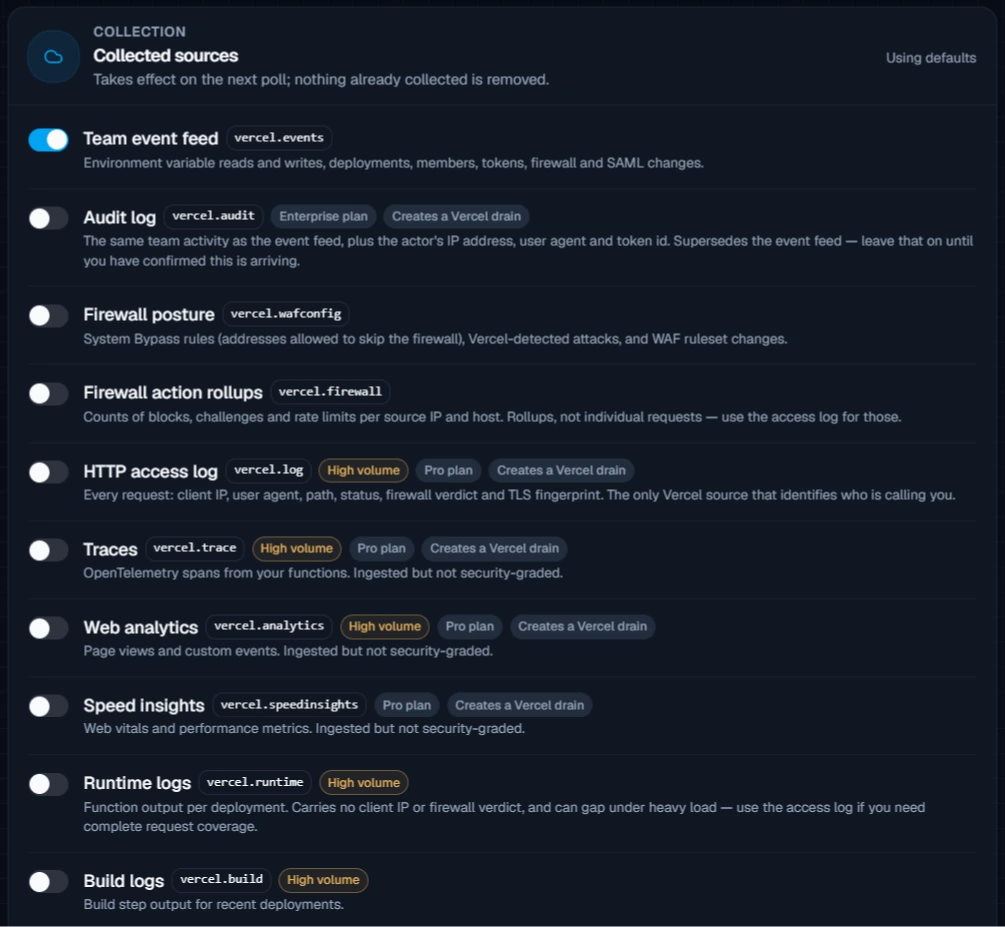
Jutsu polls five of the sources from Vercel's API. They work on every Vercel plan:
| Source | What it adds |
|---|---|
| Team event feed | Who changed environment variables, deployments, members, tokens, and firewall and SAML settings. On by default |
| Firewall posture | System Bypass rules (addresses allowed to skip the firewall), attacks Vercel detected, and WAF ruleset changes |
| Firewall action rollups | Counts of blocks, challenges, and rate limits per source IP and host. These are totals, not individual requests |
| Runtime logs | Function output per deployment. High volume. It has no client IP or firewall verdict, and it can have gaps under heavy load |
| Build logs | Build output for new deployments. High volume |
Vercel pushes the other five to Jutsu through a drain, because they have no read API. They need a paid Vercel plan:
| Source | Plan | What it adds |
|---|---|---|
| HTTP access log | Pro | Every request: client IP, user agent, path, status, firewall verdict, and TLS fingerprint. It's the only Vercel source that shows who is calling you. High volume |
| Audit log | Enterprise | The same activity as the team event feed, plus the actor's IP address, user agent, and token ID |
| Traces | Pro | OpenTelemetry spans from your functions. High volume |
| Web analytics | Pro | Page views and custom events. High volume |
| Speed insights | Pro | Web vitals and performance metrics |
Traces, web analytics, and speed insights are stored but not used for detection. They're product telemetry, not security telemetry.
Drains are billed by Vercel: Switching on a drain source makes Jutsu create a drain in your Vercel team with your token, and Vercel bills drains by data volume. Switching the source off deletes the drain. If your team's plan is too low, Save sources fails, names the plan you need, and links to your Vercel billing page.
Moving to the audit log? Leave the team event feed on until you've confirmed audit events are arriving. With both on, each action arrives twice, once from each source.
Warning: High-volume sources can produce orders of magnitude more events than the team event feed. They count towards your plan's daily ingest, and going over it pauses collection for every connector in your organization. Turn them on one at a time and watch the 24-hour count.
Jutsu can't back-fill runtime or build logs. Runtime logs are a live tail, and build logs are read for new deployments, so a source you switch on today collects from now on.
Troubleshooting
| Symptom | What to do |
|---|---|
| The Vercel card doesn't open | You need the Owner or Admin role in the Jutsu organization. |
| That looks like a dashboard URL, which carries your team SLUG rather than its ID | You pasted the address from your browser. Copy the Team ID from Team Settings → General instead. It starts with team_. |
| That does not look like a Vercel team ID | The value doesn't start with team_. A personal account has no Team ID and can't be connected. |
| Vercel denied access to team … (403) | The token's scope isn't this team, or the team enforces SAML and the token was created outside an SSO session. Create a new token with the team as its scope and connect again. |
| Vercel token rejected … invalid, expired, or was revoked | Vercel no longer accepts the token. Create a new one and connect again. |
| Vercel team … not found (404) | The Team ID is wrong, or the token's creator isn't a member of the team. Copy the ID again from Team Settings → General. |
| Vercel rate limited … (429) | Vercel is throttling requests. Nothing needs changing. Polling resumes automatically. |
| A drain source won't switch on | The team's plan is too low: Pro for drains, Enterprise for the audit log. The error names which one. |
| A drain source is on, but no records arrive | In Vercel, open Team Settings → Drains and check the drain is enabled. A plan downgrade disables drains. |
| The access log arrives with no client IPs | Your team hides IP addresses. Check Team Settings → Security & Privacy → IP Address Visibility. |
| Gaps in runtime logs | Expected under load, because runtime logs are a live tail. Use the HTTP access log for complete request coverage. |
| Connected, but no events | Check the Minimum severity floor before you assume the team was quiet. At the default of Medium, routine activity won't appear as alerts. |
| Ingest stopped across every connector | The org hit its daily ingest limit after a source was switched on. Switch that source off, then re-enable sources one at a time. |
Security and access
- Vercel tokens can't be limited to read-only. A token can do whatever its creator can do in the team, so treat it like a password. Jutsu encrypts it at rest and shows only its last four characters in the UI.
- Jutsu uses the token to read activity, logs, and team configuration. It writes to Vercel only when you switch on a drain source: it creates that drain, and deletes it when you switch the source off or archive the connection.
- Scope the token to the one team you're connecting, not Full Account.
- Response actions, such as removing a team member, blocking an IP at the Vercel Firewall, or turning on Attack Challenge Mode, use a separate token that you add under Configure → Settings → Response credential. Jutsu won't accept the collection token there, so revoking one never affects the other.
Pause or disconnect
You'll find these under Configure → Danger zone on the connection.
| Action | What it does |
|---|---|
| Disable ingestion | Stops polling without deleting the connection's configuration. Drains you switched on keep sending, and Vercel keeps billing for them, but Jutsu discards those records while ingestion is disabled. Switch drain sources off first if you're pausing for long. |
| Archive | Stops ingestion and frees the plan slot. Events and alerts already collected stay available. Jutsu also deletes the drains it created, so they stop billing you. If it can't, it lists the ones to delete by hand, with a link to your team's Drains page. |
| Revoke access in Vercel | Archiving doesn't revoke the token. Delete it in Account Settings → Tokens. |