Google Cloud Platform
Connect a Google Cloud project to Jutsu. Jutsu streams the project's Cloud Audit Logs (IAM changes, API calls, and resource activity across every Google Cloud service) and detects threats in them automatically. The same connection can also let analysts block an attacker at the VPC firewall, and, on plans with compliance, check the project's compliance posture.
The recommended setup is keyless: you run one command in Google Cloud Shell, and no service-account keys are created or exchanged.
| Time | About 10 minutes |
|---|---|
| You need | The Owner role on the Google Cloud project (or rights to create custom roles and change IAM policy), billing enabled on the project, and the Owner or Admin role in your Jutsu organization |
| Collected | Cloud Audit Logs (gcp.audit): Admin Activity, System Event, and Policy Denied, plus Data Access where you've turned it on |
Step 1 - Open Integrations
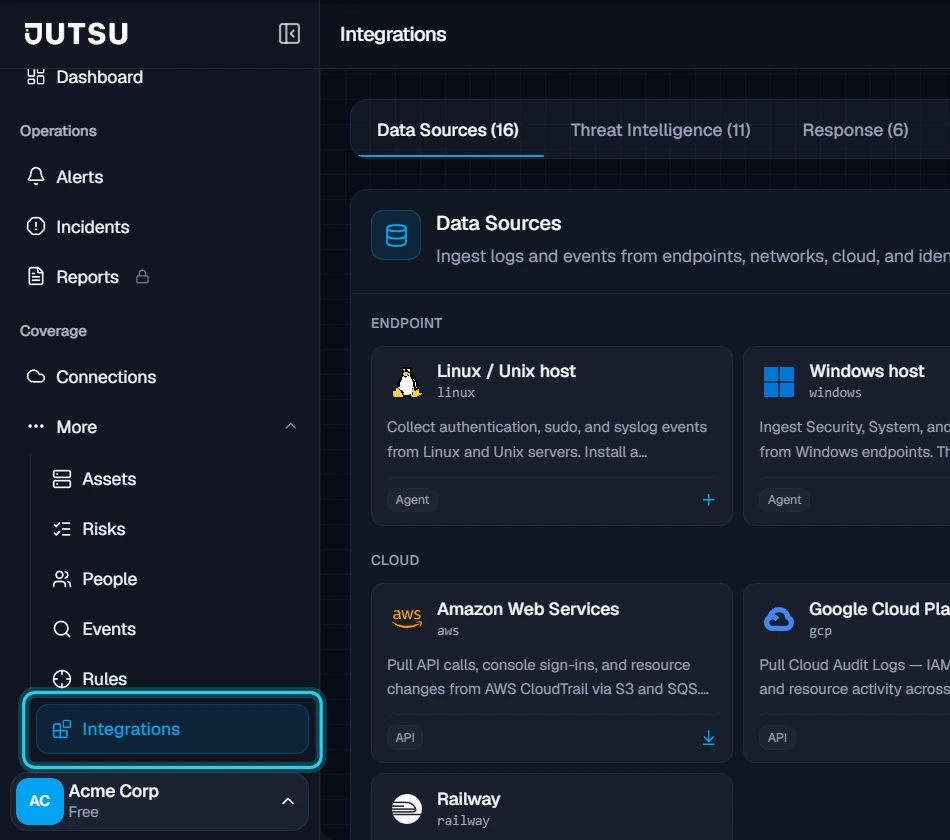
Go to app.jutsu.ai and select Integrations in the left navigation. It sits under More. The Data Sources tab opens by default.
Step 2 - Select the Google Cloud Platform card
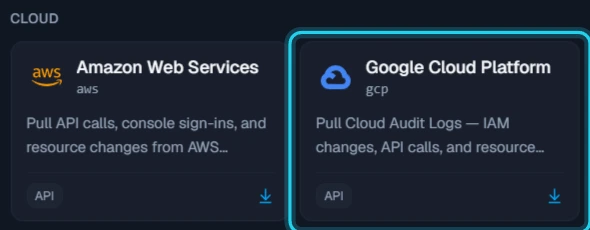
In the Cloud section, select the Google Cloud Platform card. The Connect Google Cloud Platform dialog opens.
The card doesn't open? Adding integrations needs the Owner or Admin role in your Jutsu organization. For Analysts, Responders, and Viewers the catalog is read-only.
Step 3 - Choose the capabilities
Pick what this project is connected for. Each card has a Permissions section that lists exactly what it grants. Select Continue.
- Audit logs: streams Cloud Audit Logs into Jutsu.
- Compliance posture: read-only checks of the project's configuration. This card only appears if your plan includes compliance.
- Response actions: lets an analyst block an attacker at the VPC firewall from an incident. It runs under your organization's response policy, so it needs approval unless you turn on automation.
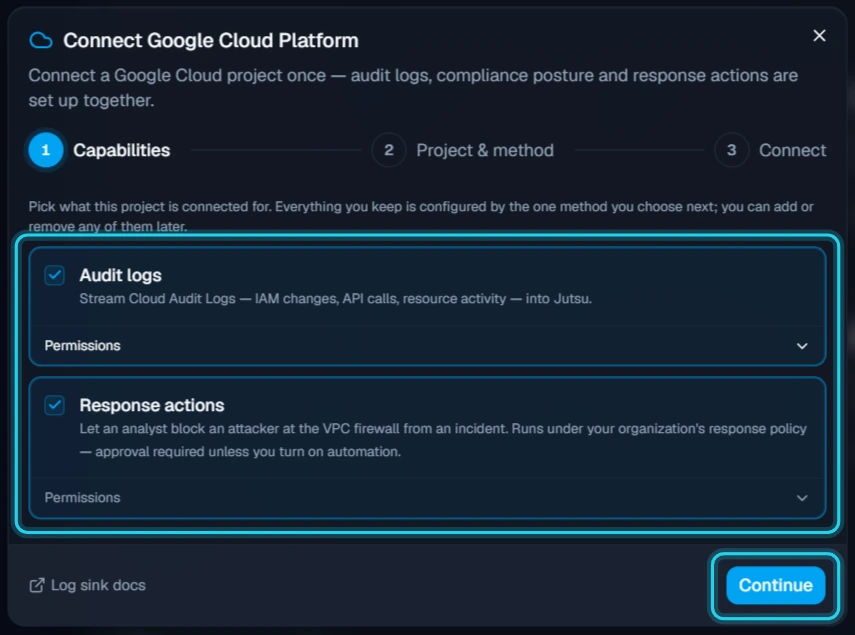
You can add or remove capabilities later from the connection page.
Step 4 - Enter the project and choose One-click
Fill in the Project & method step:
- Name: something that identifies the project, such as Acme — GCP Production.
- GCP project ID: the project's ID, not its display name, such as
acme-prod-482913. - Setup method: keep One-click (Cloud Shell), the recommended method.
The explainer lists what the command will do for each capability you chose. Select Start setup.
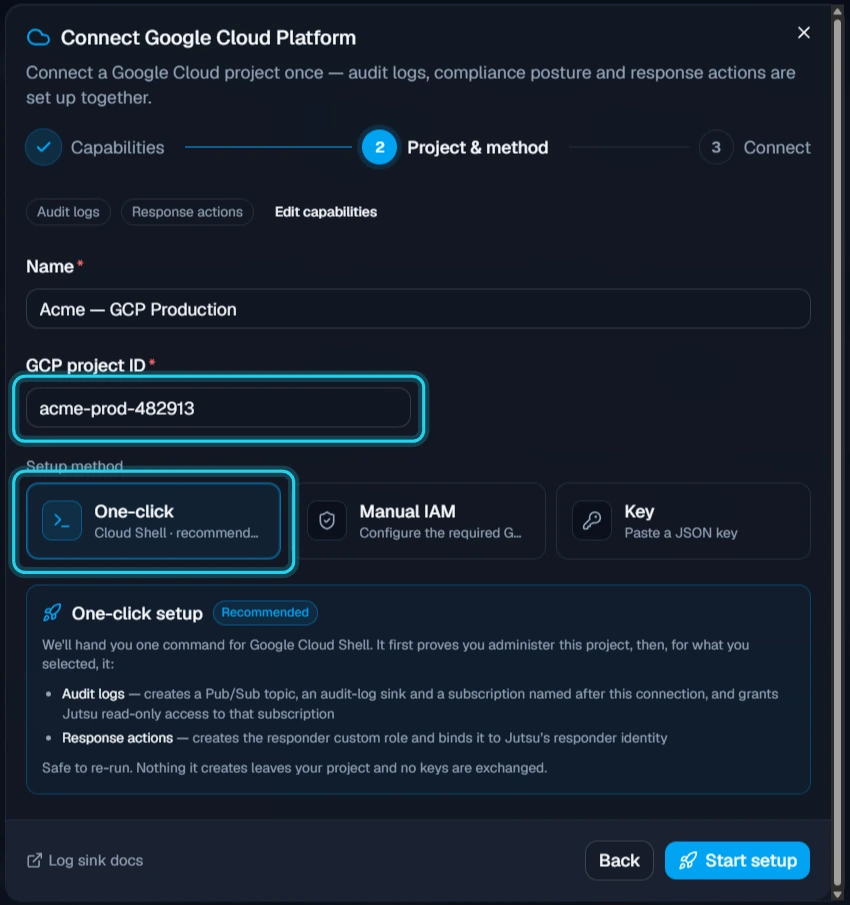
The other methods: Manual IAM prints the same grants as separate commands for you to run, then you select Verify & connect. Key takes a service-account JSON key per capability. Many organizations block key creation with the iam.disableServiceAccountKeyCreation policy (on by default for organizations created since May 2024), which is why One-click and Manual IAM are keyless.
Step 5 - Copy the setup command
The Connect step shows two things. Step 1 — Open Google Cloud Shell has a button. Step 2 — Paste this one command and press Enter has the command. Select Copy next to the command. It holds a one-time registration token for this connection, so don't share it.
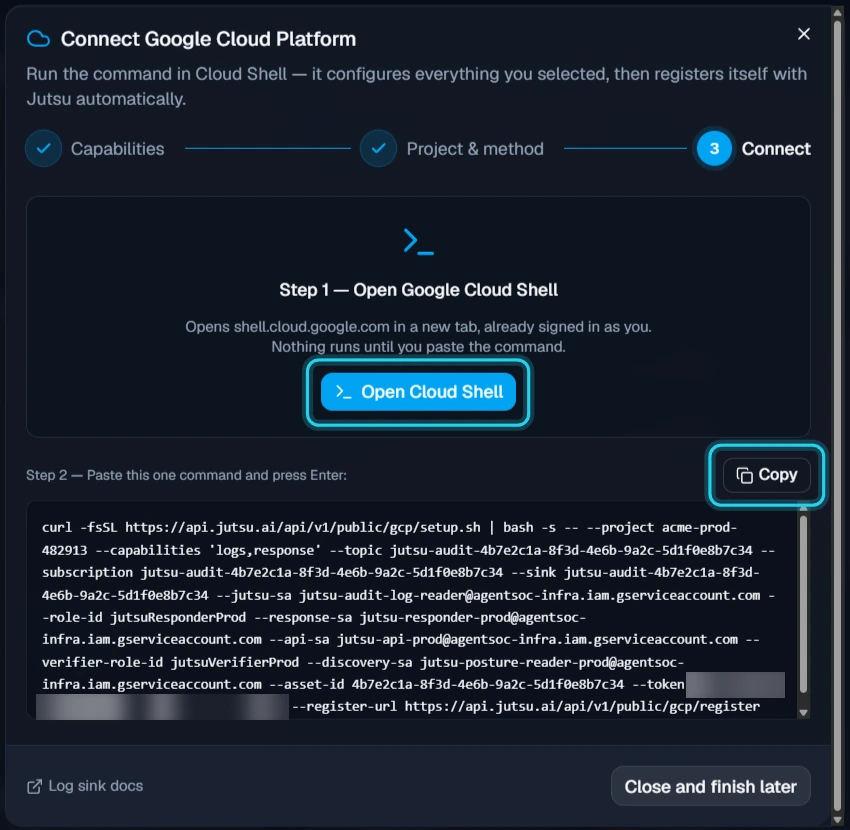
Step 6 - Open Cloud Shell
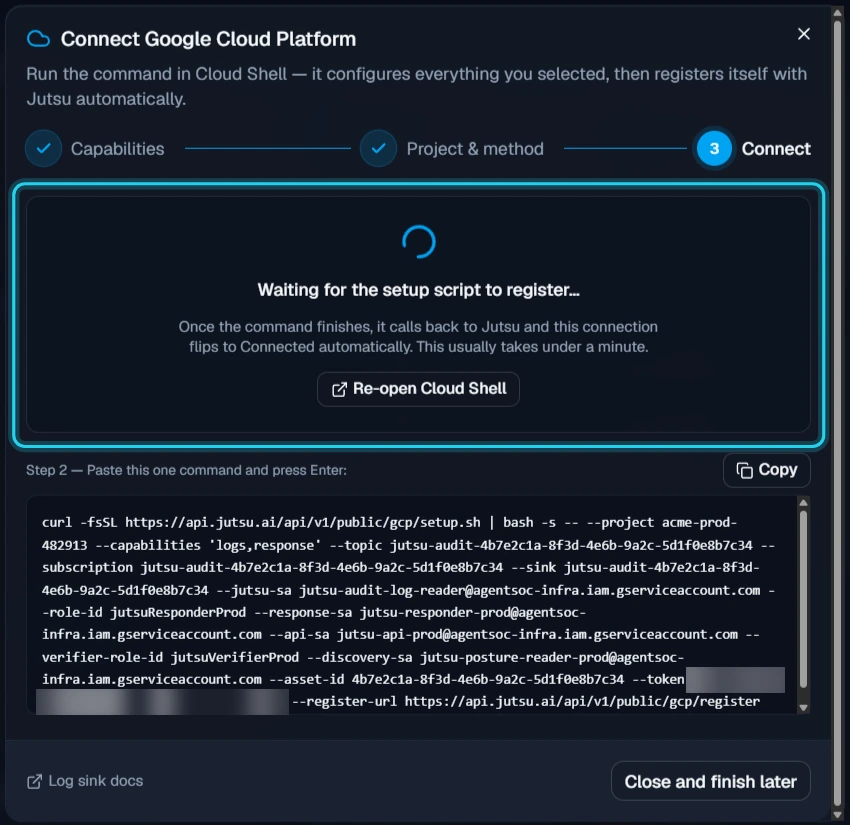
Select Open Cloud Shell. Google Cloud Shell opens in a new tab, signed in as you, and the Jutsu dialog changes to Waiting for the setup script to register…. Keep the Jutsu tab open.
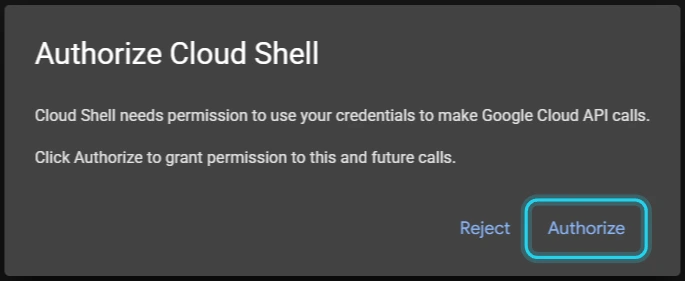
The first time you use Cloud Shell, Google asks to Authorize Cloud Shell to use your credentials. Select Authorize. The setup script needs it to make gcloud calls.
Step 7 - Paste the command and run it
Click in the Cloud Shell terminal, paste the command with Ctrl+V, and press Enter. The script prints each step as it goes:
- Enables the Pub/Sub API, and proves you administer the project by creating a small verifier role bound to this connection only.
- Grants Jutsu read-only machine discovery on the project.
- Audit logs: enables the Logging API, creates a Pub/Sub topic, an audit-log sink into it, and a subscription. It then grants Jutsu read access to that one subscription.
- Response actions: creates the responder custom role and grants it to Jutsu's responder identity.
- Registers the connection with Jutsu.
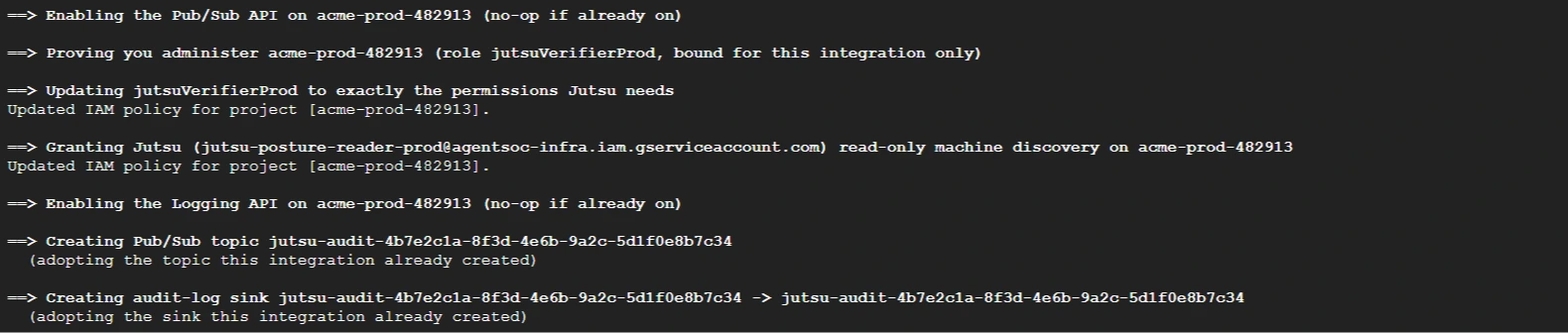
When it finishes, it prints Done — head back to Jutsu; the integration flips to Connected automatically.
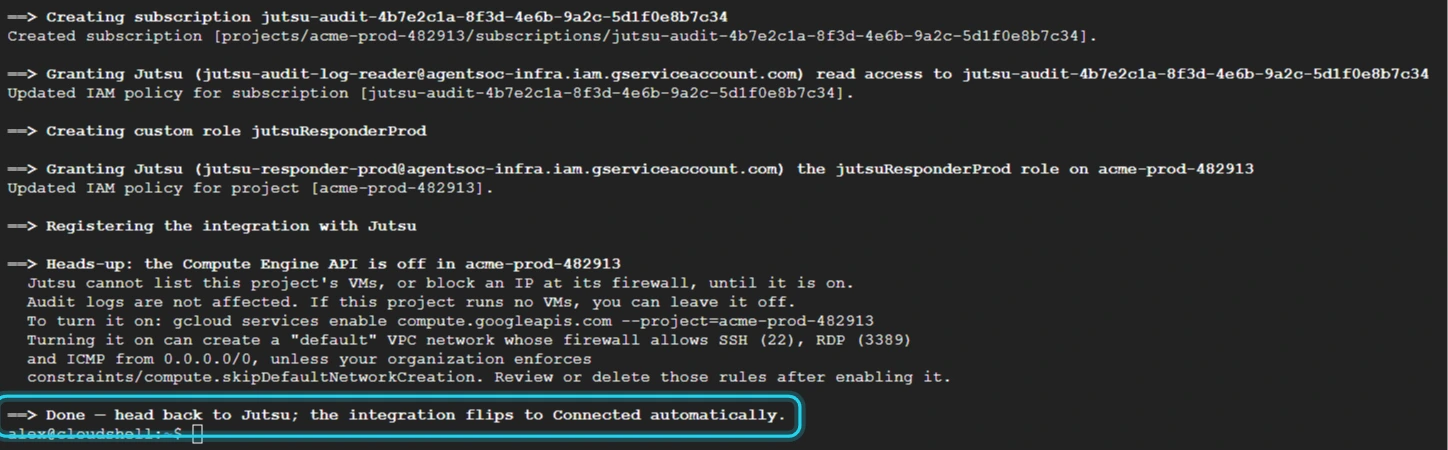
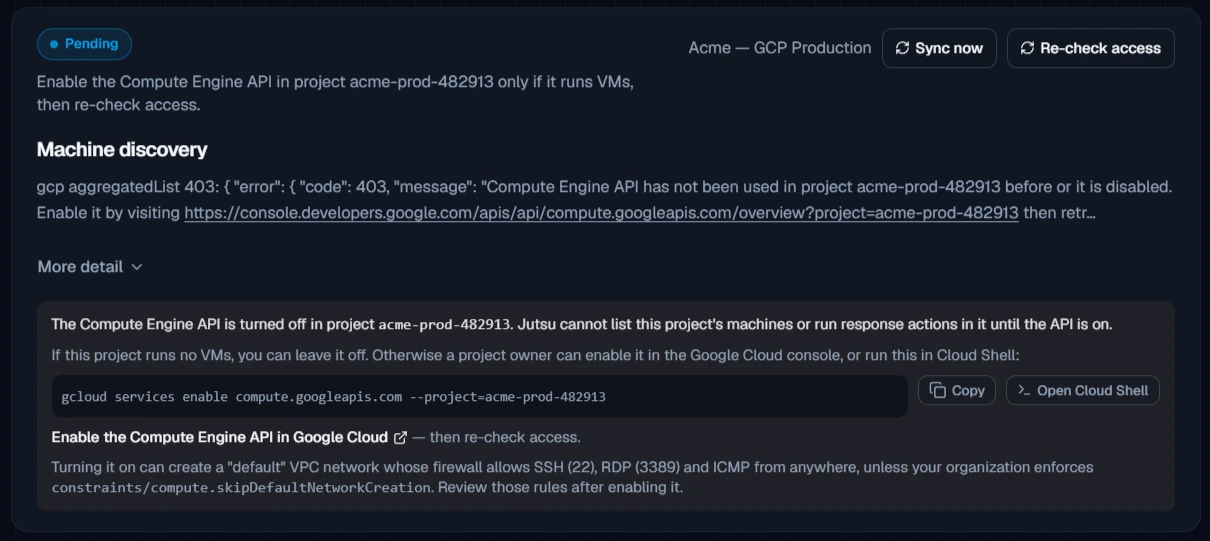
Heads-up about Compute Engine: If the Compute Engine API is off in the project, the script says so at the end. Audit logs work without it. Response actions and machine discovery need it, because without Compute Engine there are no VMs to list or firewalls to change. If the project runs no VMs, you can leave it off. Otherwise turn it on with gcloud services enable compute.googleapis.com --project=<project-id>. Turning it on can create a default VPC network whose firewall allows SSH, RDP, and ICMP from anywhere, so review those rules afterwards.
Safe to re-run: If the script stops partway, run the same command again. It reuses what it already created and carries on.
Step 8 - Check the connection in Jutsu
Back in Jutsu, the connection appears under Cloud on Connections. Open it to see each capability. Events start arriving within minutes of the next audit-logged change in the project.
Verify the connection
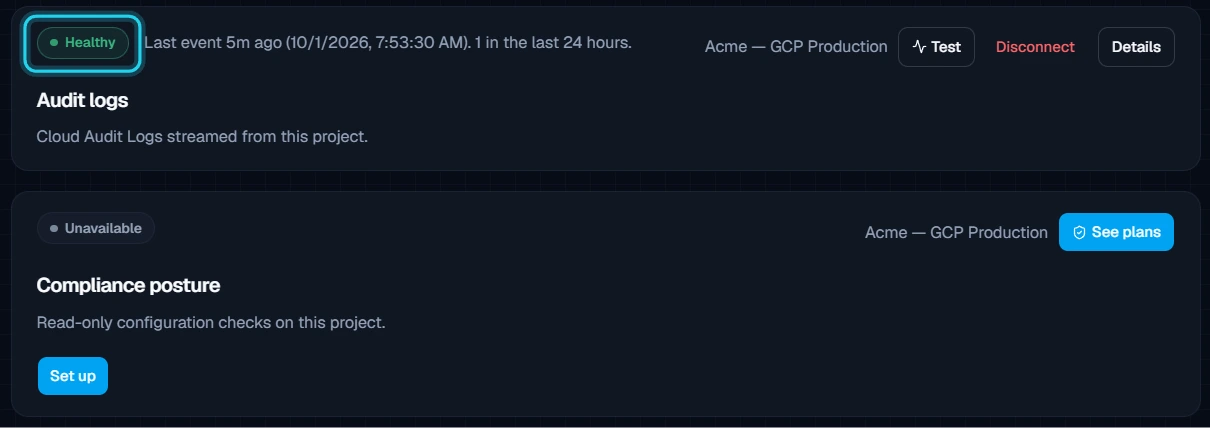
The Health tab has a card per capability:
- Audit logs shows Healthy with the time of the last event.
- Compliance posture shows Unavailable, with See plans, if your plan doesn't include compliance.
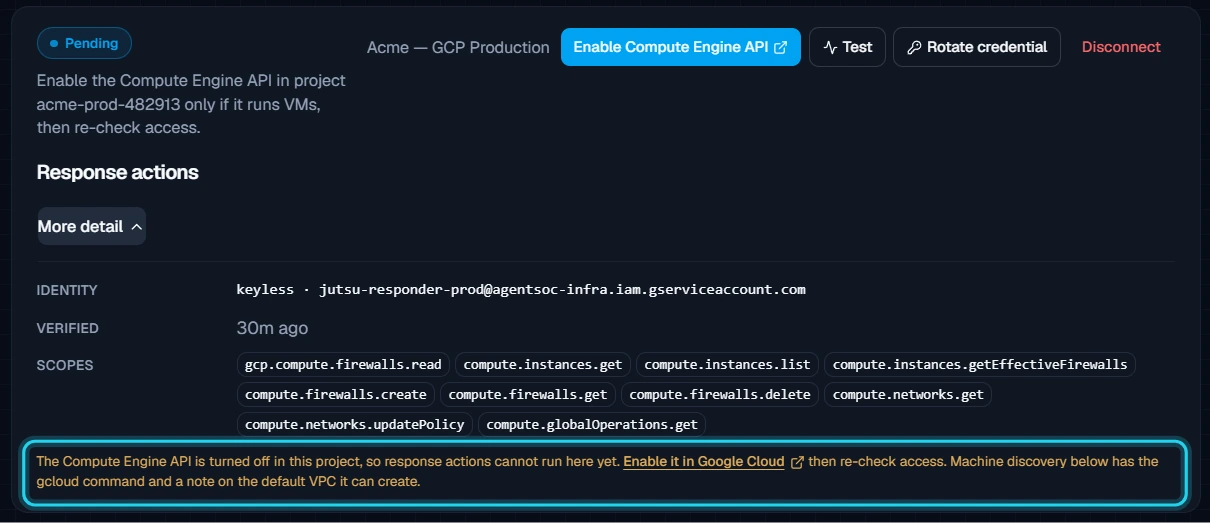
Response actions lists the keyless identity Jutsu uses and the exact permissions it holds. With Compute Engine off it shows Pending and explains why, with an Enable Compute Engine API link. After you turn the API on, select Test.
Machine discovery lists the project's VMs for Jutsu's asset inventory. It also needs Compute Engine, and its More detail box has the gcloud command to turn the API on. After you do, select Re-check access.
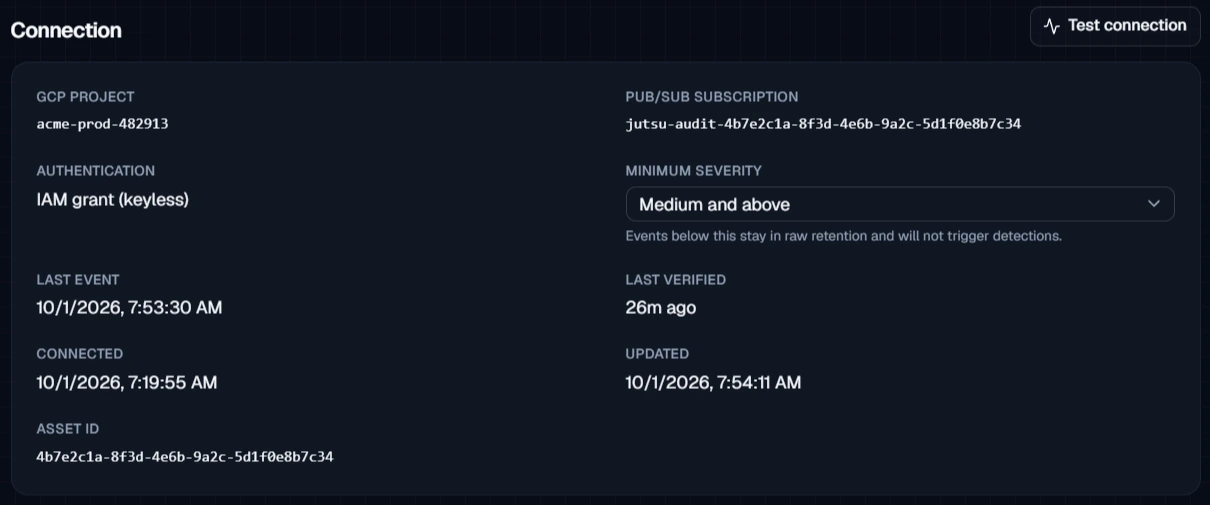
Under Configure → Settings, the Connection card shows the project, the Pub/Sub subscription, the authentication (IAM grant (keyless)), the minimum severity, and when the last event arrived. Select Test connection to re-check it.
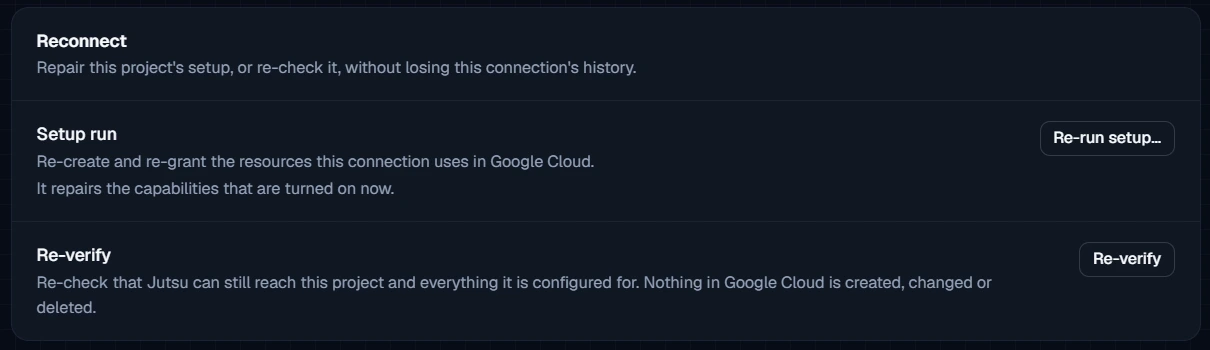
The Reconnect section repairs a setup without losing history. Re-run setup… re-creates and re-grants what the connection uses. Re-verify checks access without changing anything in Google Cloud.
Quiet is normal at first: New connections start with a Medium and above severity floor. Routine Google Cloud audit events are kept in raw retention but don't show up as alerts. The high-signal ones do, such as IAM policy changes, service-account key creation, log sink changes, and firewall changes.
Troubleshooting
| Message or symptom | What to do |
|---|---|
| Service account service-…@gcp-sa-logging.iam.gserviceaccount.com does not exist, at "Granting the sink's writer identity publish rights" | On a project that has never used Cloud Logging, Google creates the logging service agent a little after the first sink. Wait a minute and run the same command again. It picks up where it stopped. |
| Billing account for project … is not open, or Billing must be enabled | The project's billing account is closed or missing, so Google won't enable the APIs the setup needs. Link an active billing account to the project, then run the command again. |
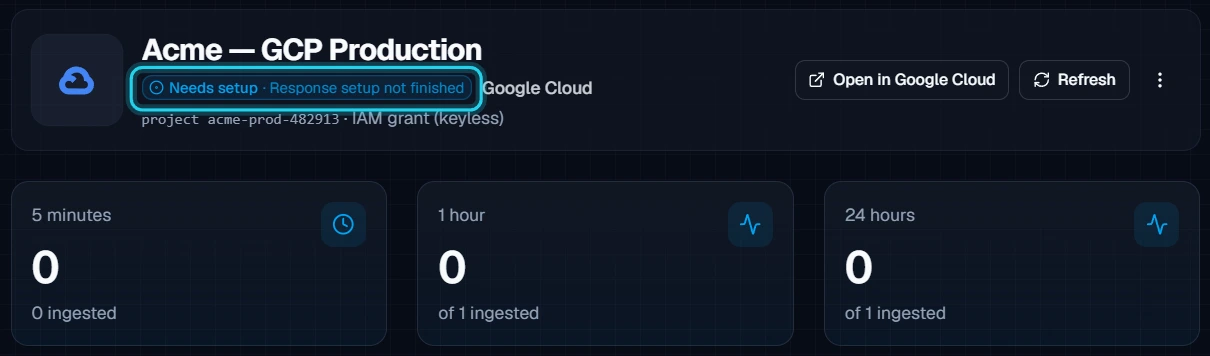
| Header shows Needs setup · Discovery not confirmed yet or Response setup not finished | The Compute Engine API is off. Turn it on if the project runs VMs (see the heads-up in Step 7), then select Re-check access and Test. Audit logs work either way. |
| the Cloud Resource Manager API is not enabled on project … | Jutsu checks posture and response access through that API. Run gcloud services enable cloudresourcemanager.googleapis.com --project=<project-id>, then verify again. |
| The setup command fails with a permission error | You need Owner, or the rights to create custom roles and change the project's IAM policy. Ask a project owner to run it. |
| Connected, but no events | Wait for something in the project to change. Then check the Minimum severity floor before you assume nothing arrived. At the default of Medium, routine audit events don't appear as alerts. |
| Key refused: the key belongs to project … (Key method) | The key was created in another project. Create it in the project you're connecting. |
Security and access
- One-click and Manual IAM are keyless. Jutsu's own Google service accounts are granted access in your project, and you can revoke that access from your own Google Cloud console at any time.
- Audit logs grants
roles/pubsub.subscriberon the one subscription the script created, never on the whole project. - Machine discovery grants read-only
roles/compute.vieweron the project. - Response actions grants a custom role with only the Compute Engine permissions the block action uses. That means reading instances and networks, and creating and deleting firewall rules. A block is a deny rule on the instance's VPC network.
- The verifier role proves you administer the project. It's bound to this connection only, under a condition named after it.
Remove the connection
Removing it takes two parts: archive the connection in Jutsu, then run the cleanup command in Cloud Shell. Archiving alone doesn't touch your Google Cloud project.
Step 1 - Archive the connection
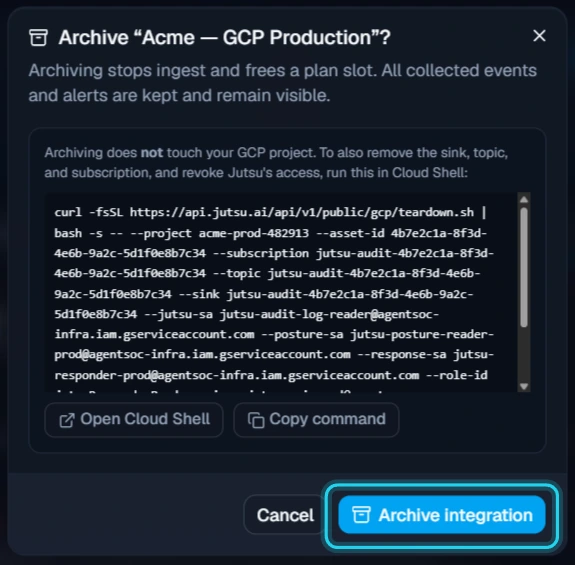
Open the connection, go to Configure → Danger zone, and select Archive integration. Disable ingestion pauses it instead and keeps everything in place.
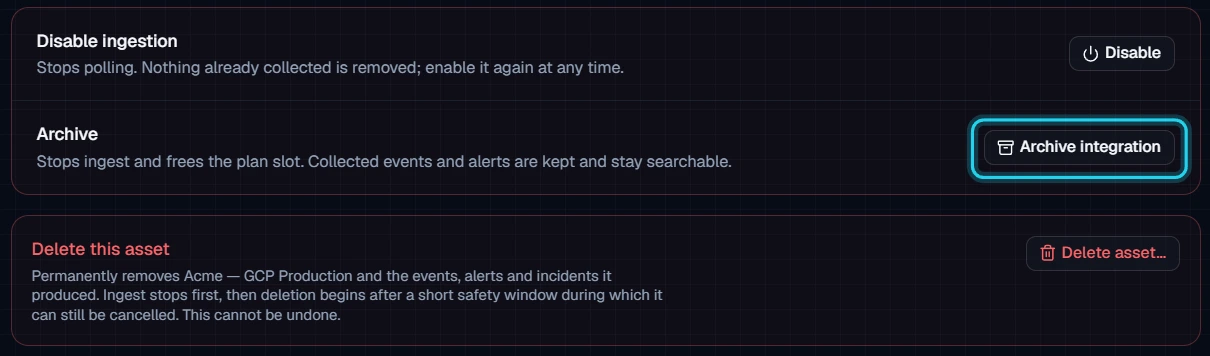
The confirmation already shows the cleanup command. Select Archive integration. Ingest stops, and the plan slot is freed. Events and alerts already collected stay searchable.
Step 2 - Run the cleanup command in Cloud Shell
The Integration archived dialog shows the cleanup command. Select Copy command, then Open Cloud Shell, paste it, and press Enter.
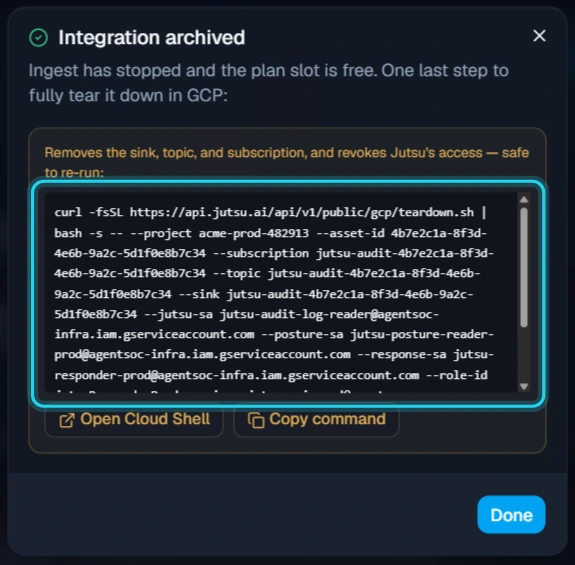
It deletes the audit-log sink, the subscription, and the topic that this connection created, and removes Jutsu's read access. Anything it didn't create is left alone.
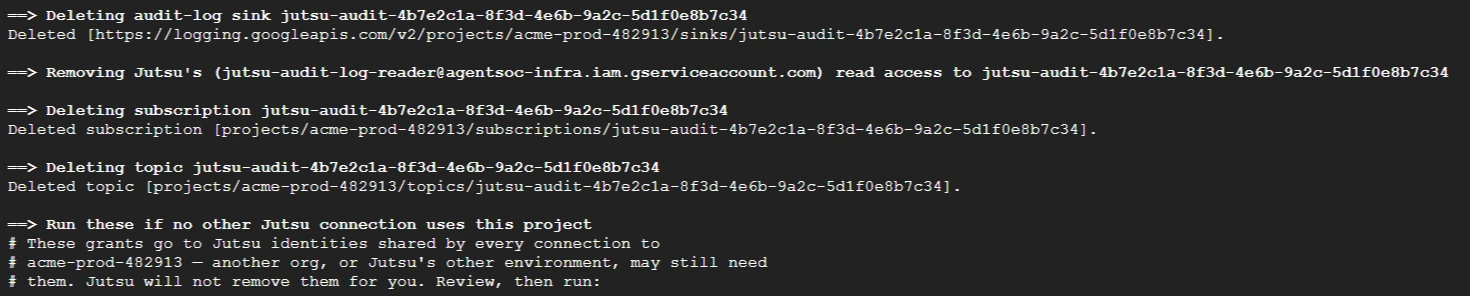
The script then prints, but doesn't run, the commands that remove Jutsu's project-level grants: machine discovery, the responder role, and the verifier role. Other Jutsu connections to the same project may still need them. If none do, run the printed commands too. It ends with Done — what this integration created in … is gone.