Connect Your Stack -- Integrations
Integrations is the plumbing that connects AgentSOC to the rest of your environment: data sources that send events in, threat intelligence providers that enrich alerts automatically, cloud platforms that execute response actions, and communication channels that notify your team. Without at least one active SIEM connection, nothing appears in the platform.
Path: Integrations in the left sidebar. Six sub-sections: SIEM, SOAR, Threat Intel, Ticketing, Communication, API Keys.
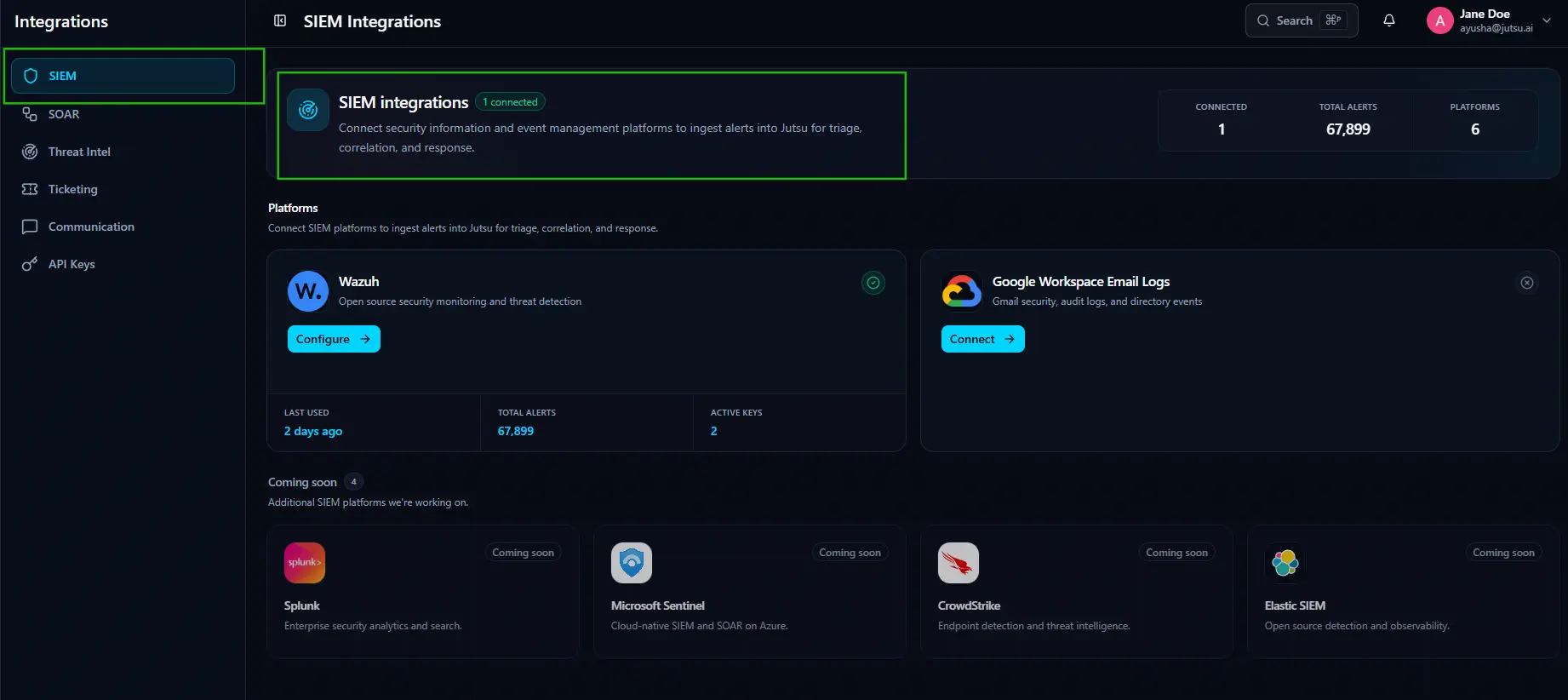
SIEM -- Where Your Data Comes From
SIEM stands for Security Information and Event Management. It is the system that collects raw security logs from your organization -- authentication events, file access, email activity, network connections -- and feeds them to AgentSOC for analysis. Without it, the platform has no data to work with.
Wazuh
Wazuh is an open-source SIEM that collects security logs from your servers and endpoints. This page is where you connect your Wazuh deployment to Jutsu/AgentSOC so that alerts flow from Wazuh into the platform automatically. It is the primary SIEM. Its card shows the Active badge, Last Used timestamp, total alerts ingested since connection, and active API key count.
Click Configure to manage settings, rotate API keys, or check health.
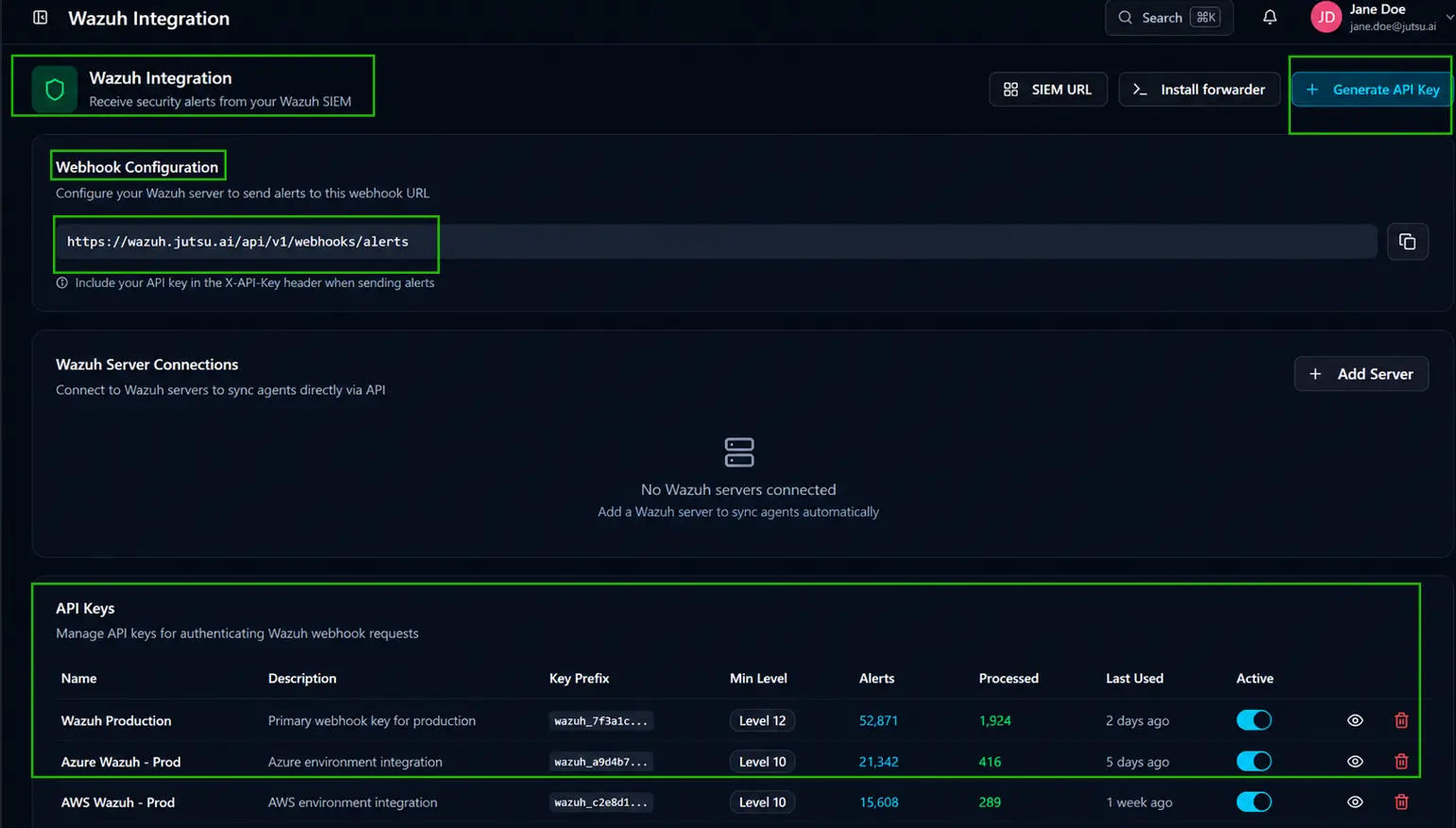
Wazuh Integration
There are two ways to connect Wazuh: via webhook (Wazuh pushes alerts to Jutsu/AgentSOC using an API key) or via server connection (Jutsu connects directly to your Wazuh server via API to sync agents). Most deployments use the webhook method.
Three buttons sit in the top right:
- SIEM URL -- Shows the URL of your connected Wazuh SIEM instance.
- Install forwarder -- Opens instructions for installing the Wazuh forwarder on your server.
- Generate API Key -- Creates a new API key. You will need this before configuring the webhook on your Wazuh server.
Webhook Configuration
This section gives you the webhook URL that your Wazuh server needs to send alerts to. Copy the URL using the copy icon on the right. Then configure your Wazuh server to forward alerts to this URL, and include your API key in the X-API-Key header of each request. Once configured, alerts from Wazuh will begin appearing in Jutsu automatically.
Wazuh Server Connections
Instead of using a webhook, you can connect your Wazuh server directly via API. This allows Jutsu to sync Wazuh agents automatically. Click Add Server to add a new server connection. When no servers are connected, the section shows "No Wazuh servers connected."
API Keys
API keys authenticate the webhook requests coming from your Wazuh server. Each key controls which alerts are accepted and tracks how many have been processed. The table shows all active and inactive keys with the following columns:
- Name -- The display name of the API key.
- Description -- An optional note describing what this key is used for.
- Key Prefix -- A truncated preview of the key for identification without exposing the full value.
- Min Level -- The minimum Wazuh alert severity level this key accepts. Alerts below this level are ignored and not sent to the pipeline.
- Alerts -- The total number of alerts received through this key.
- Processed -- The number of those alerts that were successfully processed by the pipeline.
- Last Used -- How long ago this key last received an alert.
- Active toggle -- Enables or disables the key. When toggled off, alerts sent with this key are rejected.
- View icon -- Reveals the full API key value.
- Delete icon -- Permanently removes this key.
Google Workspace Email Logs
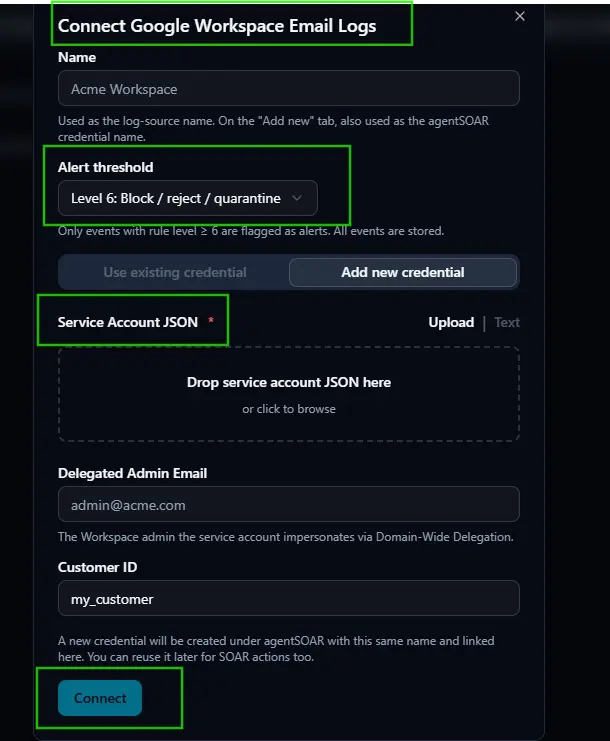
Clicking Connect on the Google Workspace Email Logs card opens a setup modal. This walks you through linking your Google Workspace account so that email security events and audit logs flow into Jutsu/AgentSOC.
The modal contains the following fields:
Name
The display name for this connection. It is used as the log-source name across the platform and, if you are adding a new credential, also becomes the AgentSOAR credential name. Choose something descriptive so you can identify it later.
Alert threshold
Controls which events are flagged as alerts. Only events with a rule level at or above the selected threshold are processed as alerts. All events are stored regardless of this setting. The default is Level 6: Block / reject / quarantine.
Credential
Two tabs let you choose how to authenticate:
- Use existing credential -- Select a Google Workspace credential you have already configured in AgentSOAR.
- Add new credential -- Create a new credential by providing the following:
Service Account JSON
Upload or paste the JSON file for your Google Cloud service account. This is the credential that gives Jutsu/AgentSOC access to your Google Workspace audit logs. Either drag and drop the file into the upload area, click to browse for it, or switch to the Text tab to paste the JSON directly.
Delegated Admin Email
The email address of the Google Workspace administrator account the service account will impersonate via Domain-Wide Delegation. This account must have the necessary permissions to access audit logs.
Customer ID
Your Google Workspace customer ID. The default value is my_customer, which automatically resolves to your own organization's ID.
A note below the Customer ID field confirms that a new credential will be created under AgentSOAR with the same name and linked here, so you can reuse it for SOAR response actions later.
Click Connect to complete the setup.
- Click SIEM in the Integrations sidebar.
- Find the Google Workspace Email Logs card and click Connect.
- Follow the wizard. You will need to authorize Jutsu/AgentSOC via the Google Admin SDK.
- Click Test Connection, then Activate. Email security events and audit logs start flowing shortly after.
Coming soon
Splunk, Microsoft Sentinel, CrowdStrike, and Elastic SIEM are coming soon.
SOAR -- Automated Response
SOAR (Security Orchestration, Automation, and Response) controls which engine handles automated actions when the AI decides to respond.
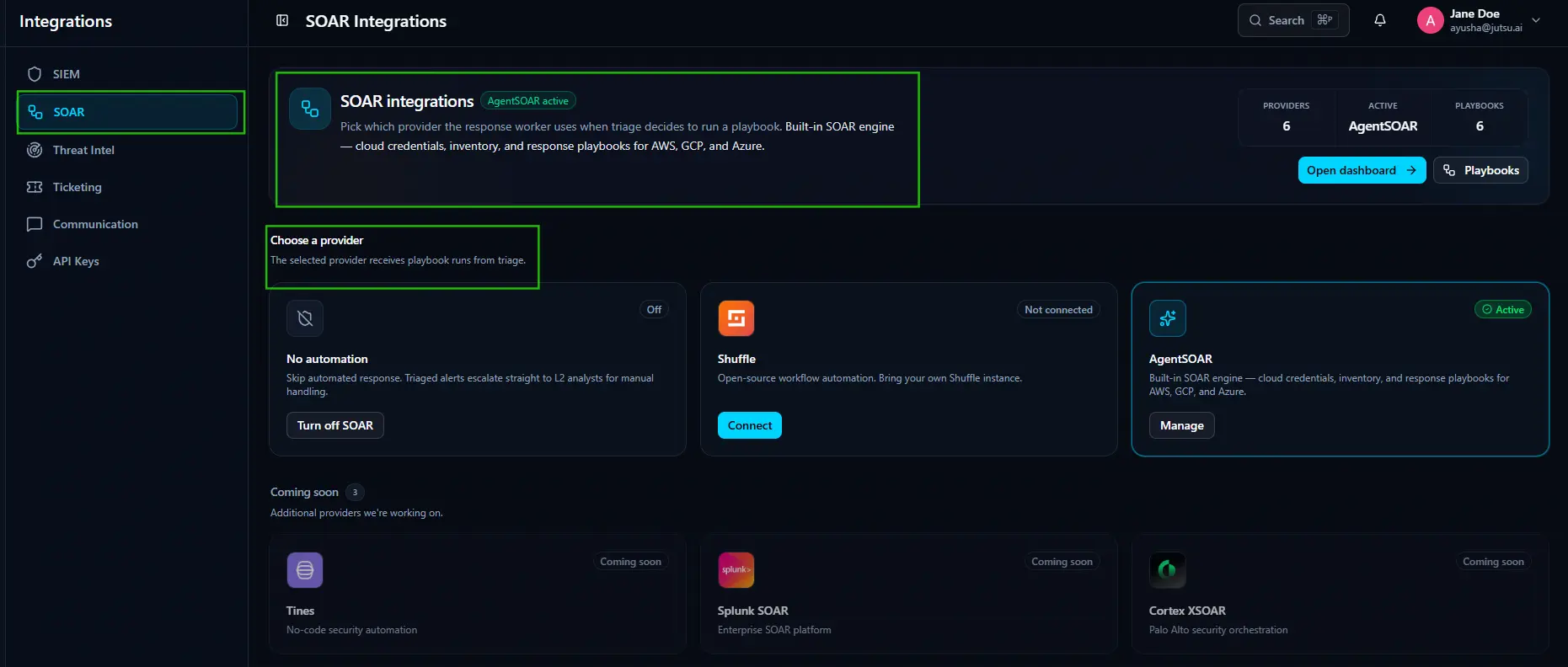
SOAR Integrations
The SOAR Integrations page is where you choose which response engine handles automated actions when the AI decides to run a playbook after triaging an alert. Only one provider can be active at a time. The selected provider receives all playbook runs from triage.
The header shows three counters:
- Providers -- The total number of available SOAR providers.
- Active -- The currently selected and active provider.
- Playbooks -- The total number of playbooks available in the active provider.
Two buttons sit on the right:
- Open dashboard -- Takes you directly to the AgentSOAR dashboard.
- Playbooks -- Opens the list of available playbooks in the active provider.
Choose a provider
Three providers are available now:
- No automation -- Disables automated response entirely. Triaged alerts escalate straight to L2 analysts for manual handling. Click Turn off SOAR to switch to this mode.
- Shuffle -- Open-source workflow automation for organizations running their own Shuffle instance. Click Connect to link it.
- AgentSOAR -- The built-in SOAR engine with cloud credentials, inventory, and response playbooks for AWS, GCP, and Azure. This is the recommended option for most deployments. Click Manage to configure it.
Coming soon
Three additional providers are in development:
- Tines -- No-code security automation.
- Splunk SOAR -- Enterprise SOAR platform.
- Cortex XSOAR -- Palo Alto security orchestration.
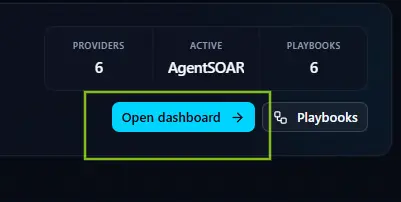
Click Open dashboard to go directly to the AgentSOAR dashboard, or click Playbooks to view available playbooks.
Admin only: Only organization administrators can change the SOAR provider. This setting affects how every alert in the platform is handled.
Threat Intel -- Nine Intelligence Providers
External feeds enrich alerts during the enrichment worker stage with reputation, malware context, vulnerability data, and geolocation. Results appear on the Enrichment tab of every alert. The page shows three counters: Providers (9 total), IOC Types (6), and Stage (Enrichment).
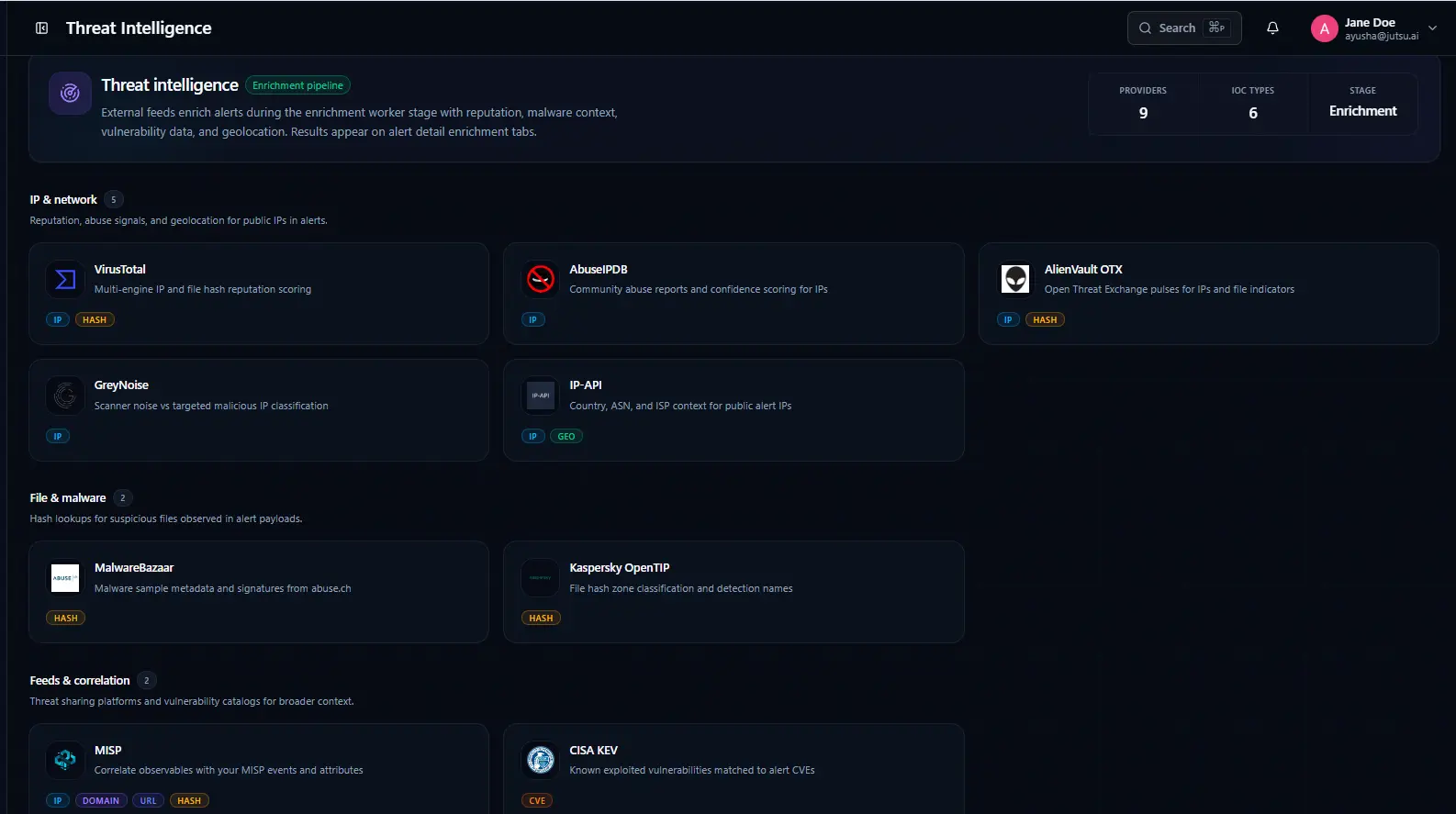
Providers are grouped into three categories.
IP & network (5 providers)
VirusTotal - Multi-engine IP and file hash reputation scoring. Checks observables across dozens of antivirus and security engines simultaneously. Covers IP and HASH indicators.
AbuseIPDB - Community abuse reports and confidence scoring for IPs. Draws from reports submitted by security professionals worldwide. Covers IP indicators.
AlienVault OTX - Open Threat Exchange pulses for IPs and file indicators. Global threat intelligence contributed by a researcher community. Covers IP and HASH indicators.
GreyNoise - Scanner noise vs targeted malicious IP classification. Distinguishes mass internet background scanners from IPs actively targeting your environment. Covers IP indicators.
IP.API - Country, ASN, and ISP context for public alert IPs. Returns geolocation and network ownership data. Covers IP and GEO indicators.
File & malware (2 providers)
Hash lookups for suspicious files observed in alert payloads.
MalwareBazaar - Malware sample metadata and signatures from abuse.ch. Covers HASH indicators.
Kaspersky OpenTIP - File hash zone classification and detection names. Covers HASH indicators.
Feeds & correlation (2 providers)
Threat sharing platforms and vulnerability catalogs for broader context.
MISP - Correlate observables with your MISP events and attributes. Covers IP, DOMAIN, URL, and HASH indicators.
CISA KEV - Known exploited vulnerabilities matched to alert CVEs. A match means the vulnerability is being actively exploited in the wild right now. Covers CVE indicators.
Ticketing -- Coming Soon
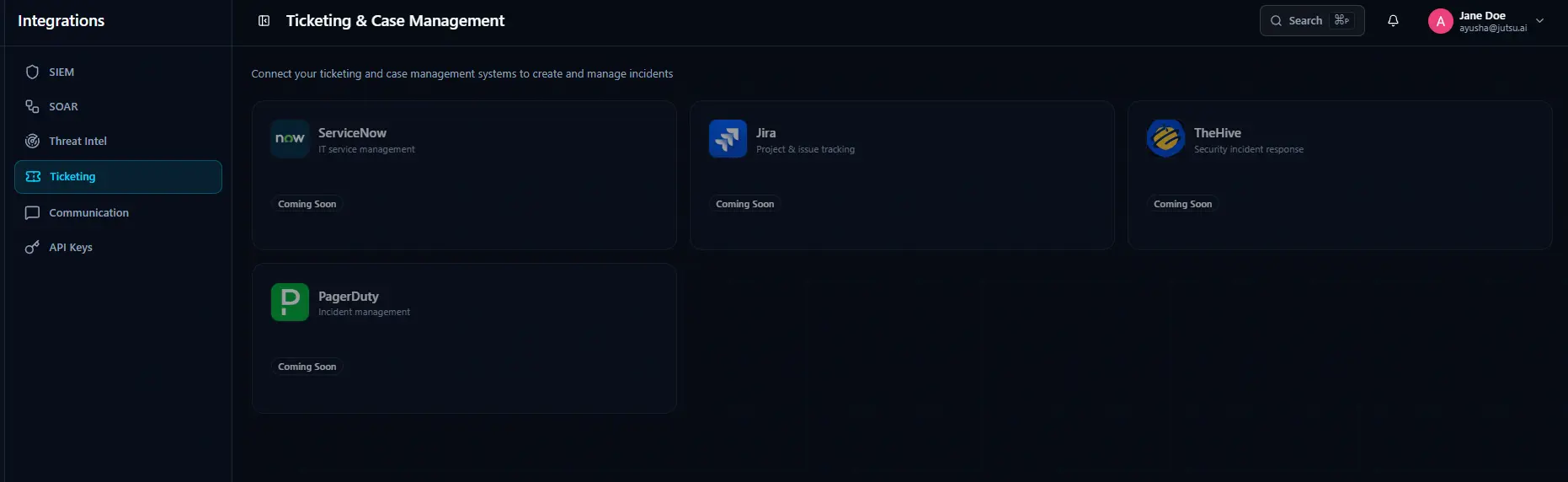
ServiceNow, Jira, TheHive, and PagerDuty integrations are on the roadmap. Creating a case in Jutsu/AgentSOC will automatically open a corresponding ticket in your existing system.
Communication -- Notifications
Four notification channels are available. Each channel can be configured independently.
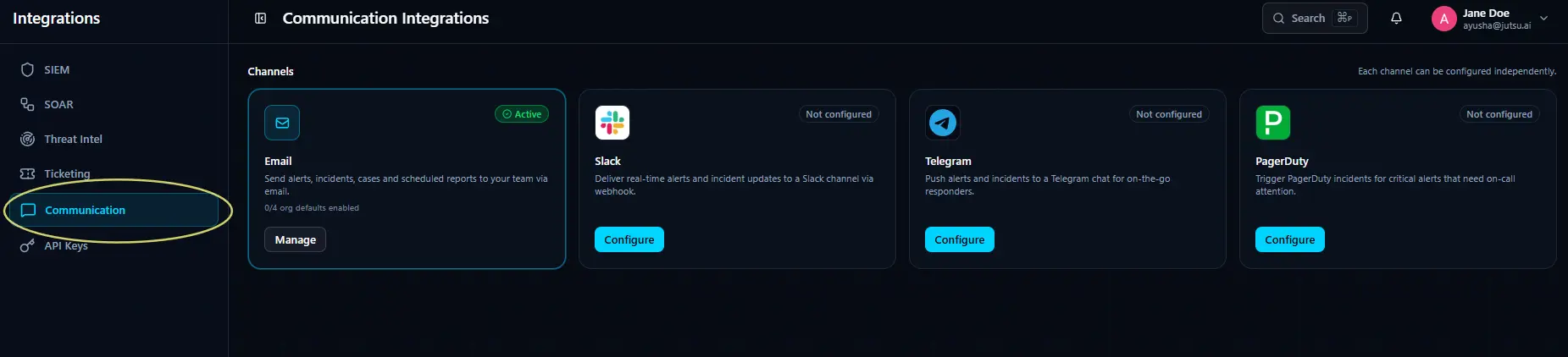
Email -- Sends alerts, incidents, cases, and scheduled reports to your team via email. Click Manage to set which event types trigger emails and which recipients receive them.
Slack -- Delivers real-time alerts and incident updates to a Slack channel via webhook.
Telegram -- Pushes alerts and incidents to a Telegram chat for on-the-go responders.
Coming soon:
PagerDuty -- Triggers PagerDuty incidents for critical alerts that need on-call attention.
WhatsApp -- Pushes alerts and incident updates to a WhatsApp chat.