
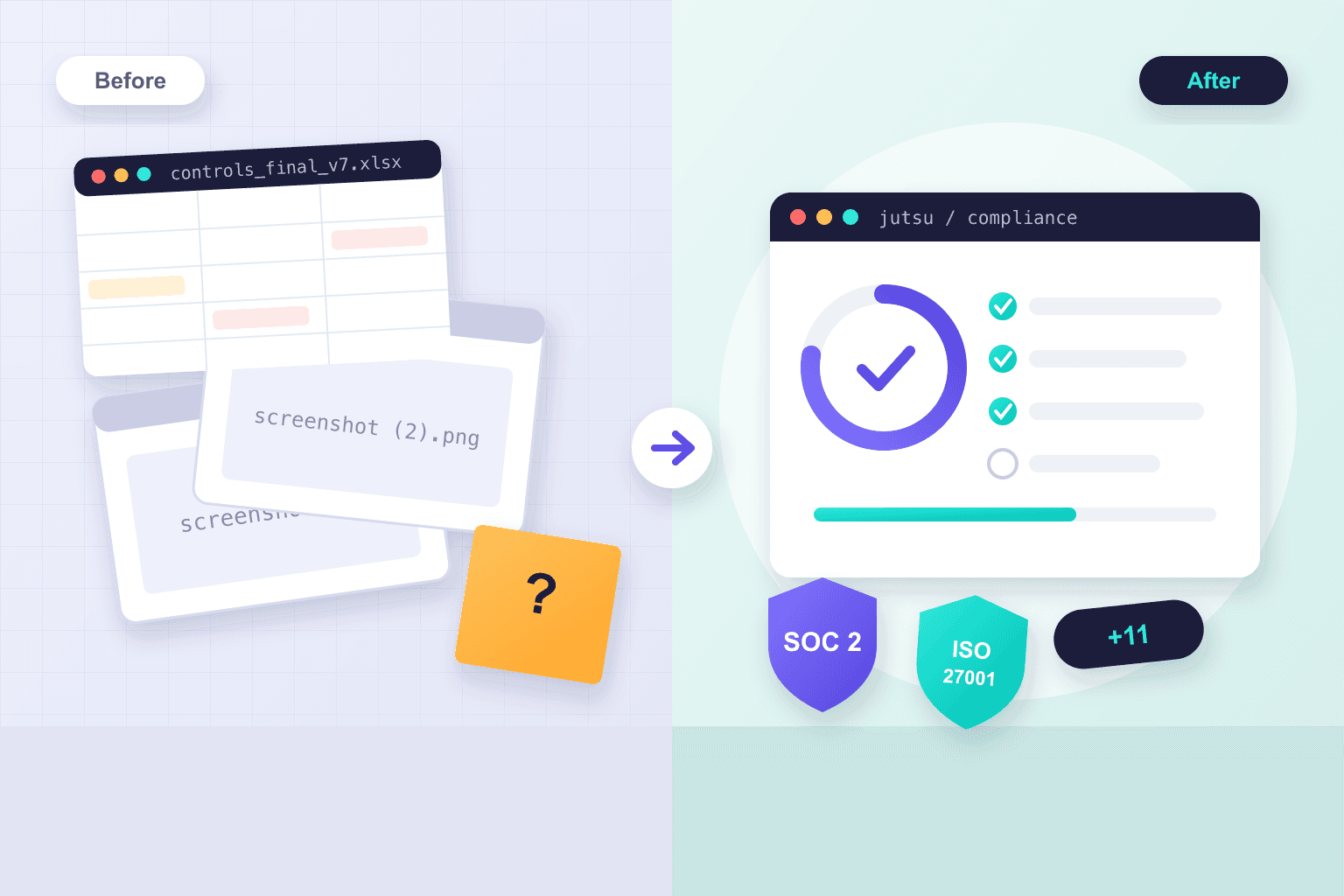
A customer asks for your SOC 2 report, you don’t have one, and you need to know where to start. This guide walks through Jutsu’s Compliance module one screen at a time, from a brand-new workspace to audit-ready: setup, policies, recurring evidence, daily checks on your systems, your readiness score and the audit itself.
Every screenshot is from a real workspace, Jutsu Inc., that we set up from scratch for this guide. The one exception is marked as example data. Prefer video? Watch the full 11 minute walkthrough on YouTube.
Key takeaways
- Setup asks 13 questions, one per screen. For SOC 2 plus ISO 27001, our example company got 32 policy drafts, 86 recurring evidence tasks and 25 company records in under 4 minutes.
- Nothing setup creates is published, assigned or accepted until a person acts on it.
- Controls are shared across frameworks, so one control can meet SOC 2 and ISO 27001 requirements at once.
- Connected systems are checked every day, and one readiness score shows exactly how it’s counted.
Before you start
You need three things:
- A Jutsu workspace on a paid plan. Compliance comes with every paid plan, and every paid plan includes all 13 frameworks. The Free plan doesn’t include it.
- Admin access. Only an admin can run compliance setup.
- Time for 13 short questions. Answers save as you go, so you can stop and come back later on any device.
It helps to have a few facts ready: who runs the company and their titles, who will sign for the company at the audit, how your team signs in to work apps, where your product runs, and the main software your team uses.
Step 1: Create your workspace
Sign up at jutsu.ai. On the first onboarding screen, pick Prepare for compliance. This tells Jutsu what you’re here for.

Next, tell Jutsu about your company: its name, its domain, what it does and how big it is. Then choose where your data should live and pick a plan. Every paid plan includes all frameworks.

Step 2: Open Compliance and start setup
Compliance sits in the console’s left sidebar, next to your security work, because it reads the same data. The first time you open it, there’s one thing to do. Click Set up compliance.

Step 3: Answer the 13 setup questions
Setup asks 13 questions, one per screen. Every answer changes what Jutsu builds, so here is what each one does. (Your company name and website come from the workspace, which is why there are 13 and not 15.)
Question 1: Which frameworks do you need?
Pick the frameworks your customers ask for. For most startups that’s SOC 2, often with ISO 27001. Jutsu sets each framework up the moment you continue: its requirements, its controls, its policy drafts and its recurring tasks. Nothing is published yet.
The panel on the right keeps track of the program you’re building. For SOC 2 plus ISO 27001, setup prepared 32 policy drafts, 86 recurring tasks and 25 company records.

Tip: if you need two frameworks, pick both now. Controls are shared between frameworks, so work you do once counts for both.
Questions 2 to 4: Your company
Describe what your company does in two or three sentences, the way you’d explain it to a new customer. Jutsu tries to draft this from your website, and if it can’t, you write it yourself. Jutsu AI uses this to tailor your policy drafts, so be specific.

Then pick your industry and enter roughly how many people work at the company. A rough number is fine.
Question 5: Where does your team work?
One office, several offices, office and home, or fully remote. This decides which office and remote-work rules go into your policies.

Questions 6 and 7: Who runs the company, and who signs at the audit
List the people at the top with their titles. Your policies name them as the people responsible. Then choose who signs for the company at the audit, usually the chief executive. Your auditor asks this person to confirm what you’ve told them.

These people answers stay with you and your auditor. They’re never sent to an AI model.
Questions 8 and 9: Sign-in and hosting
Pick how your team signs in to work apps (Google Workspace, Microsoft 365, Okta and others), and your policies will name it. Then pick where your product runs. Each provider you pick becomes a vendor to check.

Question 10: What other software does your team use?
Search a directory of 170 apps or type your own. Each one becomes a vendor for you to check. This is the only question you can skip and come back to later.

Questions 11 to 13: Devices, data and storage
Pick the devices your team works on (this sets what the device rules in your policies cover), the kinds of data you handle, and where your data is stored. For storage, think of where your servers and backups are, not where your customers live.
Step 4: Check your answers and start setup
The last screen shows every answer, grouped. Click any row to change it.

If you’re the only admin, tick Assign every recurring task to me. Every task starts with you, and you hand them out later as the team grows. Then click Start setting up.

Step 5: Let Jutsu build your program
Jutsu now builds the program in six steps:
- Drafts your policies, filling in your company facts and rewording the instructions to match how you work, without weakening any rule.
- Adds the vendors it found in your answers.
- Suggests risks.
- Links those risks and vendors to your recurring work.
- Drafts treatment plans where there’s something to plan.
- Writes the company description your auditor reads first.
For our example company this took under four minutes, and you can leave the page while it runs. When it’s done, Setup shows what it built. If your company changes a lot later, come back and click Run setup again.

Nothing is published, assigned or accepted yet. Everything waits as a draft or a suggestion until a person acts on it.
Step 6: Understand frameworks, requirements and controls
Before you start the work, it helps to know how the pieces fit together:
- A framework, like SOC 2, is a list of requirements.
- A requirement is met by controls.
- A control is met by work: a policy, a recurring evidence task, or a company record.
Open a framework from the sidebar to see how far along you are and what’s left.

Open a requirement to see a plain-language summary of what it asks for, and the controls that meet it. Here, SOC 2 CC6.1 (logical access security) is met by 10 controls.

Open a control to see the work behind it and every requirement it meets, grouped by framework. “MFA enforced for all users” counts for SOC 2 CC6.1 and ISO 27001 A.8.5 at the same time, so finishing its work moves both frameworks.

The rules are simple. A control is done when all of its work is done. A requirement is met when every control under it is done. A control with no work linked to it is flagged as a gap.
Step 7: Finish and publish your policies
Go to All work → Policies. Setup has already drafted every policy your frameworks need, written around your answers.

Open a policy. Anything still missing is marked as a blank, and a policy can’t go for approval until every blank is filled. Type the right words into the policy text in place of each blank, and the warning clears as you go.

When the draft is ready, click Send for approval. The approver signs off on that exact text, and it can’t be the person who edited it last, unless you’re the only admin. In that case you approve it yourself and the record says so.

Once it’s approved, click Publish. Version 1 goes into force with its next review date set. Every policy shows which controls and frameworks it counts for, so each one you publish moves real requirements forward.

Policies your team must sign appear in each person’s own portal. They open the policy, read it, tick the box and sign. Jutsu records their name, the date and the version.

Step 8: Do the recurring evidence work
Go to All work → Evidence. Evidence is a set of recurring tasks: some monthly, some quarterly, some yearly. Each period gets its own record.
Open a task to see what this period needs, how to do it, who owns it, and which controls it proves. Finish it by clicking Add evidence (upload a file or write a note), then Mark as done.

The period is now done, and the next one starts on its date. Closed periods never change. If a period ends before the work is done, it’s marked missed and stays on the record.

Step 9: Keep your company records current
Go to All work → Documents. These are the records an audit asks for, like an access review. Some have a short form instead of a file upload. For an access review, you list the systems you reviewed, who reviewed them, how many accounts you checked and what you changed.

Send it for review. Once someone other than the author approves it, it counts for a set time (six months for an access review).
Step 10: Invite your team
Go to All work → People and click Invite people. Each person gets an email and their own short list: the policies to sign and the training to finish. People you invite use their own portal and don’t take a seat on your plan.

Step 11: Review risks and vendors
Go to All work → Risk register. Setup suggests risks based on your answers. Nothing is added until you click Add, and you can dismiss the ones that don’t apply.

Open a risk to decide what you’ll do about it. Jutsu AI can draft the treatment plan. Read it, then choose Use this plan, Edit first or Discard.

Then go to Vendors. Setup found the vendors in your answers. Add the ones you rely on.

For each vendor, Jutsu AI reads the vendor’s own security pages and drafts a check. It’s what the vendor says about itself, not proof, so edit anything that’s wrong and accept it. The next review is set a year out.

Step 12: Connect your systems so Jutsu checks them every day
Go to All work → Integrations. Each card shows how many of your evidence tasks that connection could keep up to date. For our example company, Amazon Web Services alone could keep 27 tasks current. Start with the system most of your work runs on. Each connection takes a few minutes, and Jutsu only reads.

Once connected, Jutsu checks your systems every day: AWS, Google Cloud, GitHub, Google Workspace, Cloudflare, Railway, Vercel and server hardening. Each check gives each resource a pass, a fail, or not applicable, and the results feed your evidence tasks. When something fails, Cloud checks shows why it matters, what the scan saw, and the steps to fix it, in the console or on the command line. Jutsu AI can prepare the fix, and a person approves it before anything changes.

Step 13: Track your readiness score
The Overview shows one number: how far along you are to the frameworks you picked. Click How this is measured to see exactly how it’s counted. It’s the average of four parts: policies, evidence, documents and people.

The score counts work your team has finished, not audit results, and anything marked not relevant is left out. Our example company went from 0% to 2% on its first day after one published policy, one finished evidence task and one approved access review. Under the score, Next up lists what needs you next, with due dates.
Step 14: Prepare for the audit
When you’re getting close, start an audit timeline from the framework page or Audit timelines. Pick a start date, and Jutsu lays out the phases back to back.

Each phase shows its dates and what “done” means. Many phases track themselves, such as how many policies are in force.

Then set up the rest of the audit:
- Auditors: invite your auditor. They see only the frameworks you pick, until the date you set, and never your security tools. Auditors use no seat.

- Trust center: a public page for your customers with your badges, where they can request your private documents and you approve who sees what. Four steps get it published.

- Questionnaires: upload a customer’s security questionnaire, and Jutsu AI drafts each answer from your own policies and documents, citing its source. Nothing goes back until you approve it.

Quick checklist
- Pick a paid plan and run setup (13 questions).
- Pick every framework you need at the start, so shared work is done once.
- Fill the blanks in your policies, then send them for approval and publish them.
- Invite your team so they can sign policies and finish training.
- Add the suggested risks and vendors that apply, and accept their checks.
- Connect your cloud and code so daily checks collect evidence for you.
- Close each evidence period on time.
- Start your audit timeline, invite your auditor, and publish your trust center.
The bottom line
The first day gets you a program: drafts, tasks and records, all waiting for a person. Getting audit-ready is the work that follows, period after period, and the score only moves when that work is real. Compliance comes with every paid plan, and for how Jutsu’s security side adds evidence too, read SOC 2 for startups.
FAQ
How long does SOC 2 setup take in Jutsu?
Setup is 13 questions, and the build that follows took under four minutes for our example company. That gives you a full program of drafts, tasks and records. Getting audit-ready still takes the work itself: publishing policies, closing evidence periods and fixing what the daily checks find.
Can I set up SOC 2 and ISO 27001 at the same time?
Yes. Pick both in the first setup question. Controls are shared, so a control like “MFA enforced for all users” meets SOC 2 CC6.1 and ISO 27001 A.8.5 at once.
What if I’m the only admin?
You can assign every recurring task to yourself during setup and approve your own policy changes. Jutsu records that you approved your own change, and when a second admin joins, they approve your changes instead.
Does Jutsu replace my auditor?
No. An independent auditor still performs the audit and issues the report. Jutsu gives them a read-only view of the frameworks and dates you choose and tracks their findings to closure.
Which frameworks are included?
SOC 2, ISO/IEC 27001, ISO/IEC 42001, ISO 9001, HIPAA, GDPR, PCI DSS, CCPA/CPRA, CIS Controls (IG1), NIST CSF, NIS2, Essential Eight and Cyber Essentials. Every paid plan includes all 13.